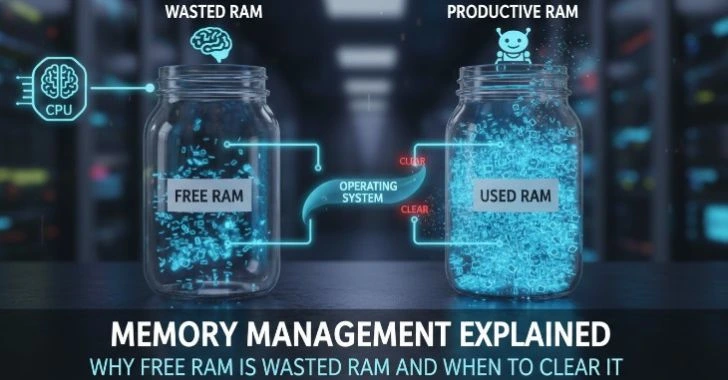
Your computer is more than just a device it is the central hub of your daily work, communication, creativity, and organization. Whether you are a student, remote worker, entrepreneur, or gamer, a slow and cluttered system can quietly reduce your efficiency and waste valuable time. That’s why learning how to optimize your computer for maximum daily productivity is no longer optional it is essential for staying focused, organized, & ahead of your tasks.
From improving system speed and managing startup programs to organizing files and reducing distractions, small adjustments can make a huge difference in how smoothly your day runs. A well-optimized computer not only boosts performance but also helps you maintain better concentration, faster workflow, and a more stress-free digital experience.
Why Computer Performance Matters for Daily Productivity

Computer performance influences nearly every modern task. When systems operate smoothly, users can maintain focus, complete assignments faster, and reduce unnecessary stress. On the other hand, constant lag, freezing applications, delayed loading times, and system interruptions break concentration and reduce work quality.
Slow Systems Create Productivity Bottlenecks
Many people underestimate how much time is lost because of slow performance.
Consider common daily interruption.
- Waiting for programs to launch
- Delayed file transfers
- Browser tabs freezing
- Slow cloud synchronization
- Long startup times
- Video conferencing lag
- System updates interrupting work
Individually, these delays seem minor. Combined over weeks and months, they become major productivity obstacles.
A computer with optimized performance allows users to transition between tasks smoothly without constant interruptions. This improves workflow continuity and helps maintain mental focus for longer periods.
Faster Systems Improve Multitasking
Modern productivity depends heavily on multitasking.
A typical workflow may include.
- Web browsers with multiple tabs
- Document editing software
- Communication apps
- Spreadsheet management
- Media streaming
- Cloud storage synchronization
- Online meetings
Without proper optimization, these activities compete for system memory and processing power. As resource usage increases, overall responsiveness declines.
Efficient resource management ensures smoother multitasking and reduces the chances of applications crashing or becoming unresponsive.
Better Performance Reduces Mental Fatigue
Technology frustration contributes to mental exhaustion more than many users realize. Repeated technical slowdowns interrupt concentration and create unnecessary stress.
An optimized computer environment helps users
- Stay focused longer
- Complete tasks faster
- Maintain workflow consistency
- Reduce frustration during work
- Improve task completion rates
This is especially important for remote workers, students, content creators, and business professionals who rely heavily on digital productivity.
Productivity Depends on Reliability
Performance is not only about speed. Reliability also matters. Frequent crashes, overheating, storage issues, and unstable internet performance reduce trust in the system.
A reliable computer encourages efficient scheduling and consistent work habits. Users can focus on tasks instead of troubleshooting technical problems throughout the day.
Remove Unnecessary Files and Unused Programs
One of the simplest ways to improve computer performance is removing clutter that accumulates over time. Unnecessary files consume storage space, reduce system efficiency, and slow down overall responsiveness.
How Digital Clutter Builds Up
Most users install programs, download files, save media, and create temporary documents daily. Over months and years, these items build up silently.
Common sources of unnecessary storage usage include
- Temporary internet files
- Duplicate downloads
- Old installation packages
- Unused applications
- Large media files
- Cached application data
- Outdated backups
- Recycle bin contents
When storage becomes overloaded, operating systems struggle to manage files efficiently. This can lead to slower performance and longer loading times.
Why Storage Space Matters
Modern operating systems need free space to function efficiently.
Low storage capacity affects
- Virtual memory operations
- Software updates
- File indexing
- Background maintenance tasks
- Application responsiveness
Solid-state drives especially perform better when sufficient free space is available. Keeping at least 15–20% free storage helps maintain healthy system performance.
Remove Programs You No Longer Use
Many computers contain applications that are rarely or never used. Some programs also continue running background services even when not actively opened.
Removing unused software helps
- Free storage space
- Reduce background resource usage
- Improve startup speed
- Simplify system management
Users should periodically review installed applications and uninstall programs that no longer serve a purpose.
Organize Large Files
Large files such as videos, archived projects, and media collections can consume massive amounts of storage.
Better file management practices include
- Moving archived files to external storage
- Deleting duplicate content
- Compressing older files
- Organizing folders logically
A cleaner file system improves navigation speed and reduces wasted time searching for important documents.
Optimize Startup Programs for Faster Performance

Startup optimization is one of the most effective ways to improve boot times and daily responsiveness.
Many applications automatically launch during startup even when users do not need them immediately. These background startup processes consume memory, processing power, and storage activity from the moment the computer turns on.
Why Startup Programs Slow Down Computers
Each startup application requests system resources during boot. When too many programs launch simultaneously, startup performance declines significantly.
Common startup applications include
- Messaging platforms
- Cloud synchronization services
- Media players
- Background utilities
- Browser launchers
- Device monitoring software
Some computers may load dozens of startup processes unnecessarily.
Benefits of Startup Optimization
Reducing startup load provides several advantages
- Faster login times
- Improved desktop responsiveness
- Reduced memory usage
- Lower CPU activity
- Better battery efficiency on laptops
Users often notice immediate improvements after disabling unnecessary startup items.
Prioritize Essential Applications
Not every startup program should be disabled. Important security services, audio drivers, and necessary synchronization tools may still need automatic startup access.
The goal is balance. Keep essential services active while removing nonessential applications from automatic launch behavior.
Monitor Startup Impact
Most operating systems now provide startup impact monitoring. This helps users identify which applications contribute most heavily to boot delays.
Programs marked with high startup impact are often strong candidates for optimization.
Keep Your Operating System and Drivers Updated
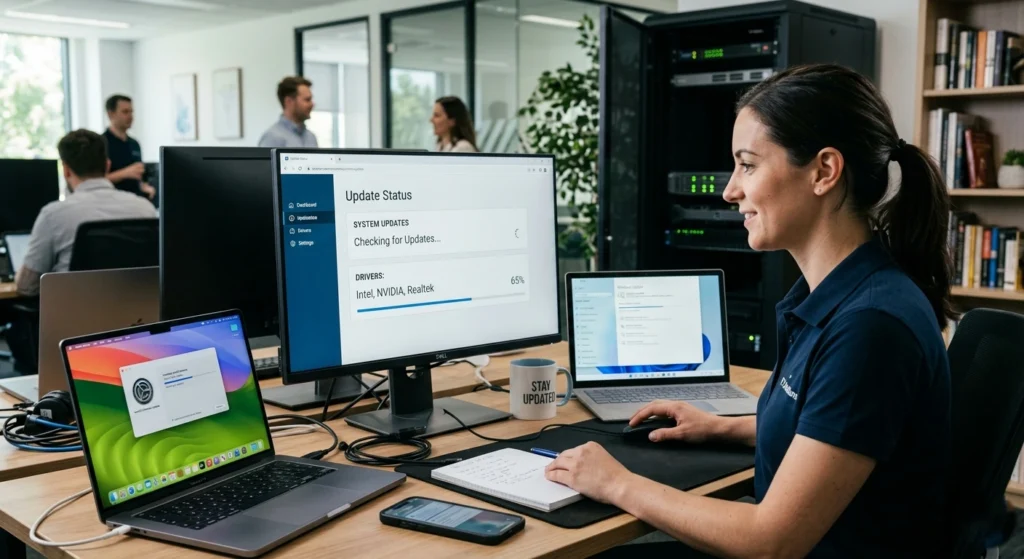
System updates are essential for maintaining performance, compatibility, stability, and security. Many users delay updates because they worry about interruptions, but outdated systems often create bigger long-term problems.
One of the simplest yet most effective ways to improve your computer performance and maintain daily productivity is by keeping your operating system and drivers updated.
Many users ignore update notifications, but these updates often include important security patches, bug fixes, performance improvements, and compatibility enhancements that help your system run more efficiently.
Why Operating System Updates Matter
Operating system updates improve
- Performance optimization
- Resource management
- Stability improvements
- Hardware compatibility
- Energy efficiency
- Security protection
Modern operating systems continuously refine performance algorithms to improve responsiveness and reliability.
Ignoring updates can eventually lead to slower performance and compatibility issues with newer software.
Driver Updates Improve Hardware Efficiency
Drivers allow hardware components to communicate properly with the operating system.
Important drivers include
- Graphics drivers
- Network drivers
- Audio drivers
- Storage controllers
- Chipset drivers
Outdated drivers may reduce performance or create instability problems.
Stability and Compatibility Improvements
Updated systems handle newer applications more efficiently. Compatibility improvements reduce crashes and improve multitasking behavior.
This is especially important for users running demanding workloads
- Video editing
- Graphic design
- Software development
- Large spreadsheets
- Virtual meetings
Schedule Updates Strategically
Automatic updates are useful, but scheduling them during non-working hours helps prevent workflow interruptions.
A proactive update strategy maintains long-term system health without affecting productivity.
Improve Speed with Hardware Upgrades
Software optimization helps significantly, but hardware limitations eventually become performance bottlenecks. Strategic hardware upgrades can dramatically improve responsiveness and productivity. If your computer feels slow even after software optimization, upgrading your hardware can significantly improve overall performance and daily productivity.
As modern applications become more demanding, older hardware may struggle to keep up, leading to lag, long loading times, and reduced efficiency. Investing in a few essential upgrades can give your system a noticeable speed boost without requiring a completely new computer.
Upgrade to Solid-State Storage
Replacing traditional hard drives with solid-state storage is one of the most impactful upgrades available.
Benefits include
- Faster startup times
- Quicker file access
- Improved application loading
- Better multitasking responsiveness
- Reduced system lag
Solid-state storage operates much faster than older mechanical drives and greatly improves daily user experience.
Increase System Memory
Insufficient memory causes systems to rely heavily on slower storage-based virtual memory.
Adding more RAM improves
- Multitasking capability
- Browser performance
- Application responsiveness
- Content creation workflows
- Virtual meeting stability
Users running multiple applications simultaneously benefit significantly from additional memory capacity.
Improve Cooling and Airflow
Heat negatively affects performance. When computers overheat, processors automatically reduce speed to prevent damage.
Better cooling improves
- Stable performance
- Component lifespan
- Gaming performance
- Video rendering efficiency
- Long-term reliability
Cleaning dust from vents and improving airflow often helps maintain consistent performance.
Consider Modern Processors
Older processors may struggle with modern workloads.
Newer processors provide
- Better multitasking efficiency
- Improved energy usage
- Faster data processing
- Enhanced integrated graphics performance
For professionals working with demanding applications, processor upgrades can significantly improve workflow efficiency.
Organize Your Desktop and Digital Workspace
A clean and organized digital workspace can have a major impact on your daily productivity and focus. When your desktop is filled with random files, unused shortcuts, and cluttered folders, it becomes harder to find important documents and maintain an efficient workflow. Organizing your computer not only improves accessibility but also creates a more distraction-free environment that supports better concentration.
Start by removing unnecessary files and arranging important documents into clearly labeled folders. Keep only essential shortcuts on your desktop can make navigation faster and reduce visual clutter. You can also use cloud storage services or external drives to store older files and free up valuable system space.
Why Desktop Organization Matters
An overloaded desktop creates visual distraction and slows navigation.
Too many icons, scattered files, and random folders make it harder to focus and locate important information quickly.
Clean organization improves
- Workflow speed
- File retrieval efficiency
- Mental clarity
- Workspace professionalism
Create Logical Folder Structures
Efficient folder organization saves time daily.
Helpful strategies include
- Organizing by project
- Using clear folder names
- Separating work and personal files
- Creating archive folders
- Maintaining consistent naming conventions
Users who manage files systematically spend less time searching and more time completing work.
Reduce Browser Tab Overload
Many users keep dozens of tabs open simultaneously, increasing memory usage and reducing concentration.
Better browser organization techniques
- Bookmarking research pages
- Grouping related tabs
- Closing inactive sessions
- Using reading lists
This reduces resource usage while improving focus.
Maintain a Clean Work Environment
Digital organization extends beyond files.
A productive workspace
- Organized task lists
- Clear calendar management
- Minimal distractions
- Simplified notification settings
The cleaner the environment, the easier it becomes to maintain concentration.
Manage Background Apps and System Resources
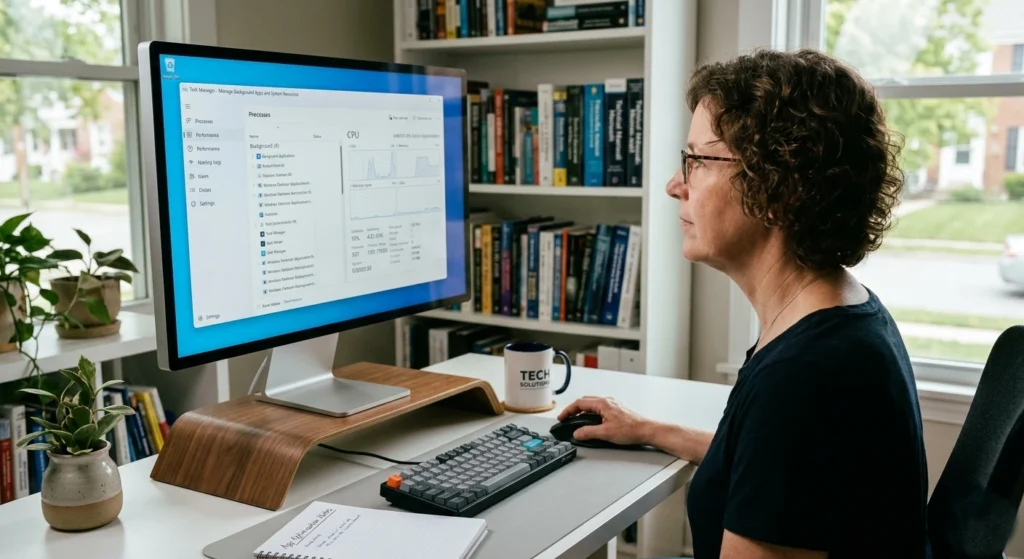
Background applications silently consume system resources even when users are not actively using them. Efficient resource management is essential for maintaining consistent performance. Even the most powerful computer can slow down if too many background apps and processes are running simultaneously.
These hidden programs consume valuable system resources like CPU power, memory, and battery life, leaving less capacity for the tasks that actually matter. Learning to manage background apps and system resources is key to maintaining peak performance and maximizing your daily productivity.
Hidden Resource Consumption
Some applications continue performing background activities.
- Synchronization
- Updates
- Notifications
- Data indexing
- Cloud uploads
Excessive background activity reduces available memory and processing capacity.
Monitor CPU and Memory Usage
Understanding resource usage helps identify performance problems.
Key areas to monitor
- High memory consumption
- Excessive CPU activity
- Disk usage spikes
- Network usage patterns
Applications consuming unusually high resources may need optimization or replacement.
Reduce Unnecessary Notifications
Constant notifications interrupt concentration and consume background resources.
Managing notification settings helps
- Stay focused
- Reduce distractions
- Improve task continuity
- Lower background activity
Silent interruptions often have larger productivity impacts than expected.
Balance Performance and Convenience
Some background applications provide useful functionality, such as cloud synchronization or communication alerts.
The goal is maintaining balance between convenience and performance efficiency.
Protect Your Computer from Malware and Security Threats
Security protection is essential for maintaining stable and reliable computer performance. Unsafe files, suspicious websites, and poor browsing habits can negatively affect system efficiency and compromise personal information.
Keep your computer safe from malware and security threats is essential for maintaining productivity and protecting your personal and professional data.
A system infected with viruses, or ransomware can slow down performance, cause unexpected crashes, or even result in data loss, disrupting your daily workflow and creating unnecessary stress.
Security Problems Reduce Productivity
Security-related issues often lead
- Slower system performance
- Unstable applications
- Browser problems
- File corruption
- Network instability
Preventive security habits protect both productivity and data integrity.
Use Trusted Security Practices
Strong computer protection
- Keeping security software updated
- Using secure passwords
- Enabling multi-factor authentication
- Avoiding suspicious downloads
- Verifying website legitimacy
These habits reduce risks while improving long-term system reliability.
Safe Browsing Habits Matter
Users should remain cautious
- Opening email attachments
- Visiting unfamiliar websites
- Sharing sensitive information
- Installing unknown applications
Awareness and responsible browsing practices play a major role in maintaining secure computing environments.
Backup Important Data Regularly
Regular backups protect against accidental file loss and unexpected system problems.
Effective backup strategies
- External storage backups
- Cloud synchronization
- Scheduled backup routines
- Multiple backup copies
Reliable backups reduce stress and improve recovery readiness.
Optimize Internet Speed and Network Performance
Internet performance strongly affects modern productivity. Slow or unstable connections disrupt communication, cloud access, video conferencing, and online collaboration. A fast and reliable internet connection is essential for maintaining productivity in today’s connected world.
Slow downloads, buffering videos, or unstable connections can disrupt work, delay communication, and create unnecessary frustration. Optimizing your internet speed & network performance ensures your computer runs smoothly and keeps you focused on your tasks.
Why Internet Speed Matters
Many daily activities depend on stable internet access
- Cloud document editing
- Remote work platforms
- Streaming educational content
- Video meetings
- Online research
- File sharing
Network slowdowns create delays that interrupt workflow efficiency.
Improve Router Placement
Router location significantly affects wireless signal quality.
For better coverage
- Place routers centrally
- Avoid physical obstructions
- Keep away from heavy electronics
- Elevate routers above floor level
Proper placement improves signal stability throughout the workspace.
Limit Network Congestion
Too many connected devices may reduce available bandwidth.
Network performance improves
- Disconnect inactive devices
- Reduce unnecessary streaming
- Schedule large uploads strategically
- Prioritize work-related traffic
Balanced bandwidth usage helps maintain consistent productivity.
Use Wired Connections When Possible
Wired connections often provide
- Lower latency
- More stable performance
- Faster transfer speeds
- Better reliability during meetings
For professional workloads, wired networking may improve consistency significantly.
Use Productivity Tools and Automation Software
Technology should simplify work instead of creating unnecessary complexity. Productivity-focused software helps users manage tasks more efficiently and reduce repetitive manual work.
Digital Productivity Depends on Workflow Efficiency
Many users waste time switching between tasks, searching for files, or repeating routine actions.
Automation and productivity systems help reduce
- Repetitive typing
- Manual scheduling
- File organization delays
- Workflow interruptions
Small workflow improvements can create large long-term productivity gains.
Task Management Improves Focus
Organized task management helps users
- Prioritize work
- Track deadlines
- Reduce mental overload
- Improve scheduling discipline
Structured workflows improve accountability and consistency.
Calendar and Reminder Systems
Time management becomes easier when reminders and schedules are properly organized.
Efficient calendar use helps users
- Avoid missed deadlines
- Balance workloads
- Schedule focused work sessions
- Reduce unnecessary multitasking
Good scheduling habits support sustainable productivity.
Automation Reduces Repetitive Work
Simple automation can streamline routine tasks
- File synchronization
- Scheduled backups
- Email organization
- Repetitive formatting
- Reminder creation
Reducing repetitive actions allows users to focus on more valuable work.
Best Practices to Maintain Long-Term Computer Performance
Optimizing your computer is not just about quick fixes it is about creating habits that keep your system running smoothly for years. Maintaining long-term performance ensures that your machine remains fast, reliable, and capable of handling daily tasks without frustration or frequent downtime.
Start with regular system maintenance, such as disk cleanup, defragmentation (for HDDs), and removing temporary files. Keep your operating system, drivers, and essential software up to date to benefit from performance improvements and security patches. Regularly scanning for malware and using reliable antivirus protection can prevent slowdowns caused by malicious programs.
Perform Regular Maintenance
Routine maintenance should
- Cleaning temporary files
- Reviewing startup applications
- Updating software
- Organizing files
- Monitoring storage space
Consistent maintenance prevents performance decline over time.
Restart Systems Regularly
Many users rarely restart their computers.
- Clear temporary memory usage
- Apply updates properly
- Refresh background services
- Improve system responsiveness
Simple restart habits often resolve minor performance issues.
Avoid Overloading Storage
Maintaining healthy free storage space improves long-term efficiency.
Users should regularly
- Remove outdated files
- Archive old projects
- Monitor large downloads
- Manage cloud storage properly
Efficient storage management supports smoother system operation.
Keep Hardware Clean
Dust buildup affects cooling performance and airflow.
Physical cleaning helps
- Reduce overheating
- Improve stability
- Extend component lifespan
- Maintain consistent performance
Proper care protects long-term hardware health.
Build Consistent Digital Habits
Long-term productivity depends heavily on daily habits.
Effective users often maintain
- Organized workspaces
- Structured schedules
- Minimal distractions
- Consistent backup routines
- Responsible browsing practices
Small daily habits compound into major productivity improvements over time.
Conclusion
Optimizing a computer for maximum daily productivity involves much more than increasing speed alone. True optimization creates a stable, organized, efficient, and reliable digital environment that supports focused work and smoother multitasking.
From cleaning unnecessary files and managing startup programs to improving hardware performance and organizing digital workspaces, every improvement contributes to a more productive workflow. Strong security practices, stable internet performance, and efficient resource management further enhance reliability and reduce daily interruptions.
Most importantly, optimization should become an ongoing habit rather than a one-time task. Computers perform best when users maintain them consistently through updates, organization, storage management, and responsible digital practices.
A well-maintained computer not only saves time but also improves concentration, reduces stress, and supports better long-term performance in both personal and professional tasks.