Android apps crashing after an update is a common problem that can disrupt your daily routine and affect your device’s performance. Whether an app suddenly closes, freezes, or refuses to open, these issues are often caused by software bugs, corrupted cache files, compatibility problems, or outdated system settings after a recent update.
most Android app crashing issues can be fixed with a few simple troubleshooting steps. from clearing app cache and updating software to reinstalling problematic apps and optimizing device settings, there are several effective ways to restore smooth performance.
Why Android App Crashing Issues

Android app crashes are one of the most frustrating problems smartphone users experience today. You open your favorite app, try to send a message, watch a video, check emails, or browse content, and suddenly the application closes without warning. In many cases, the issue starts immediately after a recent app update or Android system update. What makes this problem more annoying is that it can happen even on powerful smartphones with modern hardware.
The Android ecosystem is incredibly large compared to many other mobile operating systems. Thousands of device models from brands like Samsung, Xiaomi, OnePlus, Google Pixel, Oppo, Vivo, Motorola, and Realme run different Android versions with customized interfaces. Because of this diversity, app developers must optimize applications for many screen sizes, chipsets, memory configurations, and software environments.
When optimization is incomplete, instability issues may appear after updates. An app that worked perfectly yesterday may suddenly freeze, close unexpectedly, or stop responding today.
Many Android users think app crashes automatically mean their phone is damaged. In reality, most crashes are caused by software conflicts rather than hardware failure. Temporary cache corruption, low storage space, outdated system files, memory management issues, or incompatible app updates are among the most common reasons.
Another important factor is the growing complexity of modern Android applications. Apps today include cloud syncing, background notifications, AI-based features, advanced graphics rendering, live widgets, and location-based services. These advanced features increase resource usage, which can expose compatibility issues after updates.
Some common signs of Android app crashing problems.:
- Apps closing instantly after opening
- Black or white screens appearing before shutdown
- Freezing during login or loading
- Sudden restart of the app
- Slow response before crashing
- Apps stopping when switching between tasks
- Error messages saying the application keeps stopping
According to mobile analytics reports, application instability increases significantly during the first few days after major software updates because developers continue releasing patches to improve compatibility across devices.
Android app crashing issues can be fixed without replacing your phone or performing advanced technical procedures. Simple maintenance steps often restore normal performance quickly.
Understanding the real causes behind crashes is the first step toward solving them permanently.
Why Android Apps Crash After an Update
Software updates are designed to improve performance, security, battery efficiency, and compatibility. However, updates can sometimes create unexpected conflicts inside Android devices. This happens because updates change how apps interact with the operating system, device hardware, and stored data.
One major reason apps crash after updates is cache incompatibility. Android applications store temporary files called cache data to improve speed and loading times. After an update, old cached files may no longer match the new app structure. Instead of loading correctly, the app may freeze or close unexpectedly.
Another common reason is incomplete installation during the update process. If the internet connection becomes unstable while downloading updates, some application files may become corrupted. Even a small corrupted component can cause instability.
Compatibility Problems Between Android Versions and Apps
Sometimes developers optimize apps for the latest Android version while older devices still run previous versions. This creates compatibility gaps. Features that work smoothly on Android 15 may behave differently on Android 12 or Android 13.
In other situations, the opposite happens. A new Android system update may change permissions, background processing rules, or memory allocation methods, causing older apps to malfunction until developers release fixes.
Memory and Resource Conflicts
Modern apps require large amounts of RAM and processing power. After updates, resource usage may increase. Phones with limited memory can struggle to manage these changes, especially when many apps run simultaneously.
Some signs of memory-related crashes.
- Lag before app shutdown
- Device overheating
- Apps closing while multitasking
- Delayed touch response
- Frequent freezing
Low-end and older Android devices are particularly vulnerable because they have limited RAM and slower processors.
Storage Fragmentation and Insufficient Space
Apps need free storage to create temporary files during operation. If internal storage becomes nearly full, Android may fail to allocate enough space for proper app execution.
Experts generally recommend keeping at least 15% to 20% of device storage free for stable Android performance. When storage drops below safe levels, app crashes become more frequent.
Background Services Interference
Some battery-saving features aggressively restrict background activity. After updates, Android may apply stricter optimization settings automatically. This can interrupt app synchronization processes and cause instability.
Applications relying on continuous background services, such as messaging or streaming apps, are especially affected.
Bugs Introduced by New Updates
Not every software update is perfect. Occasionally developers release updates containing unresolved bugs. These issues are usually temporary and fixed through follow-up patches, but users may experience crashes during the meantime.
This is particularly common during.
- Major Android version upgrades
- Newly redesigned app interfaces
- Beta feature rollouts
- Large feature expansions
Understanding these causes helps users avoid panic and focus on practical solutions instead of assuming permanent phone damage.
Restart Your Android Device First
Restarting your Android phone may sound too simple, but it remains one of the most effective solutions for temporary app crashing problems. Many users skip this step and immediately try advanced troubleshooting methods, even though a restart often resolves the issue within minutes.
When a smartphone runs continuously for days or weeks, temporary processes accumulate in memory. Some background services may stop functioning properly after updates. Restarting refreshes the entire operating system environment and clears temporary software conflicts.
What Happens During a Restart?
A restart performs several important functions.
- Clears temporary RAM usage
- Stops stuck background processes
- Refreshes system services
- Reloads Android framework components
- Re-establishes app communication with the operating system
These small resets can stabilize apps that suddenly began crashing after updates.
How to Properly Restart an Android Device
Different Android brands use slightly different methods, but the process is generally simple.
- Press and hold the power button
- Tap Restart or Reboot
- Wait for the device to fully restart
- Open the problematic app again
If the phone becomes frozen, holding the power button for 10–15 seconds usually forces a restart.
Why Restarting Helps After Updates
After software updates, certain system services may not initialize correctly until the device fully reboots.
This is especially common after.
- Google Play Services updates
- Android security patches
- System UI updates
- Large application upgrades
A restart ensures all updated components load properly from scratch.
Restart Frequency Matters
People often underestimate the importance of restarting smartphones regularly. Unlike earlier mobile phones, modern Android devices constantly run multiple background tasks. Restarting every few days can improve stability, responsiveness, and battery efficiency.
If crashes disappear after restarting but return frequently later, additional troubleshooting steps may be necessary.
Clear App Cache and Data to Fix Crashes
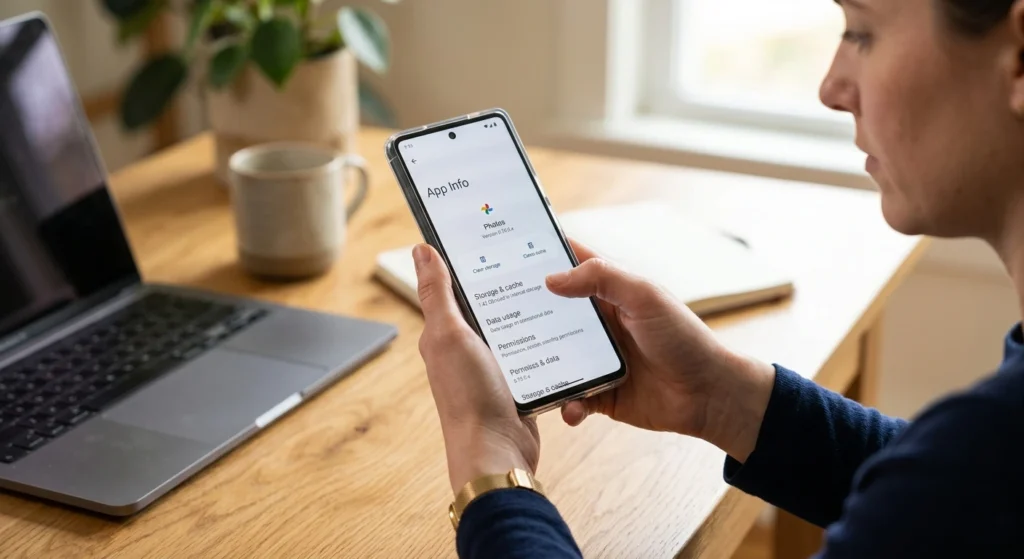
One of the most reliable methods for fixing crashing Android apps is clearing cache and app data. Over time, applications store large amounts of temporary information to speed up performance. However, after updates, these files can become outdated or corrupted.
When old cache files conflict with newly updated app files, crashes often begin.
Understanding Cache Files
Cache includes temporary items.
- Login session information
- Saved thumbnails
- Temporary images
- App interface settings
- Frequently accessed data
Cache improves loading speed, but damaged cache can create instability.
How to Clear App Cache
Follow these general steps.
- Open Settings
- Tap Apps or App Management
- Select the problematic app
- Tap Storage
- Choose Clear Cache
This removes temporary files without deleting personal information.
When Clearing Cache Is Not Enough
If crashes continue after clearing cache, clearing app data may help.
Clearing app data resets the application completely
removing.
- Login information
- User preferences
- Offline files
- App-specific settings
This creates a clean environment for the app to rebuild properly.
How to Clear App Data
- Open Settings
- Go to Apps
- Select the crashing app
- Tap Storage
- Choose Clear Data
Afterward, reopen the app and sign in again if required.
Why This Solution Works
App updates sometimes change internal databases and configurations. Old stored files may become incompatible with the new version. Resetting the app removes conflicting information and allows proper synchronization with updated components.
Important Precautions
Before clearing data for important apps
- Ensure cloud syncing is enabled
- Remember login credentials
- Back up important information if necessary
For many users, clearing cache and data resolves crashes immediately without needing more advanced fixes.
Update Android Apps from the Google Play Store
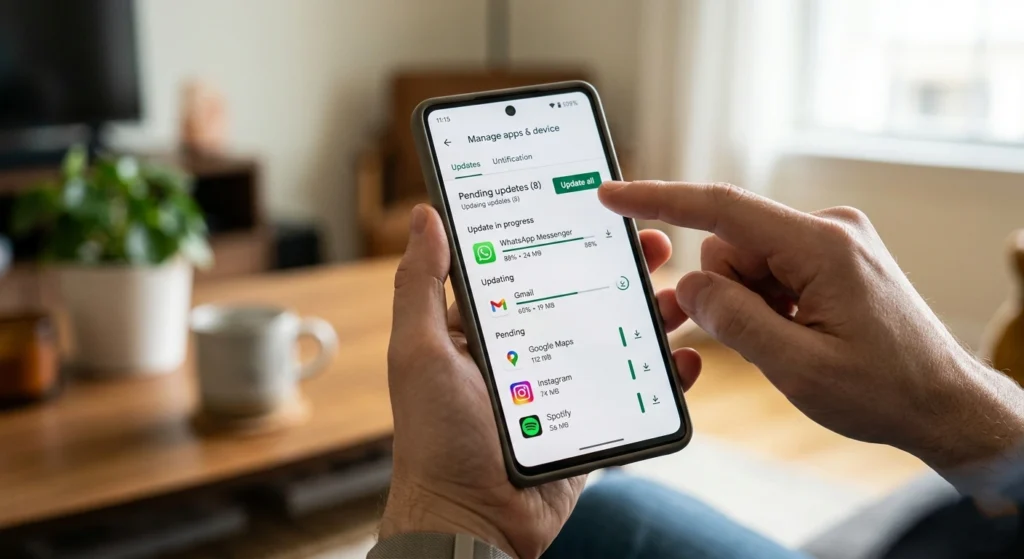
Outdated applications are another major cause of instability. Even if an app recently updated, developers often release quick follow-up patches to address bugs reported by users worldwide.
Keeping apps fully updated improve.
- Compatibility
- Security
- Performance
- Stability
- Battery optimization
Why Immediate Patch Updates Matter
Large app updates occasionally introduce unexpected bugs affecting only specific devices or Android versions. Once users report these issues, developers usually release correction updates quickly.
Ignoring these patches may leave the app unstable.
How to Update Apps Properly
To manually check for updates.
- Open Google Play Store
- Tap your profile icon
- Select Manage Apps & Device
- Tap Updates Available
- Install pending updates
Pay special attention to
- Google Play Services
- Android System WebView
- Frequently used apps
These components heavily influence Android app stability.
Importance of Android System WebView
Many Android applications rely on Android System WebView for displaying web-based content. If WebView becomes outdated or corrupted, multiple apps may crash simultaneously.
Keeping WebView updated can solve widespread crashing problems across many applications.
Enable Automatic Updates
Automatic updates reduce compatibility issues by ensuring apps receive important fixes quickly.
To enable automatic updates
- Open Play Store
- Tap profile icon
- Go to Settings
- Select Network Preferences
- Enable Auto-update apps
This helps maintain long-term app stability.
Check for New Android System Updates
Sometimes the problem is not the app itself but the Android operating system. Manufacturers regularly release patches to fix software bugs, improve device compatibility, and stabilize system performance.
Ignoring system updates can increase app crashing issues over time.
Why System Updates Matter
Android updates often include
- Memory optimization improvements
- Graphics driver fixes
- Security enhancements
- Better battery management
- Compatibility patches
Apps built for newer Android frameworks may struggle on outdated systems.
How to Check for Android Updates
Most Android devices follow similar steps
- Open Settings
- Scroll to System
- Tap Software Update
- Check for updates
- Download and install if available
The process may vary slightly depending on the phone manufacturer.
Importance of Security Patches
Monthly Android security updates also improve software stability. These updates frequently resolve hidden background issues affecting application behavior.
Avoid Interrupting System Updates
During installation
- Keep battery above 50%
- Maintain stable internet connection
- Avoid restarting the phone manually
Interruptions during updates may cause system instability.
Devices Near End-of-Support
Older Android devices sometimes stop receiving updates entirely. Over time, modern apps become less optimized for outdated systems, increasing crash frequency.
If your device is several years old, app compatibility limitations may become more noticeable.
Free Up Storage Space on Your Phone
Low storage space is one of the most overlooked causes of Android app crashes. Many users focus only on RAM or processing power while ignoring internal storage health.
Apps need free storage
- Temporary operations
- Background synchronization
- Cache creation
- Media processing
- Data indexing
Without enough available space, applications may become unstable.
How Much Free Space Is Recommended?
Most Android experts recommend maintaining at least
- 5 GB minimum free storage
- Or approximately 15–20% of total storage capacity
Phones operating near full storage capacity often experience lag and crashes.
What Consumes Storage Quickly?
Common storage-consuming items include
- High-resolution videos
- Duplicate photos
- Offline streaming files
- Large messaging attachments
- Unused applications
- Cached social media content
Ways to Safely Free Storage
You can free space
- Deleting unused screenshots
- Removing duplicate media
- Clearing old downloads
- Uninstalling unused apps
- Moving files to cloud storage
- Cleaning large temporary folders
Why Storage Impacts App Stability
When storage becomes critically low, Android struggles to create temporary operational files. This affects multitasking efficiency and app responsiveness.
Low storage can also slow system indexing processes, increasing the chances of freezing or sudden app closure.
Monitor Storage Regularly
Checking storage monthly helps maintain long-term performance and reduces unexpected software problems.
Reinstall Crashing Android Apps
If an app continues crashing despite clearing cache and updating software, reinstalling it may completely resolve the issue.
Reinstallation removes corrupted files and rebuilds the application environment from scratch.
Why Reinstallation Works
During updates, installation errors may leave incomplete or damaged files behind. Reinstalling ensures all components are downloaded fresh.
This method is particularly effective
- Only one app crashes repeatedly
- Crashes started immediately after updating
- Cache clearing failed to help
Proper Way to Reinstall Apps
- Press and hold the app icon
- Tap Uninstall
- Restart the device
- Open Google Play Store
- Install the app again
Restarting between uninstalling and reinstalling improves cleanup efficiency.
Check Internet Stability
A stable Wi-Fi connection helps prevent incomplete installations during reinstallation.
Login Synchronization
Most modern apps restore data automatically through cloud synchronization after reinstallation.
However, always confirm account credentials before uninstalling important applications.
Disable Problematic Background Apps and Settings
Background applications sometimes interfere with app stability. Aggressive battery optimization, excessive multitasking, or incompatible background services can increase crashes after updates.
Battery Optimization Conflicts
Android battery-saving systems occasionally restrict important app functions.
This can interrupt
- Notifications
- Sync services
- Background refresh
- Real-time communication
How to Adjust Battery Optimization
- Open Settings
- Go to Battery
- Tap Battery Optimization
- Select the affected app
- Choose Don’t Optimize
This allows the app to function more consistently.
Too Many Background Apps
Phones with limited RAM may struggle when too many apps remain active simultaneously.
Closing unused apps can improve
- Memory availability
- Processing speed
- App responsiveness
Disable Unnecessary Features
Certain features can create conflicts including
- Experimental developer options
- Aggressive battery saver modes
- Overlay permissions
- Excessive widgets
Reducing unnecessary background activity helps stabilize Android performance.
Identify Recently Installed Apps
If crashes started after installing another application, that app may be creating software conflicts.
Temporarily disabling recently added apps can help isolate the issue.
Common Android App Crashing Problems and Solutions

Different crash patterns often indicate different underlying causes. Understanding these patterns helps users identify the correct solution faster. Android apps can crash for many reasons, including outdated software, corrupted cache files, low storage space, or compatibility issues after a recent update.
These problems may cause apps to freeze, close unexpectedly, or stop responding during use. Understanding the most common app crashing issues and their solutions can help you quickly restore stability, improve performance, and keep your Android device running smoothly.
Apps Crash Immediately After Opening
This usually indicates
- Corrupted cache
- Broken update installation
- Compatibility issues
Solutions include
- Clearing cache
- Reinstalling the app
- Updating Android system software
Apps Freeze During Login
Login-related crashes often occur because.
- Internet instability
- Corrupted account synchronization
- Outdated authentication components
Restarting the device and clearing app data usually helps.
Games Crash Frequently
Mobile games require high graphics performance and memory usage.
Common causes include.
- Overheating
- Insufficient RAM
- Low storage
- Outdated graphics drivers
Reducing background activity improves gaming stability significantly.
Multiple Apps Crashing Simultaneously
If many apps crash together, the issue may involve.
- Android System WebView
- Google Play Services
- System update instability
Updating core Android components often resolves widespread crashes.
Crashes During Multitasking
Phones with limited memory may close apps automatically when switching tasks rapidly.
Reducing active background applications helps improve multitasking performance.
Social Media Apps Keep Crashing
Social media applications accumulate large cache files quickly due to constant image and video loading.
Regular cache cleaning often improves stability dramatically.
How to Prevent Android Apps from Crashing in the Future
Preventing Android apps from crashing starts with keeping your device and apps properly optimized. Regularly updating Android software, clearing cache files, maintaining enough storage space, and avoiding outdated or unsupported apps can help improve stability and performance.
Following these simple maintenance habits reduces app crashes and keeps your Android app device running smoothly in the long term.
Keep Apps and Android Updated
Updates provide essential compatibility improvements and bug fixes. Delaying updates for long periods increases software conflicts.
Restart Your Phone Regularly
Restarting every few days refreshes memory and background services, improving overall system reliability.
Avoid Overloading Storage
Maintaining sufficient free storage prevents performance bottlenecks and improves app responsiveness.
Install Apps Carefully
Too many unnecessary apps increase memory usage and background activity. Keeping only essential applications reduces system strain.
Monitor Battery Health
Weak batteries can indirectly affect performance by causing thermal throttling and inconsistent power delivery.
Use Stable Internet Connections
Interrupted downloads may corrupt updates. Reliable internet helps ensure complete installations.
Keep Device Temperature Under Control
Excessive heat affects Android performance and may increase app instability.
Avoid prolonged heavy usage while charging, especially during gaming or video processing.
Review Permissions Periodically
Improper permissions can interfere with app functionality. Ensuring apps have necessary permissions improves reliability.
Clear Cache Occasionally
Regular cache maintenance prevents excessive temporary file accumulation.
Final Thoughts on Fixing Android App Crashes
Android app crashes after updates can be frustrating, especially when important applications suddenly stop working during daily tasks. Fortunately, most crashing issues are software-related & can be resolved through simple troubleshooting methods rather than expensive repairs or device replacement.
many situations, basic actions such as restarting the phone, clearing cache files, updating applications, freeing storage space, or reinstalling problematic apps restore stability quickly. Understanding the connection between Android updates, storage management, memory usage, and app compatibility helps users solve issues more effectively.
Modern Android devices are powerful, but they still require regular maintenance to perform smoothly. Keep software updated, managing storage responsibly, and reducing unnecessary background activity can greatly reduce future crashing problems.
Most importantly, users should remain patient after major app or Android updates. Developers frequently release optimization patches shortly after launch to improve compatibility across different devices and software environments.
With proper maintenance and the troubleshooting methods explained above, Android app users can enjoy a more stable, responsive, and reliable smartphone experience every day.