Is your computer or laptop feeling sluggish? slow operating system can be frustrating, whether you are working, gaming, or just browsing the web. But do not worry there are simple steps you can take to improve performance without needing to upgrade your hardware.
10 essential tips to help you speed up your operating system and boost overall performance. From cleaning up unnecessary files to optimizing system settings and managing startup programs, these tips will help you get the most out of your device, ensuring it runs faster and more efficiently.
Let’s dive in and give your operating system the performance boost it deserves.
Why Speeding Up Your Operating System is Crucial
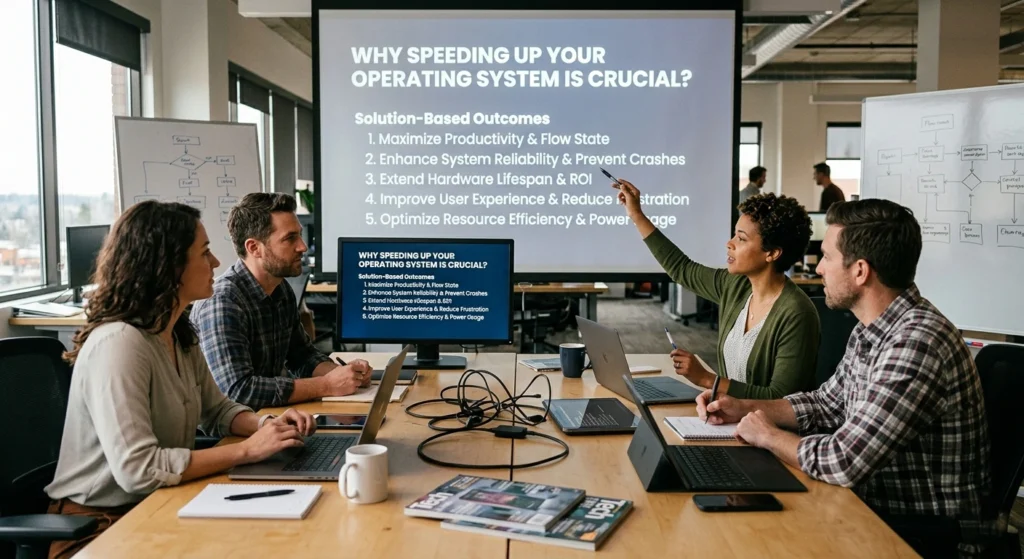
A slow computer is not just an inconvenience it directly impacts productivity, efficiency, and even your overall digital experience. Whether you are working, studying, or simply browsing, system speed determines how smoothly tasks are completed. Over time, every operating system whether Windows, macOS, or Linux begins to slow down due to accumulated data, background processes, and outdated configurations.
The Hidden Cost of a Slow System
When your system slows down, the effects go beyond longer loading times.
- Reduced productivity: Tasks that once took seconds may take minutes
- Increased frustration: Delays interrupt workflow and concentration
- Higher resource usage: Inefficient systems consume more power and memory
- Shortened hardware lifespan: Constant strain on components can lead to wear
A study by Intel found that users can lose up to 30% of productive time due to slow system performance. That’s a significant loss, especially for professionals and students.
What Causes Performance Decline?
Several factors contribute to system slowdown.
- Accumulation of temporary and unused files
- Too many startup applications
- Outdated system updates
- Limited memory (RAM)
- Fragmented storage (in older drives)
- Background services consuming resources
Performance Comparison Table
| Factor | Optimized System | Unoptimized System |
|---|---|---|
| Boot Time | 10–20 seconds | 1–3 minutes |
| App Launch Speed | Instant | Delayed (5–15 sec) |
| Multitasking Capability | Smooth | Laggy |
| System Responsiveness | High | Low |
Improving system speed is not just about convenience—it’s about efficiency and long-term performance stability.
Tip 1: Clean Up Your Hard Drive by Removing Unnecessary Files
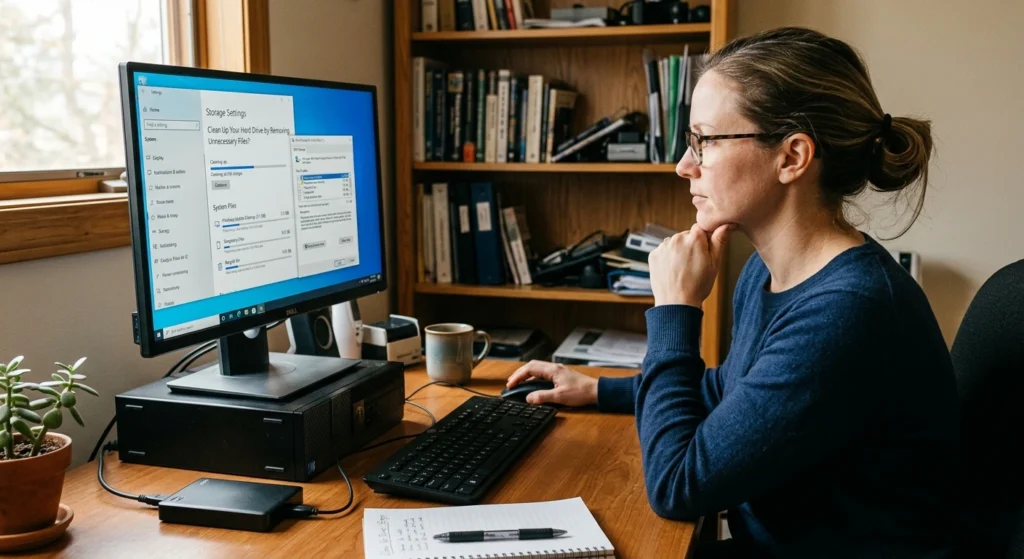
Over time, your hard drive fills up with unnecessary files temporary files, old downloads, duplicate data, & cached items that can take up valuable storage space & slow down your operating system. Regularly cleaning up these files is a simple yet powerful way to free up space and improve system performance.
Why Storage Cleanup Matters
When your storage is nearly full, your operating system struggles to manage files efficiently.
this leads.
- Slower file access times
- Reduced system responsiveness
- Increased load on system processes
Types of Files You Should Remove
- Temporary system files
- Old installation files
- Duplicate media files
- Unused documents and downloads
- Browser cache and cookies
Storage Usage Impact
| Storage Usage Level | Performance Impact |
|---|---|
| Below 50% | Optimal |
| 50%–80% | Moderate slowdowns |
| Above 80% | Significant lag |
Smart Cleanup Practices
- Regularly review your Downloads folder
- Delete unused large files (videos, backups)
- Clear system temporary data periodically
- Organize files into categories
A clean storage drive allows your system to operate faster and more efficiently.
Tip 2: Disable Startup Programs to Improve Boot Time
One of the most overlooked performance issues is too many applications launching at startup. One of the main reasons your operating system takes longer to boot up is the number of programs that automatically start when you turn on your computer.
These startup programs can use valuable system resources, causing delays in your system startup process and affecting overall performance. disabling unnecessary startup programs, you can significantly reduce boot time & make your computer feel snappier from the moment it powers on.
How Startup Programs Affect Performance
Each startup program consumes.
- Memory (RAM)
- CPU resources
- Disk usage
The more programs that run at startup, the slower your system boots.
Startup Impact Breakdown
| Number of Startup Apps | Boot Time Impact |
|---|---|
| 1–3 apps | Fast |
| 4–7 apps | Moderate delay |
| 8+ apps | Slow startup |
What You Should Do
- Disable unnecessary startup apps
- Keep only essential services enabled
- Review startup list every few weeks
Key Insight
Reducing startup programs can improve boot time by up to 50%, depending on system configuration.
Tip 3: Keep Your Operating System and Software Updated
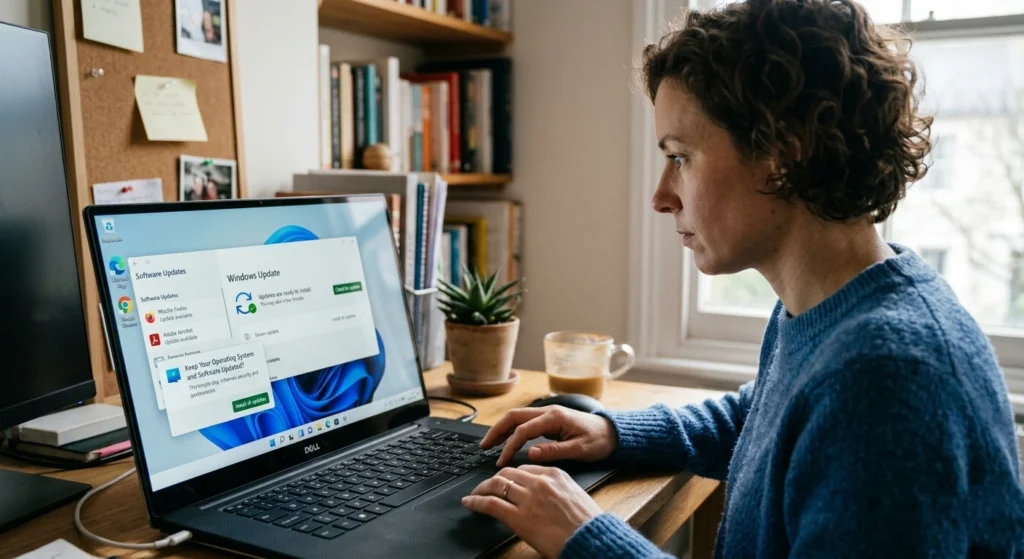
System updates are not just about new features they play a crucial role in performance optimization and stability. One of the easiest ways to ensure your operating system runs smoothly is by keeping it up to date.
Updates often contain important security patches, bug fixes, and performance improvements that can help your system run more efficiently. Whether it is the latest version of your OS or updates for individual software programs, staying current with updates is essential for both performance & security.
Why Updates Matter
Updates often include.
- Performance improvements
- Bug fixes
- Resource optimization
- Compatibility enhancements
Real Performance Impact
Users who regularly update their systems report.
- 15–25% faster performance
- Improved system stability
- Better compatibility with modern applications
Best Practices
- Enable automatic updates
- Regularly check for software updates
- Restart your system after updates
An updated system runs smoother, faster, and more efficiently.
Tip 4: Increase RAM or Virtual Memory for Better Performance
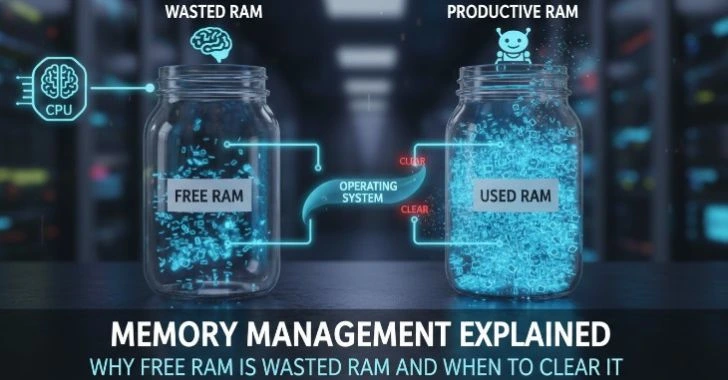
Memory plays a vital role in how your system handles multiple tasks. When your computer runs low on RAM (Random Access Memory), it can slow down significantly, especially when running multiple applications or performing resource-heavy tasks.
While upgrading your physical RAM is one option, you can also improve performance by increasing your virtual memory. Virtual memory acts as an extension of your RAM, allowing your system to handle more tasks at once without crashing or slowing down.
Understanding RAM vs Virtual Memory
- RAM: Physical memory used for active processes
- Virtual Memory: Uses storage space when RAM is full
Performance Impact of RAM
| RAM Size | Performance Level |
|---|---|
| 4 GB | Basic usage only |
| 8 GB | Moderate multitasking |
| 16 GB+ | High performance |
Signs You Need More Memory
- Frequent system freezing
- Slow switching between apps
- High memory usage in system monitor
Optimization Tips
- Close unused applications
- Increase virtual memory settings
- Upgrade RAM if possible
More memory allows your system to handle tasks smoothly without slowdowns.
Tip 5: Optimize Your Hard Drive with Disk Defragmentation (for HDD)
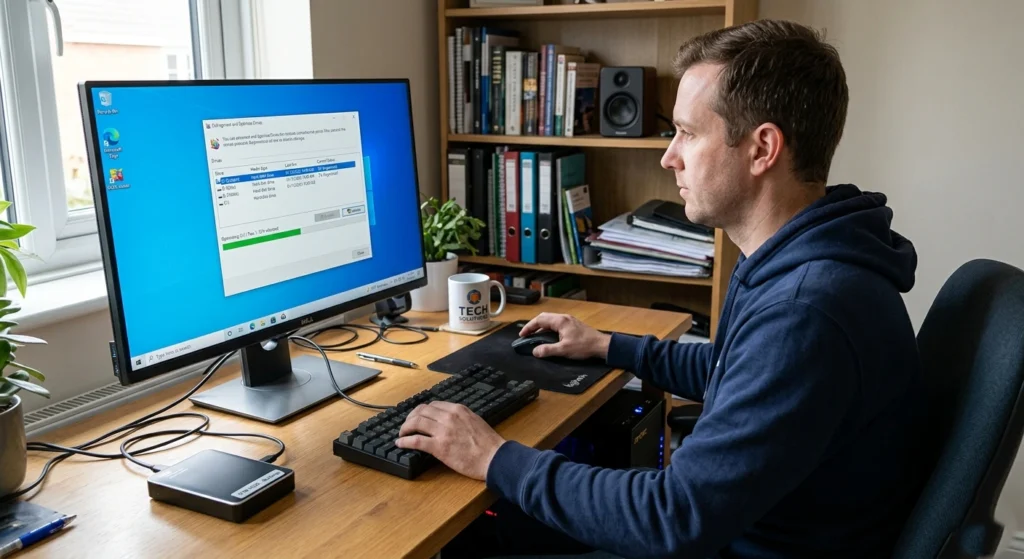
If you are using a traditional Hard Disk Drive (HDD), fragmentation can cause your system to slow down over time. Fragmentation occurs when files are broken up and stored in scattered sections on your drive, making it harder for your computer to access them quickly. Disk defragmentation reorganizes these fragmented files, placing them in contiguous blocks, which speeds up data retrieval and improves system performance.
What is Fragmentation?
Fragmentation occurs when files are stored in scattered locations on the disk, making access slower.
Performance Comparison
| Drive State | File Access Speed |
|---|---|
| Defragmented | Fast |
| Fragmented | Slow |
Benefits of Defragmentation
- Faster file retrieval
- Improved system responsiveness
- Better overall performance
Important Note
This step is only relevant for HDDs, not modern solid-state drives.
Tip 6: Uninstall Unused Applications to Free Up Space
Unused applications can take up valuable space on your hard drive and slow down your operating system, especially if you have accumulated a lot over time. Whether it is software you no longer need or apps you rarely use, removing them can free up significant storage and improve your computer overall performance.
Why Removing Apps Matters
Many applications.
- Run background services
- Consume memory
- Use system resources
Application Impact Table
| Number of Installed Apps | Performance Impact |
|---|---|
| Minimal (10–20) | Optimal |
| Moderate (30–50) | Slight slowdown |
| Excessive (50+) | Noticeable lag |
Smart Removal Strategy
- Identify rarely used applications
- Remove large or resource-heavy programs
- Keep only essential software
Less clutter means better performance.
Tip 7: Adjust Power Settings to Maximize System Efficiency
Power settings directly affect performance, especially on laptops. Your computer power settings play a crucial role in balancing performance and energy consumption. adjusting these settings, you can optimize your system to run more efficiently, whether you’re looking to conserve battery life on a laptop or improve performance on a desktop.
From setting your system to “High Performance” mode to customizing sleep settings and turning off unnecessary power–hungry features, these tweaks can help your operating system run smoother and faster.
Performance vs Power Modes
| Mode | Performance | Power Usage |
|---|---|---|
| Power Saver | Low | Minimal |
| Balanced | Moderate | Moderate |
| High Performance | Maximum | High |
When to Use High Performance Mode
- Video editing
- Gaming
- Heavy multitasking
Key Insight
Switching to high-performance mode can boost system speed instantly, especially during demanding tasks.
Tip 8: Check for Harmful Software and Remove Any Threats
Unwanted or harmful programs can silently consume system resources and slow down performance. Malware & other harmful software can seriously impact your operating system performance.
These threats not only slow down your computer but also pose security risks. Running regular scans for harmful software is essential for maintaining a fast and secure system.
How These Programs Affect Your System
- Use CPU and memory in the background
- Slow down application performance
- Reduce overall responsiveness
Warning Signs
- Sudden system slowdowns
- Unusual background activity
- Programs opening automatically
Prevention Tips
- Regular system scans
- Avoid suspicious downloads or links
- Keep your system secure and monitored
A clean and secure system runs faster and more efficiently.
Tip 9: Use a Lightweight Security Program for Better Performance

While security is crucial, some antivirus and security programs can consume a lot of system resources, slowing down your computer. Fortunately, there are lightweight security programs designed to provide robust protection without impacting your device’s performance. These programs offer real-time scanning, malware detection, and other essential security features while running efficiently in the background.
Why Lightweight Protection Matters
- Uses fewer system resources
- Runs efficiently in the background
- Maintains system speed
Performance Comparison
| Security Type | Resource Usage | Performance Impact |
|---|---|---|
| Heavy programs | High | Slows system |
| Lightweight ones | Low | Minimal impact |
Best Practices
- Choose efficient security solutions
- Avoid running multiple security programs simultaneously
- Keep protection updated
Balanced protection ensures safety without sacrificing speed.
Tip 10: Consider Upgrading to an SSD for Faster Performance
Upgrading from an HDD to a Solid State Drive (SSD) is one of the most effective ways to boost system performance. If your computer is still using a traditional Hard Disk Drive (HDD), upgrading to a Solid State Drive (SSD) can be a game changer for performance.
SSDs are significantly faster than HDDs, offering quicker boot times, faster file transfers, & an overall smoother computing experience. The improvement in speed is one of the most noticeable upgrades you can make to your system, and it’s a great investment if you are looking to give your computer a major performance boost without replacing the entire device.
HDD vs SSD Speed Comparison
| Feature | HDD | SSD |
|---|---|---|
| Boot Time | 1–3 minutes | 10–20 seconds |
| File Access | Slow | Fast |
| Durability | Lower | Higher |
Real-World Impact
Users upgrading to SSDs often experience.
- Up to 5x faster boot times
- Instant application launches
- Smoother multitasking
Why SSDs Are Better
- No moving parts
- Faster data access
- Improved reliability
An SSD upgrade is the single most powerful way to transform system performance.
Final Thoughts
Speeding up your operating system is not about a single fix it is about consistent optimization and smart system management. applying these ten essential tips, you can significantly improve performance, extend your system’s lifespan, and enjoy a smoother digital experience.
Small changes can lead to big performance gains.