Your Mac secure is essential, where Digital security and data breaches are on the rise. following the right data privacy practices, you can protect sensitive information, prevent unauthorized access, and ensure your Mac runs safely and efficiently. In this guide, we will explore top strategies to safeguard your Mac and maintain your digital privacy.
Why Mac Security and Data Privacy Matter
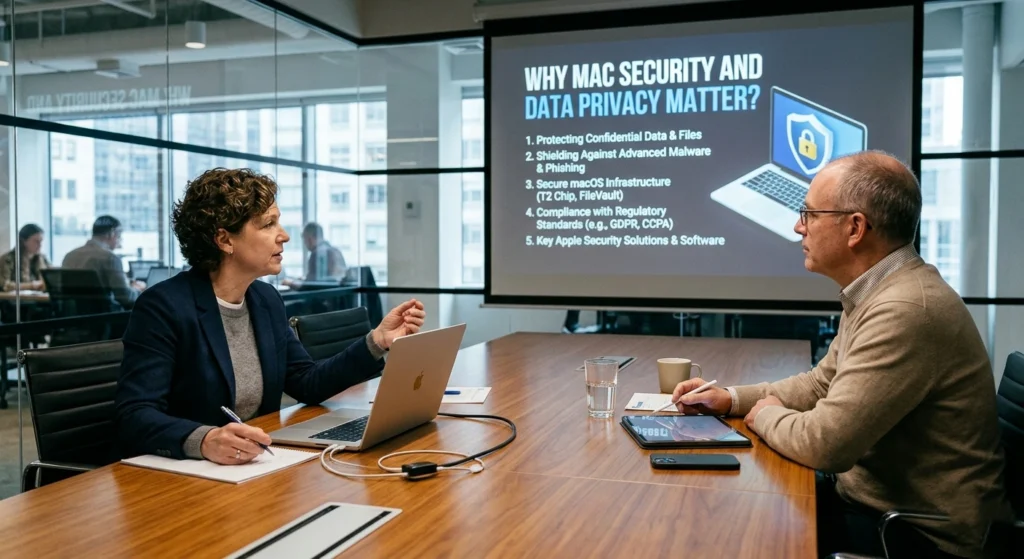
Modern Mac computers are designed with advanced protection features, smooth performance, & privacy-focused ecosystem that appeals to students, professionals, business owners, & creative users around the world. From online banking and personal photos to business documents and cloud storage, a Mac often contains some of the most valuable digital information a person owns. Because of this, your Mac secure is no longer optional. It has become an essential part of everyday digital life.
Many users believe macOS devices are automatically protected from every online risk simply because Apple products are known for strong security. While Apple does provide excellent built-in protection, no computer system can remain fully protected without proper user habits and regular maintenance. A secure Mac depends on a combination of system settings, smart browsing behavior, software updates, and responsible data management.
Data privacy has also become a major concern in recent years. Research from Apple Privacy highlights how digital privacy is becoming increasingly important as more personal information moves online. Photos, saved passwords, location data, messages, browsing history, and payment information are now connected across multiple devices and cloud services. Without proper privacy controls, sensitive information may become exposed unintentionally.
One of the strongest advantages of using a Mac is Apple privacy centered approach. Features such as app permission controls, encrypted storage, secure browsing technologies, and device tracking protections are built directly into macOS. however, users still need to understand how these features work and how to use them effectively.
Another important reason Mac security matters is remote work and cloud-based productivity. Millions of users now rely on MacBooks and iMacs for virtual meetings, online collaboration, freelance work, content creation, and financial management. A single unsecured device can place personal projects, client files, and confidential communication at risk.
Good security practices also improve device performance and reliability. Properly maintained Mac typically runs smoother, experiences fewer software problems, and offers better long-term stability. In many cases security and performance go hand in hand.
Privacy protection is not just about technology companies. It also depends on individual habits. Simple actions such as using strong passwords, reviewing app permissions, enabling encryption, and updating macOS regularly can significantly improve digital safety.
For Mac users, the goal should not be fear or complexity. Instead, it should focus on creating a safe, organized, & privacy conscious digital environment that supports everyday activities without unnecessary risk.
Understanding Common Mac Security Threats

Although macOS is widely respected for its built-in protection features, Mac users still face various online and system related security concerns. these issues helps users make smarter decisions and build stronger digital habits. Even Macs need careful attention to maintain privacy & security.
Understand common Mac security issues, such as software vulnerabilities, outdated settings, or unsecured connections, helps you protect your data & keep your system running smoothly.
Unsafe Websites and Misleading Pages
One of the most common concerns for Mac users involves unsafe websites designed to imitate trusted platforms or encourage users to share personal information. These websites may appear convincing at first glance, especially when they copy familiar branding or layouts.
Modern web browsers include warning systems to alert users about suspicious pages, but users should still verify URLs carefully before entering passwords or payment information. Checking for secure HTTPS connections and visiting official websites directly can help reduce unnecessary exposure.
Weak Password Habits
Many people continue using short or repeated passwords across multiple accounts. This creates a major privacy issue because if one account becomes exposed, several other accounts may also become vulnerable.
Apple Password Monitoring and iCloud Keychain services help users identify reused or weak passwords. Strong password management remains one of the simplest and most effective security practices available.
Public Wi-Fi Risks
Coffee shops, airports, hotels, and the public spaces often provide convenient internet access. however, public networks may not always provide strong protection for user activity.
When connected to open Wi-Fi networks, it is important to avoid accessing sensitive accounts unless the connection is trusted and encrypted. Users should also disable automatic network joining for unfamiliar connections.
Unverified Applications
Installing applications from unofficial sources may reduce device stability and create privacy concerns. Apple recommends downloading software through the Mac App Store or directly from verified developer websites.
macOS includes Gatekeeper technology, which helps verify whether applications come from identified developers. This feature provides an additional layer of protection against untrusted software.
Excessive App Permissions
Many applications request access to photos, microphones, cameras, contacts, and location data. While some permissions are necessary, others may not be essential for the app functionality.
Reviewing privacy settings regularly helps users maintain better control over personal information. Limiting unnecessary permissions also reduces background data collection.
Cloud Storage Exposure
Cloud services make file sharing and synchronization easier, but incorrect sharing settings can expose personal documents accidentally. Users should regularly review file sharing permissions and ensure sensitive folders remain private.
Apple iCloud services include encryption and privacy protections, but responsible file management is still important.
Device Theft or Loss
A lost laptop can create significant privacy concerns if the device is not properly protected. Features like Find My Mac, activation lock, and full-disk encryption help reduce this risk.
Physical device protection is just as important as online security. Using strong login passwords and automatic screen locking can help protect information if a device is misplaced.
Essential Mac Security Settings You Should Enable

macOS includes several built-in security features designed to protect personal information and improve system privacy. Enabling these settings can strengthen overall device safety without affecting daily usability.
Enabling the right settings on your Mac is key to maintaining privacy & smooth performance. Learn about essential Mac security settings that help safeguard your data, control access, and keep your system running efficiently.
Turn On FileVault Encryption
FileVault is Apple’s full-disk encryption system. It protects the information stored on your Mac by encrypting the entire drive. If someone gains physical access to the device, the data remains unreadable without the correct password.
To enable FileVault.
- Open System Settings
- Select Privacy & Security
- Choose FileVault
- Turn FileVault On
This feature is especially valuable for MacBook users who travel frequently or work remotely.
Enable Firewall Protection
macOS includes a built-in firewall that helps control incoming network connections. Enabling your Mac firewall adds an extra layer of protection managing incoming and outgoing connections.
Activating firewall protection helps keep your data private and ensures a safer, more secure computing experience.
To activate it…
- Open System Settings
- Go to Network
- Select Firewall
- Turn the feature on
Firewall protection adds another security layer and helps reduce unnecessary external communication attempts.
Use Find My Mac
Find My Mac allows users to locate, lock, or erase a device remotely if it becomes lost. This feature works through iCloud and is especially useful for portable devices.
Enabling Find My also improves recovery options and account protection.
Review Privacy Permissions
Reviewing privacy permissions on your Mac helps you control which apps can access your personal data, camera, microphone, and location. Regularly managing these privacy settings improves data protection & gives you greater control over your digital experience.
- Camera access
- Microphone access
- Contacts
- Photos
- Files and folders
- Location services
Review these settings regularly and disable permissions that are unnecessary.
Enable Automatic Screen Lock
Automatic screen lock on your Mac helps protect personal information when your device is unattended. This simple privacy feature adds an extra layer of security and keep your files and accounts more secure.
Recommended settings..
- Screen saver activation after short inactivity periods
- Password requirement immediately after sleep
- Touch ID support when available
These small adjustments can significantly improve physical security.
Activate Automatic Updates
Automatic updates ensure important security improvements are installed promptly. Many users postpone updates for convenience, but delayed updates may leave systems exposed to avoidable issues.
Enable..
- macOS updates
- App Store updates
- Security response installations
This helps keep your system optimized and protected continuously.
Using Strong Passwords and Two-Factor Authentication

Passwords remain the foundation of digital account security. Even the most advanced devices depend heavily on secure account management practices. Creating strong passwords and enabling two-factor authentication are essential steps for protecting your Mac and online accounts.
These simple security practices help improve account safety, protect personal data, and provide greater peace of mind while using digital services.
Create Long and Unique Passwords
A strong password should..
- Include a mix of characters
- Avoid personal information
- Remain unique for every account
- Contain enough length for added protection
Instead of using simple words or dates, consider passphrases that are easier to remember but difficult to guess.
for example…
- Combine random words
- Add symbols and numbers naturally
- Avoid repeating previous passwords
Use Apple’s Password Manager
iCloud Keychain securely stores passwords across Apple devices and can automatically generate stronger credentials when creating accounts.
Benefits..
- Password synchronization
- Security recommendations
- Auto-fill convenience
- Encrypted storage
Password managers reduce the need to remember every login manually while encouraging better password habits.
Enable Two-Factor Authentication
Two-factor authentication adds another verification step beyond the password itself. Even if someone learns a password, account access still requires secondary confirmation from a trusted device.
Apple strongly encourages enabling this feature for Apple IDs and other important accounts.
Common verification methods..
- Trusted Apple devices
- Verification codes
- Authentication prompts
This extra layer greatly improves account protection.
Avoid Sharing Passwords Through Messages
Passwords should never be casually shared through unsecured communication channels. Sensitive login information should remain private and carefully managed.
If multiple users require access to shared services, use official sharing features designed for account collaboration instead of sending passwords directly.
- Never send passwords via SMS, email, or chat apps
- Messages can be intercepted or forwarded without your knowledge
- Chat histories may be stored on devices or servers
- Shared passwords increase risk of unauthorized access
- Use secure alternatives like password managers or official sharing tools
- If sharing is necessary, use temporary or one-time access links
- Change passwords immediately if they’ve been shared insecurely
Keeping Your Software and macOS Up to Date

Software updates are one of the most important parts of maintaining a secure Mac environment. Updates often improve performance, compatibility, privacy protections, and overall stability. your macOS &installed software up to date is essential for maintaining smooth performance and system stability.
Regular updates bring new features, improve compatibility, and enhance overall reliability, ensuring your Mac runs efficiently & stays optimized.
Why Updates Matter
Technology changes rapidly. Developers continuously improve applications & operating systems to enhance reliability and strengthen protection systems.
Ignoring updates for long periods may create compatibility problems, reduced performance, and unnecessary exposure to software weaknesses.
Apple regularly releases..
- macOS improvements
- Safari browser enhancements
- Security updates
- System stability patches
Keeping software current helps ensure users benefit from the latest protection features.
How to Check for macOS Updates
To manually check..
- Open System Settings
- Select General
- Click Software Update
Users can also enable automatic installation for greater convenience.
Update Third-Party Applications
Applications installed outside the App Store may require separate updates. Popular creative software, productivity platforms, and communication apps frequently release improvements.
Always download updates from official developer websites to ensure authenticity and compatibility.
Remove Unused Applications
Old or unused applications may consume storage space and create unnecessary clutter. Regularly reviewing installed software helps maintain system organization and performance.
If an app is no longer needed, remove it completely rather than leaving outdated software inactive.
- Unused apps can become security risks if not updated
- They may run background processes and slow down the device
- Old apps can contain vulnerabilities exploitable by attackers
- Removing them frees up storage space and improves performance
- Reduces clutter, making device management easier
- Limits unnecessary permissions and data access
- Regular cleanup helps maintain overall system health and security
Safe Browsing Practices for Mac Users
Internet browsing is part of everyday life, making browser security especially important for Mac users. Practicing safe browsing on your Mac helps you enjoy a smoother and more secure online experience.
Using trusted websites, avoiding suspicious downloads, and managing browser settings wisely, you can protect your data and maintain better control over your digital activity.
Use Trusted Browsers
Safari offers deep integration with macOS privacy features and includes intelligent tracking prevention technology. Other well-known browsers also provide advanced privacy controls when configured properly.
Always keep browsers updated to ensure the latest privacy improvements remain active.
Check Website Security Indicators
Before entering sensitive information…
- Confirm the website uses HTTPS
- Verify the domain spelling carefully
- Avoid unfamiliar shortened links
- Look for official branding consistency
Small details can help users recognize whether a site appears trustworthy.
Limit Excessive Browser Extensions
Extensions can improve productivity, but installing too many may affect performance and privacy. Choose extensions carefully and remove ones that are no longer necessary. Download browser add-ons only from official extension stores or trusted developers.
Clear Browser Data Regularly
Periodic cleanup helps improve browsing privacy.
Recommended actions..
- Removing unused cookies
- Clearing cached files
- Reviewing saved website permissions
- Managing auto-fill settings
These habits help maintain a cleaner browsing environment.
Avoid Oversharing Personal Information
Users should be cautious when posting personal details publicly online. Information such as addresses, phone numbers, travel plans, or financial details should only be shared through trusted platforms when necessary. Digital privacy often begins with thoughtful sharing habits.
Protecting Your Files with Encryption and Backups
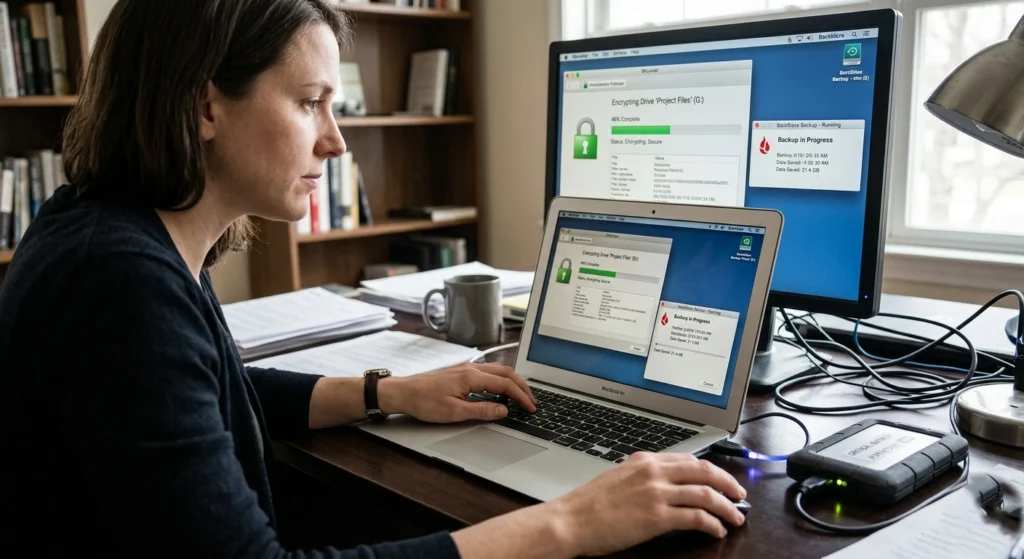
Protecting your files with encryption and regular backups is essential for keep your data safe & accessible. Encryption helps secure sensitive information, while backups ensure you can easily restore important files in case of accidental loss or system issues.
Why Encryption Matters
Encryption converts data into a protected format that requires authorization for access. Apple integrates encryption deeply into macOS through FileVault and secure Apple Silicon technologies.
This helps ensure stored files remain protected even if a device changes hands unexpectedly.
Use External Backups
Regular backups help users recover important files during hardware issues, accidental deletion, or system problems. Using external backups is a reliable way to keep your important files safely stored outside your Mac.
regularly saving data to an external drive or secure storage device, you can ensure easy recovery of documents, photos, & system files whenever needed.
Time Machine provides a simple backup solution built directly into macOS.
Benefits..
- Automatic backups
- File recovery options
- System restoration support
- Historical file versions
Using an external drive dedicated to backups is highly recommended.
Consider Cloud Backup Services
Using cloud backup services is a convenient way to securely store your important files online. It allows you to automatically sync and access your data from anywhere, ensuring your documents, photos, & system files are safely preserved and easily recoverable when needed.
When using cloud services..
- Enable account protection features
- Review file-sharing settings
- Organize sensitive folders carefully
- Monitor connected devices regularly
Combining local and cloud backups provides better long-term reliability.
Organize Sensitive Documents
Organizing sensitive documents in a structured way helps you manage important files more efficiently on your Mac. sorting & categorizing personal or work-related data, you can improve accessibility, reduce clutter, & maintain better control over your digital information.
Recommended practices…
- Use separate folders for sensitive data
- Remove outdated documents when unnecessary
- Protect confidential files with passwords when appropriate
- Avoid storing sensitive information casually on the desktop
Organization reduces confusion and helps users maintain better control over personal information.
Recognizing Unsafe Emails, Websites, and Online Content
Online communication has become part of everyday work and personal life. however, not every message or website should be trusted automatically. Recognizing unsafe emails, websites, and online content is an important part of maintaining a secure and private digital experience on your Mac.
paying attention to unusual messages, unfamiliar sources, & unauthorized links, you can better protect your personal information and browse the internet with greater confidence.
Watch for Unusual Messages
Watching for unusual messages helps you stay aware of content that may not look legitimate or expected. Paying attention to unclear requests, unexpected notifications, or strange wording allows you to better evaluate what is safe to open and interact with while using your Mac.
Be cautious of messages..
- Create urgency unnecessarily
- Request sensitive information unexpectedly
- Include unfamiliar links
- Contain unusual formatting or grammar
If something feels suspicious, verify directly through official company websites instead of clicking links immediately.
Verify Website Addresses Carefully
A small spelling difference in a web address may indicate an unofficial page. Verifying website addresses carefully helps ensure you are visiting legitimate and trusted sites.
Checking the spelling, domain format, and overall structure of a URL can help you avoid confusion and maintain a safer browsing experience on your Mac.
Before signing..
- Check the full domain carefully
- Visit official websites directly
- Avoid clicking unfamiliar shortened URLs
Attention to detail can prevent many common online privacy issues.
Be Careful with Attachments
Unexpected attachments should be handled carefully, especially if they arrive from unknown senders. Being careful with attachments helps you maintain a safer and more controlled digital experience on your Mac.
Before opening or downloading any file, it is important check the source and ensure it is expected, help you protect your system & personal data while browsing and communicating online.
before the opening files
- Confirm the sender identity
- Verify the file purpose
- Use trusted communication channels
Cautious file handling improves both security and device stability.
Trust Your Instincts Online
Many unsafe situations can be avoided simply by slowing down and reviewing information carefully. If a website, message, or offer appears unusual, it is usually better to verify first before proceeding. Smart browsing habits are often the strongest line of defense for everyday users.
Recommended Security Apps and Tools for Mac
macOS already includes many strong built-in privacy features, but some additional applications can further improve security & organization. Recommended security apps and tools for Mac can help you strengthen privacy, improve system monitoring, & maintain better control over your data. from built-in utilities to trusted third-party solutions, these tools support a safer, more organized, & efficient Mac experience.
Password Management Applications
Password management applications help you securely store & organize your login details in one place. They make it easier to create strong, unique passwords for different accounts and improve overall account organization and accessibility on your Mac.
Password managers help users..
- Generate strong passwords
- Store credentials securely
- Organize account information
- Simplify secure logins
Apple iCloud Keychain is a strong built-in option, though other reputable password managers are also available.
VPN Services for Private Browsing
VPN services for private browsing help you create a more secure and private internet connection on your Mac. They encrypt your online activity and allow you to browse with greater privacy, especially when using public or shared networks.
Important features to consider..
- Strong privacy reputation
- Transparent policies
- Reliable connection speeds
- Compatibility with macOS
Secure Cloud Storage Platforms
Secure cloud storage platforms help you safely store and access your files online from any device. They offer reliable data synchronization, easy file sharing, & organized storage, making it simple to manage important documents, photos, and backups on your Mac.
Look for
- End-to-end encryption support
- Multi-device synchronization
- File-sharing controls
- Account protection settings
Browser Privacy Extensions
Privacy-focused browser extensions can help reduce tracking and improve browsing comfort. however, users should install only a small number of trusted extensions to avoid unnecessary browser clutter.
System Monitoring Utilities
Some applications help users monitor storage usage, login activity, & system performance. These utilities can improve awareness and help users identify unusual behavior more quickly. Always choose reputable software providers and avoid installing unnecessary utilities simply for convenience.
Conclusion: Best Practices to Keep Your Mac Secure
Your Mac secure is ultimately about building consistent digital habits. While Apple provides excellent privacy & protection features within macOS, users still play the most important role in maintaining long-term security.
Simple practices such as enabling FileVault, using strong passwords, reviewing app permissions, updating software regularly, & browsing carefully can make a major difference in protecting personal information.
Privacy is not achieved through a single setting or application. Instead, it comes from a combination of awareness, organization, and responsible technology use. Mac users who stay informed and proactive are far more likely to maintain a safe and reliable computing experience.
As digital life continues to evolve, protecting personal data will remain one of the most valuable skills for modern computer users. A secure Mac not only protects files and accounts but also creates greater confidence, productivity, & peace of mind in everyday online activities.