Windows PCs are an essential part of daily life, used for work, online banking, communication, entertainment, & storing personal information. Because so much important data is stored on computers, maintaining strong privacy and security settings has become more important than ever. Without proper protection, sensitive files, passwords, browsing activity, and personal details can become exposed to unwanted access or online risks. That is why learning how to keep your Windows PC secure is essential for protecting your digital privacy and maintaining a safe computing experience.
Fortunately, Windows provides a wide range of built-in tools and security features designed to help users improve privacy and protect their data. Simple actions such as updating your system regularly, using strong passwords, enabling firewall settings, and managing app permissions can significantly improve the safety of your computer.
Windows PC Security and Data Privacy
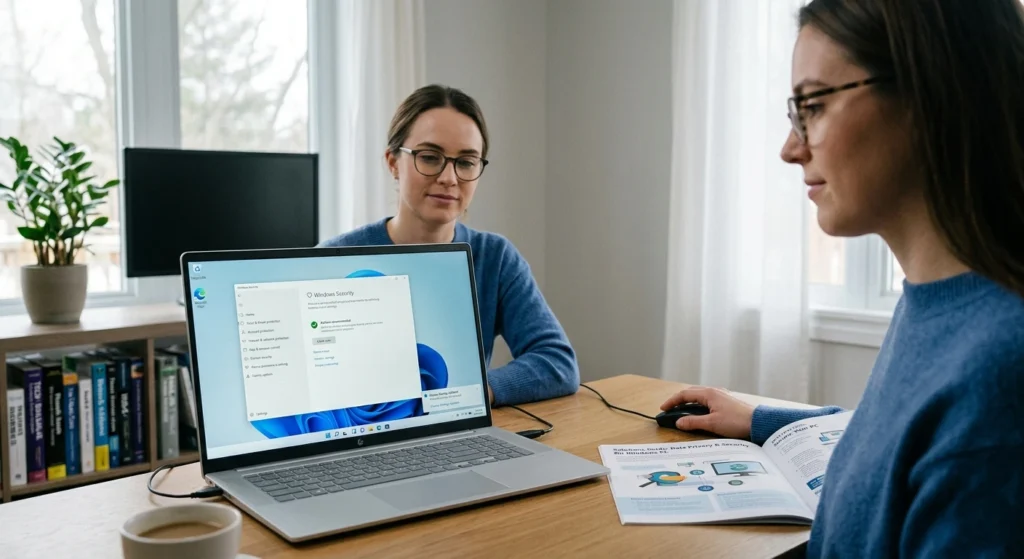
Modern computers store almost every part of daily life. From banking records and work documents to private photos and personal communication, a Windows PC often becomes the center of digital activity. Because of this, protecting personal information is no longer optional. It has become one of the most important responsibilities for every computer user.
Windows remains one of the most widely used operating systems in the world. According to recent market statistics, millions of devices globally run Microsoft Windows for personal and professional use. Its popularity also means users must pay closer attention to system protection, privacy settings, account safety, and safe browsing habits.
Many people believe computer security only matters for businesses or technology professionals. In reality, home users face privacy risks every day through unsecured Wi-Fi networks, weak passwords, outdated software, unsafe browser settings, and poor data management habits. Even a small mistake can expose sensitive information, reduce device performance, or compromise online privacy.
A secure Windows computer depends on several layers of protection working together.
These include
- Regular system updates
- Strong authentication methods
- Safe internet practices
- Device encryption
- Smart privacy settings
- Reliable backups
- Secure app permissions
Windows already includes many built-in security features designed to help users stay protected. Features such as Windows Security, BitLocker encryption, Microsoft Defender Firewall, and Windows Hello provide strong security when configured correctly.
Understanding how these features work can dramatically improve your digital privacy while keeping your computer stable and reliable for years.
Why Data Privacy Matters on a Windows PC
Data privacy is about controlling who can access your personal information and how that information is used. Every Windows PC contains valuable digital data.
- Emails
- Financial information
- Personal documents
- Cloud storage accounts
- Browsing history
- Saved passwords
- Family photos
- Business records
Without proper privacy protection, sensitive information may become exposed through unsafe applications, unsecured connections, or poorly configured settings.
The Growing Importance of Personal Data Protection
Digital privacy has become a major global concern. Technology companies collect large amounts of user data to improve services, personalize recommendations, and enhance user experiences. While many services are legitimate and helpful, users should still understand how their information is handled.
Windows devices constantly interact with online services such as
- Cloud synchronization
- Web browsers
- Productivity software
- Communication apps
- Streaming platforms
- Online storage systems
Each interaction creates digital footprints. Managing those footprints carefully helps reduce unnecessary data exposure.
Privacy Risks Many Users Ignore
A surprising number of Windows users overlook basic privacy practices.
Common examples include
- Reusing the same password across multiple accounts
- Allowing unnecessary app permissions
- Ignoring software updates
- Using public Wi-Fi without protection
- Saving passwords in unsecured locations
These habits may seem harmless at first, but over time they increase the chances of account compromise or data leakage.
How Windows Has Improved Privacy Controls
Recent Windows versions provide significantly better privacy management options compared to older systems. Users can now customize permissions.
- Camera access
- Microphone usage
- Location services
- Diagnostic data
- Advertising personalization
- App background activity
These controls allow users to balance convenience with stronger privacy protection.
The Connection Between Security and Privacy
Security and privacy work together. Strong security measures help prevent unauthorized access, while privacy settings control how data is collected and shared.
for example
- Encryption protects stored files
- Firewalls reduce unauthorized network access
- Browser privacy settings limit tracking
- Authentication systems secure user accounts
When combined properly, these features create a safer digital environment for both personal and professional use.
Keep Windows and Security Software Updated
Keeping your system updated is one of the simplest and most effective ways to maintain computer security. Software updates often include important improvements that strengthen stability, fix system weaknesses, and improve device performance.
One of the most important steps in protecting your Windows PC is keeping your operating system and security software updated. Regular updates help improve system stability, enhance performance, and strengthen privacy features that keep your computer running safely and efficiently. Ignoring updates can leave your device outdated and less reliable for daily use.
Why Windows Updates Matter
Microsoft regularly releases updates for Windows to improve security, compatibility, and functionality. These updates help protect computers against newly discovered weaknesses that could affect system reliability or privacy.
Ignoring updates for long periods may leave a PC exposed to avoidable risks.
Important Windows updates usually
- Security enhancements
- Performance optimizations
- Driver compatibility fixes
- Stability improvements
- Privacy feature updates
Enable Automatic Updates
Most users benefit from automatic updates because they reduce the chances of missing critical improvements.
To check update settings
- Open Settings
- Select Windows Update
- Enable automatic updates
- Restart the device when required
Regular restarts help complete update installations correctly.
Update Drivers and Hardware Firmware
Drivers help Windows communicate with hardware devices
- Graphics cards
- Wi-Fi adapters
- Printers
- Audio systems
- Storage devices
Outdated drivers may cause security gaps or performance issues. Device manufacturers often release improved firmware and driver packages to improve reliability and system safety.
Keep Browsers and Applications Updated
Web browsers are among the most frequently used applications on any computer. Keeping browsers updated improves.
- Privacy controls
- Secure browsing features
- Website compatibility
- Performance stability
Applications such as office software, cloud storage apps, and communication platforms should also remain updated to maintain compatibility and security.
Use Trusted Security Software
Windows pc includes built-in protection through Microsoft Defender Antivirus, which provides strong everyday security for many users.
- Real-time protection
- Threat monitoring
- Firewall management
- Device security reports
Users who prefer additional security suites should choose reputable providers with a strong privacy reputation and consistent updates.
Create Strong Passwords and Enable Multi-Factor Authentication
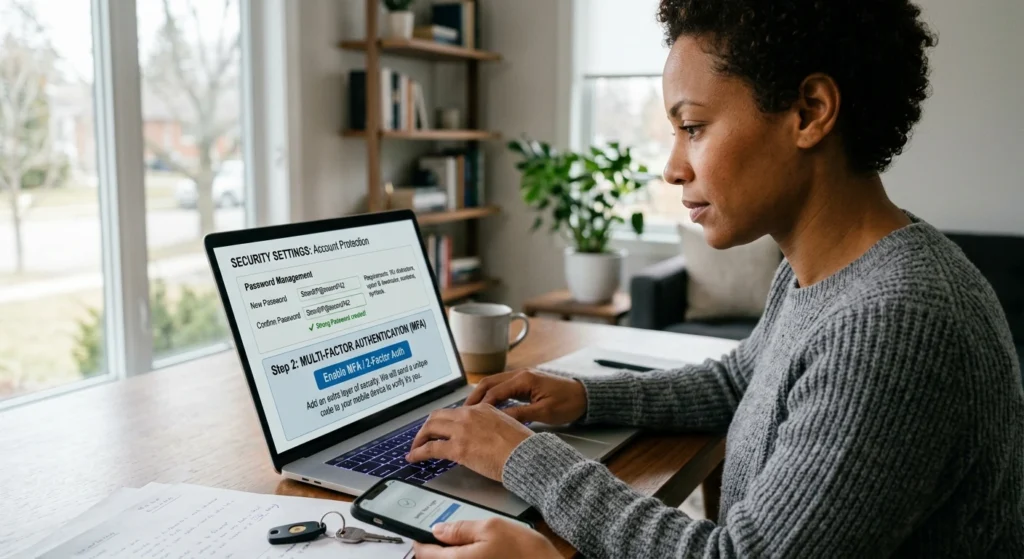
Passwords remain the first line of defense for most online accounts and computer systems. Weak passwords continue to be one of the biggest causes of account compromise worldwide.
Using strong passwords and enabling multi-factor authentication are two of the most effective ways to improve the privacy and security of your Windows PC and online accounts. Weak or reused passwords can make personal information easier to access, while stronger login protection helps keep your files, accounts, and sensitive data more secure.
What Makes a Password Strong
A secure password should be
- Long
- Unique
- Difficult to predict
- Different for every account
Good passwords usually contain a mix
- Uppercase letters
- Lowercase letters
- Numbers
- Symbols
Avoid using personal details such as birthdays, names, or common words.
Example of Better Password Habits
Instead of
- john123
- password2025
Use longer passphrases like:
- BlueRiver!Laptop88Sky
- WinterCoffee#Garden24
Longer passphrases are easier to remember and generally stronger.
Why Password Reuse Is Dangerous
Using the same password across multiple accounts creates unnecessary risk. If one account becomes exposed, other accounts may also become vulnerable.
Every important account should have its own unique password.
- Email accounts
- Banking services
- Cloud storage
- Work accounts
- Shopping platforms
Benefits of Password Managers
Password managers securely store and organize login credentials. They help users create complex passwords without memorizing every combination.
Reliable password managers offer
- Secure password generation
- Encrypted storage
- Cross-device synchronization
- Faster account access
Enable Multi-Factor Authentication
Multi-factor authentication adds another layer of account protection by requiring an additional verification step.
Common methods include
- Authentication apps
- Security notifications
- One-time verification codes
- Biometric login methods
Even if a password becomes exposed, multi-factor authentication can significantly reduce unauthorized access risks.
Use Windows Hello for Faster and Safer Access
Windows Hello allows users to sign in using
- Fingerprint recognition
- Facial recognition
- PIN authentication
This improves both convenience and security while reducing dependence on traditional passwords.
Configure Windows Privacy and Security Settings
Windows pc includes a variety of built-in privacy and security features that can help protect your personal information and improve your overall computing experience.
Properly configuring these settings allows you to control how your data is shared, limit unnecessary access to your device, and create a safer environment for daily work and online activity.
Start by reviewing your privacy settings in the Windows pc Settings panel. You can manage permissions for location services, camera access, microphone usage, background apps, and diagnostic data sharing. Disabling features you don’t regularly use can help reduce unnecessary data collection and improve system performance.
Review Privacy Permissions Regularly
Windows allows apps to request access to sensitive device features.
- Camera
- Microphone
- Contacts
- Calendar
- Location
Users should regularly review which apps truly need these permissions.
To manage permissions
- Open Settings
- Select Privacy & Security
- Review each permission category carefully
Disabling unnecessary access reduces background data sharing.
Limit Diagnostic Data Collection
Windows collects certain diagnostic information to improve system functionality. Users can customize how much data is shared.
Lower diagnostic sharing may help improve privacy while still maintaining normal functionality.
Disable Unnecessary Background Apps
Many applications continue running in the background even when not actively used.
- Battery life
- System performance
- Data usage
- Privacy management
Disabling unnecessary background activity improves efficiency and reduces unnecessary communication with external servers.
Use Microsoft Defender Firewall
A firewall helps monitor incoming and outgoing network traffic.
Microsoft Defender Firewall provides.
- Network filtering
- Connection monitoring
- Unauthorized access prevention
Leaving the firewall enabled is strongly recommended for most users.
Enable Device Security Features
Modern Windows devices include hardware-based protections
- Secure Boot
- TPM (Trusted Platform Module)
- Core isolation
- Memory integrity
These features strengthen protection at the hardware level and improve operating system integrity.
Protect Your PC from Malware and Data Encryption

Keep your Windows PC protected from unauthorised software and unwanted file access is essential for maintaining privacy, performance, and data safety. Programs such as malware and ransomware can affect system stability, limit access to important files, and interrupt your daily work or personal activities. Taking preventive steps can help keep your computer secure and running smoothly.
One of the best ways to improve protection is by using trusted antivirus and built-in Windows pc security tools. Regular system scans, real-time protection, and automatic updates help identify suspicious activity and prevent harmful files from affecting your device.
Use Built-In Windows Security Features
Windows Security includes several protective components
- Antivirus protection
- Firewall monitoring
- Device security checks
- Account protection
- Application control
Regularly checking the Windows pc Security dashboard helps users identify unresolved issues quickly.
Avoid Suspicious Downloads and Unknown Sources
One of the most common causes of computer problems is installing untrusted software or opening unsafe files.
Users should only install applications
- Official websites
- Trusted developers
- Verified app stores
This reduces the risk of unstable or unsafe software entering the system.
Scan External Devices Before Opening Files
USB drives and external storage devices should always be scanned before use, especially when shared between multiple computers.
This simple habit can prevent many avoidable system problems.
Use Browser Security Features
Modern browsers provide advanced security protections including
- Safe browsing warnings
- Site isolation
- Download verification
- HTTPS protection
Keeping these features enabled improves online safety significantly.
Protect Important Files with Controlled Folder Access
Windows pc includes a feature called Controlled Folder Access, which helps protect important directories from unauthorized file changes.
Users can apply additional protection to folders containing
- Personal photos
- Financial records
- Business files
- Backup archives
Educate Family Members About Safe Computer Habits
Shared computers become safer when every user understands responsible digital behavior.
Important habits include
- Verifying websites carefully
- Avoiding unknown links
- Updating applications regularly
- Using secure passwords
Good digital awareness remains one of the strongest forms of long-term protection.
Secure Your Internet Connection and Web Browsing
A secure internet connection and safe browsing habits are essential for protecting your privacy and keeping your Windows PC running smoothly. Every time you browse websites, log into accounts, or download files, your device exchanges information online. Without proper security settings, personal data and browsing activity may become exposed to unwanted access or tracking.
One of the first steps is securing your Wi-Fi network with a strong password and modern encryption settings such as WPA2 or WPA3. Keeping your router updated can also improve both network performance and privacy. When using public Wi-Fi in places like cafes or airports, using a trusted VPN can help create a more private and secure connection.
Use Secure Wi-Fi Networks
Home Wi-Fi networks should always use strong encryption standards
- WPA2
- WPA3
A secure Wi-Fi password should be
- Unique
- Long
- Difficult to guess
Changing default router credentials is also essential for better network protection.
Avoid Public Networks for Sensitive Activities
Public internet connections may not provide the same level of protection as trusted private networks.
When using public Wi-Fi
- Avoid accessing sensitive accounts
- Use encrypted websites
- Enable additional privacy protections
Check for HTTPS Encryption
Secure websites use HTTPS encryption to protect communication between users and websites.
Most browsers display
- A padlock icon
- “https://” in the address bar
Users should verify secure connections before entering personal information.
Improve Browser Privacy Settings
Modern browsers allow users
- Block tracking cookies
- Disable unnecessary extensions
- Clear browsing data automatically
- Restrict location access
Reviewing browser privacy settings regularly improves long-term digital privacy.
Remove Unused Browser Extensions
Extensions can improve productivity, but excessive browser add-ons may affect.
- Browser speed
- Privacy
- Stability
Users should remove unused or outdated extensions regularly.
Manage App Permissions and Data Sharing
Many applications on your Windows PC request access to personal data and device features such as your location, camera, microphone, contacts, and files. While some permissions are necessary for apps to function properly, giving unrestricted access to every application can reduce privacy and increase unnecessary data sharing. Managing app permissions carefully helps you maintain better control over your personal information and improve overall device security.
Windows pc provides built-in privacy controls that allow you to review and customize which apps can access specific features on your computer. Regularly checking these settings can help you disable permissions for applications that do not need certain access.
for example, you can limit background app activity, turn off unnecessary location tracking, or restrict camera and microphone access for apps you rarely use.
Understand What Apps Can Access
Applications may request access
- Files
- Photos
- Contacts
- Microphone
- Camera
- Location data
Not every application requires full access to these features.
Review Permissions After Installing Apps
Many users accept all permissions during installation without reviewing them carefully.
Instead
- Read permission requests
- Disable unnecessary access
- Limit background activity where possible
Restrict Advertising Personalization
Windows pc and online services may personalize ads using browsing habits or usage data.
Users can disable many personalization features through
- Windows pc privacy settings
- Browser settings
- Account dashboards
Reducing personalized tracking can improve digital privacy significantly.
Control Cloud Synchronization Settings
Cloud storage services improve convenience, but users should carefully choose which files sync automatically.
Sensitive documents may benefit from
- Additional encryption
- Local-only storage
- Separate backup management
Remove Applications You No Longer Use
Unused applications can
- Consume system resources
- Create unnecessary background activity
- Increase privacy exposure
Regular software cleanup helps maintain a more secure and organized system.
Encrypt Sensitive Files and Enable Device Encryption
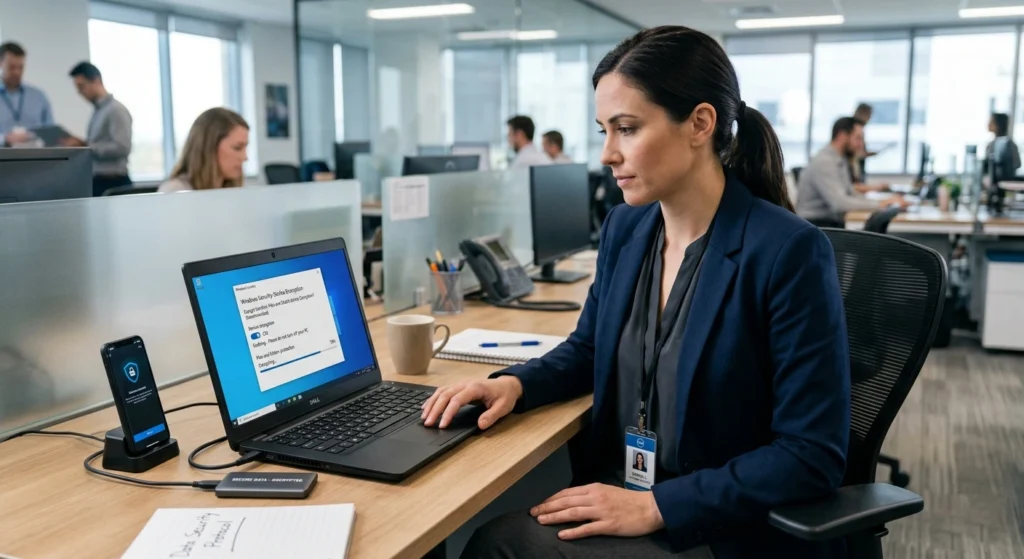
Protecting personal and professional files is an important part of maintaining privacy on your Windows PC. Sensitive documents, financial records, work files, & personal information can become vulnerable if your device is lost, shared, or accessed without permission. Encrypting your files & enabling device encryption adds an extra layer of protection by making your data unreadable to unauthorized users.
Windows includes built-in encryption features such as BitLocker and device encryption tools that help secure the contents of your computer. Once enabled, these features protect stored data and help ensure that files remain accessible only to authorized users. This is especially useful for laptops and portable devices that are frequently used outside the home or office.
Why Encryption Matters
If a laptop becomes lost or stolen, encryption helps protect personal files from unauthorized access.
Encryption is especially important
- Business records
- Financial documents
- Private photos
- Academic work
- Client information
Understanding BitLocker Device Encryption
Windows pc includes BitLocker, a powerful encryption feature available on many systems.
BitLocker helps
- Protect internal drives
- Secure external storage
- Prevent unauthorized file access
Once enabled, encrypted files remain protected even if the storage device is removed.
How Device Encryption Improves Privacy
Device encryption adds another protection layer beyond passwords. Even if someone gains physical access to the computer, encrypted files remain unreadable without proper authentication.
Encrypt External Storage Devices
USB drives and portable storage devices often contain sensitive information.
Encrypting portable drives helps protect
- Backup files
- Work documents
- Travel data
- Shared storage devices
Store Recovery Keys Safely
Encryption recovery keys should always be stored securely.
Safe storage options include
- Printed copies in secure locations
- Password managers
- Trusted cloud account backups
Proper recovery key management prevents accidental data loss.
Backup Important Data and Create Recovery Options
Backing up your important data is one of the smartest ways to protect your files and maintain peace of mind while using your Windows PC. Documents, photos, videos, work projects, and personal information can sometimes be lost due to accidental deletion, hardware issues, software problems, or unexpected system errors.
Creating regular backups and recovery options helps ensure your data remains safe and accessible whenever needed.
Why Regular Backups Matter
Files may become unavailable because
- Hardware failure
- Accidental deletion
- System corruption
- Storage issues
Reliable backups ensure important information remains recoverable.
Use Multiple Backup Methods
A balanced backup strategy often includes
- External storage backups
- Cloud backups
- System restore points
Using multiple methods provides stronger reliability.
Enable Windows Backup Features
Windows includes built-in backup options
- File History
- Backup and Restore
- OneDrive synchronization
- System image creation
Configuring these features early saves time later.
Create System Restore Points
Restore points allow users to revert system settings after major issues or software problems.
Creating restore points before
- Large updates
- Driver installations
- System changes
can help recover stability more easily.
Test Backup Reliability Regularly
A backup system is only useful if it works correctly.
Users should periodically verify
- Backup completion
- File accessibility
- Recovery functionality
Testing ensures backup files remain usable when needed.
Common Windows Security Mistakes to Avoid
Keep your Windows pc secure is not just about using the right tools it is also about avoiding simple mistakes that can weaken your system’s protection.
Many users unknowingly leave gaps in their security settings, making their devices more vulnerable and less reliable for everyday use. Understanding these common errors can help you improve privacy and maintain a safer computing experience.
One of the biggest mistakes is ignoring system and software updates. Outdated systems may miss important improvements that enhance stability and protection. Another common issue is using weak or repeated passwords across multiple accounts, which can make it easier for unauthorized access to occur.
Ignoring Update Notifications
Delaying updates for months increases system vulnerability and may reduce software compatibility.
Regular updates improve
- Security
- Stability
- Performance
- Device reliability
Using Weak or Recycled Passwords
Weak passwords remain one of the most common causes of account compromise.
Every critical account should use
- Unique passwords
- Multi-factor authentication
- Secure storage practices
Installing Too Many Unnecessary Applications
Excessive software installations increase
- Background activity
- Privacy exposure
- System clutter
Users should keep only trusted and actively used applications.
Disabling Security Features for Convenience
Some users disable
- Firewalls
- Antivirus protection
- Browser security warnings
to reduce interruptions. This creates unnecessary exposure and weakens system protection.
Neglecting Physical Device Security
Computer security is not only digital.
Users should also
- Lock devices when away
- Protect laptops during travel
- Use secure login methods
- Store backup drives safely
Physical protection remains an essential part of overall privacy management.
Best Practices to Keep Your Windows PC Secure Long-Term
Maintaining strong security on your Windows pc is an ongoing process that requires consistent habits and smart system management. Over time, regular care helps keep your device running smoothly, protects your personal information, and reduces the risk of unwanted access or performance issues.
One of the most important long-term practices is keep your Windows operating system and all installed applications updated. These updates often include important improvements that enhance system stability and strengthen overall protection. Along with updates, using trusted security tools and keeping them active ensures continuous monitoring of your device.
Build a Routine Security Checklist
Monthly security reviews help users stay organized.
A simple checklist may include
- Installing updates
- Reviewing account activity
- Checking backup status
- Removing unused software
- Updating passwords
Consistency greatly improves long-term protection.
Monitor Account Activity
Many online services provide account activity logs showing
- Recent logins
- Device access
- Security alerts
Reviewing these logs helps users identify unusual activity quickly.
Keep Your Digital Workspace Organized
Organized systems are easier to secure.
Users should
- Sort important files carefully
- Remove duplicate documents
- Archive old information securely
- Label backups properly
Good organization improves both productivity and privacy management.
Stay Informed About New Security Features
Technology changes constantly, and Windows pc frequently introduces improved protection features.
Learning about new updates helps users
- Improve privacy settings
- Enhance account protection
- Increase device reliability
Develop Smart Everyday Habits
The safest computers are usually maintained by users with consistent digital habits.
Strong long-term practices include
- Using trusted websites
- Updating software regularly
- Reviewing permissions carefully
- Protecting sensitive files
- Backing up important information
Small habits practiced consistently provide powerful long-term results.
Conclusion
Protecting a Windows PC requires more than installing security software. True digital privacy comes from combining smart habits, strong passwords, updated systems, secure browsing practices, encrypted storage, and reliable backups.
Windows already offers many advanced security features, but users must actively configure and maintain them for maximum effectiveness. Regular updates, careful privacy management, and responsible internet behavior create a safer computing environment for both personal and professional use.
As digital information continues becoming more valuable, investing time in proper Windows security practices is one of the smartest decisions any computer user can make. A secure computer not only protects personal data but also improves confidence, productivity, and long-term device reliability.