Is your Android phone running slower than you’d like? Over time, apps pile up, storage gets clogged, and performance can take a serious hit. But do not worry. You do not have to buy a new device to enjoy a smooth, fast experience. 10 easy tips to help you speed up your Android phone and restore its performance to like-new levels. Whether it’s clearing the cache disabling unnecessary apps, or optimizing your settings, these simple fixes will make a noticeable difference.
Let’s dive in and get your Android phone running at its best.
Why Speed Matters for Your Android Phone
Slow phone does not just feel frustrating it directly affects how efficiently you use your device every day. From opening apps to switching between tasks, performance determines whether your phone feels smooth or sluggish. Over time, even high-end Android devices can lose their original speed due to accumulated data, background activity, and outdated software behavior.
Modern Android smartphones are designed to handle multitasking, but limited storage, memory pressure, and excessive background activity can gradually reduce responsiveness.
When performance drops, you may notice.
- Apps taking longer to open
- Delays while typing or scrolling
- Sudden app closures or freezing
- Reduced battery efficiency
What many users don’t realize is that performance issues are often fixable without replacing the device. making a few targeted adjustments, you can restore speed and extend your phone usability.
Below is a quick comparison showing how optimization impacts performance.
| Condition of Phone | App Launch Speed | Battery Efficiency | Multitasking Ability |
|---|---|---|---|
| Unoptimized (cluttered) | Slow | Low | Poor |
| Partially optimized | Moderate | Medium | Average |
| Fully optimized | Fast | High | Smooth |
The goal isn’t just speed it is consistency. A well-optimized Android phone delivers reliable performance throughout the day without sudden slowdowns.
Tip 1: Clear Cache to Free Up Storage Space
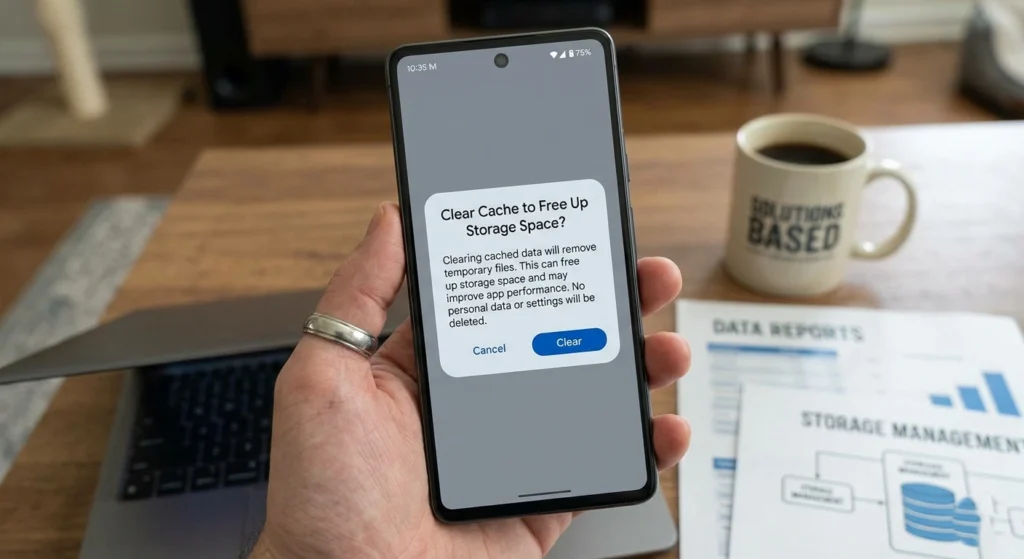
Every app on your phone stores temporary data, known as cache, to load content faster. While this improves short-term performance, cached data can grow excessively over time, occupying valuable storage space.
When storage becomes limited, your device struggles to maintain smooth operation. This is because Android systems rely on free space for temporary processing tasks.
What Happens When Cache Builds Up
- Apps store outdated or unnecessary data
- Storage fills up faster than expected
- System performance gradually slows down
How Clearing Cache Improves Speed
Removing cached files helps your phone.
- Free up storage instantly
- Reduce unnecessary background load
- Refresh app performance
When to Clear Cache
You don’t need to clear cache daily. A weekly or bi-weekly cleanup is usually enough to maintain efficiency.
Smart Approach
Instead of clearing everything blindly, focus on.
- Social media apps
- Browsers
- Streaming platforms
These apps tend to accumulate the most temporary data.
Important: Clearing cache does not delete your personal data—it only removes temporary files.
Tip 2: Uninstall Unnecessary Apps and Bloatware
Many Android phones come preloaded with apps that users rarely use. These applications often run silently in the background, consuming storage and system resources. One of the quickest and most effective ways to speed up your Android phone is by getting rid of unnecessary apps and bloatware.
Over time, we often download apps we no longer use, and manufacturers may pre-install apps that you do not need, also known as bloatware. These unused apps take up valuable storage space, consume system resources, and can slow down your phone performance.
Why Unused Apps Slow Down Your Phone
Even when not actively used, some apps.
- Run background services
- Use memory (RAM)
- Sync data periodically
This results in reduced available resources for important tasks.
Identifying Apps You Don’t Need
Ask yourself.
- When was the last time I used this app?
- Does it serve a daily purpose?
If the answer is unclear, it is likely unnecessary.
Benefits of Removing Extra Apps
- More free storage space
- Better memory availability
- Reduced background activity
Bloatware vs Regular Apps
| Type of App | Impact on Performance | Control Level |
|---|---|---|
| Bloatware | High | Limited |
| Installed apps | Moderate | Full control |
Practical Tip
If an app cannot be removed, you can disable it. This prevents it from running or consuming resources.
Tip 3: Disable or Remove Unwanted Background Processes
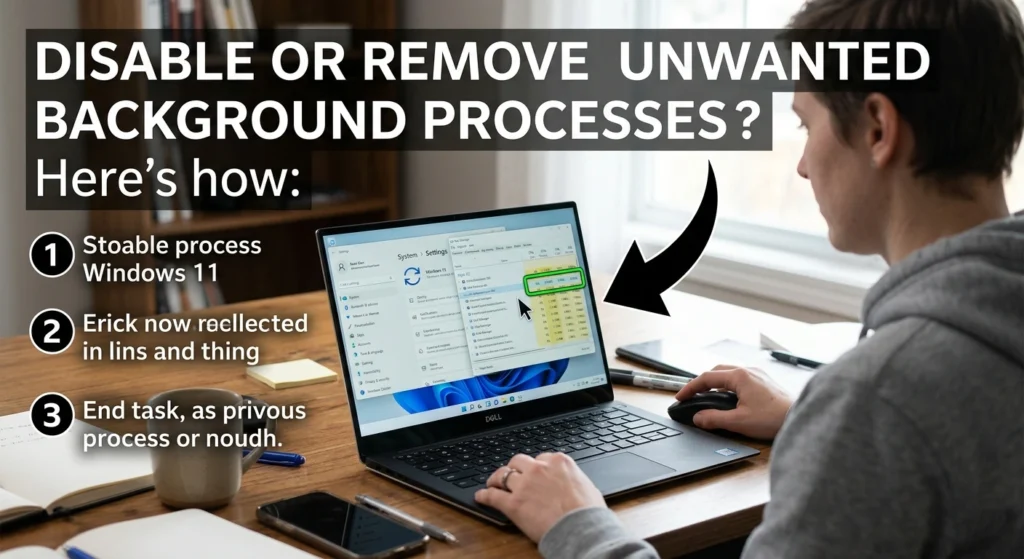
Background processes are essential for keeping your apps running smoothly, but when too many apps or services are constantly running in the background, they can significantly drain your phone resources, leading to slower performance. These processes consume memory, battery life, and processing power, even if you are not actively using the app.
How Background Activity Affects Performance
- Consumes RAM
- Drains battery
- Reduces processing power for active apps
Managing Background Processes Effectively
Instead of closing apps randomly, focus on controlling which apps are allowed to run in the background.
Best Practices
- Restrict background activity for non-essential apps
- Limit permissions for apps that don’t need constant updates
- Monitor which apps consume the most resources
Key Insight
Not all background activity is bad. Essential apps like messaging or system services need to run. The goal is to eliminate unnecessary activity, not everything.
Tip 4: Update Your Android System and Apps Regularly

Software updates are often overlooked, but they play a critical role in maintaining performance. Keep your Android system and apps up to date is one of the easiest and most important steps to maintain optimal performance.
Updates often include bug fixes, security patches, and performance enhancements that can improve the speed and stability of your device. Whether it is the Android OS itself or individual apps, staying current ensures you are benefiting from the latest optimizations.
Why Updates Matter
Updates bring.
- Performance improvements
- Bug fixes
- Better resource management
Older software may not run efficiently with newer apps, leading to slowdowns.
System Updates vs App Updates
| Type | Purpose | Impact |
|---|---|---|
| System updates | Improve overall performance | High |
| App updates | Fix issues and optimize usage | Moderate |
Smart Updating Strategy
- Keep your system updated when stable versions are available
- Regularly update frequently used apps
- Avoid skipping multiple update cycles
Important: Updates are not just about new features—they often improve how efficiently your phone operates.
Tip 5: Limit Animations and Transitions for Faster Navigation
Animations make Android visually appealing, but they also consume processing power. While animations and transitions can make your Android phone feel more visually appealing, they can also slow down performance, especially on older devices.
These eye-catching effects, like screen transitions or app animations, consume processing power & can lead to lag. you can reduce or disable them entirely for a quicker, more responsive experience.
The Hidden Cost of Animations
- Slower app transitions
- Increased GPU usage
- Reduced responsiveness on older devices
How Reducing Animations Helps
By minimizing animations.
- Speed up navigation instantly
- Reduce system load
- Improve responsiveness
Visual vs Performance Trade-off
| Setting Level | Visual Experience | Performance |
|---|---|---|
| Full animations | Smooth visuals | Slower |
| Reduced | Balanced | Faster |
| Disabled | Minimal visuals | Fastest |
Practical Insight
Even a small reduction in animation scale can make your phone feel significantly faster without affecting usability.
Tip 6: Use Lighter Versions of Apps (Lite Apps)
Some apps are designed to be feature-rich, but they can be resource-heavy. Lite versions provide a more efficient alternative. If your Android phone is running low on storage or struggling with performance, switching to lighter versions of your favorite apps can be a game changer.
Many popular apps, such as Facebook, Messenger, and Twitter, offer “Lite” versions that are specifically designed to consume less data, take up less storage, and use fewer system resources. These lightweight alternatives provide much of the same functionality, without the heavy load.
What Are Lite Apps?
Lite apps are simplified versions of regular apps.
- Use less storage
- Consume less data
- Require fewer system resources
Why They Improve Performance
- Lower RAM usage
- Faster loading times
- Reduced background activity
When to Use Lite Apps
- On older devices
- When storage is limited
- If performance is more important than extra features
Comparison
| App Type | Storage Usage | Speed | Features |
|---|---|---|---|
| Full version | High | Moderate | Extensive |
| Lite version | Low | Fast | Basic |
Choosing efficiency over excess features can significantly improve daily performance.
Tip 7: Turn Off Auto-Sync and Background Data Usage
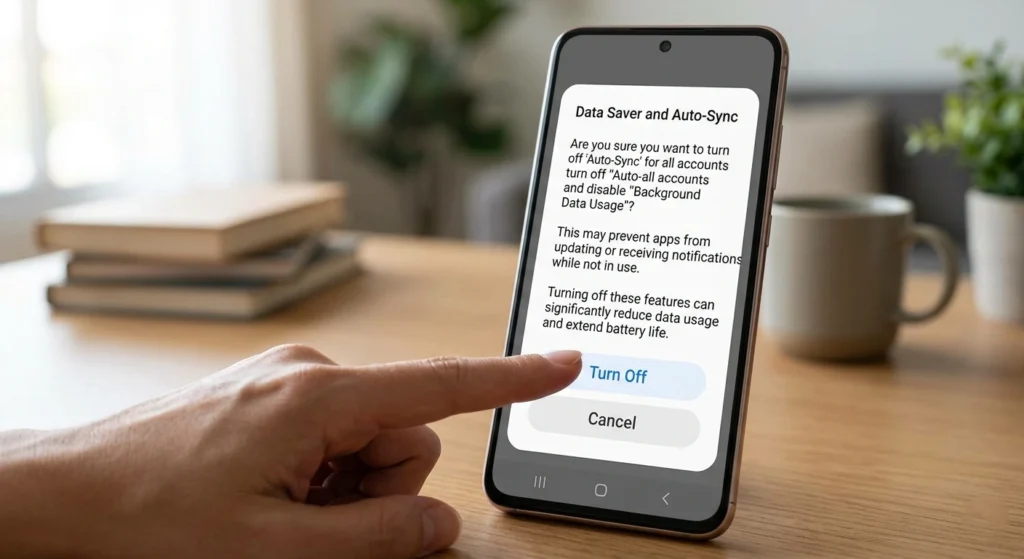
Auto sync and background data usage are convenient features, allowing your apps to stay updated and sync content without you having to do anything.
however, they can also eat up valuable resources, drain your battery, and slow down your phone. Whether it is email, social media, or cloud storage apps, constant syncing in the background can significantly affect your phone performance.
How Auto-Sync Affects Performance
- Uses CPU cycles frequently
- Consumes battery
- Increases background activity
When to Disable It
You don’t need constant updates for every app. Disabling auto-sync for non-essential apps.
- Reduce system load
- Improve battery life
- Free up processing power
Balanced Approach
Keep auto-sync enabled.
- Messaging
- Important services
isable it for.
- Rarely used apps
- Non-critical services
Tip 8: Use a Performance Booster or Cleaner App
Some applications are designed to help manage storage, memory, and background processes more efficiently. If your Android phone is still lagging despite your best efforts, a performance booster or cleaner app can give it an extra boost.
These apps are designed to help optimize your device by clearing out junk files, freeing up RAM, and improving overall system performance. Whether it is removing cached data, closing unnecessary background apps, or scanning for potential issues a performance booster app can streamline your phone operations.
What These Apps Do
- Identify unused files
- Manage memory usage
- Optimize system performance
When They Are Useful
- If your phone has limited storage
- When manual optimization becomes time-consuming
Important Consideration
Not all apps provide real value. Choose options that.
- Focus on basic optimization
- Avoid unnecessary complexity
Key Benefit
A well-designed cleaner can simplify maintenance and keep your phone running smoothly with minimal effort.
Tip 9: Free Up RAM by Restarting Your Phone Regularly

Restarting your phone is one of the simplest yet most effective ways to improve performance. One of the simplest yet most effective ways to improve your Android phone performance is by restarting it regularly.
Over time, your phone accumulates open apps, background processes, and cached data that can clog up your system memory (RAM). Restarting your phone helps clear this temporary data, refreshes the system, and frees up RAM, resulting in a smoother, faster experience.
Why Restarting Works
- Clears temporary processes
- Frees up memory
- Resets system operations
How Often Should You Restart?
A restart every few days is enough to maintain stability.
Immediate Benefits
- Faster app launches
- Reduced lag
- Improved responsiveness
Quick Comparison
| Without Restart | With Regular Restart |
|---|---|
| Slower over time | Consistent speed |
| Memory clutter | Clean memory state |
| More glitches | Stable performance |
Think of restarting as a quick refresh for your device.
Tip 10: Factory Reset Your Android Device (As a Last Resort)
If your Android phone is still sluggish despite trying all the above tips, a factory reset may be the final solution to restore its performance. A factory reset wipes your device clean, removing all apps, data, & settings, essentially returning your phone to its original state.
This can be eliminate persistent issues caused by the software glitches, accumulated bloatware, or corrupted files that simply wont go away with other methods. However, a factory reset should be considered only as a last resort, as it will erase everything on your device.
What a Factory Reset Does
- Removes all stored data
- Clears system clutter
- Resets settings to default
When to Consider It
- Persistent performance issues
- Severe lag or instability
- Long-term usage without cleanup
Important Preparation
Before resetting.
- Backup important data
- Save essential files
- Note important settings
Performance Impact
| Before Reset | After Reset |
|---|---|
| Sluggish | Like new |
| Cluttered | Clean |
| Unstable | Stable |
Final Insight
A factory reset is powerful but should be used carefully. It’s most effective when other methods haven’t delivered results.
Final Thoughts
Improving your Android phone’s performance doesn’t require complex steps. Consistent maintenance and smart usage habits can make a significant difference.
By applying these 10 practical tips.
- Extend your device’s lifespan
- Enjoy smoother performance
- Reduce daily frustration
The key is balance optimize where necessary without overcomplicating your device setup.