Windows 11 is designed to deliver a smooth and modern computing experience, but even powerful systems can run into freezing, lagging, or unexpected crashes. These issues can disrupt work, reduce productivity, and create frustration especially when they happen without warning.
Most of these problems are not permanent. With the right understanding and practical steps, you can restore your system’s performance and stability. This explains why these issues happen and how to fix them effectively, using safe and proven methods.
Common Causes of Windows 11 Freezing and Lagging
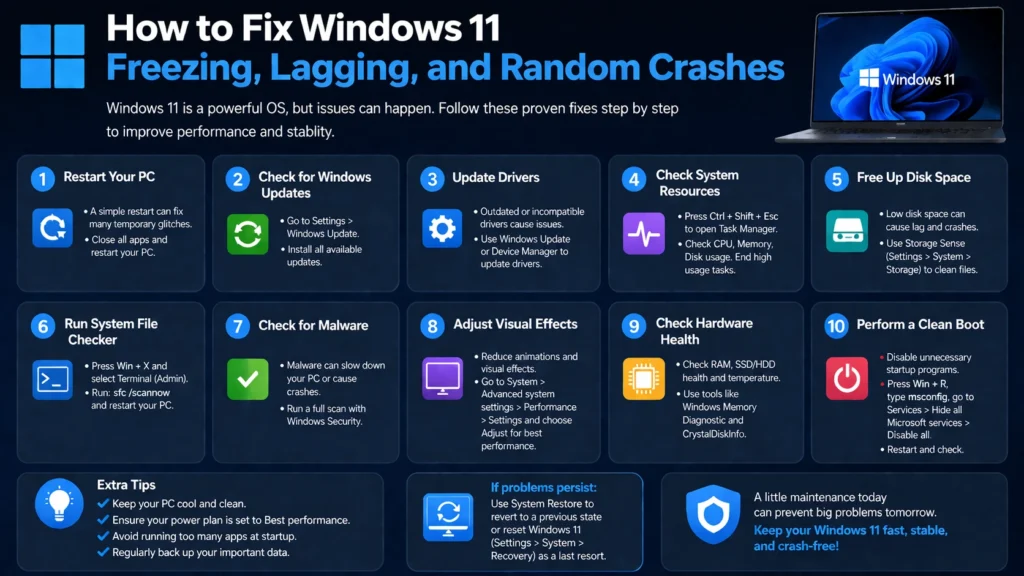
Experiencing freezing or lagging on Windows 11 can be frustrating, and understanding the root causes is the first step in resolving these performance issues. Several factors can contribute to system slowdowns, from software conflicts and outdated drivers to insufficient system resources.
Insufficient System Resources
One of the most common reasons is limited RAM or CPU overload. When too many applications run at the same time, your system struggles to keep up.
- Systems with 4GB RAM or less often experience lag
- Background processes silently consume memory
- High CPU usage leads to delayed responses
When your system runs out of available resources, freezing becomes unavoidable.
Outdated or Corrupted Drivers
Drivers act as a bridge between hardware and the operating system. If they are outdated or incompatible.
- The system may stutter during normal use
- Graphics-related tasks may lag
- Sudden freezes can occur during multitasking
Disk Performance Issues
A slow or overloaded storage drive can significantly affect performance.
- Traditional hard drives are slower than SSDs
- Nearly full disks reduce system responsiveness
- Fragmented data slows down file access
Too Many Startup Programs
When your system boots up, several programs may start automatically.
- This increases boot time
- Consumes memory right from startup
- Leads to early system lag
Software Conflicts
Certain applications don’t work well together, especially after updates.
- Conflicts can cause freezing during specific tasks
- Some apps consume excessive background resources
- Poorly optimized software can slow the entire system
Step-by-Step Guide to Fix Windows 11 Crashes
Random crashes in Windows 11 can disrupt your work, cause data loss, and leave you feeling frustrated. fortunately, most crashes have identifiable causes, and with the right steps, you can resolve them. Pinpoint the problem and get your system back to stable, reliable performance. Let’s dive into the solutions that can help prevent those sudden crashes once and for all.
Start with a System Restart
It sounds simple, but restarting your PC clears temporary memory and resets processes.
- Clears cached data
- Stops unnecessary background tasks
- Refreshes system performance
Check for Windows Updates
Microsoft regularly releases updates that fix stability issues.
- Go to Settings → Windows Update
- Install pending updates
- Restart after installation
Updated systems are more stable and less prone to crashes.
Update Device Drivers
Drivers play a major role in system stability.
- Focus on graphics, chipset, and network drivers
- Use Device Manager to check for updates
- Look for any warning signs in hardware components
Run System File Checks
Windows includes built-in tools to repair corrupted system files.
- These scans restore missing or damaged system components
- They improve system reliability over time
Remove Recently Installed Apps
If crashes started recently:
- Uninstall recently added programs
- Check if the issue disappears
- Reinstall only if necessary
How to Troubleshoot Windows 11 Performance Issues

If you are noticing that Windows 11 is not running as smoothly as it should, you are not alone. Performance issues, like sluggishness or delayed responses, can arise for a variety of reasons, but the good news is that most of these problems can be resolved with a few simple troubleshooting steps.
Identify and fix common performance issues on Windows 11, from managing system resources and optimizing startup programs to diagnosing hardware problems and checking for software conflicts. following these steps, you’ll improve your PC’s responsiveness & get back to a faster, smoother experience.
Monitor Task Manager Activity
Open Task Manager and observe.
- CPU usage spikes
- Memory consumption patterns
- Disk activity levels
This gives a clear picture of what’s slowing your system down.
Identify Background Processes
Some processes run silently in the background.
- Disable unnecessary ones
- Keep only essential services active
- Reduce system load significantly
Check System Temperature
Overheating can cause lag and instability.
- Ensure proper ventilation
- Clean dust from fans
- Avoid blocking airflow
Test in Safe Mode
Safe Mode runs Windows with minimal drivers and services.
- Helps identify if a third-party app is causing issues
- If performance improves, the problem lies in added software
Top Solutions to Fix Windows Freezing and Lagging

Dealing with freezing and lagging issues on Windows 11 can be a major headache, especially when you’re trying to get work done or enjoy your favorite programs. fortunately, there are several effective solutions that can help resolve these performance issues.
Increase Virtual Memory
Virtual memory acts as extra RAM when your system runs low.
- Helps handle heavy workloads
- Reduces freezing during multitasking
Disable Visual Effects
Windows 11 includes animations and effects that look great but use resources.
- Turn off unnecessary visual enhancements
- Improve responsiveness on lower-end systems
Clean Up Storage
A cluttered system slows everything down.
- Remove temporary files
- Delete unused applications
- Keep at least 20% free disk space
Adjust Power Settings
Power settings influence performance.
- Switch to High Performance mode
- Improves CPU and system responsiveness
Why Is Windows 11 Randomly Crashing? Here’s What You Can Do
If your Windows 11 PC is suddenly crashing without warning, it can be frustrating and even concerning. Random crashes can occur for a variety of reasons, from software bugs and outdated drivers to hardware issues or corrupted system files.
Hardware Compatibility Issues
Older hardware may struggle with newer updates.
- Incompatible components can cause instability
- Performance drops during intensive tasks
Memory Errors
Faulty RAM can lead to unpredictable crashes.
- Causes sudden restarts
- Leads to data processing errors
System Overload
Running too many heavy applications at once:
- Overwhelms CPU and memory
- Leads to freezing followed by crashes
Background Updates
Sometimes Windows updates run silently.
- Temporary slowdown occurs
- System may restart unexpectedly
Being aware of these triggers helps prevent repeated crashes.
How to Optimize Windows to Prevent Freezing and Lag
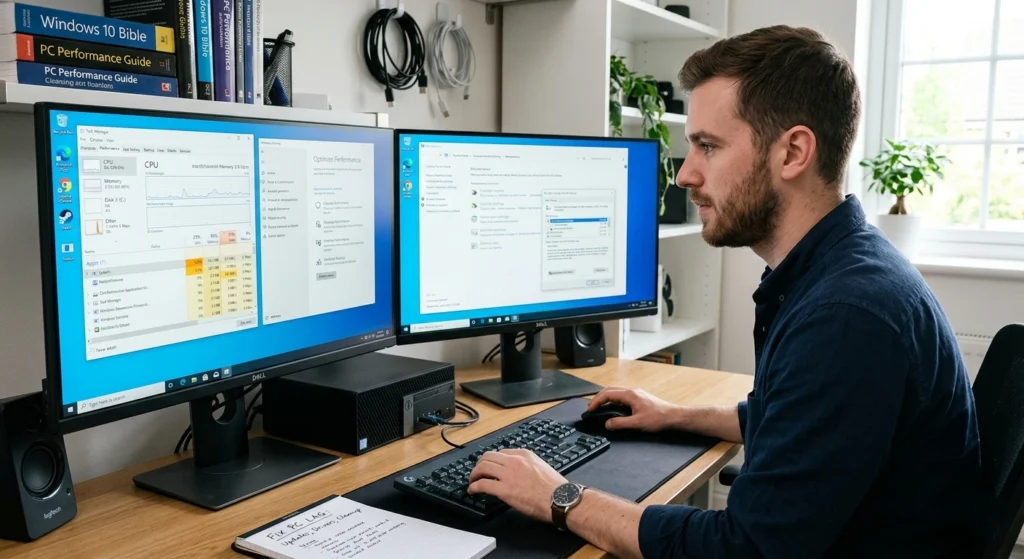
Persistent freezing and lagging on Windows can seriously impact your productivity and overall experience. there are a variety of optimization techniques that can help prevent these performance issues before they even start.
Keep Your System Updated
Regular updates improve.
- Stability
- Compatibility
- Performance
Manage Startup Programs
Limit startup apps to essentials.
- Faster boot time
- Reduced memory usage
Regular System Maintenance
Make it a habit to.
- Clean unnecessary files
- Update drivers
- Check system health
Upgrade Hardware When Needed
If your system struggles consistently.
- Upgrade RAM
- Consider switching to SSD
- Improve overall performance significantly
Effective Methods to Resolve Windows 11 System Freezes
System freezes on Windows can be incredibly frustrating, especially when you’re in the middle of an important task. these freezes can be caused by a variety of factors, such as software conflicts, outdated drivers, or insufficient system resources.
Force Close Unresponsive Applications
Use Task Manager to.
- End frozen programs
- Restore system responsiveness
Restart Windows Explorer
Sometimes the interface freezes, not the entire system.
- Restarting Explorer refreshes the desktop environment
- Fixes taskbar and file explorer issues
Check Disk Health
Disk errors can cause freezing.
- Run disk checking tools
- Repair file system errors
Disable Background Apps
Too many background apps increase load.
- Turn off unnecessary apps
- Free up system resources
How to Diagnose and Fix Random Crashes in Windows
Random crashes in Windows can disrupt your work and lead to data loss, leaving you wondering what went wrong. these crashes can be triggered by software bugs, corrupted files, or even hardware issues.
Checking for system updates and scanning for malware to troubleshooting hardware & reinstalling drivers, we will walk you through the process of resolving random crashes and restoring your systems stability.
Check Event Logs
Windows logs system events automatically.
- Helps identify what caused the crash
- Provides insight into system errors
Analyze Crash Timing
Ask yourself.
- Does it happen during gaming?
- While browsing?
- During startup?
Patterns help isolate the cause.
Run Memory Diagnostics
Memory issues are a common cause.
- Test RAM performance
- Identify faulty memory modules
Perform a Clean Boot
A clean boot starts Windows with minimal services.
- Helps identify conflicting software
- Improves troubleshooting accuracy
Quick Fixes for Windows Performance Issues
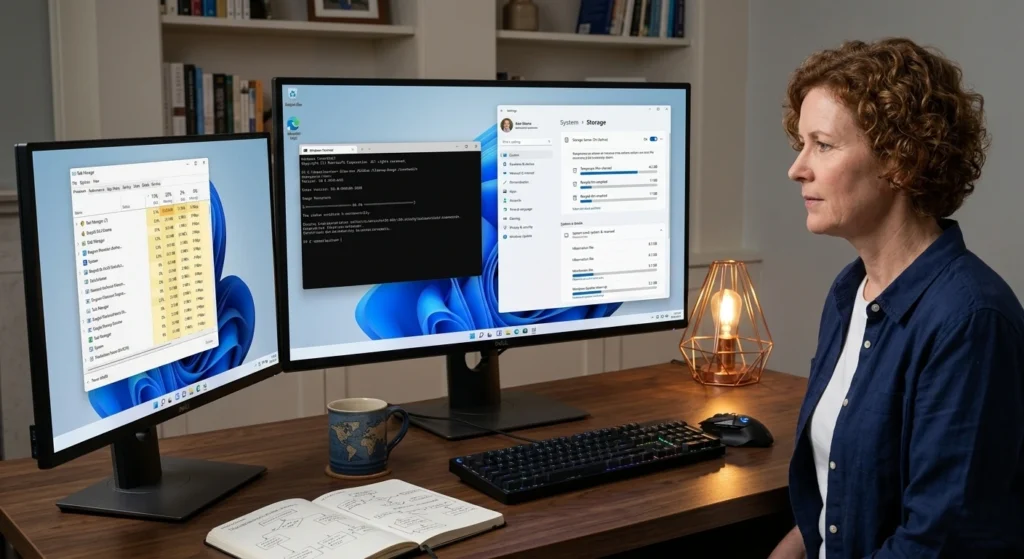
If you are experiencing slowdowns or unresponsiveness on Windows then do not worry many performance issues can be fixed quickly with simple adjustments. Whether it is a slow startup, laggy apps, or overall sluggish performance, there are several quick solutions that can help restore your systems speed and responsiveness.
Restart Your PC
- Clears temporary glitches
- Improves responsiveness immediately
Close Unused Applications
- Frees up RAM
- Reduces CPU load
Disable Background Sync
- Reduces network and disk usage
- Improves performance
Clear Temporary Files
- Removes unnecessary clutter
- Speeds up system processes
These quick fixes can make a noticeable difference within minutes.
Best Tools and Settings to Prevent Windows 11 from Freezing
Frequent freezing on Windows can be a sign of underlying issues, but with the right tools and settings, you can prevent these frustrating interruptions before they happen. Whether it is optimizing system resources, managing background tasks, or using built-in diagnostic tools, there are several ways to keep your system running smoothly.
Storage Sense
Automatically cleans temporary files and frees space.
- Keeps storage optimized
- Prevents slowdowns
Performance Settings
Adjust system for best performance.
- Disable animations
- Prioritize speed over visuals
Reliability Monitor
Tracks system stability over time.
- Helps identify recurring issues
- Provides a timeline of system events
System Restore Points
Create restore points regularly.
- Allows you to revert to a stable state
- Prevents long-term damage from issues
Conclusion
Windows 11 freezing, lagging, & random crashes can feel overwhelming, but they are usually caused manageable and fixable issues. Whether it’s limited system resources, outdated drivers, or background processes, each problem has a clear solution.
The key is to understand your system’s behavior, apply the right fixes, and maintain regular optimization habits. doing so, you not only solve current problems but also prevent future ones.
Consistent care, smart adjustments, and awareness of system performance can transform your Windows 11 experience into something smooth, fast, and reliable.