Remote work, your Mac is more than just a tool it is the cornerstone of your productivity. Whether you are tackling a to-do list, collaborating with colleagues, or managing multiple projects, having your Mac running at peak performance can make a world of difference.
Slowdowns, distractions, and system glitches are the last thing you need when working from home or on the go. But do not worry optimizing your Mac for efficiency is simpler than you think.
Boost Remote Work Productivity
Remote work has shifted from a temporary solution to a long-term professional standard, and your Mac plays a central role in how efficiently you perform daily tasks. Productivity is no longer just about working longer hours it is about working smarter, minimizing distractions, and maximizing output with the resources you already have.
A well-optimized Mac environment allows you to maintain focus, reduce delays, and handle demanding workflows without interruptions. Whether you’re managing meetings, handling documents, or collaborating across time zones, your system’s performance directly impacts your output quality and mental clarity.
Why Productivity Optimization Matters
When your Mac runs smoothly.
- Experience faster task execution
- Avoid unnecessary downtime
- Maintain consistent workflow momentum
- Reduce frustration caused by lag or system slowdowns
According to workplace productivity studies, employees lose over 20% of their time due to inefficient systems and digital distractions. Optimizing your Mac helps reclaim that lost time and channels your energy into meaningful work.
Key Elements of a Productive Mac Setup
| Factor | Impact on Productivity |
|---|---|
| System Speed | Faster load times and multitasking |
| Organization | Easy access to files and apps |
| Automation | Reduces repetitive work |
| Focus Tools | Limits distractions |
| Battery Efficiency | Ensures uninterrupted workflow |
The goal isn’t perfection it si consistency. Even small improvements in your Mac’s setup can lead to significant gains in daily productivity.
How to Optimize Your Mac for Peak Performance

Maximizing the performance of your Mac is essential for maintaining productivity and efficiency, especially in a remote work setup. Whether you are juggling multiple tasks, video conferencing, or running resource-heavy apps, ensuring that your Mac is running smoothly can significantly impact your workday.
From clearing up storage space to managing startup items, there are several strategies you can implement to enhance speed, responsiveness, and overall system health.
Keep macOS Updated
Regular updates improve system stability and performance. Apple consistently releases updates that.
- Fix bugs
- Enhance system efficiency
- Improve compatibility with apps
A fully updated system is a stable system.
Clean Up Storage Space
Storage plays a major role in performance. When your disk is nearly full, your Mac struggles to manage processes efficiently.
Best practices for storage management
- Remove unused files and duplicates
- Empty Trash regularly
- Store large files externally or in cloud storage
- Use built-in storage management features
Manage Startup Items
Too many startup applications slow down your Mac’s boot time.
What to do
- Go to Login Items
- Disable unnecessary apps from launching automatically
This results in faster startup and reduced background load.
Monitor System Activity
Activity Monitor helps you understand how your system resources are being used.
Look for
- High CPU usage
- Memory-heavy applications
- Background processes affecting performance
Identifying resource-heavy tasks allows you to take control of your system.
Essential Mac Tools for Remote Work
Working remotely comes with its own set of challenges, but with the right tools, you can turn your Mac into a productivity powerhouse. From communication apps to project management software, there are countless resources designed to help you stay organized, collaborate effortlessly, and maintain focus.
Finder for File Management
Finder helps organize files efficiently
- Use tags for categorization
- Create smart folders for quick access
- Customize sidebar for frequently used locations
A well-organized file system saves hours every week.
Spotlight Search
Spotlight allows instant access to files, apps, and information.
Benefits
- Launch apps quickly
- Search documents instantly
- Perform quick calculations
Notes and Reminders
These built-in apps help track ideas and tasks without needing external solutions.
- Notes: Ideal for quick documentation
- Reminders: Perfect for task tracking and deadlines
Calendar Integration
Sync your work schedule with Calendar
- Manage meetings
- Set reminders
- Stay organized across time zones
Improving System Speed and Efficiency on Your Mac

A slow Mac can be a major productivity killer, especially when you are trying to meet deadlines or manage multiple tasks at once. you do not need to upgrade your hardware to boost performance there are plenty of simple yet effective ways to improve your Mac’s speed and efficiency. Whether it is clearing out unnecessary files, optimizing storage, or tweaking system settings, there are various steps you can take to get your Mac running like new.
Reduce Visual Effects
Animations and visual effects can consume system resources.
Optimize by
- Reducing motion
- Disabling transparency
- Simplifying interface visuals
Optimize Memory Usage
When RAM is overloaded, performance drops.
Solutions
- Close unused applications
- Avoid running too many browser tabs
- Use lightweight alternatives where possible
Manage Browser Performance
Browsers often consume the most resources.
Best practices
- Limit open tabs
- Disable unnecessary extensions
- Clear cache periodically
Quick Performance Checklist
| Action | Benefit |
|---|---|
| Close unused apps | Frees RAM |
| Restart system regularly | Clears temporary processes |
| Update apps | Improves compatibility |
| Manage tabs | Reduces CPU usage |
Managing Multiple Tasks Effectively on Your Mac
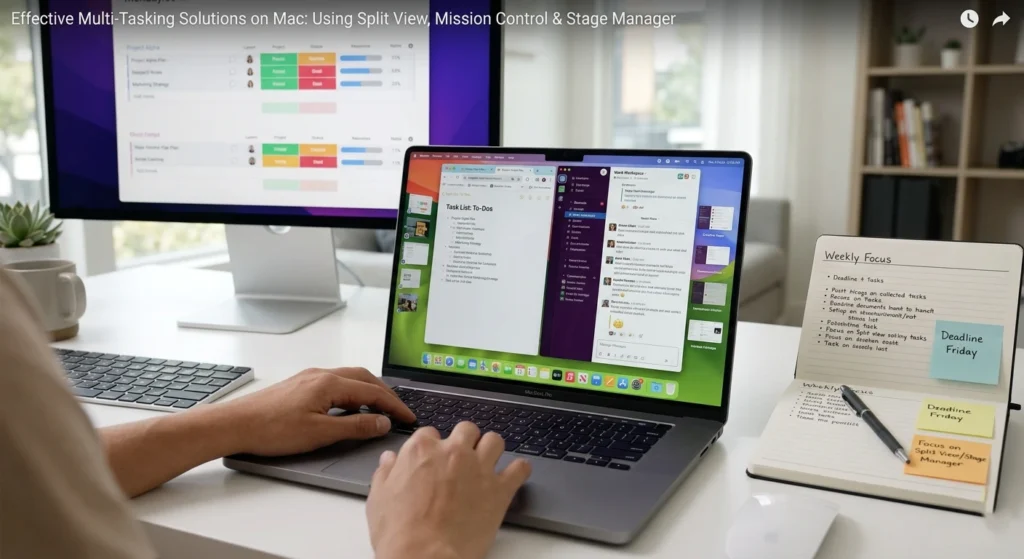
Multitasking is often a necessity. Whether you are juggling emails, video calls, or complex projects, managing multiple tasks efficiently can make or break your productivity. Your Mac offers a variety of built-in tools and features that can help streamline your workflow and keep everything organized. From utilizing virtual desktops to mastering keyboard shortcuts, there are several strategies you can implement to stay on top of your tasks without feeling overwhelmed.
Use Split View
Split View allows you to work with two apps side-by-side.
Use cases
- Research while writing
- Comparing documents
- Managing meetings and notes simultaneously
Utilize Mission Control
Mission Control provides a bird’s-eye view of all open windows.
Benefits
- Quickly switch between tasks
- Organize workspaces
- Reduce clutter
Create Multiple Desktops
Separate tasks into different desktops
- One for communication
- One for focused work
- One for research
This keeps your workflow clean and distraction-free.
Enhancing Security for Remote Work on Your Mac
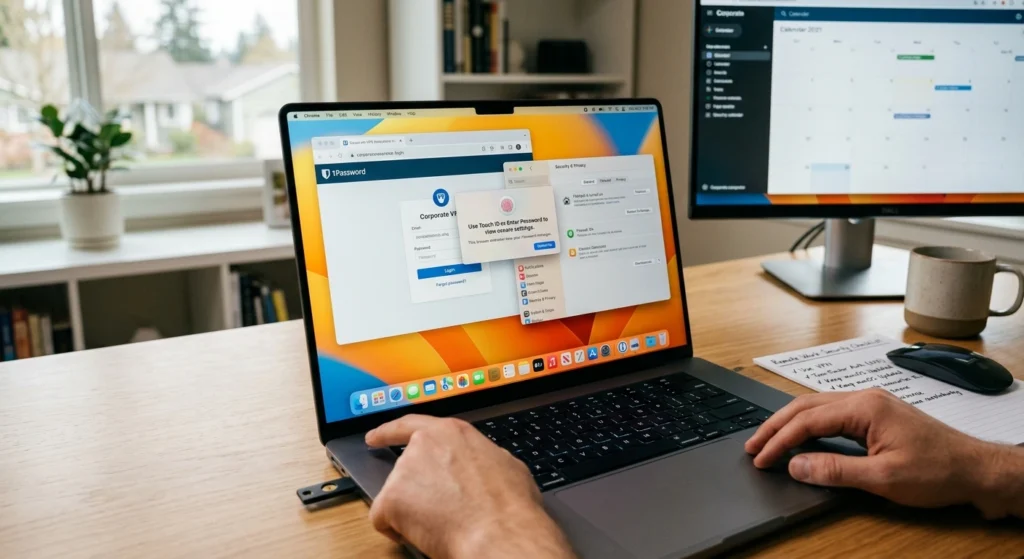
When working remotely, securing your Mac is more important than ever. With sensitive data and confidential work often flowing through your device, it is crucial to ensure that your Mac remains protected from potential threats.
From attacks to malware and unauthorized access, the risks can be significant if proper security measures are not in place. thankfully, macOS offers a range of built-in tools and features to help safeguard your work and privacy.
Enable File Encryption
Use Strong Passwords
A strong password should
- Be long and unique
- Include a mix of characters
- Avoid predictable patterns
Enable Two-Factor Authentication
This adds an extra layer of protection by requiring a second verification step.
Keep System and Apps Updated
Outdated systems are more vulnerable to issues. Keeping everything updated ensures
- Improved protection
- Better performance
- Stable environment
Maximizing Battery Life for Remote Work on Your Mac
One of the most important aspects of remote work is ensuring that your Mac stays powered throughout the day. A dead battery can quickly derail your productivity, especially when you are deep into a project or important video call. Whether you are remote work from home, a coffee shop, or on the go, optimizing your Mac battery life can keep you focused without the constant need for a charger.
Adjust Energy Settings
- Lower screen brightness
- Enable battery-saving modes
- Turn off unused background processes
Manage Background Activity
Apps running in the background consume power.
Tip: Close apps you’re not actively using.
Monitor Battery Health
Your Mac provides insights into battery condition.
Healthy battery = reliable performance
Battery Optimization Table
| Action | Impact |
|---|---|
| Reduce brightness | Saves power |
| Disable unused apps | Extends battery life |
| Use energy saver mode | Improves efficiency |
Using Mac Shortcuts to Save Time and Boost Productivity
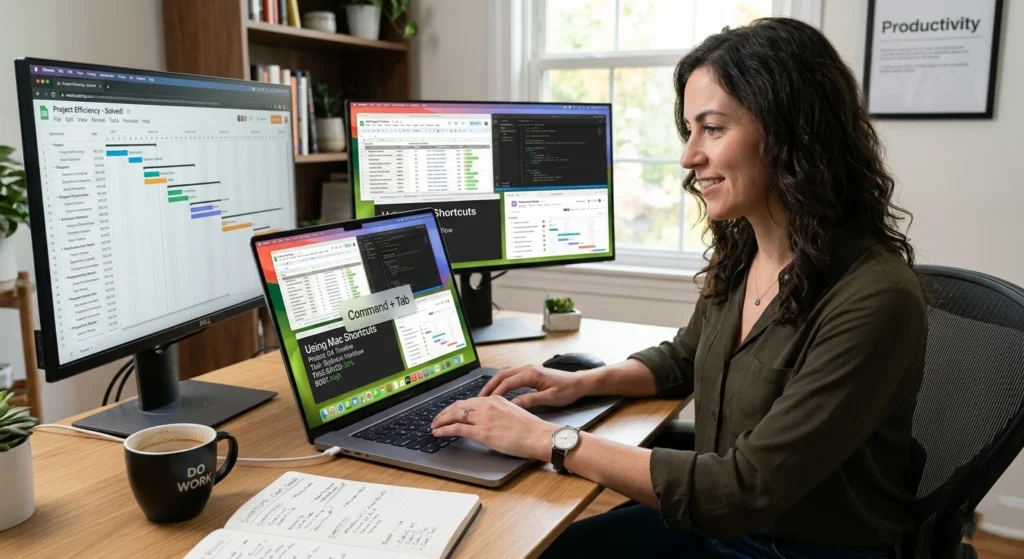
Remote work environment, every second counts. One of the easiest and most efficient ways to streamline your workflow on a Mac is by mastering keyboard shortcuts.
These handy time-savers allow you to navigate your device faster, manage tasks with ease, and keep your focus intact without constant interruptions. Whether it is switching between apps, managing windows, or executing commands, Mac shortcuts are a powerful tool for boosting productivity.
Essential Shortcuts
- Command + Space → Open search
- Command + Tab → Switch apps
- Command + C / V → Copy & paste
- Command + W → Close window
Why Shortcuts Matter
Using shortcuts
- Saves time on repetitive actions
- Reduces dependency on trackpad/mouse
- Speeds up workflow significantly
Even saving a few seconds per task can add up to hours over time.
Best Apps to Increase Productivity While Working Remotely
Working remotely offers flexibility, but it also presents challenges in staying organized and maintaining focus. fortunately, the right apps can transform your Mac into a powerhouse for productivity. from task management and communication tools to time-tracking & note-taking apps, the right software can help you stay on top of your to-do list, collaborate seamlessly, and keep distractions at bay.
Task Management Apps
Help organize tasks, deadlines, and priorities.
Communication Apps
Enable seamless collaboration with teams across locations.
Note-Taking Apps
Capture ideas, meeting notes, and research efficiently.
Focus Apps
Help minimize distractions and maintain deep remote work sessions.
Productivity App Comparison
| Category | Purpose | Benefit |
|---|---|---|
| Task Management | Organize work | Improves planning |
| Communication | Team collaboration | Enhances coordination |
| Notes | Information storage | Easy retrieval |
| Focus Tools | Reduce distractions | Better concentration |
Conclusion:
Optimizing your Mac for remote work is not a one-time task it is an ongoing process of refinement and improvement. focusing on system performance, organization, multitasking, and efficiency, you create a workspace that supports your goals rather than slowing you down.
The most productive remote workers aren’t necessarily the busiest they are the ones who use their tools effectively, eliminate friction, and maintain a smooth workflow.
A faster, cleaner, and more organized Mac leads to clearer thinking, better results, and a more balanced work experience.