Protecting your personal information has become more important than ever. From smartphones & laptops to tablets and smart devices, we rely on technology for communication, banking, shopping, work, and entertainment. however, without proper privacy and security settings, your devices can become vulnerable to unauthorized users, malware, data tracking, and account activity. that is why learning how to improve privacy and security settings on any device is essential for staying safe online and protecting your sensitive information.
Many users unknowingly leave default settings unchanged, allowing apps, websites, and third parties to collect unnecessary data. Simple adjustments such as enabling two-factor authentication, managing app permissions, updating software, and using strong passwords can significantly improve your digital security and reduce online risks. These small changes not only help protect your personal data but also give you greater control over your online privacy.
Why Device Privacy and Security Matter
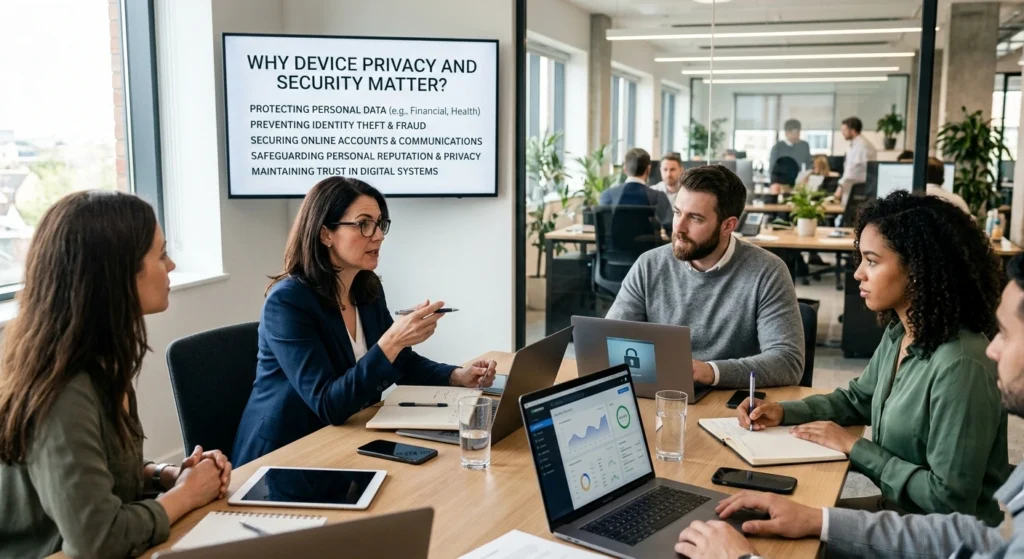
Modern devices store almost every part of daily life. Smartphones, laptops, tablets, and even smart TVs now contain personal photos, banking information, emails, work files, browsing history, and private conversations. Because of this, improving device privacy and security is no longer optional. It has become a basic part of digital safety.
Every time a device connects to the internet, data moves between apps, websites, cloud services, and online accounts. Without proper security settings, sensitive information may become exposed to unauthorized access, identity misuse, or data leaks. Many users believe only businesses or public figures are targeted online, but ordinary users are often more vulnerable because their devices usually lack proper protection.
Research from global cybersecurity reports consistently shows that weak passwords, outdated software, and poor privacy settings remain among the most common reasons personal accounts become compromised. Many people unknowingly share location details, browsing behavior, microphone access, or contact information with applications that do not truly need it.
Improving privacy settings helps reduce unnecessary data collection. Strengthening security settings helps protect accounts, files, and online activity from unauthorized access. Together, these measures create a safer digital environment for both personal and professional use.
The Growing Importance of Digital Privacy
Digital privacy is not only about hiding information. It is about controlling how personal data is collected, stored, and shared. Devices constantly gather information.
- Location history
- Search activity
- Voice commands
- Device identifiers
- Usage patterns
- Contacts and messages
- Camera and microphone activity
Many online services use this data to personalize experiences, improve recommendations, or deliver advertisements. While some data collection is necessary for functionality, excessive access can reduce personal privacy significantly.
Why Security Settings Matter More Than Ever
Cybersecurity risks continue to increase as more devices become connected. Home networks, remote work systems, cloud storage platforms, and smart home devices all create additional entry points for unauthorized access if security settings are weak.
Strong device security helps
- Prevent unauthorized account access
- Protect sensitive documents
- Reduce account activity risks
- Secure financial information
- Keep personal communications private
- Protect family members using shared devices
Even simple actions such as enabling screen locks, updating software, and reviewing permissions can dramatically improve overall protection.
Update Your Device and Software Regularly
One of the most effective ways to improve privacy and security is keeping devices updated. Software updates often include important security improvements that fix weaknesses discovered in operating systems, browsers, and applications.
Many users delay updates because they seem inconvenient. However, outdated software can leave devices vulnerable to newly discovered security problems that are already known publicly.
Why Software Updates Are Critical
Technology companies regularly release updates
- Improve device stability
- Fix software bugs
- Strengthen privacy controls
- Improve compatibility
- Address security weaknesses
When updates are ignored for long periods, devices may continue running older code that no longer meets current security standards.
Operating System Updates
Whether using Android, iPhone, Windows, macOS, or Linux, operating system updates should always remain enabled.
Benefits of Regular OS Updates
- Improved built-in security features
- Better encryption support
- Enhanced app permission controls
- Faster detection of suspicious activity
- Improved privacy protections
Browser and Application Updates
Browsers store cookies, login sessions, saved passwords, and browsing data. An outdated browser can expose users to security risks and tracking issues.
Applications should also remain updated because many apps interact directly with personal files, camera access, payment systems, and online accounts.
Enable Automatic Updates
Automatic updates reduce the chances of forgetting important patches. Most modern devices allow users.
- Automatically install security updates
- Update apps during charging
- Schedule updates during inactive hours
Automation helps maintain continuous protection without requiring constant manual management.
Create Strong Passwords and Enable Two-Factor Authentication
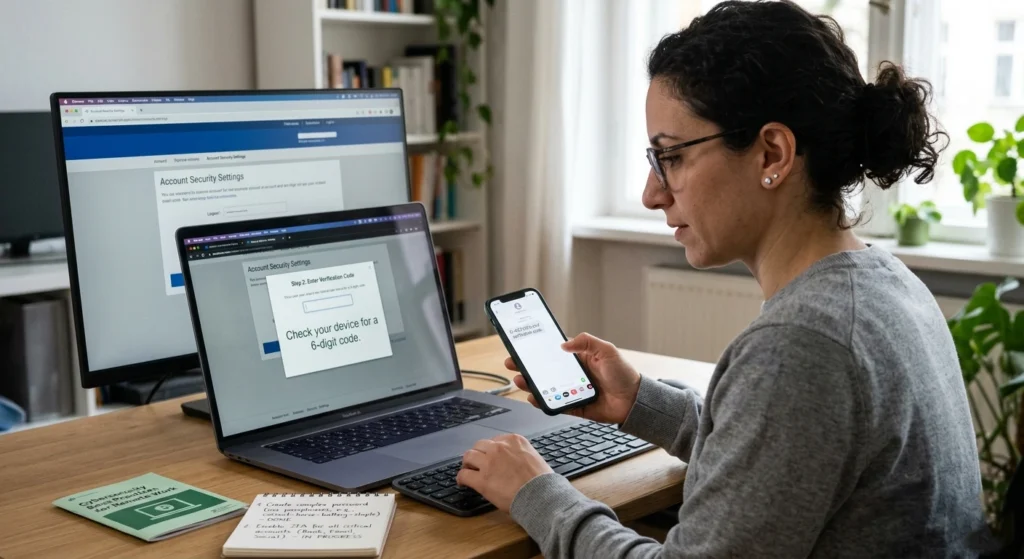
Passwords remain one of the most important layers of digital security. Unfortunately, many people still use short or predictable passwords that are easy to guess.
Weak passwords increase the likelihood of account compromise across email, banking, shopping, and social media platforms.
What Makes a Strong Password?
A secure password should include
- Uppercase letters
- Lowercase letters
- Numbers
- Special characters
- At least 12–16 characters
Avoid using
- Birthdates
- Phone numbers
- Simple sequences
- Common dictionary words
- Reused passwords
Use Unique Passwords for Every Account
Reusing passwords across multiple accounts creates major security risks. If one account becomes exposed, other accounts using the same password may also become vulnerable.
A better approach is creating unique passwords
- Email accounts
- Banking services
- Social media platforms
- Shopping websites
- Cloud storage accounts
Benefits of Password Managers
Password managers help organize and store secure credentials safely. They can generate strong passwords automatically and reduce the need to memorize complex combinations.
Using a password manager also helps prevent unsafe habits such as writing passwords in notebooks or storing them in plain text documents.
Enable Two-Factor Authentication
Two-factor authentication adds another verification layer during login. Even if someone knows a password, they still need a second verification method.
Common two-factor authentication methods include:
- Authentication apps
- Security keys
- Verification codes
- Biometric confirmation
Why Two-Factor Authentication Improves Security
This extra layer significantly reduces unauthorized access risks because login attempts require additional identity verification.
Enabling two-factor authentication on email accounts should be a top priority because email often controls password recovery for other services.
Manage App Permissions and Data Access
Many apps request access to features that are not always necessary for their main functionality. Over time, unnecessary permissions can reduce privacy and expose sensitive information.
Reviewing permissions regularly helps users regain control over personal data.
Common Permissions Apps Request
Applications commonly request access
- Camera
- Microphone
- Location
- Contacts
- Photos
- Bluetooth
- Calendar
- Notifications
Not every application genuinely requires all these permissions.
Review Permissions Carefully
Before granting access, users should ask
- Does the app truly need this permission?
- Is the permission required all the time?
- Can access be limited while using the app only?
For example, weather apps may need location access while active, but they usually do not require continuous background tracking.
Limit Background Data Collection
Some apps continue collecting information even when not actively in use. Reducing background activity can improve both privacy and battery life.
Recommended Permission Settings
- Allow location access only while using apps
- Disable microphone access for unnecessary apps
- Review camera permissions regularly
- Remove unused applications
- Restrict advertising tracking
Social Media Privacy Considerations
Social media apps often request broad permissions to improve engagement features. Reviewing these settings carefully can reduce excessive data sharing.
Users should pay close attention to:
- Contact syncing
- Photo scanning permissions
- Background location tracking
- Personalized advertising preferences
Small permission changes can greatly improve long-term digital privacy.
Optimize Privacy Settings on Smartphones
Smartphones contain more personal information than almost any other device. They track communication, movement, online activity, financial transactions, and daily habits.
Because of this, smartphone privacy settings deserve special attention.
Improve Privacy on Android Devices
Android offers extensive privacy controls that allow users to manage permissions and data access carefully.
Recommended Android Privacy Settings
- Disable unnecessary location sharing
- Limit ad personalization
- Review Google account activity
- Disable unused Bluetooth visibility
- Enable device encryption
- Restrict background app activity
Google Account Privacy Controls
Many Android devices connect heavily with Google services.
Users should regularly review
- Web activity tracking
- Location history
- Voice activity settings
- Connected devices
- Third-party app access
Improve Privacy on iPhone Devices
Apple devices provide strong privacy-focused settings designed to limit excessive data sharing.
Recommended iPhone Privacy Settings
- Disable app tracking where unnecessary
- Review photo library access
- Enable Face ID or Touch ID
- Limit app background refresh
- Control location precision settings
App Tracking Transparency
Modern iPhones allow users to prevent apps from tracking activity across websites and applications. This feature helps reduce personalized data collection.
Secure Lock Screen Settings
Lock screens protect devices from unauthorized physical access.
Strong Lock Screen Options
- Long PIN codes
- Alphanumeric passwords
- Fingerprint recognition
- Facial recognition
Avoid using easy patterns or predictable number combinations.
Improve Security Settings on Windows and Mac Computers
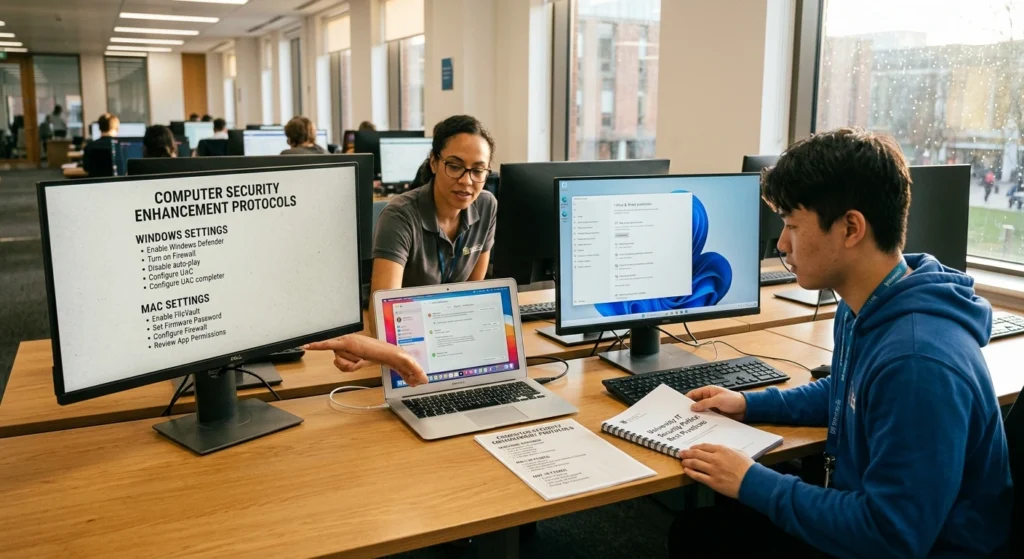
Computers often store professional documents, personal files, financial records, and sensitive account information. Proper security settings are essential for maintaining privacy and system integrity.
Windows and Mac computers store a large amount of personal and professional information, making them common targets for cyber threats and unauthorized access. Improving the security settings on your computer is one of the most effective ways to protect sensitive data, prevent malware infections, and maintain a safe digital environment for everyday use.
Strengthen Security on Windows Devices
Windows includes several built-in security features that many users overlook.
Important Windows Security Features
- Windows Security dashboard
- Firewall protection
- Device encryption
- SmartScreen protection
- Account sign-in controls
Use Standard Accounts for Daily Activity
Using an administrator account for all tasks increases risks because system-level changes become easier to make accidentally.
A standard user account provides better protection for everyday browsing and work.
Improve Security on macOS Devices
Mac computers include advanced privacy and security tools designed to protect user data.
Recommended macOS Security Settings
- Enable FileVault encryption
- Turn on firewall protection
- Restrict app downloads to trusted sources
- Enable automatic security updates
- Review privacy permissions regularly
FileVault Encryption
FileVault encrypts stored data so files remain protected even if the device is lost or stolen.
Encryption significantly improves data security by making information unreadable without proper authentication.
Browser Security on Computers
Browsers are central to most online activity. Secure browser settings help reduce privacy exposure.
Recommended Browser Practices
- Clear browsing data regularly
- Disable unnecessary extensions
- Use privacy-focused search settings
- Block third-party tracking cookies
- Review saved passwords carefully
Secure Your Internet Connection and Wi-Fi Network
Your internet connection and Wi-Fi network are the foundation of your digital activity, making them a critical part of your overall online security. An unsecured network can expose your personal data, passwords, financial information, and connected devices to unauthorized users.
Taking steps to secure your internet connection helps protect your privacy and creates a safer online experience for your home or workplace.
Why Wi-Fi Security Matters
Home networks connect multiple devices including
- Smartphones
- Laptops
- Tablets
- Smart TVs
- Gaming systems
- Smart home devices
Weak router settings can expose the entire network.
Improve Home Wi-Fi Security
Essential Router Security Settings
- Change default router passwords
- Use strong Wi-Fi passwords
- Enable WPA3 encryption if available
- Rename default network names
- Disable unused remote management features
Position Your Router Carefully
Router placement affects both performance and security. Avoid placing routers near windows where signals may extend unnecessarily outside the home.
Be Careful with Public Wi-Fi
Public Wi-Fi networks in cafes, airports, and hotels may not provide strong protection.
Safer Public Wi-Fi Practices
- Avoid accessing sensitive accounts on public networks
- Disable automatic Wi-Fi connections
- Use secure websites with HTTPS
- Turn off file sharing on computers
Mobile Hotspots as an Alternative
Using a personal mobile hotspot often provides better protection than connecting to unknown public networks.
Protect Your Device from Malware and Cybersecurity threats
Digital threats continue evolving, making awareness an important part of device security. Many harmful incidents begin with simple mistakes such as opening suspicious links or downloading unverified files. One of the best ways to defend against malware is by installing reliable antivirus and anti-malware software and keeping it updated regularly.
Security software helps detect harmful programs before they can infect your device. In addition, keeping your operating system, browser, and applications updated ensures you receive the latest security patches that fix known vulnerabilities.
Recognize Suspicious Messages and Websites
Suspicious emails and fake websites often attempt to imitate trusted companies.
Warning Signs to Watch For
- Urgent language demanding immediate action
- Poor spelling or grammar
- Unusual login requests
- Suspicious attachments
- Unknown senders
Verify Website Security
Before entering sensitive information
- Check for HTTPS encryption
- Confirm correct website spelling
- Avoid suspicious pop-up windows
Use Trusted Security Features
Modern devices include built-in protection systems that help detect unsafe activity.
Helpful Security Practices
- Keep browser protection enabled
- Scan files before opening them
- Avoid unnecessary browser extensions
- Review downloads carefully
Email Security Habits
Email accounts often contain sensitive personal information and password reset links.
Protecting email access should remain one of the highest cybersecurity priorities.
Use VPNs and Encryption for Better Online Privacy
As online privacy concerns continue to grow, using VPNs and encryption tools has become one of the most effective ways to protect your personal information and internet activity. Whether you are browsing the web, using public Wi-Fi, or accessing sensitive accounts, these security measures help keep your data private and reduce the risk of digital safety.
What a VPN Does
A Virtual Private Network (VPN) creates a secure connection between a device and the internet. This helps improve privacy, especially on shared or public networks.
Benefits of VPN Usage
- Improves browsing privacy
- Helps secure internet traffic
- Reduces tracking exposure
- Adds protection on public Wi-Fi
When VPNs Are Most Useful
VPNs are especially helpful when
- Traveling
- Using hotel Wi-Fi
- Working remotely
- Accessing sensitive accounts on shared networks
Understanding Encryption
Encryption converts readable information into protected data that requires authentication to access.
Common Uses of Encryption
- Secure messaging
- Device storage protection
- Cloud backup security
- Financial transactions
Device Encryption Features
Most modern devices support built-in encryption systems.
Examples include
- BitLocker on Windows
- FileVault on macOS
- Android encryption
- iPhone data protection
Encryption provides one of the strongest defenses for protecting personal information.
Backup Your Data and Enable Recovery Options
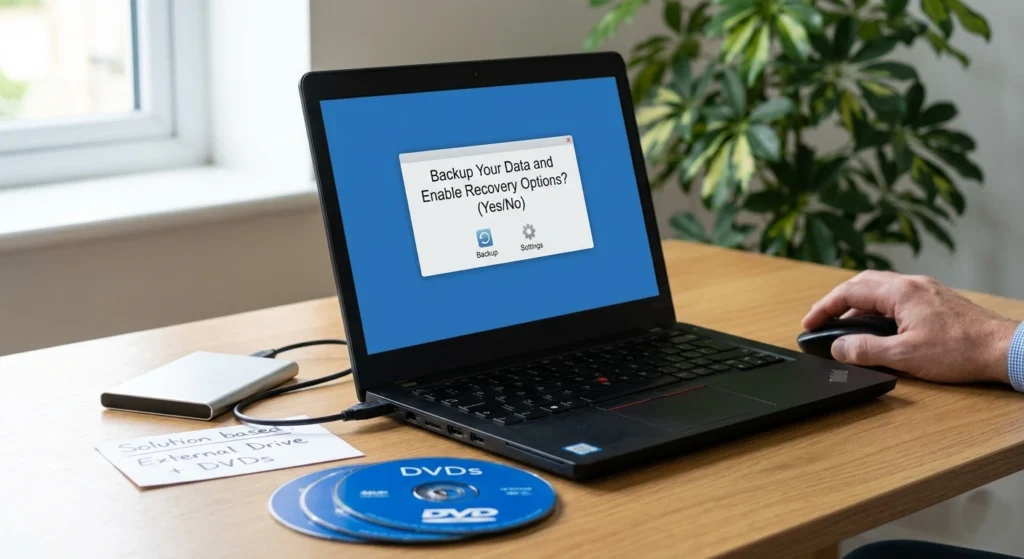
Data loss can happen unexpectedly due to hardware failure, accidental deletion, theft, or software problems. Backups help users recover important files quickly.
Keep your important files safe should be a priority for every device user. Photos, documents, work files, and personal information can sometimes be lost because of accidental deletion, hardware failure, software issues, or unexpected system problems. Creating regular backups and enabling recovery options helps ensure your valuable data remains secure and easy to restore whenever needed.
Why Backups Matter
Important data may include
- Family photos
- Work documents
- Financial records
- Contacts
- Messages
- Videos
Without backups, recovery may become extremely difficult.
Backup Options
Cloud Backups
Cloud storage services automatically sync files across devices and help protect against local data loss.
External Storage Backups
External drives provide additional protection and offline storage.
Recommended Backup Strategy
A balanced backup approach includes
- Automatic cloud backups
- Periodic external drive backups
- Recovery verification testing
Enable Recovery Features
Recovery tools help users regain account or device access if credentials are forgotten.
Important Recovery Settings
- Add backup email addresses
- Update recovery phone numbers
- Save emergency recovery codes securely
Best Practices to Maintain Long-Term Device Security
Digital security is not a one-time task. Maintaining privacy and protection requires consistent habits over time. Maintaining strong device security is not a one-time task it requires consistent habits and regular maintenance to keep your information private and your devices running safely over time.
Whether you use a computer, smartphone, or tablet, following smart security practices can help protect personal data, improve performance, and create a more reliable digital experience.
Build Safe Daily Habits
Strong habits reduce long-term risks significantly.
Daily Security Practices
- Lock devices when not in use
- Review notifications carefully
- Monitor account activity
- Remove unused apps regularly
- Avoid sharing sensitive information unnecessarily
Review Security Settings Periodically
Privacy settings often change after updates or new installations.
Monthly Security Checklist
- Review account logins
- Update passwords if necessary
- Check app permissions
- Remove inactive accounts
- Review connected devices
Educate Family Members
Shared devices and family accounts should follow the same security standards.
Teaching children and older family members about online privacy helps create safer digital habits for everyone.
Stay Informed About Privacy Changes
Technology evolves quickly, and companies frequently introduce new privacy controls. Staying informed helps users take advantage of better protection features.
Final Thoughts
Improving privacy and security settings on any device does not require advanced technical knowledge. Small changes made consistently can dramatically improve digital safety and personal privacy over time.
Updating software regularly, using strong passwords, enabling two-factor authentication, reviewing app permissions, securing internet connections, and backing up important data all contribute to a safer online experience.
Modern devices contain valuable personal information, making privacy and security more important than ever before. Taking control of settings today helps protect sensitive information, reduce unnecessary data exposure, and create safer digital habits for the future.