Is your Mac running slower than usual? Over time, unnecessary files, background apps, and outdated settings can reduce performance and affect your daily workflow. The good news is that you can speed up your Mac and improve overall performance without replacing your device.
Mac optimization guide, you will discover simple and effective tips to boost speed, free up storage, improve battery life, and keep your Mac running smoothly every day. Whether you use a MacBook or iMac, these optimization techniques will help you get faster and more reliable performance.
Introduction to Mac Optimization

Mac computers are known for their smooth performance, stable operating system, and long lifespan, but even the fastest MacBook or iMac can gradually slow down over time. Many users notice delayed app launches, reduced multitasking performance, excessive heat, battery drain, or lag while browsing and editing files. These issues are common and usually happen because the system becomes overloaded with unnecessary data, background services, startup items, and outdated configurations.
Mac optimization is the process of improving your system’s efficiency by cleaning unnecessary files, adjusting system settings, managing storage, reducing CPU load, and organizing applications correctly. A properly optimized Mac can feel significantly faster without requiring hardware upgrades.
Modern versions of macOS are highly advanced, but they still depend heavily on available storage, healthy memory usage, and proper system maintenance. When storage becomes full or too many apps run simultaneously, performance naturally decreases. Even high-end Macs with Apple Silicon chips can experience slowdowns if they are not maintained correctly.
Below is a simple comparison showing how system conditions affect Mac performance.
| System Condition | Mac Performance Impact |
|---|---|
| Storage Above 85% Full | Slower app launching |
| Too Many Startup Apps | Longer boot time |
| High Browser Tab Usage | Increased RAM consumption |
| Background Sync Services | Higher CPU activity |
| Old macOS Version | Reduced stability |
| Cache and Junk Files | Slower responsiveness |
Why Mac Optimization Matters
Optimization is not only about speed. It also improves.
- Battery efficiency
- Application responsiveness
- System stability
- Thermal management
- File organization
- Daily workflow productivity
A well-maintained Mac can continue performing smoothly for many years. Professionals using video editing, design software, coding environments, or multitasking workflows benefit greatly from system optimization because demanding workloads place heavy pressure on memory and processor resources.
Signs Your Mac Needs Optimization
Many users ignore early warning signs until the system becomes frustratingly slow.
Common symptoms include.
- Applications taking too long to open
- macOS freezing during multitasking
- Constant spinning beachball cursor
- High fan noise
- Battery draining quickly
- Slow Safari or Chrome browsing
- Delayed Finder performance
- System lag after startup
These signs usually indicate excessive background activity or insufficient available resources.
Why Your Mac Slows Down Over Time
A Mac slowing down is completely normal after years of usage. Every installed application, browser extension, temporary file, and background service consumes system resources.
Over time, your Mac can become slower due to accumulated cache files, unnecessary startup programs, outdated software, and limited storage space. Running too many background apps and keeping old files can also reduce system performance and increase loading times.
Accumulated System Clutter
Over time, macOS stores temporary data known as cache files. These files help applications load faster initially, but excessive accumulation can reduce efficiency.
Common clutter sources include.
- Browser cache
- Application logs
- Temporary rendering files
- Old downloads
- Duplicate media
- Unused applications
Large amounts of stored clutter reduce available disk space and slow indexing operations.
Insufficient Free Storage
macOS performs best when at least 15% to 20% of storage remains free. When storage becomes nearly full, the operating system struggles to manage virtual memory efficiently.
Storage Usage Impact on Performance
| Available Storage | Performance Level |
|---|---|
| Above 25% Free | Excellent |
| 15%–25% Free | Stable |
| 10%–15% Free | Moderate Slowdown |
| Below 10% Free | Significant Lag |
Modern macOS versions use SSD storage heavily for swap memory. Limited free space directly affects multitasking speed.
Too Many Background Processes
Applications running silently in the background can heavily consume RAM and CPU power.
Examples
- Cloud syncing services
- Messaging apps
- Browser helpers
- Media indexing
- Automatic updates
Even when not actively used, these services continuously consume resources.
Aging Hardware Components
Older Intel-based Macs naturally slow down because newer software requires more processing power. High-resolution applications, web technologies, and multitasking workloads demand greater hardware efficiency.
Older systems especially struggle.
- 4K video playback
- Large browser sessions
- Creative editing software
- Real-time rendering
- Virtual machines
Outdated Software and Compatibility Issues
Running outdated macOS versions can reduce optimization efficiency. Software developers optimize applications for newer system architectures, particularly Apple Silicon.
Older versions may experience.
- Memory leaks
- Reduced browser performance
- Security inefficiencies
- App compatibility instability
Free Up Storage Space on Your Mac
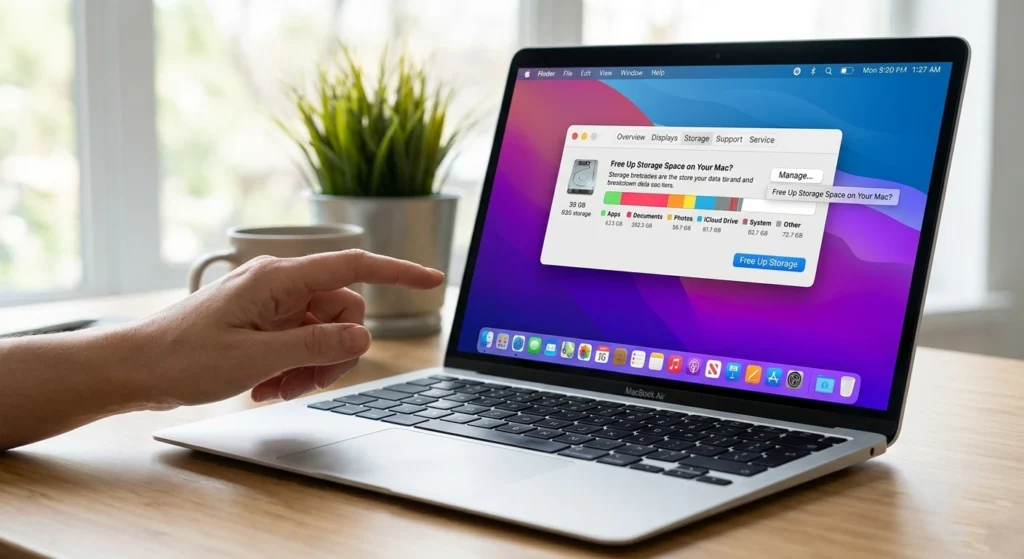
Storage management is one of the most effective ways to restore Mac performance. Low storage space can significantly slow down your Mac and affect overall system performance.
Removing unnecessary files, clearing cache data, deleting unused apps, and organizing large files can help free up valuable storage. Keeping enough free space on your Mac improves speed, responsiveness, and ensures smoother daily performance.
Identify What Consumes Storage
Navigate.
Apple Menu → About This Mac → Storage
This section shows which categories occupy the most space.
Common storage consumers include.
- Videos
- Photos
- Downloads
- System Data
- Applications
- iPhone backups
Remove Large Unused Files
Large files often remain forgotten for years. Clearing unnecessary files can instantly improve responsiveness.
Focus on removing.
- Old video projects
- Duplicate media
- Unused DMG files
- Archived ZIP folders
- Unnecessary desktop clutter
Organize Downloads Folder
The Downloads folder is frequently overloaded with temporary files.
Common File Types Safe to Review
| File Type | Typical Usage |
|---|---|
| DMG Files | Installation packages |
| ZIP Archives | Compressed folders |
| Duplicate PDFs | Repeated documents |
| Screenshots | Temporary images |
| Old Media Files | Large storage consumers |
Use iCloud Storage Optimization
macOS allows users to store older files in iCloud while keeping frequently used items locally available.
Benefits include.
- Reduced local storage pressure
- Faster indexing
- Better workspace organization
Empty Trash Regularly
Deleted files still consume storage until Trash is emptied. Large media files can occupy tens of gigabytes unnecessarily.
Remove Startup Apps for Faster Boot Time

Many applications automatically launch during startup, slowing boot performance. Too many startup apps can slow down your Mac’s boot time & reduce overall performance.
Disabling unnecessary login items helps your system start faster, use fewer resources, and run more smoothly. Managing startup applications is a simple yet effective way to improve Mac speed and enhance daily productivity.
Why Startup Apps Affect Performance
Each startup application consumes.
- RAM
- CPU cycles
- Disk activity
- Network resources
Too many startup services can increase boot time significantly.
Average Startup Performance Comparison
| Number of Startup Apps | Estimated Boot Speed |
|---|---|
| 0–3 Apps | Fast |
| 4–8 Apps | Moderate |
| 9+ Apps | Slow |
Disable Unnecessary Login Items
Go to.
System Settings → General → Login Items
Review apps carefully and disable anything unnecessary.
Common apps safe to review.
- Messaging platforms
- Music launchers
- Cloud sync duplicates
- Utility helpers
Minimize Menu Bar Applications
Menu bar apps constantly run in the background.
Examples include.
- Clipboard managers
- Weather widgets
- Sync indicators
- Battery monitors
Reducing these helps improve memory efficiency.
Restart Your Mac Weekly
Many users rarely restart their Macs. Restarting clears temporary memory usage and refreshes background processes.
Benefits include.
- Improved RAM allocation
- Reduced cached memory buildup
- Faster app responsiveness
Optimize macOS Settings for Better Performance
macOS visual effects and system animations can consume resources unnecessarily, especially on older Macs. Optimizing your macOS settings can help improve speed, reduce system lag, and enhance overall performance.
Adjusting visual effects, managing background processes, and enabling efficient system preferences can make your Mac run smoother and faster. Simple macOS optimizations not only boost daily performance but also improve battery life and system stability.
Reduce Transparency and Motion Effects
Navigate to.
System Settings → Accessibility → Display
Enable.
- Reduce Transparency
- Reduce Motion
These settings decrease graphical workload and improve responsiveness.
Adjust Spotlight Indexing
Spotlight indexing can consume CPU resources during heavy file changes.
Exclude unnecessary folders.
- External backup drives
- Large archives
- Video rendering folders
Disable Unused Widgets
Widgets constantly refresh information in the background.
Removing unnecessary widgets reduces.
- Memory consumption
- Background network activity
- Notification load
Optimize Browser Performance
Web browsers are among the largest resource consumers on modern Macs.
Browser Optimization Tips
- Limit open tabs
- Remove unused extensions
- Clear browsing data regularly
- Use tab sleeping features
Browser RAM Usage Comparison
| Activity | Approximate RAM Usage |
|---|---|
| 5 Tabs Open | Low |
| 20 Tabs Open | Moderate |
| 50+ Tabs Open | Very High |
Keep macOS Updated
Apple frequently improves performance efficiency through system updates.
Updates often include.
- Battery optimization
- Graphics improvements
- Memory management enhancements
- System stability fixes
Clean Cache, Junk Files, and Background Processes

Temporary files build up continuously during normal usage. Cache files, system junk, and unnecessary background processes can gradually slow down your Mac and consume valuable resources.
Regularly clearing cache data, removing temporary files, and managing running background apps helps free up memory and improves system responsiveness. This simple maintenance step keeps your Mac faster, cleaner, and more efficient for everyday use.
What Are Cache Files?
Cache files help apps load data faster temporarily. However, excessive cache accumulation becomes inefficient over time.
Types of cache include.
- Browser cache
- Application cache
- System cache
- User cache
Benefits of Cleaning Junk Files
Removing unnecessary files can improve.
- Storage availability
- Finder responsiveness
- Search indexing speed
- Application launch times
Manage Background Activity
Activity Monitor helps identify processes consuming excessive resources.
Open.
Applications → Utilities → Activity Monitor
Monitor:
- CPU usage
- Energy impact
- Memory pressure
- Disk activity
CPU Usage Warning Levels
| CPU Usage | System Condition |
|---|---|
| Below 20% | Healthy |
| 20%–50% | Moderate Activity |
| Above 50% | Heavy Load |
Remove Browser Extensions You Do Not Need
Browser extensions can heavily impact performance.
Too many extensions may cause.
- Slower browsing
- Increased RAM usage
- Delayed page loading
- Higher CPU consumption
Optimize RAM and Reduce CPU Usage
Efficient RAM management is critical for smooth multitasking. High RAM and CPU usage can slow down your Mac and make everyday tasks feel laggy.
Closing heavy applications, limiting background processes, and monitoring system activity can help free up memory and reduce processor load. managing resources wisely, you can improve speed, enhance multitasking, and keep your Mac running smoothly.
Understanding Memory Pressure
macOS uses memory pressure indicators to determine system efficiency.
Memory Pressure Colors
| Color | Meaning |
|---|---|
| Green | Healthy |
| Yellow | Moderate strain |
| Red | Heavy memory overload |
Close Resource-Heavy Applications
Applications consuming excessive memory include.
- Video editing software
- Large browsers
- Virtual environments
- Design applications
Closing unused apps immediately improves responsiveness.
Reduce Browser Tab Overload
Modern websites consume significant RAM because of advanced scripting and media elements.
Estimated Browser Resource Usage
| Open Tabs | Memory Usage |
|---|---|
| 5 Tabs | 1–2 GB |
| 20 Tabs | 4–6 GB |
| 50 Tabs | 8+ GB |
Use Activity Monitor Efficiently
Activity Monitor provides real-time data regarding.
- CPU percentage
- Energy consumption
- RAM allocation
- Storage writes
High CPU processes can rapidly slow the system and increase heat generation.
Disable Unnecessary Background Syncing
Cloud services continuously sync files and photos.
Limiting unnecessary syncing reduces.
- Processor activity
- Disk usage
- Network traffic
Best Mac Optimization Tools and Apps
macOS includes many built-in maintenance features, but some trusted applications can help users organize storage and monitor performance more efficiently.
Built-In macOS Utilities
Apple already includes powerful optimization features.
Native Utilities
| Utility | Purpose |
|---|---|
| Activity Monitor | Resource tracking |
| Storage Management | Disk optimization |
| Disk Utility | Drive repair |
| System Settings | Performance adjustments |
These built-in options are sufficient for many users.
Storage Analysis Applications
Some applications help visualize storage consumption clearly, making large files easier to identify.
Useful features include.
- Duplicate file detection
- Large folder visualization
- System cleanup recommendations
Performance Monitoring Applications
Monitoring applications provide real-time information about.
- CPU temperature
- Memory usage
- Fan activity
- Battery health
These insights help users identify performance bottlenecks faster.
Avoid Overloading Your Mac with Utility Apps
Installing too many maintenance applications can actually reduce performance. Some continuously run background services unnecessarily.
A lightweight optimization strategy is usually more effective.
How to Speed Up an Older Mac

Older Macs often slow down due to outdated software, limited hardware resources, and accumulated system clutter. however, you can still improve performance upgrading storage, reducing background activity, and optimizing macOS settings. Simple steps like freeing up disk space and managing apps can make an older Mac feel faster, more responsive, and reliable again.
Upgrade to SSD Storage
Older hard drives are significantly slower than SSDs.
Performance Difference
| Storage Type | Approximate Speed |
|---|---|
| Traditional HDD | Slow |
| SATA SSD | Fast |
| NVMe SSD | Very Fast |
SSD upgrades dramatically improve.
- Boot speed
- File transfers
- App launches
- Overall responsiveness
Reduce Visual Effects
Older graphics hardware struggles with advanced animations.
Reducing animations improves.
- Window responsiveness
- Multitasking smoothness
- Energy efficiency
Use Lightweight Applications
Modern software often demands substantial resources. Lightweight alternatives reduce strain on older systems.
Clean the Cooling System
Dust accumulation restricts airflow and increases temperatures.
High temperatures cause.
- Thermal throttling
- Slower CPU performance
- Increased fan noise
Proper airflow helps maintain consistent performance.
Replace Aging Batteries
Older MacBook batteries can affect system performance management.
macOS may reduce processor speed when battery health becomes poor.
Common Mac Performance Problems and Fixes
Mac performance issues often come from a few common causes like low storage, too many startup apps, outdated software, or heavy background processes. These problems can lead to slow boot times, app crashes, and lagging performance.
most of these issues can be fixed by cleaning up system files, updating macOS, and managing resources properly to restore smooth and stable performance.
Slow Boot Time
Causes
- Excessive startup apps
- Full storage
- Background syncing
Fixes
- Remove unnecessary login items
- Free storage space
- Restart regularly
Overheating
Causes
- Heavy CPU usage
- Dust buildup
- Too many background tasks
Fixes
- Improve ventilation
- Close demanding apps
- Monitor CPU-intensive processes
Battery Drain
Causes
- Background syncing
- High screen brightness
- Browser resource usage
Fixes
- Reduce brightness
- Limit background services
- Optimize browser tabs
Slow Safari or Chrome Performance
Causes
- Excessive extensions
- Heavy web applications
- Cache overload
Fixes
- Remove unused extensions
- Clear browsing data
- Limit simultaneous tabs
Frequent Freezing or Lag
Causes
- Low available RAM
- High CPU load
- Insufficient storage
Fixes
- Close unnecessary applications
- Maintain free storage space
- Restart the system periodically
Mac Performance Optimization Checklist
Below is a quick optimization checklist for maintaining long-term performance.
| Optimization Task | Recommended Frequency |
|---|---|
| Empty Trash | Weekly |
| Clear Downloads Folder | Monthly |
| Restart Mac | Weekly |
| Review Startup Apps | Monthly |
| Update macOS | Regularly |
| Monitor Storage Usage | Monthly |
| Remove Unused Apps | Every 2–3 Months |
Daily Habits That Keep Your Mac Fast
Keeping your Mac fast is not just about one time fixes it depends on your daily habits. Regularly closing unused apps, keeping storage organized, and updating software helps maintain smooth performance.
Simple routines like restarting your Mac and clearing unnecessary files can prevent slowdowns and ensure your system stays fast, responsive, and efficient every day.
Smart Usage Practices
- Keep at least 20% storage free
- Avoid excessive multitasking
- Limit browser tabs
- Restart periodically
- Remove unused applications
- Organize files regularly
These simple habits prevent performance degradation over time.
Conclusion
A Mac can remain smooth, responsive, and highly productive for many years when properly optimized. Performance issues are often caused by storage overload, excessive background activity, memory pressure, and unnecessary startup applications rather than hardware failure.
managing storage carefully, reducing background processes, optimizing macOS settings, cleaning temporary files, and maintaining healthy RAM usage, users can significantly improve daily performance. Even older Macs can feel dramatically faster with proper maintenance and efficient system management.
The key to long-term Mac performance is consistency. Small maintenance habits performed regularly are far more effective than waiting until the system becomes extremely slow. With the optimization strategies covered in this guide, your Mac can continue delivering a fast, reliable, and smooth computing experience for everyday work, creative projects, browsing, and multitasking.