Smartphones hold more personal information than ever before. From sensitive emails and photos to banking apps and passwords, Android devices are a treasure trove of valuable data. Unfortunately, this makes them prime targets for Data Breach and cybercriminals.
Whether you use your phone for work, socializing, or managing finances, it’s crucial to ensure your data remains secure. top Android security tips that will help you protect your personal information from unauthorized access. simple yet effective steps can help safeguard your device against common threats, ensuring that your privacy stays intact.
Let’s dive into the best practices you can implement today to keep your Android device safe and secure!
Introduction: Why Android Security is Crucial for Protecting Your Personal Data
hyper-connected world, your Android device is more than just a smartphone it’s a digital vault of your personal life. From banking apps and emails to private photos, business documents, and saved passwords, nearly everything you value digitally lives inside your phone. this convenience. comes with a serious responsibility, protecting your personal data from evolving cyber threats.
Recent cybersecurity reports show that millions of Android devices are targeted every year by malware, phishing attacks, and data breaches. Attackers are no longer just targeting corporations—they are increasingly focusing on individual users who often have weaker security practices. A single mistake, such as downloading an unsafe app or using a weak password, can expose your entire digital identity.
What makes Android particularly important to secure is its open ecosystem. While this flexibility allows users to customize their devices, it also increases the risk of malicious applications and vulnerabilities if proper precautions are not taken.
The good news is that you don’t need to be a cybersecurity expert to stay protected. following a set of proven, practical security habits, you can significantly reduce your risk and keep your data safe.
1. Use Strong Passwords and Biometric Authentication

One of the most common entry points for attackers is a weak or reused password. Many users still rely on simple combinations like “123456” or “password,” which can be cracked in seconds using automated tools.
Why Strong Passwords Matter
A strong password acts as your first line of defense. If your device is lost, stolen, or accessed by someone else, a weak password makes it easy for them to gain full control.
A secure password should.
- Be at least 12–16 characters long
- Include a mix of uppercase, lowercase, numbers, and symbols
- Avoid predictable patterns or personal information like birthdays
Important insight: Cybercriminals often use “credential stuffing,” where they try passwords leaked from previous data breaches. This is why never reusing passwords across accounts is critical.
The Role of Biometric Authentication
Modern Android devices support biometric security such as.
- Fingerprint scanning
- Facial recognition
These methods add an additional layer of protection. While not perfect, they are far more secure than PIN-only systems when combined properly.
Combining Both for Maximum Security
The best approach is a layered one.
- Use a strong password or PIN as a base
- Enable biometric authentication for convenience and speed
Key takeaway: Security should never rely on a single method. Combining multiple protections drastically reduces risk.
2. Keep Your Android Device Updated with the Latest Security Patches
Many users ignore system updates, thinking they only bring new features. In reality, updates are critical for fixing security vulnerabilities. Android device up to date is one of the most important steps in maintaining its security.
Android regularly releases security patches to fix vulnerabilities and protect your device from emerging threats. Failing to install these updates can leave your phone exposed to malware, data breaches, and other cyberattacks.
What Are Security Patches?
Security patches are updates released by Android manufacturers to fix.
- Software bugs
- Known vulnerabilities
- Exploitable weaknesses discovered by researchers
Data Breach actively look for devices that haven’t been updated because they can exploit known flaws easily.
Real-World Impact of Ignoring Updates
Unpatched devices are significantly more vulnerable. Studies have shown that a large percentage of successful attacks target outdated systems, not new ones.
for example.
- Older Android versions may lack protection against modern malware
- Security flaws can allow unauthorized access to apps, camera, or microphone
How to Stay Updated
To maintain security.
- Enable automatic system updates
- Regularly check for updates in settings
- Install updates as soon as they become available
Important note: Even minor updates can contain critical fixes. Skipping them increases your exposure over time.
3. Install Apps Only from Trusted Sources (Google Play Store)
Downloading apps from unknown sources is one of the fastest ways to compromise your device. One of the easiest ways to protect your Android device from security threats is by being cautious about where you download apps.
While it may be tempting to install apps from third-party websites or unofficial app stores, this can put your personal data at risk. Apps from untrusted sources often contain malware or other malicious software designed to steal information or compromise your device.
Why Trusted Sources Matter
Official app stores implement security checks and malware scanning systems. While not perfect, they significantly reduce the risk compared to third-party sources.
Apps from unknown websites may.
- Contain hidden malware
- Steal sensitive data
- Track your activity without permission
Understanding App Risks
Even legitimate-looking apps can be dangerous if downloaded from unofficial platforms. Attackers often create fake versions of popular apps that look identical but contain malicious code.
Safe App Installation Practices
To stay protected.
- Only install apps from official marketplaces
- Check developer reputation and app reviews
- Avoid apps with very few downloads or suspicious permissions
Critical reminder: If an app asks for permissions unrelated to its function, it’s a red flag.
4. Enable Two-Factor Authentication for Extra Protection
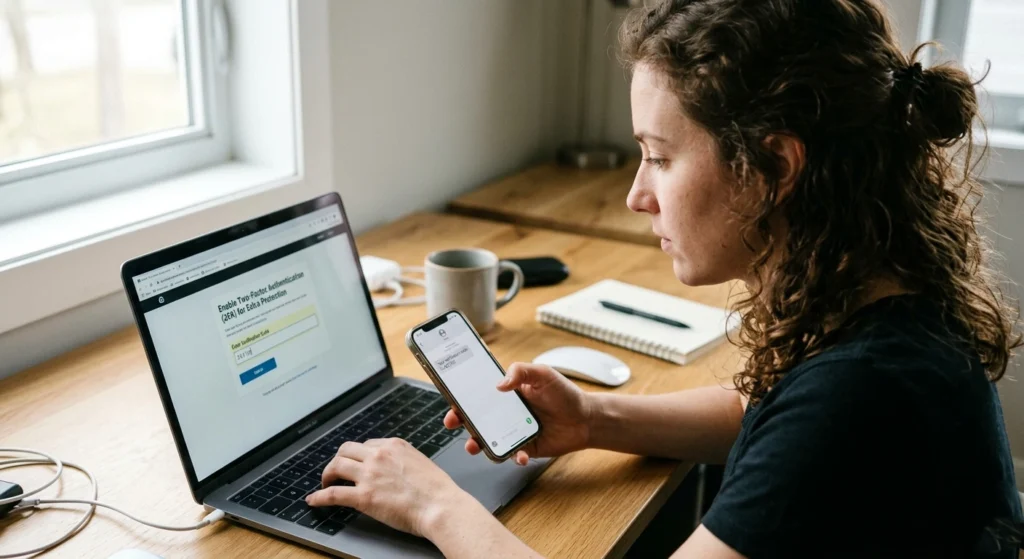
Passwords alone are no longer enough. This is where two-factor authentication (2FA) becomes essential. frequent data breaches and cyber threats, relying solely on passwords to secure your Android device isn’t enough.
Even the strongest passwords can be compromised, which is why Two-Factor Authentication (2FA) adds an extra layer of protection to your accounts.
Enabling 2FA on your Android device and apps is a simple yet highly effective way to safeguard your personal data. we’ll explain how two-factor authentication works and guide you through the steps to set it up for enhanced security.
What Is Two-Factor Authentication?
2FA adds a second layer of security by requiring.
- Something you know (password)
- Something you have (OTP code or authentication app)
Even if someone steals your password, they cannot access your account without the second factor.
Why It’s Essential Today
Data breaches are increasingly common. If your login credentials are exposed, 2FA acts as a critical safety net.
Accounts that should always have 2FA enabled.
- Email accounts
- Banking apps
- Cloud storage
- Social media
Types of Two-Factor Authentication
- SMS-based codes
- Authentication apps
- Hardware security keys
Among these, authentication apps are generally more secure than SMS, which can be vulnerable to SIM swapping attacks.
Key insight: 2FA reduces the risk of unauthorized access by a massive margin—even if your password is compromised.
5. Use a Virtual Private Network (VPN) for Secure Browsing
Public Wi-Fi networks are convenient but extremely risky. Without protection, your data can be intercepted easily. When browsing the internet on your Android device, it’s easy to forget that your online activity can be tracked, especially when using public Wi-Fi networks.
Whether you’re shopping online, using social media, or checking email, a VPN ensures that your sensitive information stays protected.
The Risk of Public Networks
When you connect to unsecured Wi-Fi.
- Data Breach can monitor your activity
- Sensitive data like passwords can be captured
- Fake networks can trick users into connecting
How a VPN Protects You
A VPN encrypts your internet traffic, making it unreadable to outsiders.
- Your browsing activity stays private
- Your data remains secure even on public networks
When You Should Use a VPN
- While using public Wi-Fi
- When accessing sensitive accounts
- During online transactions
Important note: Encryption is one of the strongest defenses against data interception.
6. Be Cautious with App Permissions and Privacy Settings
Many apps request more permissions than they actually need, which can lead to privacy risks. Many Android apps request access to personal data and device features, but not all of them need the permissions they ask for.
Granting unnecessary access to your camera, microphone, location, or contacts can expose your private information to third parties and increase the risk of privacy breaches. It’s important to review app permissions regularly and only allow access to the features that are essential for the app’s functionality.
Understanding App Permissions
Permissions control what an app can access.
- Camera
- Microphone
- Contacts
- Location
Granting unnecessary permissions can expose sensitive information.
Common Privacy Risks
Some apps.
- Track your location continuously
- Access your contacts without clear reason
- Use your microphone or camera in the background
Best Practices for Managing Permissions
- Review permissions before installing apps
- Deny access that isn’t essential
- Regularly audit permissions in settings
Modern Android versions allow temporary or one-time permissions, which significantly improve privacy control.
Key takeaway: Every permission you grant is a potential access point be selective and intentional.
7. Encrypt Your Android Device for Added Data Security
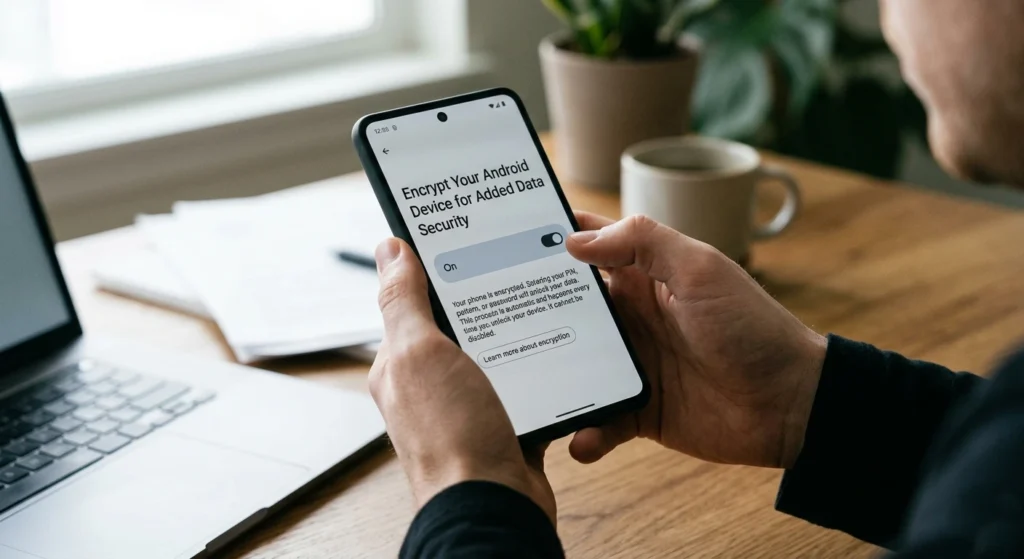
Encryption ensures that your data remains unreadable without proper authentication. Encryption is one of the most effective ways to protect your personal data in case your Android device is lost or stolen.
enabling device encryption, all the information stored on your phone is converted into unreadable code, making it nearly impossible for anyone without the correct password or PIN to access your files.
This extra layer of security ensures that even if someone manages to bypass your lock screen, they won’t be able to easily view or steal your sensitive data.
What Is Device Encryption?
Encryption converts your data into a secure format that can only be accessed with the correct credentials.
Even if someone physically accesses your device, encrypted data remains protected.
Why Encryption Is Important
If your device.
- Lost
- Stolen
- Accessed without authorization
Encryption prevents attackers from extracting sensitive data.
Android Encryption Features
Most modern Android devices come with encryption enabled by default, but it’s still important.
- Confirm encryption is active
- Use a secure lock screen method
Important insight: Encryption protects your data even when all other defenses fail.
8. Regularly Back Up Your Data for Protection Against Loss
Security is not just about preventing attacks it’s also about recovering from them. No one expects their Android device to fail, but accidents can happen.
Whether it’s a broken screen, a software glitch, or your phone being lost or stolen, having a backup of your important files can save you from losing valuable data.
Why Backups Are Essential
Data loss can occur due.
- Device theft
- Malware attacks
- Accidental deletion
- Hardware failure
Without backups, recovery may be impossible.
Types of Backups
- Cloud backups
- Local backups on external storage
Best Backup Practices
- Schedule automatic backups
- Store backups in secure locations
- Ensure backups include important data like contacts, photos, and documents
Key takeaway: A reliable backup strategy ensures that even worst-case scenarios don’t result in permanent loss.
Conclusion: Best Practices for Keeping Your Android Device Secure
Protecting your Android device is not about a single action it’s about building consistent, smart habits over time. Each layer of security you add makes it significantly harder for attackers to succeed.
summarize the most effective practices.
- Use strong passwords and biometric authentication
- Keep your device updated with the latest security patches
- Install apps only from trusted sources
- Enable two-factor authentication wherever possible
- Use secure connections like VPNs on public networks
- Carefully manage app permissions and privacy settings
- Ensure your device is encrypted
- Maintain regular backups of your data
Final thought: Cybersecurity is not a one-time setup it’s an ongoing process. Staying informed and proactive is the best way to protect your personal data in an increasingly digital world.