Ensuring that your system or application runs smoothly is essential for both productivity and user satisfaction. One of the most common culprits behind sluggish performance is background resource usage those unseen processes running in the background, quietly consuming CPU, memory, and bandwidth.
Identifying and reducing unnecessary background resource consumption can lead to significant improvements in speed and efficiency. practical steps to identify hidden resource hogs and provide actionable tips to optimize your system for better overall performance. Whether you’re a casual user, a developer, or an IT professional, these strategies will help you regain control and unlock your device’s full potential.
Understanding Background Resource Usage on Your Device

Every modern device whether it’s a laptop, desktop, or smartphone runs far more processes than what you actively see on your screen. While you may only interact with a browser, a document, or a media player, dozens of background activities continue working silently to support system functionality.
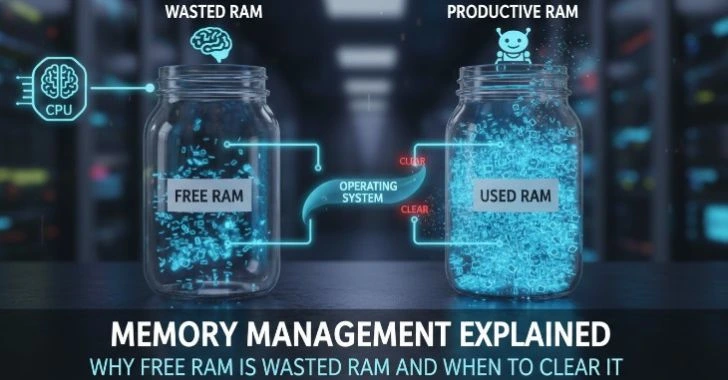
Background resource usage refers to the CPU, memory (RAM), disk activity, and network bandwidth consumed by processes that operate without direct user interaction. These processes include system services, scheduled tasks, syncing features, and application updates.
What Counts as Background Activity
Not all background tasks are unnecessary. Many are essential for smooth operation.
- System updates and maintenance routines
- File indexing for faster search results
- Cloud synchronization (documents, photos, settings)
- Notification services
- Security checks and system monitoring
However, the issue arises when non-essential processes consume excessive resources, leading to noticeable slowdowns.
How Resources Are Used
Each background process draws from one or more system resources.
- CPU usage: Determines how much processing power is consumed
- RAM usage: Affects how many applications can run smoothly
- Disk usage: Impacts file read/write speed
- Network usage: Influences internet speed and responsiveness
When multiple background processes compete for these resources, your device performance can degrade significantly even if you’re not actively running heavy applications.
Why Background Resources Affect Device Performance
It is easy to assume that performance issues are caused only by visible applications, but background processes often play a larger role than expected.
Resource Contention and System Slowdowns
When too many processes demand system resources at the same time, your device struggles to allocate them efficiently.
This leads.
- Slower application launches
- Delayed response times
- Increased system lag
- Occasional freezing or stuttering
For example, a system with limited RAM may start using virtual memory (disk space acting as RAM), which is significantly slower, resulting in reduced performance.
Hidden Impact on Multitasking
Efficient multitasking depends on available system resources. If background processes are already consuming a large portion of memory or CPU.
- Switching between apps becomes sluggish
- Applications may reload frequently
- Performance drops under moderate workloads
Thermal and Energy Effects
High background activity doesn’t just affect speed it also impacts hardware.
- Increased CPU usage leads to higher temperatures
- Cooling systems work harder, causing noise
- Battery drains faster on portable devices
In short, background resource usage directly influences speed, responsiveness, and overall user experience.
How to Identify High-Resource Background Processes

Background processes are often the hidden culprits behind slow system performance, quietly eating up your computer resources without you even realizing it. These processes can consume a significant amount of CPU, memory, and bandwidth, leading to lag, freezing, or poor responsiveness.
Using Built-In System Monitors
Most operating systems provide tools that show real-time resource usage.
Key Indicators to Watch
- CPU percentage: Look for processes consistently above 10–20%
- Memory usage: High RAM consumption can slow multitasking
- Disk activity: Constant read/write operations can cause lag
- Network usage: Unusual data usage may affect internet speed
Recognizing Unusual Patterns
Not all high usage is problematic. for example, updates or file transfers may temporarily increase activity. However, you should pay attention to:
- Processes running at high usage even when idle
- Applications consuming resources without being opened
- Repeated spikes in usage without clear cause
Prioritizing What to Investigate
Focus on.
- Applications you rarely use
- Programs that start automatically
- Background services linked to optional features
Identifying patterns is more important than reacting to a single spike. Consistency in high usage is what signals inefficiency.
Steps to Reduce Background Resource Consumption
Once you have identified the high-resource background processes, the next step is to take action and reduce their impact on your system’s performance. Minimizing unnecessary resource consumption can lead to faster load times, smoother multitasking, and an overall more responsive device.
Disable Unnecessary Startup Programs
Many applications launch automatically when your device starts. While convenient, this increases resource usage immediately after boot.
- Review startup programs
- Disable non-essential apps
- Keep only critical services active
This simple step can noticeably improve boot time and responsiveness.
Adjust Background App Permissions
Some applications continue running even when not in use.
- Restrict background activity for rarely used apps
- Limit synchronization frequency
- Turn off unnecessary notifications
This helps conserve both system resources and battery life.
Close Idle Applications Properly
Minimizing an application doesn’t always stop it from consuming resources.
- Fully close unused apps
- Avoid leaving multiple programs running unnecessarily
Optimize System Settings
Operating systems offer performance-related settings that can help.
- Adjust visual effects for better performance
- Limit background refresh intervals
- Manage power settings for balanced performance
Best Tools for Monitoring Background Resource Usage
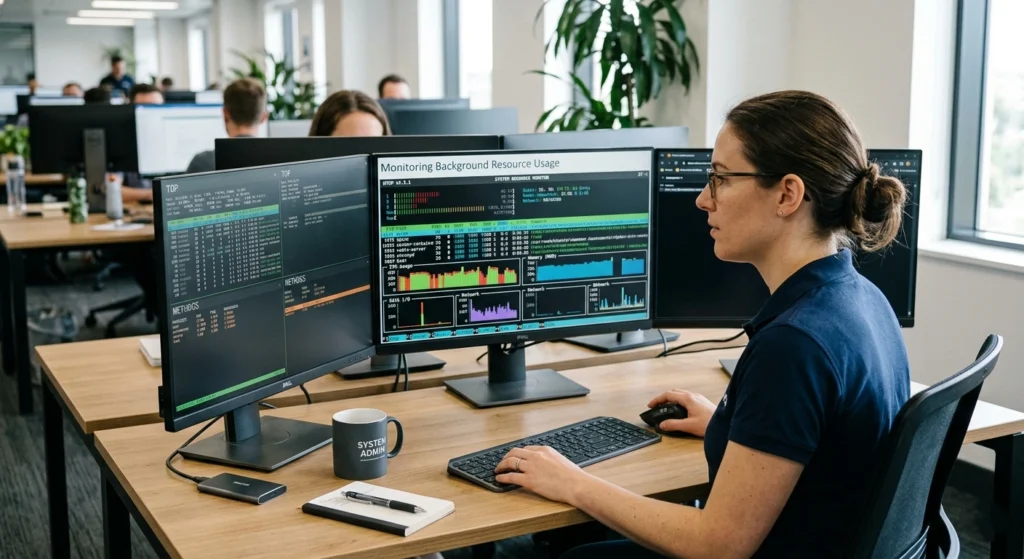
To effectively manage and reduce background resource usage, you need the right tools to monitor and analyze your system’s performance. Whether you are a casual user looking to optimize your device or a professional troubleshooting a slow system, having access to the best monitoring tools is crucial.
Built-In Monitoring Features
Most devices include native performance tools that display.
- Real-time CPU and memory usage
- Active processes and services
- Disk and network activity
These tools are reliable because they are integrated directly into the system and provide accurate insights.
What Makes a Good Monitoring Tool
An effective monitoring solution should.
- Provide clear, real-time data
- Allow sorting by resource usage
- Offer historical trends
- Be easy to understand for non-technical users
Interpreting Data Effectively
Data alone isn’t enough you need to interpret it correctly.
- Short spikes are normal
- Continuous high usage is a concern
- Compare usage during idle vs active states
Understanding these patterns helps you make informed decisions rather than reacting impulsively.
Optimizing Device Performance by Managing Background Tasks
Effective performance optimization isn’t about stopping all background processes it’s about managing them intelligently.
Prioritizing Essential Processes
Some background tasks are critical for system stability and should never be disabled.
These include.
- Core system services
- Hardware-related processes
- Security and update mechanisms
Focus only on optimizing non-essential processes.
Balancing Performance and Functionality
Reducing background usage too aggressively can limit functionality.
for example.
- Disabling sync may delay file updates
- Turning off notifications may cause missed alerts
The goal is to find a balance where performance improves without sacrificing usability.
Scheduling Background Activities
Where possible.
- Schedule updates during idle times
- Run maintenance tasks when the system is not in heavy use
This prevents resource conflicts during active work.
Practical Tips to Minimize Background Resource Usage
Now that you have the tools and knowledge to monitor your system’s background processes, it’s time to put that information into action. Reducing background resource usage does not have to be complicated, small, consistent adjustments can lead to noticeable improvements in performance.
Keep Your System Updated
Updates often include performance improvements and efficiency fixes. Running outdated software can lead to unnecessary resource consumption.
Regularly Restart Your Device
Limit Browser Extensions
Web browsers can become major resource consumers due to extensions.
- Remove unused add-ons
- Keep only essential extensions active
Manage File Synchronization
Cloud syncing is useful but can consume resources continuously.
- Sync only important folders
- Pause syncing when not needed
Avoid Overloading Your System
Running too many applications simultaneously increases background activity.
- Focus on fewer tasks at a time
- Close apps when switching tasks
The Impact of Background Resources on Battery and Speed
Background processes affect more than just performance they directly influence battery life and system efficiency.
Battery Drain Explained
Every active process consumes power. When multiple processes run in the background.
- CPU works harder
- Network activity increases
- Power consumption rises
This leads to faster battery depletion, especially on laptops and mobile devices.
Speed and Responsiveness
High background usage reduces available resources for active tasks.
- Slower response times
- Delayed input recognition
- Reduced overall system speed
Heat Generation
Increased resource usage leads to more heat.
- Fans may run continuously
- Device temperature rises
- Performance may be throttled to prevent overheating
Managing background tasks helps maintain cooler, quieter, and more efficient operation.
How to Free Up System Resources for Better Performance

Freeing up system resources is a key step in improving your device’s speed and responsiveness. Whether you’re working on a slow computer, troubleshooting lag, or simply looking to optimize your system, reclaiming valuable resources can make a noticeable difference.
Clear Temporary Files
Temporary files accumulate over time and can consume disk space and system resources.
- Remove unnecessary files regularly
- Use built-in cleanup utilities
Optimize Memory Usage
RAM plays a critical role in performance.
- Close memory-heavy applications
- Avoid running multiple large programs simultaneously
Manage Storage Space
Low storage can slow down your system.
- Keep sufficient free space available
- Remove unused files and applications
Reduce Background Services
Some services run continuously without clear benefit.
- Review active services
- Disable those not required
Efficient Ways to Handle Background Tasks for Peak Performance
Managing background tasks efficiently is essential for maintaining peak performance on your device. While some background processes are necessary for functionality, others can drain valuable resources and slow things down.
Create a Routine Maintenance Plan
Consistency is key.
- Check resource usage weekly
- Clean unnecessary files regularly
- Review installed applications periodically
Monitor Performance Trends
Instead of reacting to slowdowns, track patterns over time.
- Identify recurring issues
- Address root causes early
Use Smart Resource Allocation
Some systems allow prioritization of tasks.
- Allocate more resources to active applications
- Limit background processes during heavy workloads
Stay Minimal
The fewer unnecessary processes your system runs, the better it performs. Adopting a minimalist approach to software usage can significantly improve efficiency.
Conclusion:
Background resource usage is an often-overlooked factor that plays a major role in device performance. While many background processes are essential, unmanaged or excessive activity can lead to slower speeds, reduced responsiveness, and shorter battery life.
understanding how background processes work, identifying high-resource usage, and applying practical optimization techniques, you can take full control of your device’s performance. The key is not to eliminate background activity entirely, but to manage it wisely and efficiently.
A well-optimized system does not just run faster it feels smoother, more responsive, and far more reliable in everyday use.