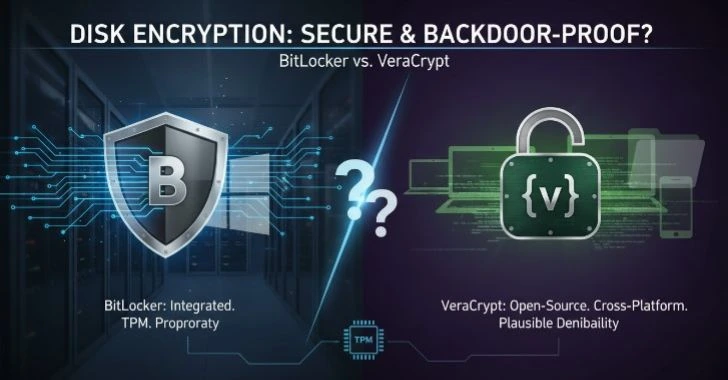
Connected world, protecting your personal information online is more important than ever. From social media accounts to online banking, everyday internet users face countless privacy risks that can compromise sensitive data. with a few simple practices, you can significantly improve your digital privacy.
This essential digital privacy checklist for everyday internet users covers practical steps from creating strong passwords and enabling two-factor authentication to managing app permissions and using secure networks so you can browse, shop, and communicate online safely and confidently.
Why Digital Privacy Matters for Everyone
digital privacy is no longer optional it is essential. Almost every aspect of modern life involves the internet. From social media accounts and online banking to cloud storage and email communication, people constantly share personal data online. While this connectivity provides convenience and efficiency, it also introduces serious risks if privacy is not properly protected.
Every internet user leaves behind a digital footprint a trail of information that can include browsing history, location data, login credentials, purchase records, and personal conversations. When this information falls into the wrong hands, it can lead to identity theft, financial fraud, or unauthorized access to sensitive accounts.
Many people believe that cyberattacks only target large corporations or high-profile individuals. However, statistics and cybersecurity research show the opposite. Everyday users are frequent targets because attackers know that many individuals do not follow basic privacy practices. Weak passwords, outdated software, unsecured Wi-Fi networks, and poorly configured social media settings create easy entry points for malicious actors.
Another challenge is that modern digital services collect large amounts of data for advertising and analytics. Without proper privacy controls, companies may track browsing habits, location information, and personal preferences. While some data collection supports improved services, users should always understand and manage what information they share.
Maintaining digital privacy does not require advanced technical skills. Instead, it involves following a set of consistent and practical habits that reduce risks and protect personal information. This article provides a comprehensive checklist designed for everyday internet users. By applying these steps, individuals can significantly improve their digital safety and reduce the chances of data exposure.
The goal is simple: take control of your personal information and make privacy a daily practice.
Use Strong, Unique Passwords and a Password Manager
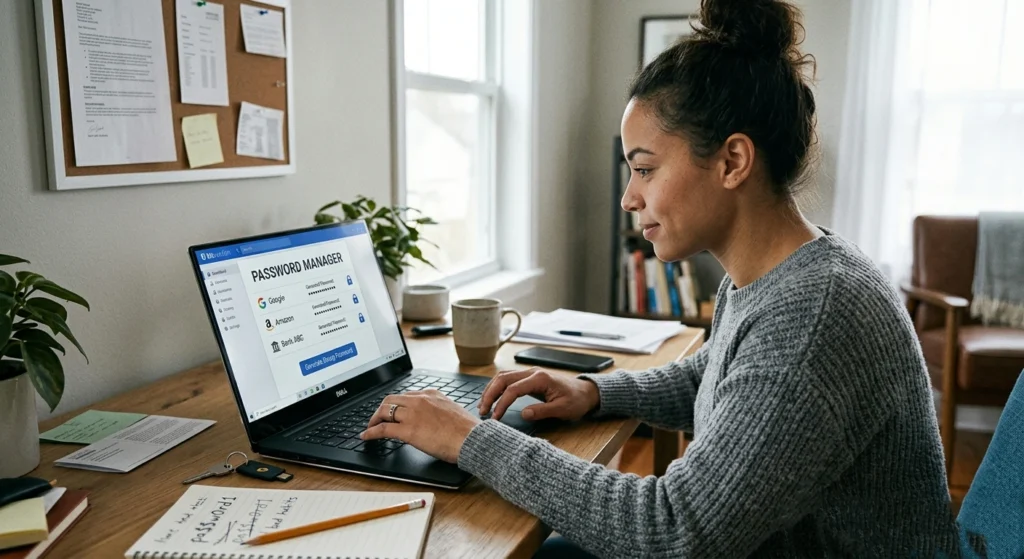
Passwords remain one of the most common ways to secure online accounts. Despite advances in authentication technologies, weak or reused passwords continue to be a leading cause of account breaches.
Many users still rely on simple passwords such as birthdays, names, or easy sequences like “123456.” These passwords can be cracked within seconds using automated tools. Cybercriminals also exploit password reuse, meaning if one website suffers a data breach, attackers can use the same credentials to access multiple accounts.
Why Password Strength Is Critical
A strong password should be difficult for both humans and automated programs to guess. Security experts recommend creating passwords that include a mix of.
- Uppercase and lowercase letters
- Numbers
- Special characters
- At least 12–16 characters in length
for example, a password like.
“BlueRiver!84Sunset#Tree”
is significantly stronger than a short password.
“password123”
The longer and more complex a password is, the harder it becomes to crack using brute-force attacks.
The Problem with Password Reuse
Reusing the same password across multiple websites may feel convenient, but it introduces serious security risks. When a website experiences a data breach, attackers often obtain a database of usernames and passwords. These credentials are then tested automatically on other platforms such as email services, social networks, and banking websites.
This technique, known as credential stuffing, allows attackers to compromise many accounts quickly.
Using a Password Manager for Better Security
Remembering dozens of complex passwords can be difficult. This is where password managers become extremely useful. A password manager securely stores login credentials and generates strong, unique passwords for every account.
Key benefits.
- Automatic password generation
- Secure encrypted storage
- Auto-fill login credentials
- Reduced password reuse
Instead of remembering many passwords, users only need to remember one strong master password.
Best Practices for Password Protection
To strengthen account security, users should follow these guidelines.
- Never reuse passwords across important accounts.
- Avoid using personal information in passwords.
- Change passwords immediately after a known data breach.
- Enable additional security features when available.
- Store passwords securely rather than writing them in visible places.
Adopting these habits greatly reduces the likelihood of unauthorized account access.
Enable Two-Factor Authentication (2FA) on Your Accounts
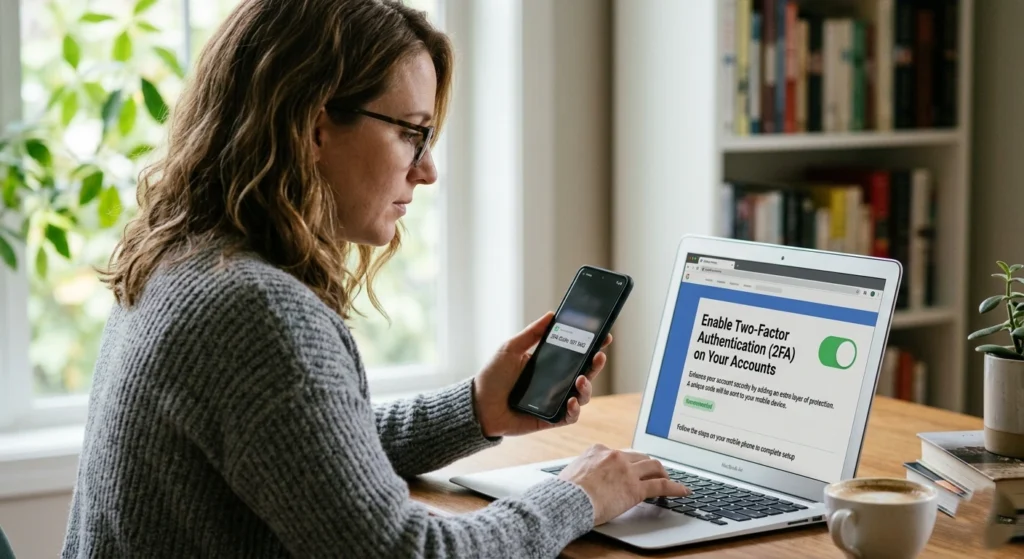
Even the strongest password cannot provide complete protection on its own. If a password is stolen or exposed through a phishing attack, attackers may still gain access to an account. This is why Two-Factor Authentication (2FA) has become one of the most important security features available online.
What Is Two-Factor Authentication?
Two-Factor Authentication adds a second layer of verification beyond a password. To access an account, users must provide two separate forms of identification:
- Something you know – your password
- Something you have – a verification code or authentication device
This extra step significantly reduces the risk of unauthorized access.
Common Types of Two-Factor Authentication
Different platforms implement 2FA in various ways. The most common methods.
SMS Verification Codes
After entering a password, a code is sent to the user’s mobile phone.
Authenticator Apps
Applications generate temporary codes that change every 30–60 seconds.
Hardware Security Keys
A physical device is used to verify identity during login.
Biometric Authentication
Some systems use fingerprint or facial recognition as the second factor.
Why 2FA Is Highly Effective
Even if attackers obtain a password through data breaches or phishing attempts, they usually cannot access the second authentication factor. Without the verification code or device, login attempts fail.
This means 2FA can stop a large percentage of automated attacks.
Where You Should Enable 2FA First
Certain accounts are especially important and should always have 2FA enabled.
- Email accounts
- Online banking
- Cloud storage services
- Social media accounts
- Work-related platforms
Email accounts are particularly critical because attackers often use them to reset passwords for other services.
Tips for Managing Two-Factor Authentication
- Save backup codes in a secure location.
- Avoid relying solely on SMS authentication when possible.
- Use authenticator apps or hardware keys for stronger protection.
- Update phone numbers associated with authentication systems.
When combined with strong passwords, 2FA provides one of the most effective defenses against unauthorized access.
Keep Your Devices and Software Updated
Software updates may seem inconvenient, but they play a vital role in protecting digital privacy. Every computer, smartphone, and application contains complex code. Over time, security researchers and developers discover vulnerabilities that attackers could exploit.
Why Updates Are Essential
When a vulnerability is discovered, developers release security patches through software updates. These patches fix weaknesses before they can be widely abused by cybercriminals.
Ignoring updates leaves devices exposed to known threats.
Common Targets for Exploitation
Outdated systems often become targets for attacks.
- Malware infections
- Ransomware attacks
- Data theft
- Unauthorized remote access
Even widely used software can contain vulnerabilities, which is why developers release frequent updates.
Devices and Software That Require Updates
Many users think only operating systems require updates, but several components must be maintained regularly.
- Operating systems (Windows, macOS, Linux, Android, iOS)
- Web browsers
- Security software
- Installed applications
- Firmware on routers and smart devices
Internet-connected devices in homes are increasingly targeted, especially if they run outdated firmware.
Automatic Updates vs Manual Updates
Whenever possible, users should enable automatic updates. This ensures that important security patches are installed immediately after release.
For systems where automatic updates are not available, it is important to check manually at regular intervals.
Additional Update Best Practices
- Restart devices when updates require system changes.
- Remove unsupported software that no longer receives updates.
- Avoid installing applications from untrusted sources.
Keeping devices updated is one of the simplest yet most powerful ways to maintain digital privacy.
Manage and Limit Social Media Privacy Settings
Social media platforms encourage users to share information about their lives, interests, and locations. While this can create meaningful connections, oversharing personal details can expose sensitive data to strangers or malicious actors.
The Hidden Risks of Public Profiles
When profiles are fully public, anyone can view.
- Personal photos
- Location updates
- Family information
- Friend lists
- Work or education details
This information can be misused for identity theft, social engineering attacks, or targeted scams.
Adjusting Privacy Controls
Most social media platforms provide privacy settings that allow users to control who can see their information. These settings typically allow users to limit access.
- Posts and photos
- Profile details
- Contact information
- Tagged content
- Friend lists
Setting posts to “Friends Only” or restricted audiences helps prevent unwanted visibility.
Review Old Posts and Data
Many users forget that older posts remain accessible online. Reviewing and removing outdated or sensitive content can improve long-term privacy.
Photos containing location data, personal documents, or identifiable landmarks should be reviewed carefully.
Be Mindful of Location Sharing
Some social media platforms automatically attach location information to posts or images. Disabling location tagging prevents others from tracking movement patterns.
Smart Social Media Habits
To maintain privacy while using social networks.
- Avoid sharing travel plans in real time.
- Limit personal details such as phone numbers or addresses.
- Review tagging permissions before others post photos of you.
- Periodically check privacy settings after platform updates.
Responsible sharing ensures that social media remains a positive experience without compromising personal privacy.
Use Secure Browsers and Enable Private Browsing Modes
Web browsers are the primary gateway to the internet. Every search, website visit, and online transaction passes through a browser. Because of this, browser security plays a major role in protecting digital privacy.
Why Browser Security Matters
Modern websites collect significant amounts of user data, including browsing habits, cookies, and tracking identifiers. Advertisers and analytics services use this information to build detailed user profiles.
Secure browsers provide features that help limit this data collection.
Features That Improve Browser Privacy
Many browsers include built-in privacy tools designed to protect users.
- Tracking protection
- Cookie management
- Secure HTTPS connections
- Pop-up blocking
- Malicious website warnings
These features help prevent unauthorized tracking and reduce exposure to harmful websites.
Understanding Private Browsing Modes
Private browsing modes allow users to browse the internet without storing certain data locally on the device. When a private session ends, the browser typically removes.
- Browsing history
- Cookies
- Temporary site data
- Form information
This can be useful when accessing shared devices or conducting sensitive searches.
Limitations of Private Browsing
It is important to understand that private browsing does not provide complete anonymity. Internet service providers, network administrators, and websites can still detect activity in certain circumstances.
Private browsing mainly protects local privacy, not full online anonymity.
Best Practices for Safer Browsing
- Clear cookies and browsing data regularly.
- Avoid downloading files from untrusted websites.
- Check for HTTPS encryption before entering sensitive data.
- Keep browser extensions limited and trustworthy.
choosing secure browsers and using privacy features properly, users can significantly reduce online tracking.
Protect Your Data with a Reliable VPN
A Virtual Private Network (VPN) is a privacy tool designed to protect internet traffic by encrypting data between a device and a remote server.
How VPN Encryption Works
When a VPN connection is active, internet traffic travels through an encrypted tunnel before reaching the destination website. This prevents third parties from easily monitoring or intercepting the data.
Encryption is particularly useful when using networks that may not be fully secure.
Privacy Benefits of VPN Connections
Using a VPN provides several privacy advantages.
- Encrypts internet traffic
- Helps hide IP addresses from websites
- Reduces tracking by network observers
- Protects data on public networks
This makes VPN usage especially helpful when accessing sensitive services.
Situations Where VPNs Are Most Useful
VPN protection is particularly valuable.
- Connecting to public Wi-Fi networks
- Accessing sensitive accounts while traveling
- Protecting data on unsecured networks
- Maintaining privacy while browsing
However, users should remember that VPNs are not a complete privacy solution. Responsible browsing habits are still necessary.
Responsible VPN Usage
When using VPN services, it is important to.
- Understand the provider’s privacy policies
- Use secure and trusted networks whenever possible
- Combine VPN use with other privacy practices
VPN technology adds another protective layer to everyday internet usage.
Be Careful with Public Wi-Fi and Network Connections

Public Wi-Fi networks are widely available in places such as airports, cafes, hotels, and libraries. While these networks offer convenience, they also present security risks.
Why Public Wi-Fi Is Risky
Public networks are often shared by many users, making them attractive targets for cybercriminals. Attackers may attempt to intercept data transmitted over unsecured connections.
Potential threats.
- Data interception
- Fake Wi-Fi hotspots
- Session hijacking
- Malware distribution
Identifying Secure Networks
Before connecting to public Wi-Fi, users should verify the correct network name with staff members when possible. Attackers sometimes create fake networks with similar names to trick users.
Safe Behavior on Public Networks
When using public internet connections.
- Avoid accessing financial accounts.
- Do not enter sensitive personal information.
- Disable automatic Wi-Fi connections.
- Log out of accounts after use.
Turn Off File Sharing
Devices connected to public networks should have file sharing disabled to prevent unauthorized access.
Practicing caution on shared networks helps prevent data exposure.
Control App Permissions on Smartphones and Devices
Modern mobile applications often request access to device features such as cameras, microphones, contacts, and location services. While many apps require these permissions to function properly, unnecessary access can compromise privacy.
Understanding App Permissions
When installing applications, users are often asked to grant specific permissions. These permissions allow apps to interact with certain device functions.
Common permission categories.
- Location access
- Microphone access
- Camera access
- Contacts and messages
- Storage access
Risks of Excessive Permissions
Apps that request more permissions than necessary may collect unnecessary personal data. In some cases, this data may be used for targeted advertising or analytics.
Reviewing permissions helps ensure that apps only access what they truly need.
Reviewing Permissions Regularly
Smartphone operating systems provide settings that allow users to review and modify app permissions. Periodically checking these settings helps identify apps that have unnecessary access.
Best Practices for App Privacy
- Install apps only from trusted sources.
- Deny permissions that are not essential.
- Remove unused apps from devices.
- Monitor app behavior after updates.
Controlling app permissions is a simple but effective privacy measure.
Regularly Review Your Online Accounts and Activity
Over time, people accumulate dozens of online accounts across different platforms. Some accounts may no longer be used, yet they still contain personal information.
Why Account Reviews Are Important
Regular reviews help identify.
- Old or inactive accounts
- Suspicious login activity
- Unauthorized password changes
- Linked services that should be removed
Monitoring Login Activity
Many platforms allow users to view recent login locations and devices. Reviewing this activity helps detect unauthorized access early.
Removing Unnecessary Accounts
If a service is no longer used, it is often safer to delete the account entirely rather than leaving it inactive.
Reducing the number of active accounts lowers the overall exposure of personal data.
Back Up Important Data Securely
Data loss can occur for many reasons, including device failure, accidental deletion, malware infections, or theft. Backing up important data ensures that information remains accessible even if the original device becomes unavailable.
Why Backups Are Essential
Important files such as documents, photos, and personal records may be impossible to replace if lost. Secure backups provide peace of mind and ensure long-term data availability.
Types of Backup Methods
Common backup strategies.
- External storage devices
- Encrypted cloud backups
- Network storage systems
Using multiple backup locations increases reliability.
The 3-2-1 Backup Strategy
A widely recommended approach is the 3-2-1 backup rule.
- 3 copies of important data
- 2 different storage methods
- 1 backup stored offsite
This strategy protects against both device failures and local disasters.
Educate Yourself on Phishing and Online Scams
One of the most common ways attackers compromise accounts is through phishing attacks. These scams attempt to trick users into revealing sensitive information such as passwords or financial details.
What Phishing Looks Like
Phishing attempts often appear as legitimate messages from trusted organizations. These messages may claim that urgent action is required.
Common examples.
- Fake account security alerts
- Fraudulent payment notifications
- Suspicious login warnings
- Delivery or package tracking messages
Warning Signs of Phishing Messages
Several indicators may reveal a phishing attempt:
- Unusual sender email addresses
- Urgent or threatening language
- Requests for sensitive information
- Suspicious links or attachments
Safe Response to Suspicious Messages
If a message appears suspicious.
- Do not click links immediately.
- Verify the request through official websites.
- Report the message to the relevant platform.
Learning to recognize phishing tactics helps prevent many cyber incidents.
Conclusion: Maintain Digital Privacy Every Day
Protecting digital privacy is an ongoing responsibility. As technology continues to evolve, new risks and challenges will emerge. However, most privacy threats can be significantly reduced by practicing consistent security habits.
Using strong passwords, enabling two-factor authentication, keeping software updated, and managing privacy settings are foundational steps that every internet user should adopt. Additional measures such as reviewing account activity, controlling app permissions, and recognizing phishing attempts further strengthen personal security.
It is important to remember that digital privacy is not achieved through a single action. Instead, it requires awareness, careful decision-making, and regular maintenance of online accounts and devices.
following the checklist outlined in this guide, everyday internet users can take meaningful control of their personal data and create a safer online environment for themselves and their families.