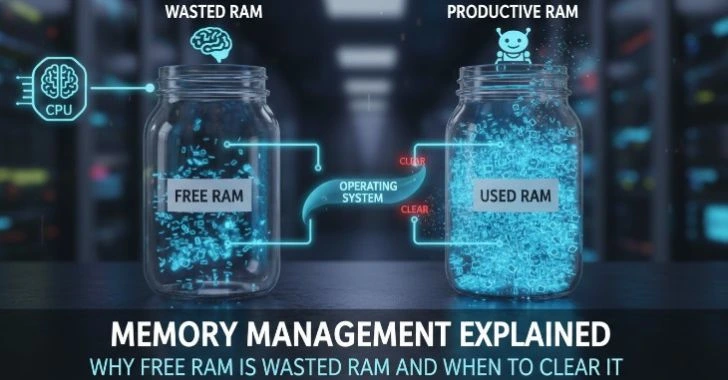
A slow cluttered PC can be frustrating, making everyday tasks take longer and reducing overall productivity. Regular disk cleanup and PC optimization are essential for maintaining peak performance, freeing up storage space, and preventing system slowdowns.
Why Disk Cleanup and PC Optimization Matter

Modern computers are powerful, but even the fastest PC can slow down over time. Files accumulate, applications leave behind hidden data, and operating systems constantly create temporary files to keep processes running smoothly. Eventually, these small fragments of data combine to create significant performance issues.
Many users assume that a slow computer means outdated hardware. In reality, the cause is often far simpler, cluttered storage and poorly optimized system resources. When unnecessary files accumulate and system components become inefficient, your PC must work harder to perform even simple tasks.
Regular disk cleanup and system optimization help maintain.
- Faster application loading times
- Improved overall system responsiveness
- Better storage management
- Reduced system errors
- Longer hardware lifespan
Operating systems such as Windows, macOS, and Linux are designed to manage resources automatically, but they cannot prevent every form of digital clutter. Over time, leftover data from installed programs, cached system files, and unused applications consume valuable disk space.
Without proper maintenance, this clutter can lead.
- Slower startup times
- Reduced storage availability
- Fragmented file structures
- System lag during multitasking
- Increased risk of crashes
A well-maintained computer not only performs faster but also remains more stable and secure. Regular optimization ensures that the operating system uses hardware resources efficiently and prevents unnecessary background activity from slowing the system.
This comprehensive guide explains how disk cleanup works, why it matters, and how to optimize your PC safely and effectively. By understanding these techniques, you can keep your system running like new for years.
Understanding How Disk Space and System Performance Are Linked
Many people think of storage space only as a place to store files such as photos, videos, or documents. However, disk space plays a critical role in overall system performance.
When your storage drive becomes nearly full, the operating system struggles to manage its internal processes efficiently.
How Operating Systems Use Disk Space
Operating systems constantly create and manage various types of files to maintain smooth functionality.
these include.
- Temporary system files
- Application cache data
- System update files
- Virtual memory (paging files)
- Log files and diagnostics data
These files are necessary for short-term processes, but they are not always removed automatically. Over time, they accumulate and consume large portions of disk space.
When available storage drops below a safe threshold, the operating system has less room to perform essential operations.
The Role of Virtual Memory
One of the most important factors connecting disk space and performance is virtual memory.
When your system’s RAM becomes full, the operating system temporarily moves inactive data to disk storage. This process uses a file known as the paging file or swap file.
If your storage drive lacks sufficient free space, the system cannot efficiently create or expand this file. As a result.
- Applications may freeze
- System responsiveness decreases
- Multitasking becomes slower
Keeping at least 15–20% of your disk space free helps maintain proper virtual memory operations.
Storage Speed and System Responsiveness
The type of storage device also affects performance.
for example.
- Hard Disk Drives (HDDs) rely on mechanical components.
- Solid-State Drives (SSDs) store data electronically.
SSDs are significantly faster because they eliminate physical movement. However, even SSDs can experience performance degradation if they become nearly full.
This happens because SSDs rely on free blocks of storage to efficiently write new data.
When storage is properly managed and unnecessary files are removed, the operating system can access data faster and execute processes more efficiently.
Identify Unnecessary Files and Temporary Data on Your PC
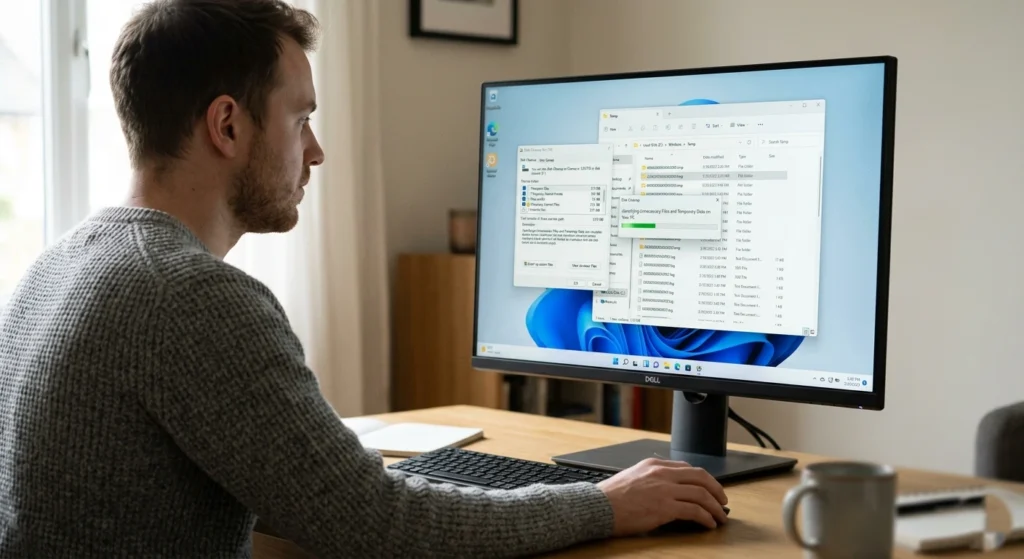
Before optimizing your system, the first step is identifying the types of files that unnecessarily consume storage space.
Many files created by operating systems and applications are meant to be temporary. Unfortunately, they often remain long after their purpose is complete.
Understanding these files helps you safely remove them without affecting system stability.
Temporary System Files
Temporary files are created when applications perform tasks that require short-term data storage.
examples include.
- Software installation files
- Update packages
- Application caches
- System diagnostics files
These files are typically stored in directories.
- Temp folders
- Cache directories
- Update storage locations
Most temporary files are automatically removed after a system restart or application closure, but many remain if processes terminate unexpectedly.
Browser Cache and Web Data
Web browsers store large amounts of data to speed up page loading.
this includes.
- Cached images
- Script files
- Cookies
- Session data
While caching improves browsing speed, excessive cache storage can consume several gigabytes of disk space over time.
Clearing browser cache periodically ensures that outdated data does not occupy valuable storage.
Old System Updates
Operating systems frequently install updates to improve security and performance. During this process, the system often stores.
- Backup versions of system files
- Update installation packages
- Rollback data
These files are useful temporarily but may remain long after updates are completed.
Removing outdated update files can free significant disk space without affecting system stability.
Duplicate and Forgotten Files
Another common source of storage waste is duplicate data.
- Multiple copies of photos
- Repeated downloads
- Old backups
- Archived files no longer needed
Over time, these files accumulate and make it harder to organize important data.
Regularly reviewing and removing unnecessary files keeps your system clean and efficient.
Using Built-In Disk Cleanup Tools in Windows
Microsoft includes several built-in utilities designed to help users manage storage and remove unnecessary system files safely.
These tools are reliable because they understand which files can be deleted without harming system functionality.
Disk Cleanup Utility
The classic Disk Cleanup utility has been part of Windows for many years. It scans the system drive and identifies files that can be safely removed.
Common categories.
- Temporary internet files
- Recycle Bin contents
- System error reports
- Temporary installation files
- Thumbnails and cached data
This tool calculates how much space each category consumes and allows users to remove them selectively.
The benefit of using Disk Cleanup is that it prevents accidental deletion of important system files.
Storage Sense
Modern versions of Windows introduced Storage Sense, an automated storage management feature.
Storage Sense automatically removes.
- Temporary system files
- Old files in the Recycle Bin
- Unused downloads
- Previous Windows update files
Users can configure how frequently these cleanups occur.
For example, Storage Sense can run.
- Daily
- Weekly
- Monthly
- When storage is low
This automated system ensures that unnecessary data does not accumulate over time.
Analyzing Storage Usage
Windows also provides storage usage analysis tools that display how disk space is allocated.
These tools categorize files into sections.
- Apps and programs
- System files
- Documents
- Pictures and videos
- Temporary files
This overview helps users quickly identify which areas consume the most storage space.
Understanding storage distribution allows for more targeted cleanup and optimization.
Managing Installed Programs and Applications for Better Performance
Many users install software and rarely remove it. Over time, systems become filled with applications that are no longer used.
Unused programs can consume storage space, system resources, and background processes.
Why Unused Applications Slow Down Your PC
Even when not actively running, some applications.
- Install background services
- Create scheduled tasks
- Start automatically during system boot
- Store update files and logs
These hidden processes may consume CPU cycles, memory, and disk space.
Removing unnecessary software improves both performance and system organization.
Identifying Large Applications
Operating systems provide tools to analyze installed programs by size.
This helps identify applications that consume the most storage space.
Large applications often.
- Video editing software
- Games
- Development environments
- Graphic design tools
If these programs are rarely used, removing them can free substantial disk space.
Removing Leftover Data
Uninstalling software does not always remove every file it created.
Some applications leave behind.
- Configuration files
- Cache data
- Update logs
- Temporary installation files
These leftovers accumulate over time.
Performing occasional manual checks ensures that orphaned files do not waste valuable storage.
Optimizing Your Hard Drive or SSD for Faster Access
Disk cleanup removes unnecessary files, but drive optimization improves how data is stored and accessed.
The optimization process differs depending on whether your system uses an HDD or SSD.
Hard Drive Fragmentation
Traditional hard drives store files in small pieces across the disk surface.
Over time, files become fragmented, meaning different parts of the same file are scattered across the drive.
This forces the drive’s mechanical arm to move repeatedly to read the entire file, slowing down performance.
Disk Defragmentation
Defragmentation reorganizes file fragments so they are stored closer together on the disk.
This reduces the time required to retrieve data.
Benefits of defragmentation.
- Faster file access
- Improved application loading
- Reduced mechanical strain on the drive
Modern operating systems perform defragmentation automatically, but manual optimization may still be beneficial for heavily used drives.
SSD Optimization
Solid-State Drives operate differently and should not be defragmented in the traditional sense.
Instead, they rely on a process called TRIM.
TRIM allows the operating system to inform the SSD which data blocks are no longer needed, enabling the drive to manage storage efficiently.
This improves.
- Write speeds
- Longevity of the drive
- Overall performance
Keeping adequate free space on SSDs ensures that the TRIM process works effectively.
Cleaning and Organizing Your System Registry (Windows Specific)
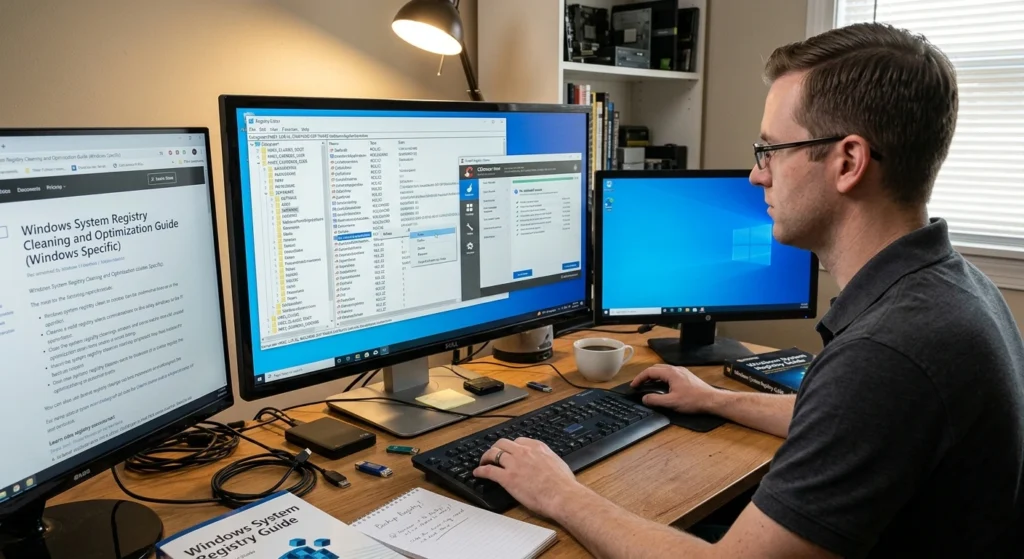
The Windows Registry is a centralized database that stores configuration settings for the operating system and installed applications.
It includes information.
- System preferences
- Hardware configurations
- Application settings
- User profiles
While the registry is essential for system operation, it can accumulate unnecessary entries over time.
How Registry Clutter Occurs
Registry clutter often results.
- Uninstalled applications
- Outdated software settings
- Broken configuration entries
- Invalid file associations
These entries rarely cause serious issues individually, but a heavily cluttered registry can make system processes less efficient.
Why Registry Organization Matters
When Windows loads programs or system components, it often references registry entries.
An excessively large or disorganized registry may increase lookup times during system operations.
This can contribute.
- Slower application launches
- Longer boot times
- System instability in rare cases
Maintaining a clean registry ensures faster configuration access and improved system reliability.
However, registry editing should always be done cautiously, since incorrect changes can affect system stability.
Removing Startup Programs to Speed Up Boot Time
One of the most noticeable signs of system slowdown is a longer startup time.
Many applications configure themselves to launch automatically when the computer boots.
Why Startup Programs Affect Performance
Every program that launches during startup consumes.
- CPU resources
- Memory
- Disk activity
If too many programs start simultaneously, the system must divide resources among them, delaying the time it takes for the computer to become fully responsive.
Identifying Startup Programs
Modern operating systems allow users to view and manage startup applications.
Programs typically added to startup include.
- Messaging applications
- Cloud storage services
- Software update managers
- Media launchers
While some startup programs are necessary, many are optional.
Disabling unnecessary startup entries can significantly reduce boot times.
Balancing Convenience and Performance
Some startup applications provide useful features, such as automatic file synchronization or security monitoring.
Before disabling a program, consider whether it provides essential functionality.
A balanced startup configuration ensures fast boot performance without sacrificing necessary system services.
Using Third-Party Tools for Advanced Disk Cleanup and Optimization
While built-in utilities are effective, some users require more detailed control over system maintenance.
Advanced disk management tools provide deeper insights into system storage and performance.
Features Often Provided by Advanced Optimization Tools
These tools may offer capabilities.
- Deep system file analysis
- Detection of hidden cache files
- Duplicate file identification
- Detailed disk usage visualization
- Automated maintenance scheduling
Such features allow users to identify storage inefficiencies that built-in tools may overlook.
Benefits of Advanced Disk Analysis
Detailed disk analysis helps users understand.
- Which folders consume the most space
- How quickly storage usage grows
- Where large files are located
This knowledge enables more informed decisions about data organization and cleanup strategies.
However, users should always ensure that optimization tools come from trusted and reputable sources to avoid security risks.
Regular Maintenance Tips to Keep Your PC Running Smoothly
Disk cleanup should not be a one-time activity. Regular system maintenance is essential for long-term performance.
Small, consistent maintenance tasks prevent the accumulation of unnecessary files and keep system resources functioning efficiently.
Schedule Periodic Disk Cleanup
Running cleanup utilities every few weeks helps remove.
- Temporary system files
- Cached data
- Unused update files
Routine cleanups prevent large storage buildups that could slow the system.
Keep Your Operating System Updated
Operating system updates often.
- Security improvements
- Performance enhancements
- Storage management improvements
Keeping the system updated ensures that optimization tools and system processes remain efficient.
Organize Files and Folders
A well-organized file structure makes it easier to locate and manage data.
Best practices.
- Separating documents, media, and software files
- Archiving old projects
- Deleting outdated backups
Organization reduces storage clutter and improves productivity.
Monitor Storage Health
Monitoring storage usage ensures that disk space never falls below critical levels.
Maintaining adequate free space allows the operating system to perform essential tasks such as caching and virtual memory management.
Conclusion: Achieve a Faster, Cleaner, and More Efficient PC
Computers gradually slow down not because they are outdated, but because digital clutter accumulates over time. Temporary files, unused programs, fragmented storage, and inefficient startup processes all contribute to declining system performance.
Fortunately, regular disk cleanup and optimization can restore much of your computer’s original speed and responsiveness.
how storage works and applying consistent maintenance practices you can.
- Free valuable disk space
- Improve application performance
- Reduce system startup times
- Extend the lifespan of your hardware
Maintaining a clean and organized system environment ensures that your computer operates at its full potential.