Multitasking efficiently on your computer isn’t just a convenience it is a necessity. Whether you are switching between multiple apps, handling heavy workloads, or managing complex projects, slow performance can quickly disrupt your flow and drain your productivity.
Iimproving multitasking performance on any operating system whether it’s Windows, Mac, or Linux is entirely possible with the right techniques. we’ll explore practical tips, system optimizations, and smart tools that help your computer run smoothly, handle multiple tasks effortlessly, and keep you focused.
Why Multitasking Performance Matters
Modern computing is built around the idea of doing multiple tasks at the same time. Whether you’re writing documents while streaming music, managing browser tabs while attending video meetings, or running background system updates while editing media files, multitasking has become a normal part of daily digital life.
Multitasking performance refers to how efficiently a device can run multiple applications or processes simultaneously without slowing down, freezing, or crashing. A well-optimized system allows users to switch between programs instantly, maintain smooth responsiveness, and avoid interruptions during demanding workflows.
The Growing Demand for Multitasking
In recent years, multitasking demands have increased significantly.
Users often keep.
- 10–30 browser tabs open
- Multiple productivity applications running
- Background sync services active
- Media streaming or communication apps operating continuously
Each of these processes consumes system resources.
- CPU processing power
- RAM (memory)
- Disk input/output operations
- Graphics processing
If these resources are not managed properly, multitasking performance quickly degrades.
Why Multitasking Performance Affects Productivity
Poor multitasking performance leads to several noticeable problems.
- Applications take longer to switch.
- Systems become unresponsive during heavy workloads.
- Background tasks slow down active programs.
- Memory shortages cause applications to crash.
These issues can significantly reduce productivity. for example, a system struggling with multitasking might take 5–10 seconds just to switch between applications, whereas a well-optimized system performs the same action almost instantly.
Multitasking Is Managed Differently Across Operating Systems
Every operating system uses its own approach to manage multitasking. Desktop operating systems like Windows, macOS, and Linux rely heavily on process scheduling and memory management, while mobile systems such as Android and iOS depend on aggressive resource optimization and background task restrictions.
Despite these differences, the underlying goal remains the same: efficient resource distribution so multiple applications can operate smoothly without interfering with one another.
Improving multitasking performance therefore requires understanding how operating systems handle processes, memory allocation, and system priorities.
Understanding How Operating Systems Handle Multitasking
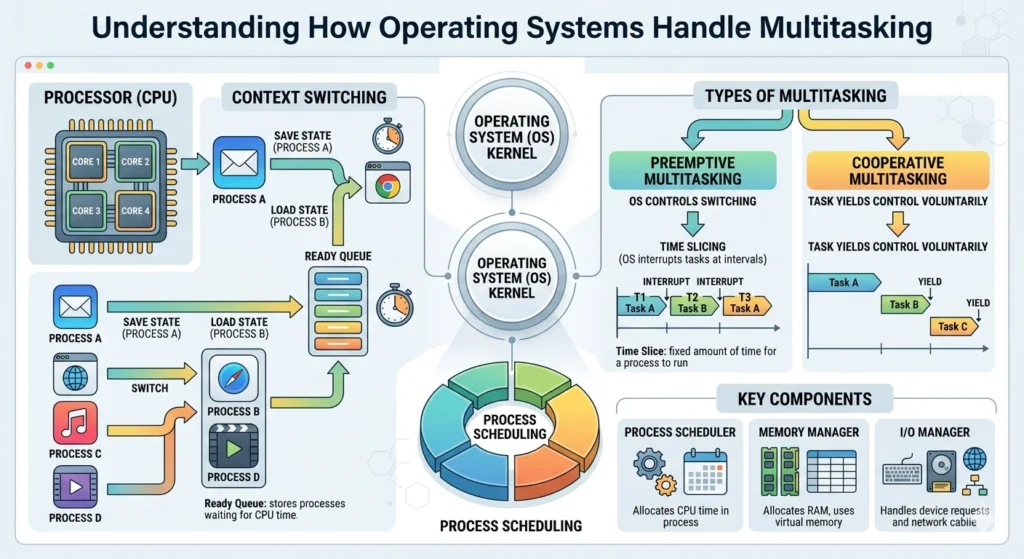
Multitasking may appear simple from a user’s perspective, but behind the scenes it involves complex coordination between the operating system and system hardware.
Operating systems manage multitasking through several fundamental components.
- Process scheduling
- Memory allocation
- CPU time management
- Input/output handling
Process Scheduling
At the core of multitasking is the process scheduler. This component determines which application receives CPU time and when.
Because a CPU can only execute one instruction at a time per core, the operating system rapidly switches between running processes. This switching happens thousands of times per second, creating the illusion that many applications are running simultaneously.
Important scheduling strategies.
- Round-robin scheduling
- Priority-based scheduling
- Multilevel queue scheduling
These scheduling methods help ensure that critical applications receive adequate CPU resources.
Memory Management
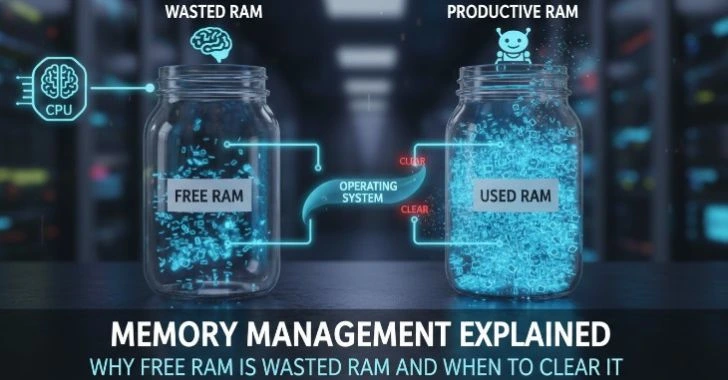
Memory plays a crucial role in multitasking performance. Each application requires its own allocation of RAM to function properly.
Operating systems divide memory into different segments and use technologies.
- Virtual memory
- Paging
- Memory compression
Virtual memory allows the system to temporarily store inactive data on storage drives when RAM becomes full. However, if this happens frequently, system performance slows significantly.
Thread Management
Many modern applications use multi-threading, which means a single application can perform several operations simultaneously.
Examples include.
- Web browsers loading multiple pages at once
- Video editing software processing frames in parallel
- Operating systems handling background updates
Efficient thread management allows software to utilize multi-core processors more effectively, which greatly improves multitasking capability.
Background Services
Operating systems also run numerous background services.
- System monitoring tools
- Network communication services
- File indexing
- Automatic updates
These processes operate quietly in the background but still consume system resources. Efficient multitasking depends on managing these background operations without interrupting active tasks.
Common Factors That Slow Down Multitasking
Even powerful computers can struggle with multitasking if system resources are poorly managed. Understanding the most common causes of slow multitasking is the first step toward solving performance problems.
Insufficient RAM
RAM is the primary resource used for multitasking. When multiple applications are open, each requires memory to store active data.
If available RAM becomes exhausted, the operating system begins using virtual memory stored on disk. Since disk storage is significantly slower than RAM, this causes noticeable slowdowns.
Typical multitasking memory needs.
- Basic multitasking: 8 GB RAM
- Professional workloads: 16 GB RAM or more
Excessive Background Applications
Many applications start automatically when a system boots. These startup programs run continuously in the background, consuming CPU and memory resources.
Common background resource consumers.
- Messaging services
- Cloud synchronization tools
- Media utilities
- System monitoring programs
If too many of these run simultaneously, multitasking performance deteriorates.
Storage Speed Limitations
Storage speed plays a surprisingly large role in multitasking performance.
Systems that rely on traditional hard drives (HDDs) often experience delays when loading applications or switching tasks. This is because HDDs have slower read/write speeds compared to modern solid-state drives (SSDs).
Slow storage devices increase.
- Application launch times
- File loading delays
- Virtual memory access time
CPU Bottlenecks
A system’s processor determines how quickly tasks can be executed. When too many processes demand CPU resources at the same time, the processor becomes overloaded.
Signs of CPU bottleneck.
- Constant high CPU usage
- System lag during multitasking
- Delays when switching between applications
Poor System Maintenance
Systems accumulate temporary files, cache data, and outdated processes over time. Without proper maintenance, these elements gradually reduce multitasking efficiency.
Regular maintenance activities such as clearing temporary data, updating software, and managing running processes can significantly improve performance.
How to Improve Multitasking on Windows
Windows is one of the most widely used operating systems and supports a vast ecosystem of applications. However, its flexibility can also lead to resource congestion if not properly managed.
Optimize Startup Programs
One of the easiest ways to improve multitasking performance is reducing unnecessary startup programs.
Too many startup applications can slow down both boot time and system responsiveness.
Users should regularly review startup items and disable programs that do not need to run continuously.
Important categories to evaluate.
- Automatic update utilities
- Messaging applications
- Media launchers
- Background synchronization tools
Reducing startup processes frees up valuable CPU and memory resources.
Manage Background Processes
Windows runs numerous background processes, but not all of them are essential for daily usage.
Monitoring active processes helps identify applications that consume excessive resources. When certain programs consistently use large amounts of CPU or RAM, they should be reviewed or closed when not needed.
This simple practice can significantly improve responsiveness when running multiple applications simultaneously.
Use Virtual Desktops
Virtual desktops allow users to organize applications into separate workspaces.
for example.
- One desktop for communication tools
- Another for document editing
- Another for research or browsing
Separating workloads reduces visual clutter and helps the system manage application switching more efficiently.
Adjust Performance Settings
Windows includes built-in performance settings that control visual effects and system animations.
Reducing unnecessary visual effects can free up system resources. While modern systems can handle animations easily, older computers benefit greatly from minimizing graphical overhead.
Keep Windows Updated
Operating system updates frequently include performance improvements, memory optimizations, and scheduling refinements.
Regular updates ensure the system benefits from the latest efficiency improvements and security enhancements.
How to Improve Multitasking on Mac
macOS is designed to provide smooth multitasking through tight hardware and software integration. However, even Mac systems can experience performance issues when too many applications compete for resources.
Monitor Resource Usage
macOS includes built-in system monitoring features that show how applications use CPU, memory, and disk resources.
Regularly reviewing resource usage helps identify applications that may be consuming excessive system resources.
If a single application uses a large portion of available memory, closing or restarting it can restore system balance.
Take Advantage of Mission Control
Mission Control is a powerful feature that organizes open applications into structured workspaces.
for example.
- One workspace for communication apps
- Another for creative software
- Another for research and browsing
This approach improves both productivity and system responsiveness.
Manage Login Items
Login items are applications that launch automatically when a Mac starts.
Reducing unnecessary login items helps conserve memory and processing resources, ensuring that the system remains responsive when multitasking.
Keep Storage Space Available
macOS performs best when sufficient storage space is available. When storage becomes nearly full, the system struggles to manage temporary files and virtual memory.
Maintaining at least 15–20% free storage allows macOS to operate efficiently during heavy multitasking.
How to Improve Multitasking on Linux
Linux systems are often praised for their efficiency and flexibility. Because Linux distributions allow extensive customization, users can optimize multitasking performance in ways that are not always possible on other operating systems.
Choose Lightweight Desktop Environments
Some desktop environments consume fewer system resources than others.
Lightweight environments are particularly beneficial for multitasking on older hardware because they leave more resources available for applications.
Examples include minimalist environments designed specifically for performance efficiency.
Monitor System Processes
Linux provides powerful command-line tools that allow users to observe system processes and resource usage.
Monitoring running processes helps identify applications that consume excessive CPU or memory resources.
terminating unnecessary processes, users can quickly restore system responsiveness.
Optimize System Services
Linux distributions often run numerous background services. While many are necessary for system functionality, others may not be required for every user.
Disabling unnecessary services reduces system overhead and improves multitasking efficiency.
Use Efficient Package Management
Installing only essential software ensures that system resources remain available for active workloads. A minimal system setup generally provides better multitasking performance than a system overloaded with unnecessary applications.
General Tips for Better Multitasking on Any OS
While each operating system manages resources differently, several universal practices improve multitasking performance across all platforms.
Keep Software Updated
Updates frequently introduce performance improvements, bug fixes, and resource optimizations. Maintaining updated applications ensures they run efficiently alongside other software.
Limit Browser Tabs
Modern web browsers are among the most resource-intensive applications. Each tab can consume memory and CPU power.
Closing unused tabs or grouping them into organized sessions helps reduce memory pressure.
Restart Systems Regularly
Restarting a system clears temporary processes, resets memory allocation, and resolves hidden background issues.
This simple step often restores smooth multitasking performance.
Maintain Adequate Free Storage
Keeping sufficient storage available prevents slowdowns during heavy workloads.
Use Organized Workflows
Organizing tasks into structured workflows helps reduce application clutter. Running fewer simultaneous applications improves system responsiveness and makes multitasking more efficient.
Tools and Software to Enhance Multitasking Performance
Certain built-in system utilities and productivity tools can help users manage multitasking more effectively.
System Monitoring Utilities
Monitoring tools allow users to observe.
- CPU usage
- Memory consumption
- Disk activity
- Network processes
Understanding these metrics helps identify performance bottlenecks.
Workspace and Window Managers
Workspace management tools help organize applications into logical groups. By separating tasks into dedicated workspaces, users can maintain focus and reduce system overload.
File and Resource Organizers
Efficient file management tools help keep storage organized, preventing clutter that may interfere with system performance.
When to Consider Hardware Upgrades for Multitasking
Sometimes system limitations cannot be solved through software optimization alone. Hardware upgrades may become necessary when multitasking workloads exceed current system capabilities.
Increasing RAM
RAM upgrades provide one of the most noticeable improvements in multitasking performance. More memory allows the system to run multiple applications simultaneously without relying heavily on slower virtual memory.
Switching to Solid-State Storage
Replacing traditional hard drives with solid-state drives significantly improves application loading times and overall system responsiveness.
Upgrading the Processor
For users running demanding workloads such as video editing, software development, or virtualization, a more powerful processor can dramatically improve multitasking capability.
Improving Cooling Systems
Overheating processors reduce performance through thermal throttling. Proper cooling ensures the CPU maintains maximum performance during heavy multitasking sessions.
Conclusion: Keep Your System Fast and Efficient
Multitasking performance plays a crucial role in modern computing productivity. As users rely on multiple applications simultaneously, systems must manage resources efficiently to maintain responsiveness.
Improving multitasking performance involves a combination of system optimization, proper resource management, and sometimes hardware improvements. understanding how operating systems handle processes, memory, and scheduling, users can make informed decisions that keep their systems running smoothly.
Whether using Windows, macOS, Linux, or mobile operating systems, maintaining efficient multitasking practices ensures a faster, more reliable computing experience.