Modern computers are designed to handle demanding tasks, yet many users still experience system lag, slow response times, and delayed program launches. While upgrading hardware such as RAM or SSDs can improve performance, it is not always necessary. In many cases, performance issues are caused by software inefficiencies, background processes, cluttered storage, outdated drivers, or unnecessary system tasks that consume valuable resources.
Operating systems like Microsoft Windows are built with numerous background services, system processes, and visual components that continuously operate while the computer is running. Over time, these processes can accumulate temporary data, increase system load, and reduce overall responsiveness. According to performance studies system monitoring utilities and enterprise IT departments, a typical Windows system may run over 100 background processes simultaneously, many of which are not essential for daily use.
The good news is that users can significantly improve performance by optimizing system settings, cleaning unnecessary files, managing startup programs, and maintaining storage efficiency. These techniques help the operating system allocate resources more effectively, resulting in faster application launches, smoother multitasking, and reduced lag.
practical and realistic methods to reduce system lag and speed up your PC without upgrading hardware. Each section explores how specific system components affect performance and provides clear explanations to help users optimize their computers safely and effectively.
Check for Background Processes and Close Unnecessary Apps

Background processes are one of the most common reasons for slow system performance. Many applications continue running even when they are not actively being used. These processes consume CPU power, system memory (RAM), and disk activity, which can lead to noticeable lag.
Understanding Background Processes in Windows
Windows automatically manages both system processes and user applications. System processes handle essential functions such as networking, security, and device communication, while user applications include programs installed by the user.
However, some applications continue running background service.
- Automatic update checks
- Cloud synchronization tasks
- Telemetry and usage monitoring
- Notification services
When multiple background processes accumulate, they compete for system resources, causing delays when launching or switching between applications.
How to Identify Resource-Heavy Processes
Windows includes a built-in monitoring tool called Task Manager, which allows users to view running processes and identify which ones consume the most resources.
You can open Task Manager by pressing.
Ctrl + Shift + EscOnce opened, the Processes tab shows the current CPU, memory, disk, and network usage of each application.
Key Resource Indicators
| Resource Type | Impact on Performance |
|---|---|
| CPU Usage | High CPU usage slows system responsiveness |
| Memory (RAM) | Excessive RAM usage reduces multitasking ability |
| Disk Activity | High disk usage causes slow loading times |
| Network Activity | Heavy downloads can affect overall performance |
Safely Closing Unnecessary Applications
Users should avoid closing essential Windows processes, but it is generally safe to close applications that are clearly identifiable and not currently needed.
for example.
- Media players running in the background
- Multiple web browser instances
- Unused communication apps
- Software update utilities
Closing unnecessary programs frees system resources immediately and often results in noticeable improvements in system responsiveness.
Clear Temporary Files and Cache to Free Up System Resources

Temporary files are created by the OS and applications to store short-term data. While these files help software run efficiently, they can accumulate over time and consume valuable storage space.
Why Temporary Files Affect Performance
Temporary data.
- Application installation files
- Web browser cache
- System log files
- Update leftovers
- Crash reports
As storage becomes cluttered with unnecessary files, the OS spends more time indexing, searching, and managing these files, which can slow down the OS.
According to Windows OS diagnostics, some computers accumulate several gigabytes of temporary files within a few months of normal usage.
Using Disk Cleanup to Remove Temporary Files
Windows provides a built-in tool called Disk Cleanup to safely remove temporary OS files.
To open it.
- Press Windows + R
- Type.
cleanmgr- Select the system drive (usually C:)
- Choose the types of files to delete.
Common removable files include.
- Temporary internet files
- System error reports
- Recycle Bin contents
- Thumbnails and cached images
Regularly clearing temporary files improves disk efficiency and frees storage space.
Manage Startup Programs to Improve Boot Time
Startup programs automatically launch when Windows starts. While some programs are necessary, others may slow down the boot process significantly.
Why Startup Programs Slow Down Boot Time
Each startup program consumes OS resources during login. When multiple programs attempt to launch simultaneously, the system must allocate memory and CPU resources to each one.
As a result.
- Boot time increases
- System responsiveness decreases immediately after startup
- Background resource usage rises
Enterprise IT performance reports often show that systems OS with excessive startup applications can take two to three times longer to fully load the desktop environment.
Viewing and Managing Startup Programs
Startup programs can be managed directly through Task Manager.
Steps.
- Open Task Manager
- Select the Startup tab
This section shows a list of applications configured to start with Windows, along with their startup impact rating.
Startup Impact Categories
| Impact Level | Meaning |
|---|---|
| Low | Minimal effect on boot speed |
| Medium | Moderate resource consumption |
| High | Significant delay during startup |
Disabling unnecessary startup applications helps the OS start faster and reduces background activity.
Update Windows and Drivers for Optimal Performance
Keeping the OS and device drivers updated is essential for system stability and performance.
Why Updates Improve Performance
Updates often include.
- Performance optimizations
- Security improvements
- Compatibility fixes
- Bug corrections
Driver updates are particularly important because they allow hardware components to communicate efficiently with the OS.
for example, outdated graphics drivers may cause slow screen rendering or lag during video playback.
Checking for Windows Updates
Users can check for updates by navigating to:
Settings → Windows Update → Check for Updates
Regular updates ensure that the OS benefits from latest performance improvements and stability fixes.
Adjust Visual Effects and Animations for Faster Response
Windows includes visual features such as animations, shadows, and transparency effects that enhance the user interface. While visually appealing, these effects can consume additional processing resources.
How Visual Effects Affect System Performance
Each animation requires the OS to render graphical transitions using the CPU or GPU. On systems with limited resources, these effects can slow down window switching and application launching.
Examples of visual effects.
- Window fade animations
- Menu slide effects
- Transparent taskbars
- Shadow rendering
Reducing these effects can significantly improve responsiveness.
Adjusting Performance Settings
Users can adjust visual settings by searching.
“Adjust the appearance and performance of Windows”
The Performance Options panel allows users to select:
- Best appearance
- Best performance
- Custom settings
Choosing Best Performance disables most visual effects, which helps prioritize OS speed.
Use Built-in Windows Tools for Maintenance and Optimization
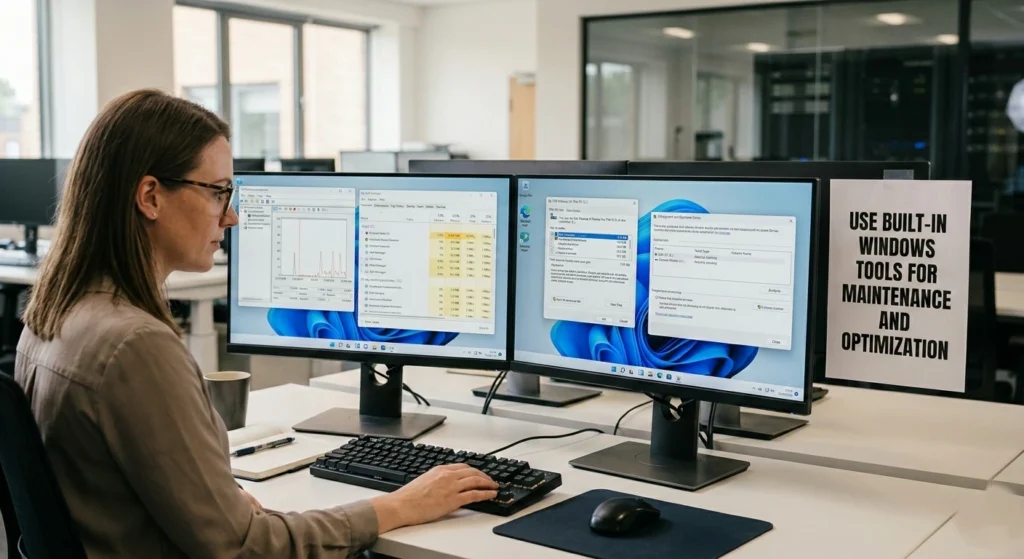
Windows includes several maintenance tools designed to improve OS health and performance. Windows comes with a variety of built-in tools designed to help you keep your PC running smoothly without the need for third-party software.
From checking for disk errors to cleaning up unnecessary files, these tools allow users to perform essential maintenance tasks and optimize system performance with just a few clicks.
System File Checker (SFC)
OS files occasionally become corrupted due to software crashes or interrupted updates. The System File Checker scans and repairs damaged OS files.
Command to run.
sfc /scannowThis process verifies system integrity and replaces corrupted files with original versions stored in the OS cache.
Windows Maintenance Scheduler
Windows also performs automatic maintenance task.
- Security scanning
- System diagnostics
- Disk optimization
These tasks usually run during idle periods to maintain OS stability.
Optimize Storage by Deleting or Moving Large Files
Storage management plays a significant role in overall OS performance.
How Storage Clutter Affects Performance
When the OS drive becomes nearly full, Windows struggles to manage virtual memory and temporary files.
This can result.
- Slow application launches
- Reduced multitasking capability
- Increased disk activity
Experts recommend keeping at least 15–20% of system storage free for optimal performance.
Identifying Large Files
Users can manually check storage usage through:
Settings → System → Storage
This section categorizes disk usage.
- Applications
- Documents
- Temporary files
- Videos and media
Removing unnecessary files or moving large media collections to external storage can help maintain efficient OS performance.
Scan for Malware and Remove Unwanted Software
Malicious or unwanted software can significantly degrade OS performance.
How Malware Affects System Speed
Some malicious programs run hidden background processes that consume resources for activities.
such as.
- Data tracking
- Unauthorized downloads
- Advertising injections
These activities increase CPU usage, network activity, and memory consumption.
Using Windows Security to Scan the System
Windows includes built-in protection through Windows Security, which allows users to run malware scans without installing additional software.
Steps.
- Open Windows Security
- Select Virus & Threat Protection
- Run a Quick Scan or Full Scan
Regular scanning helps ensure that OS resources are not being misused by unwanted programs.
Defragment Hard Drives or Use SSD Optimization Tools
Storage optimization varies depending on whether the OS uses a traditional hard drive (HDD) or a solid-state drive (SSD).
Understanding Disk Fragmentation
On traditional hard drives, files may become fragmented over time. This means parts of a file are stored in different physical locations on the disk.
When the OS reads fragmented files, the drive head must move repeatedly across the disk, increasing access time.
Using Windows Disk Optimization
Windows includes a built-in disk optimization tool.
To open it.
- Search for Defragment and Optimize Drives
- Select the OS drive
- Run optimization
Difference Between HDD and SSD Optimization
| Storage Type | Optimization Method |
|---|---|
| HDD | Disk defragmentation |
| SSD | TRIM optimization |
TRIM helps SSDs maintain efficient data management without traditional defragmentation.
Consider Lightweight or Performance-Friendly Software Alternatives
Some modern software applications are resource-intensive due to advanced features, background services, or complex graphical interfaces.
How Heavy Software Affects Performance
Applications that consume large amounts of memory or CPU resources can slow down the entire system, especially when multiple programs run simultaneously.
Common examples include.
- Web browsers with many extensions
- Large media editing programs
- Complex productivity suites
Using lightweight alternatives can reduce resource usage while still providing essential functionality.
Benefits of Performance-Friendly Applications
Performance-focused software typically offers.
- Faster startup times
- Lower memory consumption
- Reduced background activity
- Improved responsiveness
Conclusion
OS lag is a common issue experienced many computer users, but it does not always require expensive hardware upgrades. many situations, slow performance is caused by software inefficiencies, excessive background activity, cluttered storage, or outdated components.
systematic approach to maintenance, users can significantly improve the responsiveness and stability of their computers. Managing background processes, cleaning temporary files, optimizing startup programs, and maintaining storage efficiency all contribute to a smoother computing experience.
Regular OS updates and security scans also play an essential role in maintaining optimal performance, ensuring that both the OS and hardware drivers function efficiently.
Ultimately, a well-maintained system can operate faster, more reliably, and with fewer interruptions, allowing users to focus on productivity rather than troubleshooting performance issues. Even without upgrading hardware, these practical optimization techniques can extend the lifespan of a computer and help maintain consistent performance over time.