Updating macOS usually brings improved security, new features, and system optimizations. However, many users notice that their Mac becomes slower after installing a major update. Applications may take longer to open, the system may lag during multitasking, and overall performance might feel less responsive than before.
This slowdown often happens because the system needs time to reorganize files, reindex data, or adjust to new system requirements. In some cases, outdated apps, low storage space, or background processes can also cause performance issues.
The good news is that most of these problems can be resolved with simple system adjustments and maintenance steps. The complete guide explains practical and reliable solutions to help restore your Mac’s performance after a macOS update.
Check macOS Update Compatibility with Your Mac
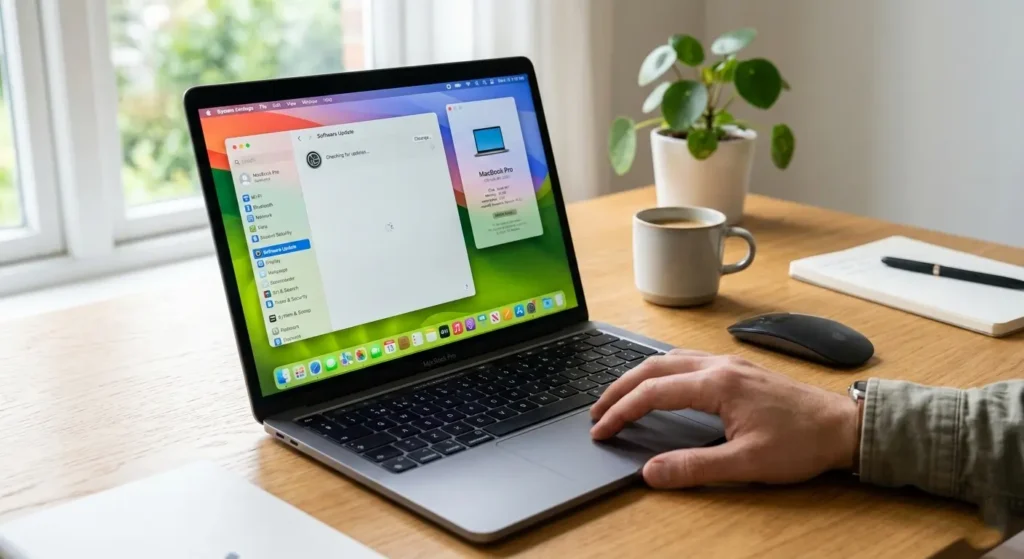
Before troubleshooting performance issues, it is important to confirm that your Mac fully supports the installed macOS version. Each macOS release has minimum hardware requirements, and older devices may struggle to run newer versions efficiently.
When a Mac runs an operating system designed for newer hardware, the system may consume more memory and processing power. This can result in slower application launches, delayed system responses, and increased background activity.
Why Compatibility Matters
Modern macOS updates include advanced graphics effects, improved security layers, and enhanced system services. While these features improve functionality, they also require stronger hardware resources.
If your Mac is several years old, the update may technically install successfully but still place heavy demands on the processor, memory, and storage system.
How to Check Your Mac Model and Compatibility
To verify your device specifications.
- Click the Apple menu in the top-left corner.
- Select About This Mac.
- Review your Mac model, processor type, and memory.
Then compare these details with the minimum system requirements listed for your macOS version. If your device is near the lower limit of supported hardware, performance slowdowns may be expected.
Signs That Hardware Compatibility Is Affecting Performance
Some common indicators.
- Slow application launches
- System lag when switching between apps
- High fan activity
- Delayed boot times
If compatibility is a concern, optimizing system settings and freeing up resources can help improve performance significantly.
Restart Your Mac to Refresh System Processes
One of the simplest yet most effective ways to resolve temporary performance issues is restarting your Mac. After a macOS update, many background services remain active, and restarting helps reset these processes.
Why Restarting Improves Performance
When macOS installs updates, it often runs indexing tasks, system optimizations, and software checks in the background. These processes may temporarily consume CPU power and memory.
Restarting clears temporary memory usage and allows the system to start fresh with optimized processes.
Benefits of Restarting After an Update
Restarting your Mac can help.
- Reset background services
- Clear temporary system memory
- Resolve minor software conflicts
- Improve overall responsiveness
Best Practice for Restarting
Instead of simply closing the lid or putting the device to sleep, perform a full restart. This ensures that all system processes shut down and restart properly.
To restart your Mac.
- Click the Apple menu.
- Select Restart.
- Allow the system to shut down and reboot completely.
After restarting, you may notice faster response times and smoother system behavior.
Clear Cache and Temporary Files to Free Up Space
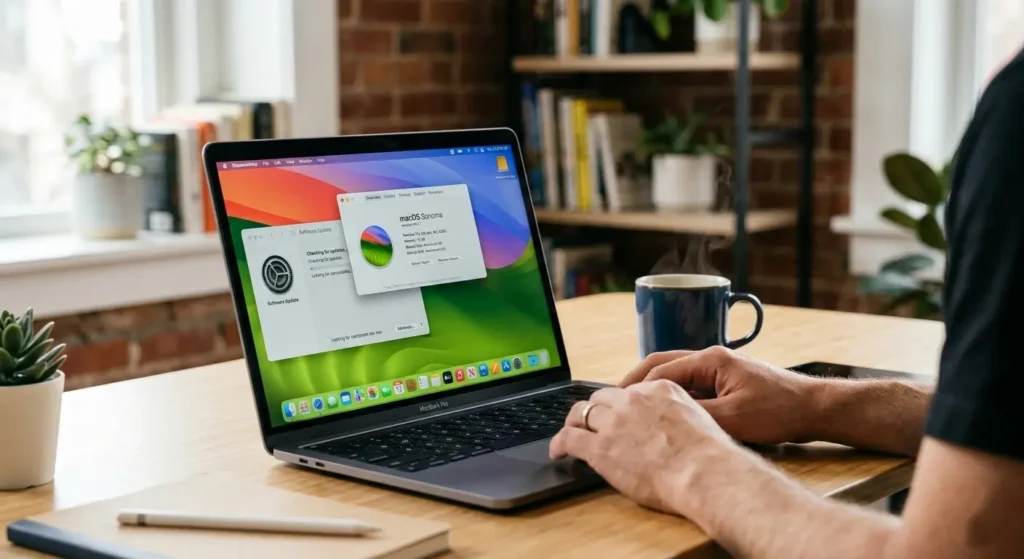
Over time, macOS stores temporary files and cached data to help applications load faster. However, after a major update, these files can become outdated or unnecessary, which may reduce system performance.
Cleaning these files can free up valuable storage and improve overall speed.
What Are Cache Files?
Cache files are temporary data stored by applications and the system.
They include items.
- Application launch data
- Browser data
- Temporary system logs
- App configuration files
While helpful in many cases, these files can accumulate and occupy significant storage space.
Why Clearing Cache Helps
When too many temporary files exist, macOS may struggle to manage storage efficiently.
Removing unused cache files.
- Free up disk space
- Improve app loading times
- Reduce system clutter
Safe Way to Remove Cache Files
To remove cache files manually.
- Open Finder.
- Click Go in the menu bar.
- Select Go to Folder.
- Type
~/Library/Caches. - Delete unnecessary cache folders.
Avoid deleting files that are currently in use by active applications. Restarting your Mac after clearing cache helps rebuild fresh system data.
Manage Startup Items to Improve Boot Speed
Many applications automatically start when your Mac boots. While this can be convenient, too many startup programs can slow down the system and increase boot time.
Reducing unnecessary startup items is an effective way to improve system performance.
How Startup Programs Affect Performance
Each startup application consumes memory and processing resources during boot. When multiple apps launch simultaneously, your Mac may take longer to become fully usable.
How to Review Startup Items
To manage login items.
- Open System Settings.
- Select General.
- Click Login Items.
This section displays applications that launch automatically when you start your Mac.
Best Practice for Startup Optimization
Remove applications that do not need to run immediately at startup.
Examples might.
- Media players
- Messaging tools
- Utility applications
- Software updaters
Keeping only essential apps in the startup list can significantly improve boot performance.
Update or Reinstall Apps Causing Performance Issues
After a macOS update, some applications may not be fully compatible with the new system version. Outdated software can cause system slowdowns, crashes, or excessive CPU usage.
Why Apps Cause Slowdowns
Applications built for older macOS versions may not support updated frameworks or system libraries.
This can cause.
- High CPU usage
- Freezing applications
- Delayed response times
Steps to Update Applications
Developers frequently release updates to ensure compatibility with new macOS versions. Updating apps can fix performance issues and improve system stability.
You can update apps.
- Checking the App Store for available updates
- Opening the application and selecting Check for Updates
When to Reinstall an App
If an app continues to cause problems after updating, reinstalling it may resolve corrupted files or outdated components.
Reinstalling ensures the application uses the latest compatible version designed for your current macOS environment.
Free Up Storage by Deleting Unnecessary Files
Low storage space is one of the most common reasons Macs become slow after system updates.
macOS requires free storage for temporary files, system processes, and virtual memory. When storage becomes limited, system performance can decrease significantly.
How Much Free Space Is Recommended
Experts generally recommend keeping at least 15–20 percent of your storage free for optimal performance.
If your disk is nearly full, the system may struggle to manage background tasks efficiently.
Files That Often Consume Large Storage
Common space-consuming items.
- Old downloads
- Duplicate photos or videos
- Unused applications
- Large installation files
- System backups
Practical Ways to Free Up Space
To reclaim storage.
- Delete unused applications
- Empty the Trash
- Remove large files from the Downloads folder
- Transfer media files to external storage
Freeing up storage often results in immediate improvements in system responsiveness.
Run Disk Utility to Repair Permissions and Storage
Disk errors or corrupted system files can sometimes occur during major system updates. Running built-in diagnostic tools can help identify and repair these issues.
What Disk Utility Does
Disk Utility checks.
- File system errors
- Corrupted disk sectors
- Permission conflicts
- Storage structure problems
Repairing these issues can improve system performance and prevent further slowdowns.
How to Use Disk Utility
To run a disk repair.
- Open Disk Utility from the Applications folder.
- Select your main system disk.
- Click First Aid.
- Allow the tool to scan and repair any detected issues.
This process may take several minutes depending on disk size and system condition.
Reset System Management Controller (SMC) and NVRAM
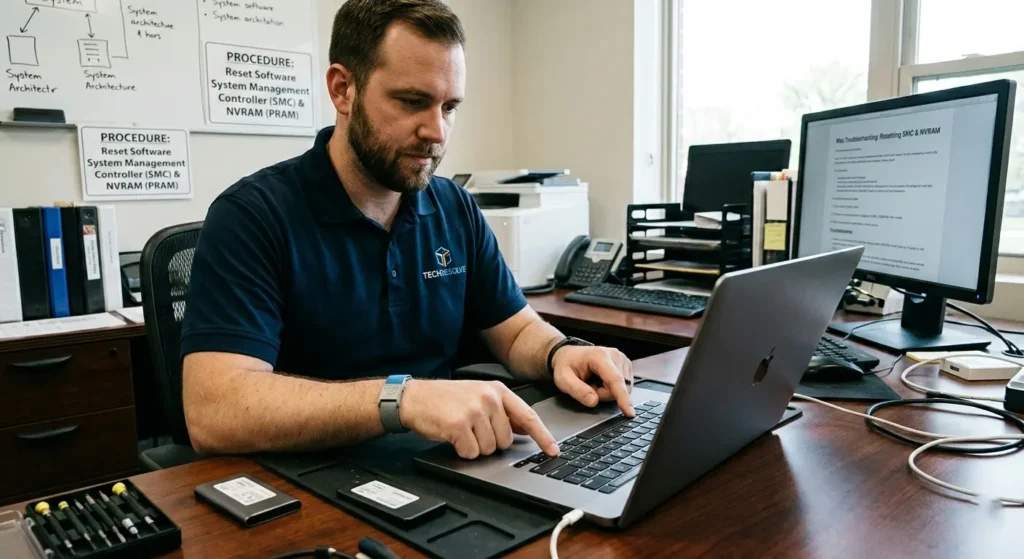
Resetting the System Management Controller (SMC) and NVRAM can resolve hardware-related glitches.
What the SMC Controls
The SMC manages several low-level functions.
- Power management
- Fan operation
- Battery behavior
- Thermal management
If these systems malfunction, your Mac may run slower or behave unpredictably.
What NVRAM Stores
NVRAM stores small system settings.
- Startup disk selection
- Display resolution
- Volume settings
- Kernel panic data
Resetting NVRAM clears these stored values and allows the system to rebuild them correctly.
When to Perform These Resets
Consider resetting SMC and NVRAM if you experience.
- Unusual system lag
- Fan running constantly
- Boot delays
- Display configuration problems
These resets can help restore stable system behavior.
Disable Unnecessary Visual Effects for Better Performance
macOS includes visual animations and transparency effects that enhance the user interface. However, these graphical features require additional processing power.
Disabling some of these effects can improve system responsiveness, especially on older Macs.
Visual Features That May Slow Down Older Macs
Some common graphical features include.
- Window transparency
- Dock animations
- Motion effects
- Interface transitions
While visually appealing, they can increase GPU usage.
How to Reduce Visual Effects
To adjust these settings.
- Open System Settings.
- Select Accessibility.
- Enable Reduce Motion.
- Enable Reduce Transparency.
These changes reduce graphical load and can help improve responsiveness.
Consider Upgrading Hardware Components if Needed
If your Mac continues to run slowly despite software optimization, hardware limitations may be the primary cause.
Upgrading certain components can significantly improve system performance.
Hardware Upgrades That Improve Speed
The most impactful upgrades include:
Increasing RAM
More memory allows your Mac to handle multiple applications simultaneously without slowing down.
Upgrading to Solid-State Storage
Replacing older mechanical drives with solid-state storage dramatically improves.
- Boot times
- File access speed
- Application loading
When Hardware Upgrades Are Worth Considering
Hardware upgrades are most beneficial.
- Your Mac has limited RAM
- Storage is slow or nearly full
- You regularly run demanding applications
Conclusion
A slow Mac after a macOS update can be frustrating, but in most cases the issue can be resolved with proper system maintenance and optimization.
checking compatibility, clearing unnecessary files, managing startup items, updating applications, and maintaining adequate storage space, you can significantly improve your Mac’s performance. Running system repair tools and adjusting visual settings can further enhance responsiveness.
If performance issues persist, hardware upgrades may provide a long-term solution. With the right combination of system adjustments and regular maintenance, your Mac can continue running smoothly even after major macOS updates.