If you’ve ever found yourself frustrated by a slow MacBook, you’re not alone. Over time, even the most powerful MacBooks can start to feel sluggish, making simple tasks like browsing or working with documents feel painfully slow. You don’t need to replace your device or pay for expensive repairs to see improvements. With the right techniques, you can speed up your MacBook and restore its peak performance in no time.
MacBooks are known for their smooth performance and long lifespan. But even the most reliable machines whether it’s a MacBook Air or MacBook Pro can slow down over time. If your apps take longer to open, your fan runs constantly, or your storage is nearly full, you’re not alone.
According to Apple’s official support data, system performance is heavily affected by storage availability, background processes, and compatibility with the current version of macOS. You don’t need advanced technical skills to fix most performance issues.
Increase MacBook Speed with Simple Adjustments
Before upgrading hardware or reinstalling the system, start with small changes. These often produce noticeable improvements within minutes.
Reduce Visual Effects and Animations
macOS includes smooth animations and transparency effects. While visually appealing, they consume system resources especially on older Intel-based MacBooks.
Turn Off Transparency
Go to.
System Settings → Accessibility → Display → Reduce Transparency
This reduces GPU load and improves responsiveness.
Reduce Motion Effects
In the same Display menu, enable Reduce Motion. This minimizes animations when switching apps or opening Mission Control.
These changes are especially helpful on MacBooks with 8GB RAM, which remains common even in recent base models.
Adjust Energy Settings for Performance
If you’re using a MacBook on battery, macOS may prioritize energy efficiency over performance.
Go to.
System Settings → Battery → Options
Disable features that limit background activity when plugged in. On newer Apple silicon models like those with the M1 or M2 chips, performance scaling is more efficient, but manual adjustments can still help.
Free Up Space on Your MacBook to Improve Performance
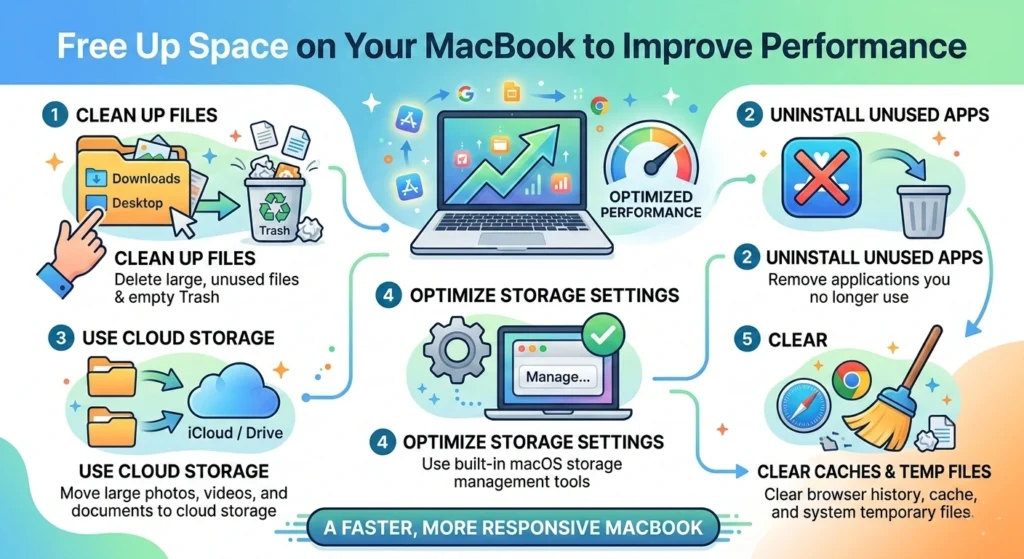
One of the biggest reasons MacBooks slow down is low storage.
Apple recommends keeping at least 10–20% of your disk space free for optimal system performance. When storage is nearly full, macOS struggles with virtual memory and caching.
Check Storage Usage
Go to.
Apple Menu → About This Mac → Storage
You’ll see a breakdown of.
- Applications
- Documents
- Photos
- System Data
- macOS
If your storage bar is mostly red, performance issues are likely storage-related.
Delete Large and Unused Files
Remove Old Downloads
The Downloads folder often contains.
- Disk images
- Duplicate installers
- Old PDFs
- Large videos
Sort by file size and remove what you no longer need.
Empty the Trash
Files remain on your disk until the Trash is emptied. This is often overlooked but can free several gigabytes instantly.
Manage Photos and Videos
High-resolution videos from iPhones can take significant space.
Enable.
Photos → Settings → iCloud → Optimize Mac Storage
This keeps smaller previews locally while storing originals in iCloud (if you use it).
Upgrade Your MacBook’s Hardware for Better Speed
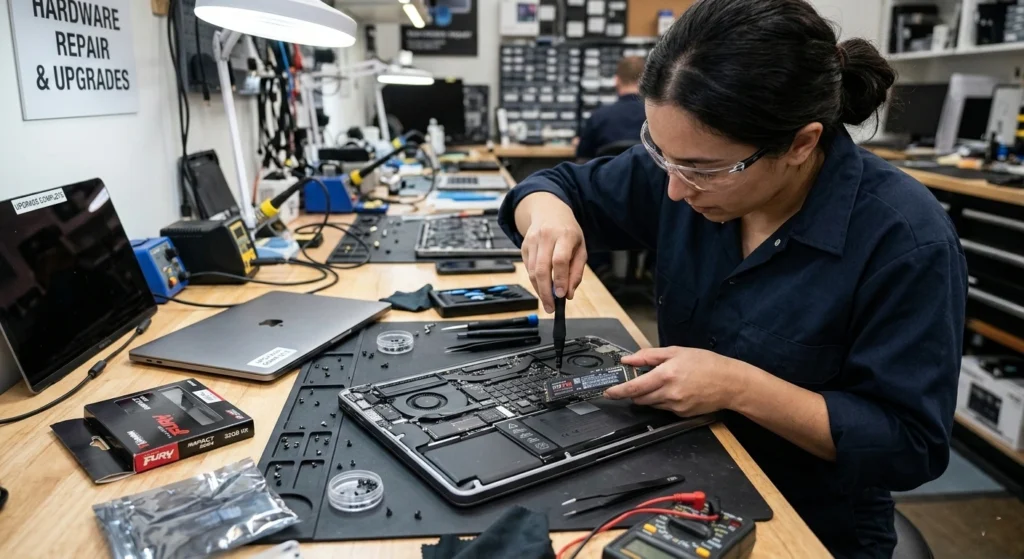
If your MacBook is several years old, hardware limitations may be the real bottleneck. When it comes to boosting your MacBook’s performance, sometimes software tweaks just aren’t enough. If you’ve tried optimizing your system and still find yourself waiting for apps to load or experiencing lag, it might be time to consider upgrading your hardware.
While MacBooks are known for their sleek designs and powerful performance, over time, the hardware can become a bottleneck, limiting how fast your device runs.
Upgrade from HDD to SSD (Older Models Only)
If you’re using an older MacBook (2012–2015 era) with a traditional hard drive, upgrading to an SSD can increase speed by 300–500% in boot time and file access, based on real-world benchmarks.
However, modern MacBooks with Apple silicon have soldered storage, meaning upgrades are not possible after purchase.
Increase RAM (If Supported)
Older Intel MacBooks allow RAM upgrades. Increasing from 8GB to 16GB significantly improves.
- Multitasking
- Browser performance with many tabs
- Video editing
- Virtual machines
Newer models with unified memory (M1, M2, M3 chips) cannot be upgraded post-purchase.
When Hardware Upgrade Makes Sense
Upgrade if.
- Your MacBook is over 5–6 years old
- You frequently see “Your system has run out of application memory”
- Activity Monitor shows constant memory pressure in red
Otherwise, software optimization is usually enough.
Manage Your Startup Programs to Speed Up Your MacBook
Too many apps launching at startup is one of the most common hidden causes of slow boot times. One of the most common reasons your MacBook may feel slow is because it’s bogged down by too many programs running in the background right from the start.
Every time you power up your MacBook, certain apps and services automatically launch, consuming valuable system resources and slowing down your startup time. some of these programs are necessary, others might be just taking up space without serving much of a purpose.
Check Login Items
Go to.
System Settings → General → Login Items
Remove apps that don’t need to launch automatically.
- Messaging apps
- Cloud syncing services
- Background utilities
This alone can cut startup time by 30–50% depending on the number of login items.
Monitor Background Activity
Open.
Applications → Utilities → Activity Monitor
Check CPU Usage
Sort by %CPU to see which apps are consuming the most processing power.
If an app constantly uses high CPU while idle, it may need updating or removal.
Close Unnecessary Browser Tabs
Modern browsers like Google Chrome and Safari are memory-intensive. Each open tab consumes RAM.
If your MacBook has 8GB RAM, 20+ tabs can noticeably slow down performance.
Clear Out System Clutter and Boost Your MacBook’s Performance
Over time, system clutter accumulates and affects responsiveness. Over time, your MacBook can accumulate a lot of digital clutter unnecessary files, old caches, and unused apps that take up precious storage space and slow down your system.
While it might not be obvious at first, this clutter can significantly impact your MacBook’s performance, making it feel sluggish and unresponsive. the good news is clearing out this system clutter is a straightforward way to give your device a performance boost.
Remove Unused Applications
Go to.
Finder → Applications
Delete apps you no longer use. Some large creative applications can occupy several gigabytes.
Clean Desktop Clutter
Each file on your desktop is actively rendered by macOS.
If your desktop is filled with dozens of files, move them into folders. This improves Finder performance and reduces visual load.
Restart Regularly
Many users rarely restart their MacBook.
Restarting
- Clears RAM
- Stops background processes
- Resets temporary system caches
For heavy users, restarting once every few days keeps performance stable.
Use macOS Built-in Tools for Performance Optimization
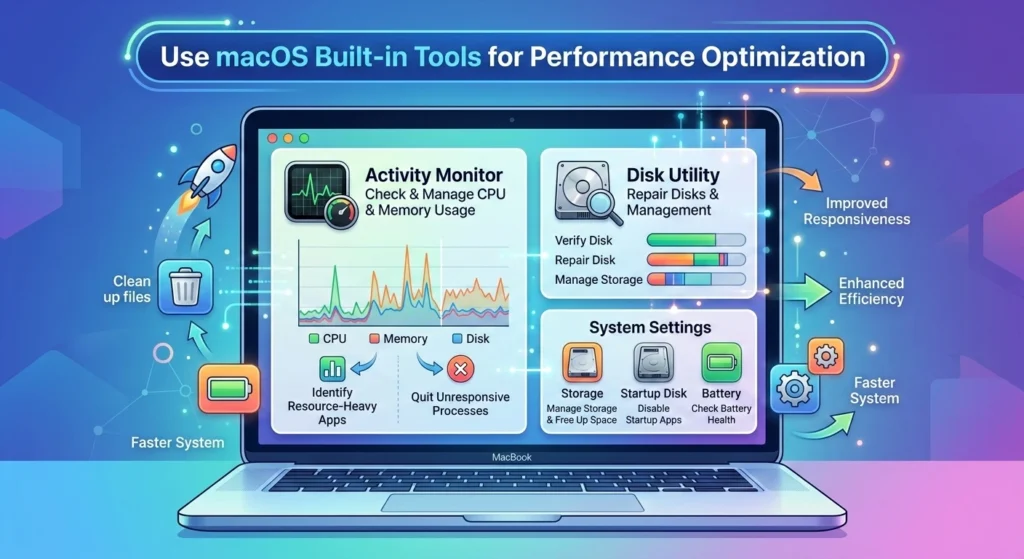
macOS includes powerful built-in tools that many users overlook. macOS comes packed with powerful built-in tools designed to help optimize your MacBook’s performance. While third-party apps can certainly play a role in boosting speed.
Apple has already integrated several features directly into macOS that can make a significant difference. These tools are easy to access, free to use, and often just what you need to keep your MacBook running smoothly.
Use Activity Monitor for Diagnosis
Activity Monitor shows
- CPU usage
- Memory pressure
- Energy impact
- Disk activity
If memory pressure stays yellow or red, close high-memory apps.
Run Disk Utility First Aid
Go to.
Applications → Utilities → Disk Utility → First Aid
This scans for disk errors and repairs minor issues that can affect speed.
Use Safe Mode
Boot into Safe Mode by holding the Shift key during startup (Intel Macs).
Safe Mode
- Clears system caches
- Checks startup disk
- Disables third-party extensions
If performance improves in Safe Mode, a background extension may be the cause.
Keep Your MacBook’s Software Up-to-Date for Smooth Operation
Software updates are not just about new features they fix bugs and optimize performance. One of the easiest and most effective ways to ensure your MacBook runs smoothly is keep its software up-to-date.
Apple regularly releases updates for macOS that not only bring new features but also fix bugs, improve security, and enhance system performance. Ignoring these updates can leave your MacBook vulnerable to slowdowns and potential issues.
Update macOS Regularly
Go to.
System Settings → General → Software Update
Apple continuously improves system efficiency in newer macOS versions.
For example, updates to macOS Sonoma included background process optimizations and improved memory handling for Apple silicon devices.
Update Applications
Outdated apps may not be optimized for the latest macOS version.
Developers regularly release updates that improve.
- Memory management
- CPU efficiency
- Security stability
Remove Unsupported Apps
Apps designed for much older macOS versions can cause compatibility issues and system slowdowns.
If an app hasn’t been updated in years, consider replacing it with a modern alternative.
Conclusion
Speeding up your MacBook doesn’t require complex tools or risky modifications. In most cases, performance issues are caused.
- Low storage space
- Too many startup programs
- Background processes
- Outdated software
- Aging hardware
freeing up disk space, managing login items, using built-in macOS tools, and keeping your system updated, you can significantly improve speed and responsiveness.
If your MacBook is relatively new, these optimizations can make it feel almost brand new again. And if it’s older, a targeted hardware upgrade where possible can extend its usable life by several years.