When your computer or smartphone starts running slow, it can be frustrating, especially when you rely on it for daily tasks, work, or entertainment. Often, we think we need a new device or specialized software to improve performance, but the secret to unlocking your system’s true potential lies in optimizing your operating system (OS).
Operating system optimization isn’t just about speeding things up it’s about making your device run smoother, more efficiently, and reliably. Whether you’re using Windows, macOS, or an Android/iOS device, there are powerful, built-in tools and settings that can give your system a significant performance boost. With just a few tweaks, you can improve your system’s responsiveness, extend battery life, reduce crashes, and make everyday tasks feel faster and more seamless.
Modern operating systems are incredibly powerful, yet most devices never operate at their true potential. Whether you’re using Windows, macOS, or Linux, performance issues rarely come from hardware alone. In many cases, inefficient configurations, bloated startup processes, mismanaged storage, or poor resource allocation slow systems down long before the hardware reaches its limits..
Unlock Your Device’s Full Potential with These OS Optimization Tips
Optimization begins with understanding how your operating system actually works. An OS is not just a launcher for applications.
It manages..
- CPU scheduling
- Memory allocation
- Storage I/O
- Background services
- Security processes
- Power management
When these systems are tuned properly, even mid-range hardware can perform remarkably well.
Understanding Resource Allocation at the Core Level
At the heart of every operating system is how it manages resources like CPU, memory, and storage. Understanding how your OS allocates these resources is key to optimizing performance. When resources are used efficiently, your system runs smoothly, but poor allocation can lead to lag, crashes, and slowdowns. In this section, we’ll break down the basics of resource allocation and how you can improve it for better system efficiency.
CPU Scheduling and Process Prioritization
Modern operating systems such as Microsoft Windows, Apple macOS, and mainstream Linux distributions use advanced schedulers that dynamically assign CPU time to processes.
For example
- Windows uses a preemptive, priority-driven scheduling model.
- macOS relies on the XNU kernel, which combines Mach and BSD components.
- Linux typically uses the Completely Fair Scheduler (CFS).
If too many background services compete for CPU time, foreground applications suffer. Optimizing startup processes and disabling unnecessary background services ensures that high-priority tasks receive adequate CPU cycles.
Memory Management Efficiency
RAM is not meant to stay empty. In fact, unused memory is wasted potential. Operating systems cache frequently accessed data in memory to reduce disk I/O.
However, problems arise when
- Too many applications run simultaneously
- Memory leaks occur
- Virtual memory settings are poorly configured
Ensuring sufficient page file or swap configuration prevents system slowdowns during peak load.
Reduce Background Overhead
Identify Startup Programs
Many applications configure themselves to launch at boot. Over time, startup lists grow, increasing boot time and idle resource consumption.
Steps to optimize
- Review startup applications in system settings
- Disable non-essential launch agents
- Monitor boot performance metrics
A lean startup process significantly reduces boot time and idle CPU load.
Limit Unnecessary Services
Enterprise-grade operating systems enable numerous services by default for compatibility. For personal or focused professional use, not all are necessary.
Examples
- Printer services on systems without printers
- Remote services on standalone devices
- Indexing services on SSD-based systems with limited file changes
Reducing active services lowers memory usage and improves responsiveness.
Maximize Performance by Optimizing Your Operating System

Performance optimization is not about one setting. It’s about balancing system components so no single resource becomes a bottleneck.
Optimize Storage for Faster Data Access
Storage management plays a crucial role in how quickly your device can access data. When your storage is cluttered with unnecessary files or fragmented data, it can slow down your system. Optimizing your storage not only frees up space but also speeds up data retrieval, ensuring your device runs faster and more efficiently.
SSD vs HDD Performance Differences
Solid-state drives dramatically outperform traditional hard drives in latency and IOPS (Input/Output Operations Per Second).
- HDD average latency: 5–10 ms
- SSD average latency: <0.1 ms
Operating systems perform thousands of small read/write operations per minute. Upgrading to SSD storage reduces application load times and boot times dramatically.
File System Maintenance
Fragmentation affects HDDs more than SSDs. However, file system integrity matters across all storage types.
Best practices.
- Run periodic disk checks
- Avoid filling storage beyond 85% capacity
- Enable TRIM support on SSDs
When storage is near full capacity, write performance degrades significantly.
Keep the OS Updated — Strategically
Operating system updates include.
- Security patches
- Kernel improvements
- Performance optimizations
For example, Windows updates often include scheduler improvements and memory management refinements. Linux kernel updates frequently improve driver compatibility and I/O performance.
However, update intelligently.
- Avoid updating during production workloads
- Review changelogs when possible
- Test major updates in controlled environments
Boost Your System’s Speed: The Ultimate Optimization Guide
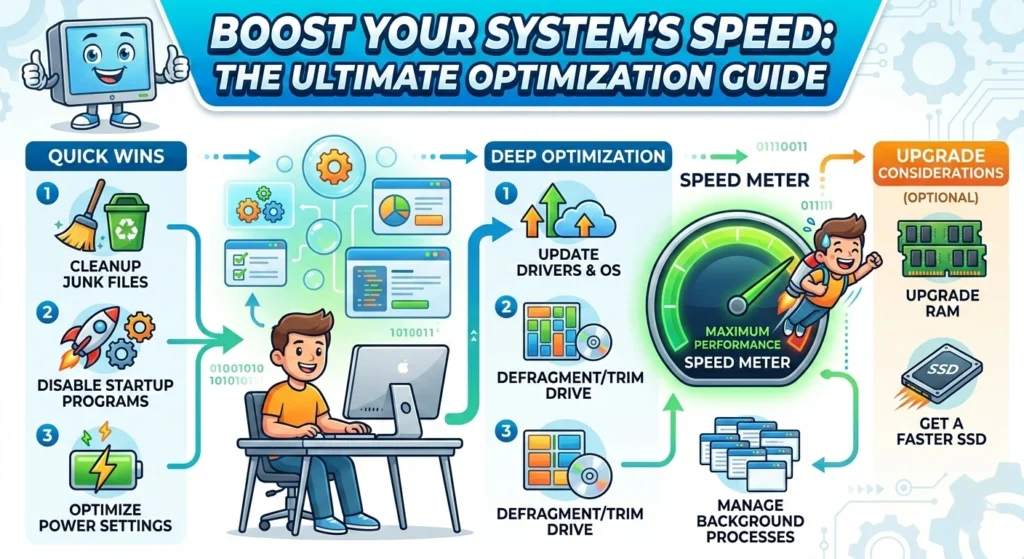
Performance issues often come from mismanaged system behavior rather than weak hardware. Is your system running slower than it should? A sluggish computer or device can be frustrating, especially when you need it to work at its best. you don’t need to replace your hardware or install costly software to see an improvement. optimizing your system effectively, you can boost speed, responsiveness, and overall performance without the need for drastic changes.
we’ll walk you through the essential steps to get your system running like new again.
- Tweaking system settings for maximum performance across all tasks
- Clearing unnecessary files to free up valuable storage space
- Managing startup programs to reduce boot time
- Optimizing memory and resource allocation for smoother multitasking
- Updating software to ensure your system runs the latest, most efficient version
Optimize Virtual Memory Configuration
Virtual memory is like an extension of your system’s physical RAM, allowing it to handle more tasks simultaneously. However, if it’s not properly configured, it can lead to slowdowns and crashes.
optimizing your virtual memory settings, you can ensure your system handles demanding applications and multitasking without a hitch. In this section, we’ll show you how to fine-tune virtual memory for smoother performance and faster operations.
Page File and Swap Settings
When RAM is exhausted, systems use disk-based virtual memory.
Improper configuration can cause.
- Excessive disk thrashing
- Application freezing
- High latency spikes
Best practices.
- Keep page file enabled
- Allow system-managed size for most users
- Place swap on SSD when available
Disabling virtual memory entirely can reduce stability.
Improve Power Settings for Performance
Many systems run in balanced or power-saving modes by default.
Switching to high-performance profiles.
- Reduces CPU throttling
- Maintains higher clock speeds
- Improves responsiveness under load
However, this may increase energy consumption and heat output.
Thermal Management
Thermal throttling reduces CPU speed when temperatures rise.
Ensure.
- Clean cooling systems
- Proper airflow
- Updated firmware
Thermal inefficiency alone can reduce performance by 15–30% in laptops.
How to Optimize Your Operating System for Peak Performance
Peak performance requires consistent system hygiene. Your operating system is the backbone of your device, and when it’s running at peak performance, everything else works smoothly. but over time, system clutter, outdated settings, and inefficient processes can slow it down, leaving you with a sluggish experience. optimizing your OS doesn’t require technical expertise or costly software. few simple adjustments, you can drastically improve speed, efficiency, and responsiveness.
most effective ways to optimize your operating system.
- Optimizing system resources like memory and CPU for better multitasking
- Cleaning up unnecessary files to free up valuable storage space
- Adjusting system settings to boost performance
- Managing startup programs for faster boot times
- Updating drivers and software to ensure everything is running smoothly
Manage Installed Applications Carefully
Applications consume
- Disk space
- Startup time
- Background resources
Remove software that
- Is no longer used
- Runs background agents
- Installs unnecessary services
Software sprawl is one of the most common causes of performance degradation.
Optimize Graphics and Visual Effects
Graphical effects consume GPU and CPU cycles.
Reducing
- Animations
- Transparency
- Background visual elements
can noticeably improve responsiveness on lower-end systems.
This is particularly effective on integrated graphics systems.
Achieve Maximum Performance by Fine-Tuning Your OS
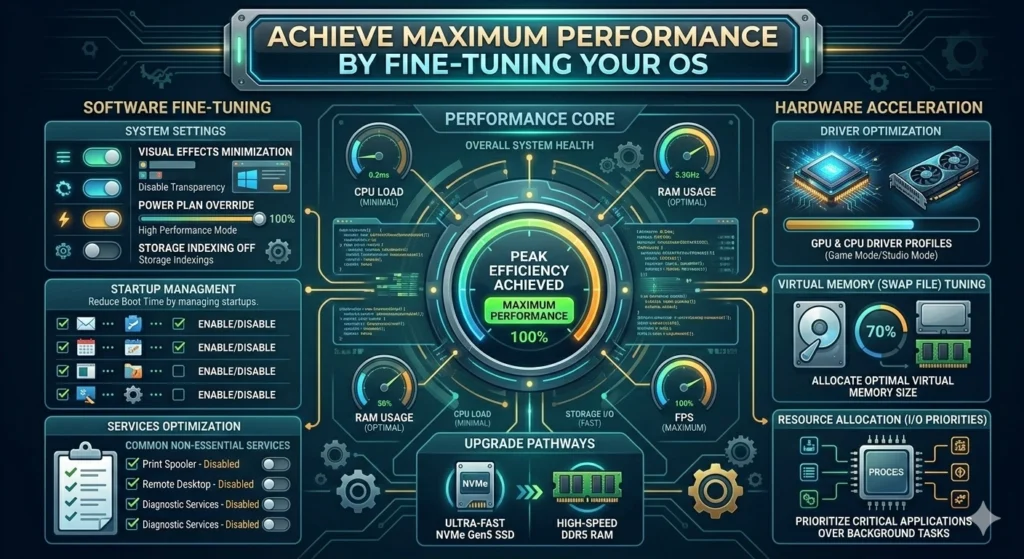
Fine-tuning goes beyond basic cleanup. Your operating system is the foundation of your device’s performance, and small tweaks can lead to significant improvements. Over time, systems accumulate unnecessary processes, files, and settings that can drag performance down.
Fine-tuning your OS is about optimizing how resources are allocated, adjusting settings for maximum efficiency, and eliminating bottlenecks that slow everything down. With a few thoughtful adjustments, you can transform your device from sluggish to snappy, making everyday tasks faster and more responsive.
Whether you’re tackling a slow boot-up or struggling with lag, optimizing your OS is the first step to unlocking its full potential.
Adjust Indexing and Search Behavior
Search indexing improves file lookup speed but consumes background resources.
On systems with.
- Large archives
- Rare file changes
Limiting indexed directories reduces CPU spikes.
Tune Network Stack Settings
Network performance impacts cloud applications, video conferencing, and file transfers.
Optimizations include.
- Ensuring updated network drivers
- Reducing background bandwidth usage
- Monitoring packet loss and latency
For enterprise users, optimizing MTU settings can improve throughput.
Smart Ways to Optimize Your OS for Faster, Smoother Performance
Advanced users can gain additional efficiency through monitoring. If you’ve ever experienced slowdowns, delays, or crashes on your device, you know how frustrating it can be. improving your system’s speed and responsiveness doesn’t require complex software or expensive upgrades. implementing a few smart strategies, you can optimize your operating system to work more efficiently, making everything run faster and smoother.
Simple adjustments to settings, resource management, and system maintenance can have a noticeable impact on your device’s overall performance. With the right approach, your OS can perform like new, giving you a seamless and enjoyable user experience every time.
Monitor System Resource Usage
Use built-in tools to observe.
- CPU usage trends
- Memory pressure
- Disk queue length
Consistently high disk queue length indicates storage bottlenecks.
Identify Performance Bottlenecks
Performance monitoring helps answer.
- Is CPU constantly above 90%?
- Is RAM consistently full?
- Is disk active at 100%?
Optimization strategies differ depending on the bottleneck.
Simple Strategies to Enhance Your Operating System’s Efficiency
Not all improvements require technical expertise. A slow or inefficient operating system can be a major roadblock to productivity, but improving it doesn’t have to be complicated. Simple strategies can go a long way in enhancing your system’s efficiency, making tasks quicker and your device more responsive.
Whether you’re dealing with lag, slow boot times, or sluggish performance, there are easy adjustments you can make that will have a big impact. optimizing the resource usage, cleaning up unnecessary files, and tweaking settings, you can ensure your operating system runs at its best without needing any advanced technical knowledge.
Keep Drivers Updated
Outdated drivers cause.
- Inefficient hardware communication
- System instability
- Performance inconsistencies
Graphics driver updates alone can improve performance significantly in GPU-accelerated workloads.
Maintain System Security Without Overloading It
Security software consumes resources. Use reputable, lightweight solutions and avoid stacking multiple security programs simultaneously.
Built-in security mechanisms in modern operating systems are generally optimized for performance.
Step-by-Step Guide to Optimizing Your OS for Better Performance
Over time, your operating system can become bogged down by unnecessary files, outdated settings, and inefficient processes that slow everything down. Fortunately, optimizing your OS doesn’t require a tech expert. With the right approach, you can easily boost your system’s performance and make your device run faster and more smoothly.
This step-by-step guide will walk you through the essential actions needed to fine-tune your operating system, from cleaning up storage to adjusting settings, so you can enjoy a faster, more responsive experience with minimal effort.
This structured approach ensures systematic optimization..
- Audit startup programs
- Remove unnecessary applications
- Update OS and drivers
- Optimize storage health
- Configure power settings
- Adjust visual effects
- Monitor performance metrics
- Test system stability
Reassess performance after each change rather than applying everything at once.
Conclusion
Operating system optimization is not about chasing quick fixes or disabling critical features. It is about understanding how your system allocates resources and ensuring that CPU, memory, storage, and network components work in balance.
A well-maintained operating system.
- Boots faster
- Runs smoother
- Handles multitasking efficiently
- Extends hardware lifespan
Maximum performance is achieved through consistent, thoughtful optimization rather than aggressive tweaking.