A slow boot time can turn even the most powerful computer into a daily frustration. Whether you’re using your system for development, business, or personal tasks, waiting for the operating system to load wastes valuable time and signals underlying performance inefficiencies. Optimizing OS boot time isn’t just about convenience. it’s about improving overall system performance, startup reliability, and hardware efficiency.
Many users overlook two powerful tools that directly impact startup speed: UEFI settings and Event Viewer analysis. UEFI (Unified Extensible Firmware Interface) controls how your system initializes hardware before the operating system loads. Incorrect boot order, unnecessary startup checks, or disabled fast boot features can significantly increase boot delays. On the software side, Windows Event Viewer provides detailed boot performance logs that help identify startup bottlenecks, problematic drivers, and slow-loading services.
UEFI configuration adjustments with data-driven analysis from Event Viewer, you can pinpoint exactly what’s slowing down your system and apply targeted optimizations. Instead of guessing which startup programs to disable, you’ll use measurable insights to reduce boot duration effectively.
Optimize OS Boot Time Using UEFI Settings and Event Viewer Logs
Before changing anything, it’s critical to understand what “boot time” actually includes. Slow system startup can impact productivity, especially when you rely on your computer for daily work. If your operating system takes too long to boot, the issue often lies deeper than just startup apps. Firmware configuration and system-level processes play a major role in determining how quickly your OS loads.
To truly optimize OS boot time, you need to look at two powerful yet often overlooked components: UEFI settings and Event Viewer logs. UEFI firmware controls how your hardware initializes before the operating system starts, and small configuration changes such as boot order adjustments or enabling fast boot can significantly reduce startup delays. Meanwhile, Event Viewer logs provide detailed insights into boot performance, helping you identify slow drivers, services, or system processes that increase boot duration.
When you press the power button, the total startup duration includes.
- Firmware (UEFI) initialization
- Device discovery and memory training
- Windows Boot Manager loading
- Kernel initialization
- Driver loading
- Service startup
- Startup applications
On a modern NVMe SSD system.
| Phase | Typical Healthy Range |
|---|---|
| UEFI Firmware | 2–8 seconds |
| Windows Kernel + Drivers | 5–15 seconds |
| Post-Boot Services | 5–20 seconds |
| Total Boot Time | 12–35 seconds |
If your total exceeds 40–45 seconds on SSD storage, optimization is justified.
Understanding UEFI’s Role in Boot Performance
UEFI (Unified Extensible Firmware Interface) replaces legacy BIOS and initializes hardware before Windows loads.
Compared to legacy BIOS.
| Feature | Legacy BIOS | UEFI |
|---|---|---|
| Device Initialization | Sequential | Parallel |
| Boot Disk Format | MBR | GPT |
| Secure Boot | No | Yes |
| Fast Boot Support | Limited | Advanced |
If your system is still running in CSM (Compatibility Support Module) mode, you are not using full UEFI advantages.
Measuring Boot Performance Accurately
Never optimize blindly. First, measure real boot data.
Using Event Viewer
Press.
Win + R → eventvwr.mscNavigate to.
Applications and Services Logs
→ Microsoft
→ Windows
→ Diagnostics-Performance
→ Operational
Look for.
- Event ID 100 – Overall boot performance
- Event ID 101 – Driver delays
- Event ID 102–110 – Service delays
Interpreting Event ID 100
An example entry.
BootTime              : 48235 ms
MainPathBootTime      : 21890 ms
BootPostBootTime      : 17210 ms
This means.
- Total boot = 48.2 seconds
- Core OS load = 21.8 seconds
- Post-boot services = 17.2 seconds
These numbers give you direction.
If MainPathBootTime is high → driver/kernel issue.
If BootPostBootTime is high → startup apps or services problem.
Using PowerShell for Structured Data
Run.
Get-WinEvent -FilterHashtable @{
LogName='Microsoft-Windows-Diagnostics-Performance/Operational';
ID=100
} | Select-Object -First 3 | Format-List
This extracts recent boot logs for comparison before and after changes.
Document results in a small table so you can measure improvement.
Step-by-Step Guide to Optimizing OS Boot Time with UEFI and Event Viewer
Optimization should follow firmware first, then Windows-level tuning. slow boot process can waste time and signal deeper system inefficiencies. If your computer takes longer than expected to start, the issue may not just be startup programs it could involve firmware settings, drivers, or background services loading during boot. Understanding what happens behind the scenes is the first step toward improving startup performance.
This step-by-step guide to optimizing OS boot time with UEFI and Event Viewer walks you through both firmware-level configuration and system log analysis. UEFI settings control how your hardware initializes before the operating system loads, while Event Viewer provides detailed boot performance data that reveals delays caused by drivers, services, or system components.
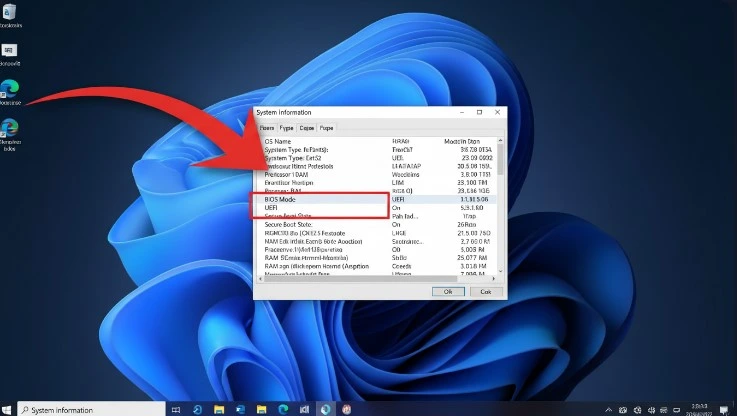
Step 1: Verify You Are Using Pure UEFI Mode
Open Disk Management.
diskmgmt.mscRight-click disk → Properties → Volumes.
If Partition Style shows MBR, you are likely using Legacy mode.
To confirm via command line.
diskpart
list disk
If GPT column shows *, disk uses GPT.
Pure UEFI + GPT typically reduces firmware boot time by 2–6 seconds compared to legacy mode.
Step 2: Optimize UEFI Firmware Settings
Restart system and enter UEFI (DEL/F2/F10 depending on motherboard).
Disable CSM
Set.
Boot Mode → UEFI OnlyCSM introduces legacy device checks that increase boot time.
Enable Fast Boot
Fast Boot skips full hardware checks.
Location typically.
Boot → Fast Boot → EnabledExpected improvement.
2–5 seconds reduction.
Remove Unused Boot Devices
Set boot priority to.
- Windows Boot Manager
- (Nothing else)
Disable.
- Network PXE boot
- Unused SATA drives
- DVD drive if not used
Each additional device check can add 1–3 seconds.
Disable Unused Onboard Controllers
In Advanced settings disable if unused.
- Serial Port
- Parallel Port
- Secondary SATA controller
- Legacy USB support (if no old devices)
These reduce hardware initialization overhead.
Memory Training Considerations
On DDR4/DDR5 systems, memory training can add 3–10 seconds.
If stable.
- Enable XMP/DOCP properly
- Disable memory retraining option (if motherboard supports “Memory Context Restore”)
Improve OS Startup Speed with UEFI Configuration and Event Viewer Analysis
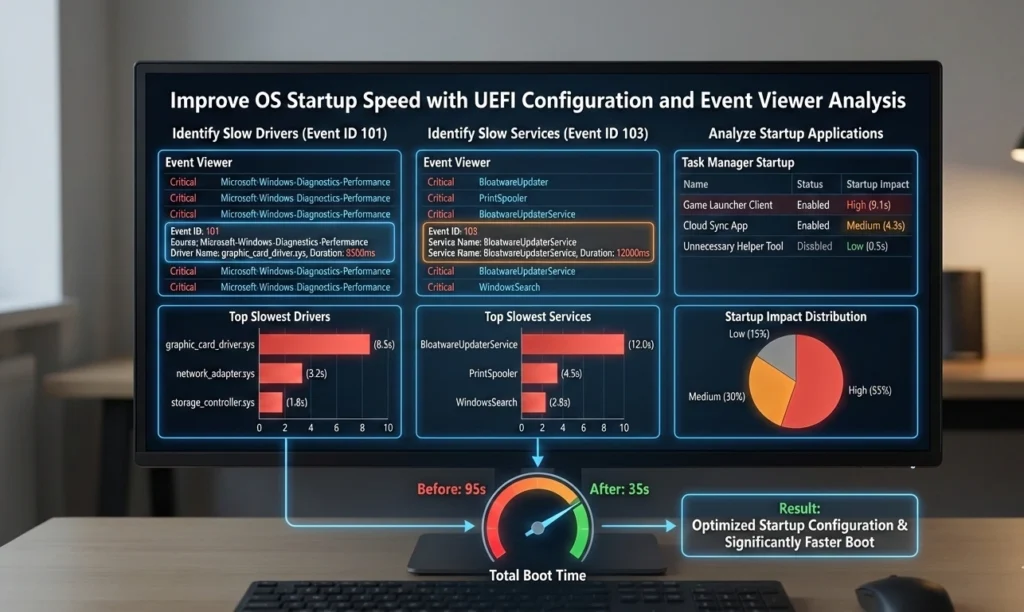
Firmware optimization is only half of the equation. Most real-world delays happen inside Windows. To improve OS startup speed with UEFI configuration and Event Viewer analysis, you need a deeper understanding of how your system initializes. UEFI firmware controls hardware checks, boot order, and fast boot features before the operating system loads. Even small adjustments in these settings can significantly reduce boot delays. At the same time, Event Viewer provides detailed startup performance logs that help identify slow drivers, services, and background processes affecting boot time.
combining firmware-level optimization with log-based performance analysis, you can eliminate bottlenecks and create a faster, more efficient startup process. In this guide, you’ll learn practical techniques to fine-tune UEFI settings, interpret Event Viewer boot logs, and reduce OS startup time effectively and safely.
Identify Slow Drivers (Event ID 101)
Example log.
Driver Name: nvlddmkm.sys
Duration: 13542 ms
13 seconds for one driver is excessive.
Common offenders.
- GPU drivers
- Third-party antivirus drivers
- Old network drivers
- Storage filter drivers
Update drivers from official vendor sources.
Avoid using generic driver packs.
Identify Slow Services (Event ID 103)
Example.
Service Name: WSearch
Duration: 10453 ms
10 seconds for Windows Search service initialization.
Open.
services.mscOptions.
- Set to Delayed Start
- Set to Manual (if rarely used)
Be cautious – do not disable core services.
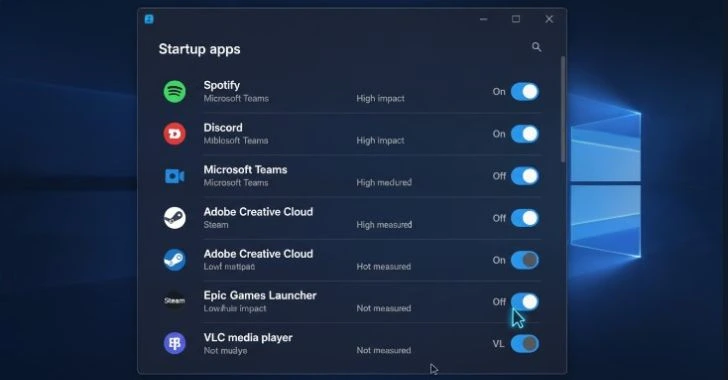
Analyze Startup Applications
Open Task Manager.
Ctrl + Shift + Esc → StartupCheck “Startup Impact” column.
Disable.
- Auto-updaters
- Cloud clients (if not needed immediately)
- Gaming launchers
- Printer monitoring utilities
Each startup program can add 1–4 seconds cumulatively.
OS Boot Time Optimization: Using UEFI Firmware and Event Viewer Tools
For deeper analysis, Windows provides additional diagnostics. OS Boot Time Optimization: Using UEFI Firmware and Event Viewer Tools focuses on two powerful components that directly impact startup speed. UEFI firmware manages hardware initialization, boot order, and pre-OS checks, all of which influence how quickly your system begins loading the operating system. Meanwhile, Event Viewer tools provide detailed boot performance data, helping you detect slow drivers, services, and system processes that extend startup time.
irmware-level adjustments with log-based performance analysis, you can identify bottlenecks, apply targeted fixes, and significantly reduce os boot duration.
Boot Logging
Enable.
msconfig → Boot → Boot logAfter restart, review.
C:\Windows\ntbtlog.txtThis shows which drivers loaded and which did not. Repeated driver load failures increase boot time.
Performance Monitor Boot Trace
Run.
perfmonNavigate.
Data Collector Sets → Startup Event Trace SessionsThis provides deeper trace logging for enterprise-level analysis.
Adjust Boot Timeout
If you have only one OS installed, reduce timeout.
bcdedit /timeout 3Default can be 30 seconds – unnecessary delay.
Disable Hibernation If Not Needed
Hybrid boot may increase boot complexity on some systems.
Disable.
powercfg /hibernate offThis removes Fast Startup dependency.
Repair System Corruption
Run.
sfc /scannowThen.
DISM /Online /Cleanup-Image /RestoreHealthCorrupt system files can increase boot delays during integrity checks.
Windows OS Boot Time Optimization with UEFI and Event Viewer
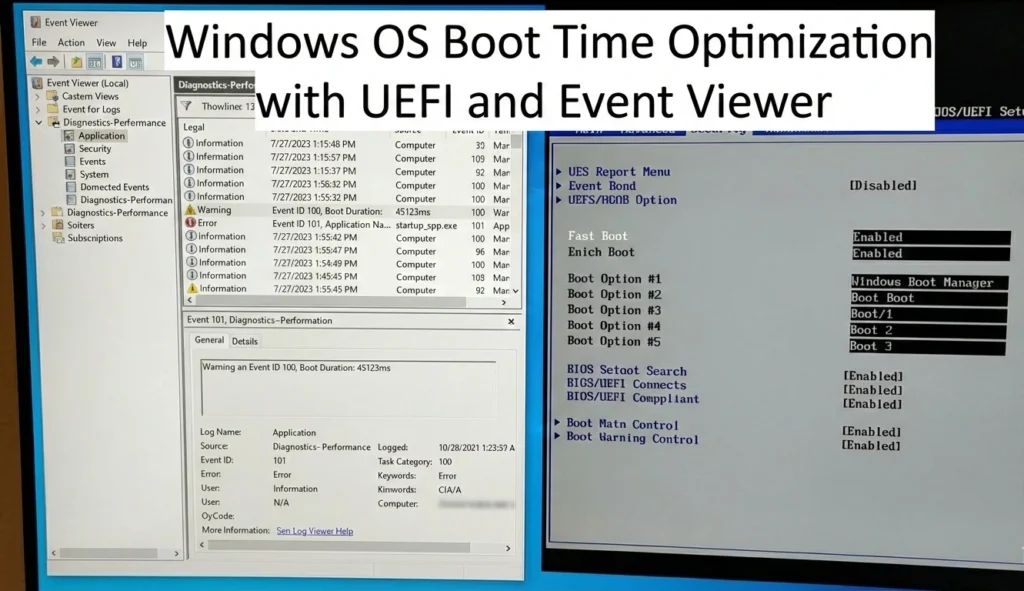
Now let’s combine data-driven tuning. Startup performance directly affects productivity, system reliability, and user experience in any Windows environment. When boot time increases, it often signals deeper issues such as inefficient firmware configuration, delayed driver initialization, overloaded startup services, or hardware compatibility checks that extend the pre-boot phase.
Windows OS Boot Time Optimization with UEFI and Event Viewer focuses on improving startup speed through firmware-level tuning and data-driven diagnostics. UEFI firmware determines hardware initialization order, POST behavior, boot device priority, and fast boot configuration all of which influence how quickly Windows begins loading. Even enabling Fast OS Boot, reducing unnecessary boot devices, or updating firmware can cut valuable seconds from startup time.
At the operating system level, Event Viewer provides detailed boot performance metrics, including boot duration timestamps, driver load times, service delays, and degradation warnings. Analyzing these logs allows you to identify problematic drivers, misconfigured services, and applications that increase startup latency. Instead of guessing which programs to disable, you rely on measurable performance data to guide optimization decisions.
Example Real-World Case Study
System.
- NVMe SSD
- 16GB RAM
- Windows 11
Before Optimization.
| Metric | Value |
|---|---|
| UEFI Time | 14 sec |
| MainPathBootTime | 23 sec |
| PostBoot | 19 sec |
| Total | 56 sec |
Issues Found.
- CSM enabled
- Network PXE enabled
- 7 startup apps
- Outdated Wi-Fi driver (12 sec delay)
After Optimization.
| Metric | Value |
|---|---|
| UEFI Time | 6 sec |
| MainPathBootTime | 11 sec |
| PostBoot | 9 sec |
| Total | 26 sec |
Improvement: 30 seconds (53% reduction).
Analyze and Reduce OS Boot Time via UEFI Settings and Event Viewer
When optimizing OS boot time, categorize the bottleneck. Boot time is one of the clearest indicators of overall system health. When your operating system takes longer than expected to load, the delay often stems from firmware configuration issues, inefficient boot sequencing, outdated drivers, or background services that extend initialization time.
Analyze and Reduce OS Boot Time via UEFI Settings and Event Viewer focuses on a data-driven approach to startup optimization. UEFI settings control hardware initialization, POST behavior, boot device priority, and fast boot features all of which directly affect how quickly the OS begins loading. Properly configuring these options can significantly shorten the pre-boot phase.
On the software side, Event Viewer provides detailed boot performance logs, including total OS boot duration, driver load times, and service-related delays. examining these metrics, you can identify startup bottlenecks, detect degraded performance events, and make targeted adjustments instead of relying on guesswork.
If Firmware Time Is High
Focus on.
- CSM
- Boot order
- Fast Boot
- Disable unused hardware
If MainPath Is High
Focus on.
- Driver updates
- Storage drivers
- GPU driver cleanup
- Antivirus kernel drivers
If PostBoot Is High
Focus on.
- Startup apps
- Background services
- Scheduled tasks
Advanced Enterprise-Level Optimization
On managed systems.
- Use Group Policy to control startup scripts.
- Use Windows Performance Toolkit (WPT) for boot trace analysis.
- Monitor boot trends monthly.
Boot degradation often happens gradually due to software accumulation.
Final Thoughts:
Boot time optimization is not about disabling random services or installing questionable tweaks.
It is a structured process.
- Measure actual boot metrics.
- Identify the slow phase.
- Optimize firmware.
- Update or remove problematic drivers.
- Reduce startup workload.
- Measure again.
On modern SSD systems, realistic optimized cold boot time should fall between 12–25 seconds, depending on hardware class.
Anything beyond that requires investigation – not guesswork.
Complete Guide to OS Boot Optimization Using UEFI and Event Viewer
To summarize the full strategy.
Firmware Layer
- Use GPT + Pure UEFI
- Enable Fast Boot
- Disable CSM
- Remove unused boot devices
- Disable unnecessary controllers
Windows Layer
- Analyze Event ID 100–110
- Remove driver delays
- Adjust services startup type
- Disable unnecessary startup apps
- Repair corrupted system files
- Reduce boot timeout
Boot optimization is measurable, data-driven, and sustainable when done correctly.
When you combine UEFI tuning with Event Viewer diagnostics, you transform startup performance into something predictable and engineered not accidental.