Resetting your macOS can be a great way to fix issues, improve performance, or prepare your system for a fresh start. But what if you’re worried about losing your valuable personal data, like photos, documents, or apps? fortunately, you don’t have to choose between a clean system and keeping your files intact.
Mac without losing any of your important data. Whether you’re looking to troubleshoot a slow system or get ready to sell your Mac, you can restore your device to its factory settings while keep your personal files safe. Let’s explore how to do this efficiently and securely, ensuring you get the best of both worlds.
Introduction: Why You Might Need to Reset Your macOS Without Losing Data
Resetting a Mac often sounds like a drastic step something you only do when everything else fails. But in reality, a reset can be one of the most effective ways to fix persistent system issues, improve performance, and give your device a fresh start. The real concern for most users isn’t the reset itself—it’s the fear of losing important personal data.
Over time, your Mac accumulates unnecessary files, outdated system configurations, corrupted caches, and background processes that slowly degrade performance. You might notice slower boot times, apps freezing, or even random crashes. In some cases, software conflicts or failed updates can make the system unstable.
However, resetting your Mac doesn’t mean wiping everything permanently. With the right approach, you can reset the operating system while keeping your personal files, documents, photos, and even some settings intact.
Why people reset their Mac without data loss.
- Fix persistent system errors or bugs
- Improve overall performance and speed
- Remove malware or corrupted files
- Prepare the Mac for resale (while keeping a backup)
- Resolve macOS update issues
The key is understanding the process and following it carefully. This guide walks you through each step in detail, ensuring that your data stays safe while your system gets a clean refresh.
Step 1: Backup Your Mac Data Before Resetting
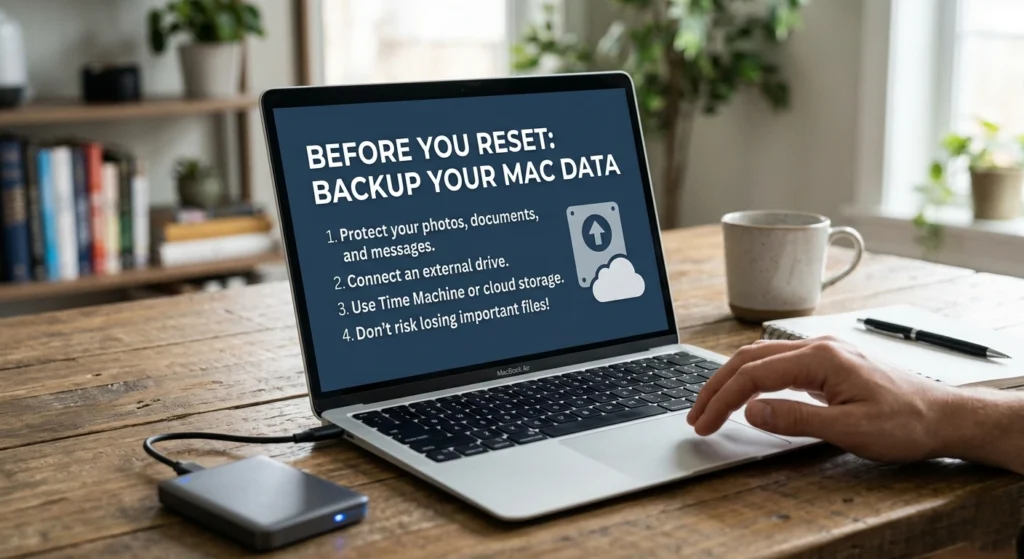
Before doing anything else, backing up your data is non-negotiable. Even if you plan to keep your files intact during the reset, unexpected errors can occur. A backup acts as your safety net.
Why Backups Are Critical
No matter how careful you are, system resets involve modifying core files. A power interruption, disk error, or incorrect step could result in data loss. A backup ensures you can recover everything instantly.
Important: Never skip this step even professionals don’t.
Using Time Machine for Full Backup
Time Machine is built into macOS and provides a complete snapshot of your system.
Steps to Create a Backup with Time Machine
- Connect an external storage device
- Open System Settings → General → Time Machine
- Select your external drive
- Click Back Up Now
Time Machine automatically stores.
- Documents and files
- Applications
- System settings
- User accounts
Alternative Backup Methods
If you prefer more control, you can manually back up critical files.
Manual Backup Approach
- Copy files to an external drive
- Use cloud storage for documents
- Export important app data
What You Should Always Back Up
Make sure these.
- Photos and videos
- Documents and work files
- Browser bookmarks
- Email archives
- Application data
Pro Tip: Verify your backup by opening a few files before moving forward.
Step 2: Sign Out of iCloud, iTunes, and Other Apple Services
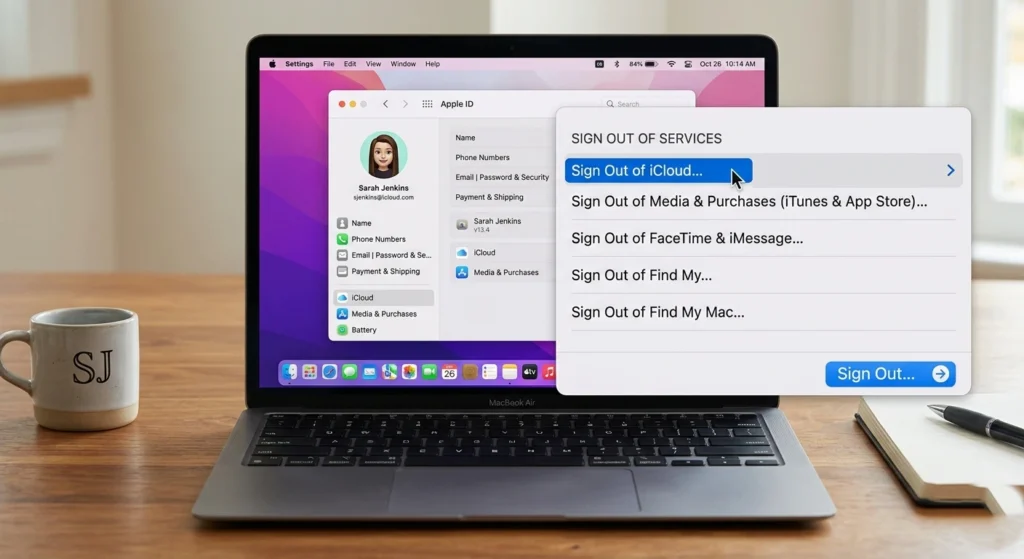
Before resetting your Mac, it’s essential to disconnect your Apple services. This prevents account conflicts and ensures a smooth setup later. Before resetting or selling your Mac, it’s important to sign out of iCloud, iTunes, and other Apple services to protect your privacy and ensure a smooth transition.
Signing out of these services helps prevent unauthorized access to your personal data and ensures that your account is securely detached from the device. Whether you’re troubleshooting an issue or preparing your Mac for a new owner, properly signing out of iCloud, iTunes, and other services is a crucial step.
Why Signing Out Matters
Your Apple ID is deeply integrated into macOS. If you reset without signing out.
- Activation Lock may remain enabled
- Sync issues can occur after reinstall
- Your data may not restore properly
Sign Out of iCloud
Steps
- Open System Settings
- Click your Apple ID
- Scroll down and select Sign Out
- Choose whether to keep a copy of your data locally
Deauthorize Apple Music / iTunes
This step is important if you’ve authorized your Mac for media purchases.
Steps
- Open the Music app
- Go to Account → Authorizations
- Select Deauthorize This Computer
Sign Out of Other Services
Don’t forget.
- iMessage
- FaceTime
- Third-party apps linked to your Apple ID
Important: This step ensures your Mac is fully disconnected and ready for a clean reset without authentication issues.
Step 3: Prepare Your Mac for a Safe Reset
Preparation is often overlooked, but it can make the difference between a smooth reset and a problematic one. Preparing your Mac for a reset is an essential step to ensure that the process goes smoothly and your data remains intact.
Whether you’re troubleshooting, upgrading, or planning to sell your Mac, taking a few precautions before initiating the reset can prevent potential problems. This includes backing up important files, ensuring your system is fully updated, and securely signing out of services like iCloud and iTunes.
Check macOS Compatibility and Updates
Make sure your system is stable before resetting.
What to Do
- Install pending updates
- Check for disk errors
- Ensure enough storage space
Disconnect External Devices
Remove.
- USB drives
- External monitors
- Printers
- Accessories
This avoids interference during the reset process.
Ensure Stable Power Supply
A reset process can take time. If your Mac shuts down during installation, it may corrupt the system.
Always keep your Mac plugged in during the reset process.
Verify Disk Health Using Disk Utility
Steps
- Open Disk Utility
- Select your main drive
- Click First Aid
This checks and repairs minor disk issues before resetting.
Step 4: How to Reset Your Mac Using macOS Recovery Mode
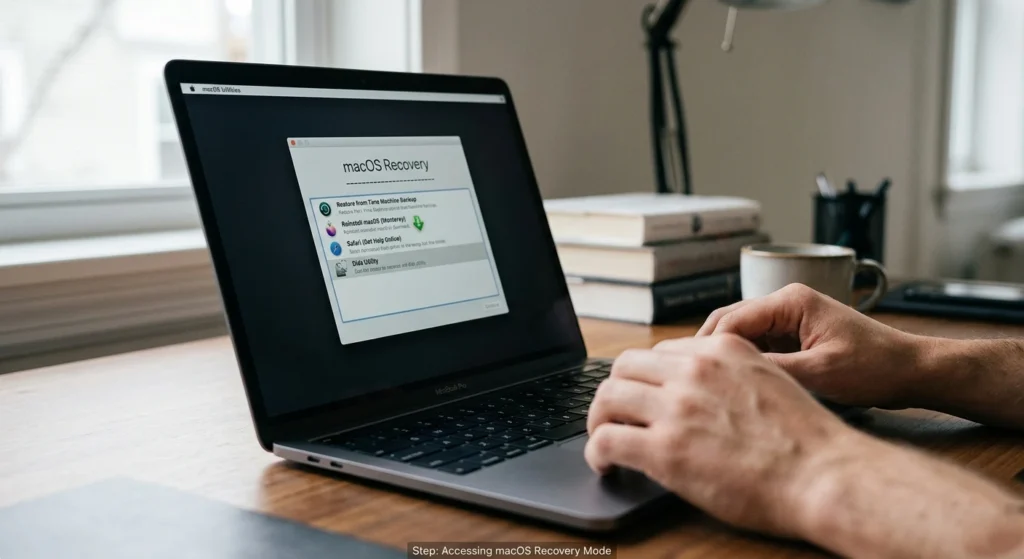
Recovery Mode is the built-in system that allows you to reset or reinstall macOS safely. If your Mac is running slow, experiencing persistent issues, or you simply want to start fresh, resetting it can often be the best solution.
One of the safest and most effective ways to reset your Mac is through macOS Recovery Mode. This built-in feature allows you to reinstall macOS, restore from backups, or even erase your system entirely, all while keeping your data protected.
What Is macOS Recovery Mode?
It’s a special environment that runs independently of your main system.
from here, you can.
- Reinstall macOS
- Repair disks
- Restore backups
Entering Recovery Mode
For Intel Macs
- Restart your Mac
- Hold Command + R during startup
For Apple Silicon Macs
- Shut down your Mac
- Press and hold the power button
- Select Options → Continue
Understanding Recovery Options
Once inside you’ll see several tools.
- Restore from backup
- Reinstall macOS
- Disk Utility
- Safari (for help)
Erasing System Without Deleting Personal Data
This is where precision matters. When performing a system reset or preparing to sell your Mac, you may want to erase the operating system to ensure a fresh start while still keeping your personal data safe. fortunately, there’s a way to remove macOS without affecting your files, photos, or applications.
Correct Approach
- Avoid deleting your entire disk unless necessary
- Only remove system-related files if required
Important: Choosing the wrong erase option can wipe everything permanently.
Step 5: Reinstall macOS Without Losing Your Personal Data
Reinstalling macOS is the core step of resetting your system while preserving files. Reinstalling macOS can be a powerful solution to fix system issues, improve performance, or give your Mac a fresh start. you don’t have to worry about losing your personal files, photos, or applications during the process. carefully following the right steps, you can reinstall macOS while keep your data intact.
What Happens During Reinstallation?
When you reinstall macOS.
- System files are replaced
- Core settings are refreshed
- Personal data remains untouched (if done correctly)
Steps to Reinstall macOS
Process
- In Recovery Mode, select Reinstall macOS
- Choose your main disk
- Follow on-screen instructions
The installation may take 30–90 minutes depending on your system and internet speed.
What You Should NOT Do
Avoid.
- Formatting the entire drive unnecessarily
- Interrupting the installation
- Using unstable internet
Benefits of Reinstallation Without Data Loss
- Fixes system errors
- Improves performance
- Keeps personal files intact
- Removes corrupted system components
Key Insight: This method is often enough to solve major issues without needing a full wipe.
Step 6: Restore Your Files and Settings After the Reset

After reinstalling macOS, your system is refreshed but you may need to restore certain files or settings. After resetting your Mac and reinstalling macOS, the next step is to restore your personal files and settings.
Whether you’ve backed up your data to Time Machine, iCloud, or an external drive, it’s important to know how to recover everything seamlessly. Restoring your files and settings ensures that you can get back to work without losing any important documents, apps, or configurations.
Automatic vs Manual Restoration
Depending on your setup.
- Some files remain automatically
- Others may require restoration from backup
Using Time Machine to Restore
Steps
- Open Migration Assistant
- Select Restore from Time Machine Backup
- Choose the backup source
- Select files or full system restore
Restoring Selected Files
If you prefer not to restore everything:
Manual Restore
- Copy files from external backup
- Download from cloud storage
- Reinstall apps manually
Reconfigure System Settings
You may need to.
- Log back into Apple ID
- Set up iCloud sync
- Adjust privacy settings
- Reconnect devices
Pro Tip: Take this opportunity to keep only essential apps and files for a cleaner system.
Conclusion: Successfully Resetting Your Mac Without Data Loss
Resetting your Mac doesn’t have to be a risky process. When done correctly, it’s a powerful way to restore performance, fix deep system issues, and give your device a fresh start all without sacrificing your personal data.
The key lies in careful preparation.
- Always back up your data first
- Sign out of all essential services
- Use Recovery Mode correctly
- Reinstall macOS without unnecessary formatting
following this step-by-step approach, you not only protect your data but also ensure your Mac runs smoother and more efficiently than before.
Final Thought: A well-executed reset isn’t just troubleshooting it’s maintenance. Regularly keeping your system clean and backed up will save you time, stress, and potential data loss in the future.