If you want your Mac to run faster and keep your personal data secure, adjusting the right macOS settings is essential. Many users overlook simple tweaks that can significantly improve performance while also enhancing privacy. From managing startup items and optimizing storage to configuring app permissions and enabling encryption, there are practical steps you can take today to make your Mac both faster and safer.
Introduction: Why Optimizing macOS Performance and Privacy Matters
Modern Macs are designed to deliver a balance of performance, stability, and security. However, many users never adjust the built-in system settings that control how macOS manages system resources, startup processes, network activity, and application permissions. Over time, default configurations and accumulated files can cause slower performance, reduced storage efficiency, and potential privacy exposure.
macOS includes a sophisticated set of optimization and privacy controls built directly into the operating system. These features help users manage how applications access personal data, how system processes use CPU and memory resources, and how files are stored and protected. adjusting the right settings, users can significantly improve system responsiveness while strengthening personal data protection.
Optimizing macOS performance is not only about speed. It also involves ensuring that the system uses hardware resources efficiently. Macs rely on advanced technologies such as memory compression, background task scheduling, and power-efficient process management. When system settings are properly configured, these technologies allow the operating system to maintain smooth multitasking even under heavy workloads.
Privacy is another critical aspect of macOS. Many applications request access to sensitive information including location services, camera input, microphone data, contacts, calendars, and files stored on the disk. If these permissions are not carefully managed, personal data may become unnecessarily exposed to third-party software.
Another reason optimization matters is long-term system health. Mac computers can run reliably for many years, but storage fragmentation, excessive startup programs, cached system files, and background processes can gradually affect responsiveness. Regular maintenance and configuration adjustments keep the operating system efficient.
The goal of this guide is to explore the most effective macOS settings that improve both system performance and privacy protection. Each section focuses on practical adjustments within macOS that help reduce resource usage, strengthen security, and maintain a clean and responsive system environment.
Keep macOS Updated: Install the Latest System Updates
Keeping macOS up to date is one of the most effective ways to maintain system stability, security, and performance. Apple regularly releases system updates that include security patches, performance improvements, driver updates, and bug fixes. These updates are designed to improve compatibility with hardware components while addressing newly discovered vulnerabilities.
Why System Updates Are Important
Every operating system evolves continuously. As security researchers identify potential vulnerabilities, developers release patches to close those gaps. Installing updates ensures that your Mac benefits from the latest protections against security threats and system instability.
Updates also optimize how macOS interacts with system hardware such as the CPU, GPU, storage controller, and memory. Improved drivers and firmware adjustments can result in faster system performance and better energy efficiency.
Types of macOS Updates
macOS updates generally fall into several categories.
- 1. Major macOS Releases
These updates introduce significant changes, including new system features, redesigned interfaces, and improved security frameworks. - 2. Minor System Updates
Minor updates typically include performance improvements, stability fixes, and security patches without major interface changes. - 3. Security Updates
Security updates focus specifically on fixing vulnerabilities in system components, browsers, and built-in services.
Enabling Automatic Updates
macOS allows users to enable automatic updates so that the system stays current without manual intervention. When automatic updates are active, macOS periodically checks Apple’s update servers and downloads verified system patches.
Automatic updates ensure that critical security patches are installed quickly, reducing the risk of exploitation.
Best Practices for Safe Updates
Before installing large system updates, it is recommended.
- Ensure sufficient storage space is available
- Backup important files
- Close active applications during installation
These precautions prevent potential interruptions and ensure a smooth update process.
Regularly updating macOS keeps your system efficient, stable, and protected against evolving security threats.
Manage Startup Items to Speed Up macOS Boot Time
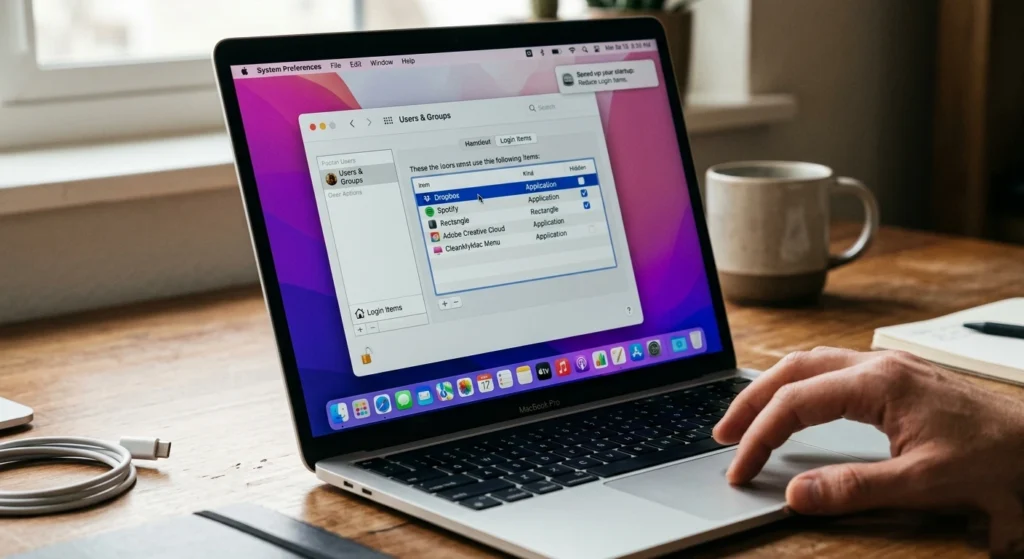
One of the most common reasons for slow Mac startup times is an excessive number of startup applications. Many programs automatically add themselves to the login process so they can launch immediately when the system starts.
While this behavior may be convenient for certain applications, it can significantly increase boot time, memory usage, and CPU load.
Understanding Startup Items
Startup items are programs or background services that launch automatically when a user logs into macOS.
These items may include.
- Cloud storage synchronization services
- Messaging applications
- Software update assistants
- Productivity tools
- Background utilities
When too many programs launch simultaneously, the system must allocate resources to each process, which slows down the overall startup sequence.
Identifying Startup Applications
macOS provides built-in controls that allow users to review and manage startup items. By analyzing which programs are configured to launch at login, users can identify unnecessary applications that consume resources without providing immediate value.
Reducing Login Items
To improve startup performance.
- Review the list of login items.
- Remove applications that do not need to start automatically.
- Keep only essential services that must run immediately.
Reducing startup items often results in noticeably faster login times and improved system responsiveness.
Benefits of a Clean Startup Environment
A streamlined startup process offers several advantages.
- Faster system boot times
- Reduced background resource usage
- Lower CPU and memory consumption
- Improved battery efficiency on MacBooks
Maintaining a minimal set of startup items ensures that macOS launches quickly and remains responsive during everyday use.
Optimize Storage and Free Up Disk Space
Storage management is essential for maintaining consistent macOS performance. When a disk becomes nearly full, the operating system has limited space for temporary files, system caches, and memory swap operations. This can cause slower application launches and reduced multitasking performance.
Why Free Disk Space Matters
macOS uses available disk space for several critical tasks.
- Virtual memory swap files
- Temporary application data
- System update installations
- Cache storage for faster data access
If the system drive becomes too full, these operations become less efficient, causing noticeable performance degradation.
Identifying Large Files and Unused Data
A large portion of disk space is often consumed.
- Old downloads
- Duplicate files
- Large media files
- Unused applications
- System cache data
Reviewing these storage areas regularly helps maintain an efficient storage environment.
Built-in Storage Optimization Features
macOS includes several built-in features designed to help users manage disk space efficiently.
Optimized Storage
Optimized Storage automatically manages older files and cloud-synced data to reduce local disk usage.
Automatic Trash Removal
The system can automatically remove files that have remained in the Trash for an extended period.
Large File Management
macOS identifies large files so users can quickly review and remove unnecessary data.
Maintaining Healthy Disk Usage
Experts generally recommend keeping at least 15–20% of disk space free. Adequate free space ensures that macOS can perform background operations smoothly.
Keeping storage organized improves not only system performance but also overall productivity.
Adjust System Preferences for Better Performance
System settings directly influence how macOS uses hardware resources. Certain visual effects and background behaviors can consume CPU and GPU resources, particularly on older hardware.
Adjusting system preferences allows users to prioritize performance over visual effects.
Reduce Visual Effects
macOS includes several animations and transparency effects designed to enhance the user interface. While visually appealing, these effects may require additional GPU processing.
Reducing animations and transparency can result in.
- Faster window rendering
- Improved responsiveness
- Reduced GPU workload
Optimize Energy Settings
Power management settings also influence system performance. Mac laptops adjust CPU frequency and background activity based on energy preferences.
Users who prioritize performance may adjust settings to allow higher processing availability when needed.
Manage Notification Behavior
Frequent notifications and background refresh activities can consume system resources. Limiting unnecessary notifications helps reduce background system interruptions.
Control Spotlight Indexing
Spotlight continuously indexes files to provide fast search results. However, indexing large directories can temporarily consume system resources.
Limiting indexing for certain directories can reduce unnecessary processing tasks.
By carefully adjusting system preferences, users can create a more efficient operating environment tailored to their workflow.
Enhance Privacy by Controlling App Permissions
Application permissions are a major component of macOS privacy protection. Many applications request access to sensitive data such as location information, contacts, microphone input, camera usage, and local files.
If these permissions are granted without careful review, personal information may become unnecessarily exposed.
Understanding Permission Categories
macOS organizes privacy permissions into several categories including:
- Location services
- Camera access
- Microphone access
- Contacts and calendars
- Files and folders
- Screen recording
Each category allows users to review which applications have requested access.
Reviewing App Permissions Regularly
Users should periodically audit the list of applications that have been granted sensitive permissions. Removing access from unnecessary or rarely used applications helps reduce potential privacy risks.
Limiting Background Data Collection
Some applications collect data even when not actively used. By restricting permissions, users can limit unnecessary data access and improve overall privacy protection.
Importance of Permission Awareness
Careful permission management ensures that only trusted applications have access to personal information. This simple practice significantly improves macOS privacy security.
Configure Safari and Other Browsers for Maximum Privacy

Web browsers are among the most frequently used applications on any computer. Because browsing involves interacting with websites, advertisers, and online services, it also represents one of the most common sources of privacy exposure.
Properly configuring browser privacy settings can reduce tracking and protect sensitive data.
Intelligent Tracking Prevention
Safari includes advanced privacy technology designed to block cross-site tracking. This feature prevents advertisers from following user activity across multiple websites.
Blocking Third-Party Cookies
Third-party cookies are often used to track browsing behavior across different websites. Blocking these cookies helps limit unwanted data collection.
Private Browsing Mode
Private browsing sessions prevent the browser from saving.
- Browsing history
- Search history
- Auto-fill data
- Temporary cookies
While private browsing does not make users completely anonymous online, it helps reduce local data storage.
Managing Website Permissions
Browsers allow users to control website access.
- Camera
- Microphone
- Location services
- Notifications
Limiting unnecessary permissions strengthens overall browsing privacy.
Enable FileVault to Encrypt Your Mac’s Data
Data encryption is one of the most effective ways to protect sensitive information stored on a computer. macOS includes a built-in full-disk encryption feature known as FileVault.
FileVault encrypts the entire system drive using strong encryption algorithms.
How FileVault Works
When FileVault is enabled, all data stored on the disk is automatically encrypted. Only authorized users with valid login credentials can decrypt and access the data.
This means that if the device is lost or stolen, the stored data remains protected.
Benefits of Full Disk Encryption
FileVault provides several important security advantages.
- Protects personal files from unauthorized access
- Prevents data recovery from stolen hardware
- Secures sensitive documents and credentials
Encryption occurs transparently in the background, meaning users can continue working normally while data remains protected.
Use Firewall and Network Security Settings
Network security is an essential part of protecting a Mac from unauthorized access. macOS includes a built-in firewall that monitors incoming network connections.
How the macOS Firewall Works
A firewall acts as a barrier between your computer and external networks. It analyzes incoming connection requests and blocks unauthorized access attempts.
Enabling Firewall Protection
When the firewall is active, macOS automatically blocks suspicious network traffic while allowing trusted applications to communicate normally.
Stealth Mode for Additional Protection
Stealth Mode prevents the computer from responding to certain network probes. This makes the system less visible to potential attackers scanning networks for vulnerable devices.
Monitoring Network Activity
Reviewing network activity periodically helps identify unusual connection patterns and ensures that only trusted applications are communicating with external servers.
Disable Unnecessary Features and Background Services
macOS includes many features designed to improve usability and connectivity. However, some of these services may run continuously in the background even when not actively needed.
Disabling unused features can free up system resources and improve performance.
Examples of Background Services
Some background services that may consume resources.
- Bluetooth device scanning
- Location services
- File sharing services
- AirDrop discovery
- Background syncing services
If these features are not frequently used, disabling them can reduce background system activity.
Benefits of Reducing Background Services
Limiting unnecessary background processes provides several advantages:
- Lower CPU usage
- Reduced memory consumption
- Improved battery life
- Faster system responsiveness
A streamlined system environment allows macOS to allocate resources more efficiently to active tasks.
Monitor Activity and System Resources for Better Performance
Even with optimized settings, it is important to monitor system performance periodically. macOS includes built-in tools that allow users to track resource usage and identify potential performance issues.
Understanding System Resource Usage
Key system resources include.
- CPU usage
- Memory consumption
- Disk activity
- Network traffic
Monitoring these resources helps identify applications that may be consuming excessive system capacity.
Identifying Resource-Heavy Applications
Some applications may continue running background processes even after they are closed. Monitoring system activity allows users to detect these behaviors and take appropriate action.
Maintaining Long-Term System Health
Regularly reviewing system performance helps ensure that macOS continues running smoothly over time.
Simple habits such as closing unused applications, restarting the system periodically, and reviewing resource usage contribute to a stable computing environment.
Conclusion: Maintain a Fast and Secure macOS Experience
Maintaining a fast and secure Mac requires a combination of performance optimization and strong privacy practices. Carefully configuring system settings, users can ensure that macOS operates efficiently while protecting sensitive personal data.
Key practices include.
- Keeping macOS updated with the latest security patches
- Reducing unnecessary startup applications
- Managing disk space effectively
- Controlling application permissions
- Strengthening browser privacy settings
- Encrypting data with FileVault
- Using built-in firewall protections
- Monitoring system resources regularly
When these strategies are combined, macOS becomes both highly responsive and strongly protected against privacy risks.
Regularly reviewing system settings and maintaining good digital habits ensures that your Mac continues delivering a smooth, secure, and reliable computing experience for years to come.