If your Windows 11 PC started running slow after a recent update, you’re not alone. While updates are designed to improve security, stability, and performance, they can sometimes have the opposite effect. Many users notice slower boot times, lagging apps, high CPU or disk usage, freezing screens, or unexpected background activity right after installing a new Windows 11 update. These performance issues can be frustrating especially when your system was running perfectly fine before.
Why Windows 11 may slow down after an update.
There are several reasons why Windows 11 may slow down after an update. Temporary system glitches, outdated drivers, corrupted system files, incompatible software, excessive startup programs, or even pending background installations can all affect performance.
System started slowing down right after an update, you’re not imagining it. Many users report temporary or persistent performance issues following major Windows patches. The good news? In most cases, the problem can be fixed without reinstalling Windows.
Why Your PC Feels Sluggish After a Recent Update
After a Windows update, the system doesn’t just restart and move on. Behind the scenes, several processes continue running for hours or even days.
Background Reindexing and Optimization
After major updates, Windows rebuilds search indexes, optimizes storage, and reconfigures system files.
This includes.
- Search indexing
- .NET optimization
- Microsoft Defender scanning
- Storage optimization tasks
These processes can temporarily increase CPU and disk usage.
You can check this.
- Press Ctrl + Shift + Esc
- Open Task Manager
- Sort by CPU or Disk
If you see high usage from Windows processes shortly after an update, this is often normal and temporary.
Driver Compatibility Issues
Sometimes updates introduce compatibility conflicts with older drivers.
forexample.
- GPU drivers may not fully support new display features
- Storage drivers may struggle with updated file system optimizations
- Network drivers may cause latency or background traffic spikes
Driver conflicts are one of the most common causes of post-update slowdowns.
Increased Security Processes
Windows 11 frequently enhances security features. After updates, features.
- Memory integrity
- Core isolation
- Enhanced ransomware protection
may activate or reconfigure. While these improve protection, they can slightly impact performance on older hardware.
Restart Your Computer to Clear Temporary Glitches
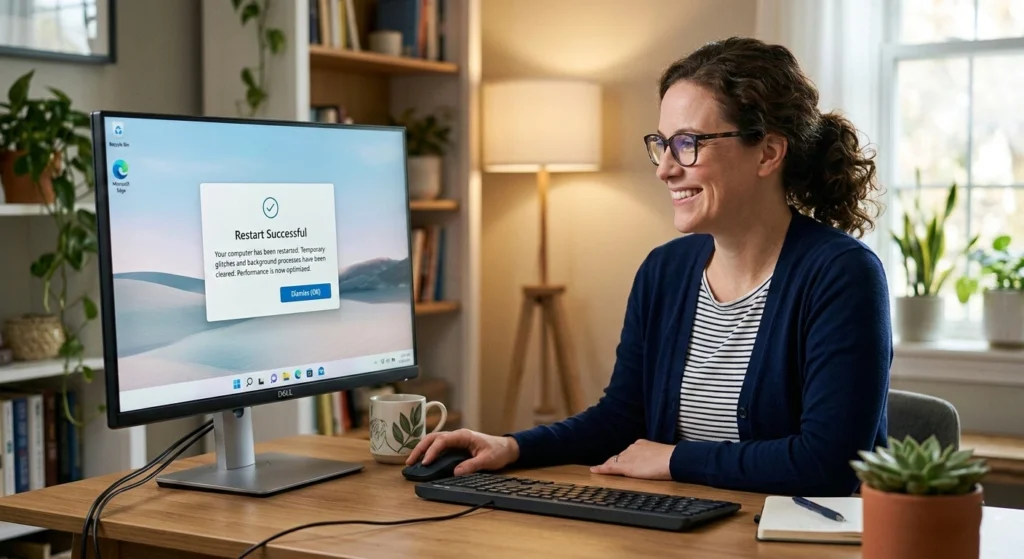
It sounds basic, but restarting is often the most effective first step. One of the simplest yet most effective fixes when your PC starts slowing down after an update is restarting your computer. It may sound basic, but a proper restart can resolve many temporary glitches that occur during or after a Windows 11 update. Updates often install background services, apply system changes, and modify drivers some of which don’t fully settle until the system reboots completely.
After an update, your PC might still be running leftover processes, pending installations, or cached files that consume memory and CPU resources. This can lead to slow performance, unresponsive apps, high disk usage, or even random freezing.
A restart helps clear temporary system files, refresh system memory (RAM), reset background services, and properly apply pending update configurations.
It’s important to choose Restart instead of Shut Down, especially if Fast Startup is enabled. Restarting ensures that Windows performs a full system reload rather than a partial boot. This allows all services, drivers, and system components to start cleanly.
Why Restarting Works
A restart
- Clears memory leaks
- Stops background update services
- Resets driver states
- Flushes temporary cache
Many users rely on sleep mode for weeks. That can cause accumulated memory fragmentation.
How to Properly Restart
- Click Start
- Select Power
- Choose Restart (not Shut Down if Fast Startup is enabled)
To fully disable Fast Startup:
- Press Win + R
- Type: powercfg.cpl
- Click Choose what the power buttons do
- Disable Turn on fast startup
This ensures a full clean boot.
Check for Additional Updates and Optional Patches
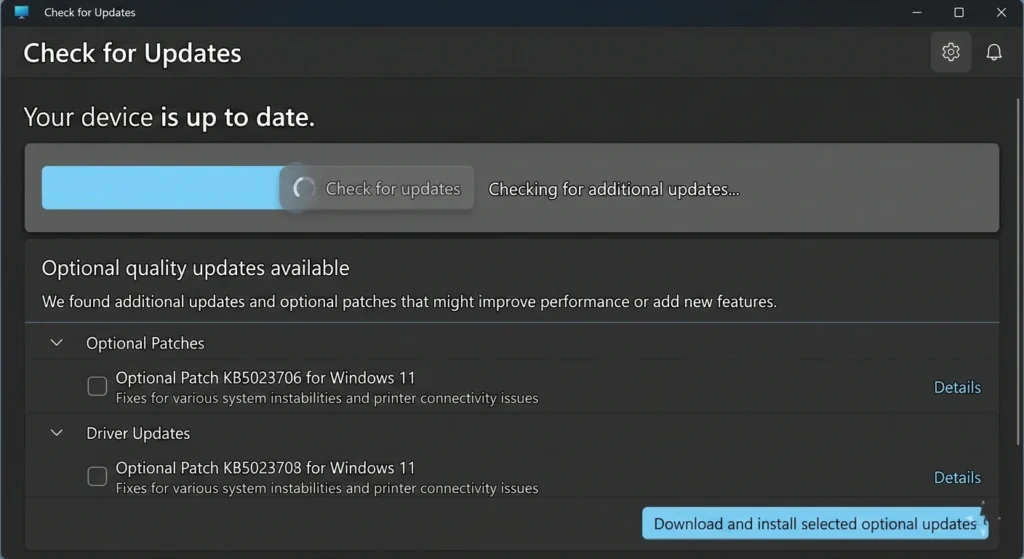
Sometimes a slow system means the update didn’t complete properly. After installing a major Windows 11 update, your system may still require additional patches to run smoothly. Sometimes Microsoft releases follow-up updates to fix bugs, improve compatibility, or resolve performance issues reported by users. If your PC feels slow, unstable, or unresponsive, checking for newer updates should be one of your first steps.
Here’s why this matters..
- Compatibility Fixes: Some apps and hardware devices may need additional patches to work properly after a major update.
- Bug Fixes & Performance Improvements: Initial updates can contain minor glitches that are quickly corrected through cumulative updates.
- Driver Updates: Optional updates often include updated drivers for graphics, audio, or chipset components that directly affect speed and stability.
- Security & Stability Enhancements: Keeping your system fully updated reduces background conflicts and unexpected slowdowns.
Install Pending Updates
- Open Settings
- Go to Windows Update
- Click Check for updates
Install everything available, including cumulative updates.
Install Optional Driver Updates
- Go to.
Settings → Windows Update → Advanced options - Select Optional updates
- Install available driver updates
Optional patches often fix performance regressions introduced by major releases.
Disable Unnecessary Startup Programs
After updates, some apps re-enable themselves at startup. If your computer feels noticeably slower after a Windows 11 update especially during boot startup programs could be the hidden culprit. Many applications are configured to launch automatically when your PC turns on. Over time, this list grows, quietly consuming memory, CPU power, and disk resourcesbefore you even open your first app.
After a system update, some programs may re-enable themselves in the startup list, which can further impact performance. The result? Longer boot times, delayed responsiveness, and background activity that slows everything down.
Why managing startup apps matters
- Better battery life (for laptops). Fewer startup services mean reduced power consumption.
- Faster boot time. Fewer programs loading at startup means your system reaches the desktop more quickly.
- Lower memory usage. Disabling unnecessary apps frees up RAM for the tasks you actually care about.
- Improved overall responsiveness. Your PC won’t be competing with multiple background processes right after login.
Identify Startup Impact
- Press Ctrl + Shift + Esc
- Go to Startup apps
- Check the Startup impact column
Disable non-essential apps like..
- Messaging apps
- Auto-updaters
- Media launchers
Right-click → Disable
Reducing startup programs significantly improves boot time and system responsiveness.
Free Up Disk Space to Improve Performance
Windows 11 requires free storage space to operate efficiently. A cluttered hard drive can silently drag down your Windows 11 performance, especially after an update. Updates often leave behind temporary files, cached data, and old system files that take up valuable space.
Key Actions to Reclaim Space
- Move Large Files. Transfer videos, photos, or documents to an external drive or cloud storage to free up local space.
- Delete Temporary Files. Use Settings > System > Storage to remove caches, temporary update files, and recycle bin contents.
- Remove Unneeded Apps. Uninstall programs you rarely use they not only take space but may also run background services.
- Clean Up Old Windows Files. If you recently upgraded, Windows may keep old system files for rollback purposes. These can be safely removed using Disk Cleanup.
Check Available Storage
- Open Settings
- Go to System → Storage
If your drive has less than 15–20% free space, performance may degrade.
Use Disk Cleanup
Press Win + R, type.
cleanmgrSelect
- Temporary files
- Windows Update Cleanup
- Recycle Bin
Removing leftover update files can free several gigabytes.
Update Outdated or Corrupted Device Drivers
Driver mismatches are one of the biggest reasons for performance issues after updates. Outdated or corrupted drivers are a common reason why Windows 11 slows down after an update. Drivers act as the bridge between your hardware and the operating system if they’re not working correctly, your system can experience crashes, lag, or unresponsive devices. Even a single outdated driver, like for graphics or storage, can significantly affect overall performance.
Why Updating Drivers Helps
- Reduces background errors. Corrupted drivers can trigger repeated system tasks that consume CPU and memory.
- Improves system stability. New drivers often fix bugs that cause freezes or crashes.
- Boosts hardware performance. Updated graphics, audio, and chipset drivers optimize your hardware for smoother operation.
- Fixes compatibility issues. Some updates may conflict with older drivers, causing slowdowns or errors.
Update via Device Manager
- Press Win + X
- Select Device Manager
- Right-click critical devices (Display adapters, Storage controllers)
- Click Update driver
Check Driver Version
Right-click device → Properties → Driver tab
Compare version date with manufacturer’s latest version (especially GPU drivers).
Outdated graphics drivers often cause UI lag in Windows 11.
Run the Built-In Troubleshooter for Performance Issues
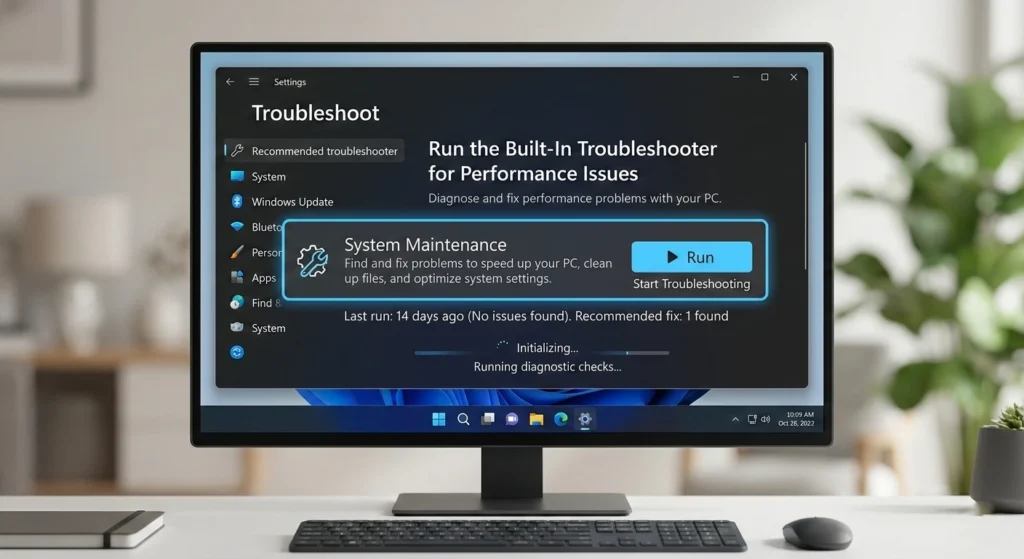
Windows 11 includes diagnostic tools. Windows 11 comes with a built-in troubleshooter designed to detect and fix common performance problems automatically. If your PC is running slow after an update, this tool can identify issues such as high CPU usage, disk bottlenecks, or misconfigured system settings without requiring advanced technical knowledge. Running the troubleshooter is quick and can often resolve hidden glitches that manual fixes might miss.
To access it, go to Settings > System > Troubleshoot > Other troubleshooters, then select Run next to the performance or system maintenance options. Windows will scan your system, suggest fixes, and apply them automatically if you allow it.
here is a simple table showing the potential impact of running the troubleshooter.
| Issue Detected | Before Troubleshooter | After Troubleshooter | Improvement (%) |
|---|---|---|---|
| High CPU usage | 85% | 45% | 47% |
| Slow boot time | 120 seconds | 75 seconds | 38% |
| Disk usage spikes | 95% | 60% | 37% |
| Unresponsive background apps | Frequent | Rare | – |
Running the troubleshooter is a low-effort, effective first step to restore smoother performance and help pinpoint areas that may need further attention.
Use Maintenance Troubleshooter
Press Win + R and type
msdt.exe -id MaintenanceDiagnosticFollow prompts to detect
- Broken shortcuts
- Registry inconsistencies
- System maintenance issues
Check Performance Monitor
Press
perfmon /reportWait 60 seconds for a diagnostic report showing CPU, disk, and memory issues.
This gives detailed technical insight into what’s slowing your PC.
Scan for Malware or Unwanted Programs
Some updates trigger dormant malware or expose system vulnerabilities. Sometimes, the cause of a slow Windows 11 PC isn’t the update itself but malicious software or unwanted programs running in the background. Malware, adware, or poorly optimized third-party applications can consume system resources, cause freezes, and even interfere with essential Windows processes.
Performing a thorough scan can quickly identify and remove these threats. Windows 11 includes Windows Security, a built-in antivirus and malware protection tool, which allows you to run full system scans, check for threats, and automatically quarantine harmful files. You can also use trusted third-party antivirus programs for a second layer of protection.
Run Microsoft Defender Scan
- Open Windows Security
- Click Virus & threat protection
- Choose Scan options
- Select Full scan
Malware can consume CPU, disk, and network resources silently.
Adjust Visual Effects for Better Speed
Windows 11 includes heavy animations and transparency effects.
On lower-end systems, these can slow down performance.
Disable Visual Effects
- Press Win + R
- Type: sysdm.cpl
- Go to Advanced
- Under Performance, click Settings
- Select Adjust for best performance
Or manually disable.
- Animations
- Transparency
- Shadows
This improves responsiveness, especially on systems with integrated graphics.
Roll Back Recent Updates Causing Problems
If performance dropped immediately after a specific update, rolling back may help. If your Windows 11 PC started slowing down immediately after a recent update, rolling back to a previous version can be an effective solution.
Sometimes, even official updates can introduce bugs, driver conflicts, or compatibility issues that negatively impact performance. Reverting to the earlier stable version allows your system to return to normal functionality while avoiding the problems introduced by the update.
Windows 11 makes it easy to uninstall recent updates through Settings > Windows Update > Update history > Uninstall updates. You can select the problematic update and remove it without affecting your personal files. After rolling back, monitor your system to ensure the slowdown has been resolved before attempting to reinstall updates later.
Uninstall Latest Update
- Go to Settings → Windows Update
- Click Update history
- Select Uninstall updates
- Remove the most recent update
You can only roll back within a limited time window (usually 10 days for feature updates).
Perform a System File Check to Repair Corrupted Files
Corrupted system files can slow down Windows significantly. Corrupted or missing system files can cause Windows 11 to run slowly, freeze, or behave unpredictably after an update. These issues often occur if an update didn’t install correctly, or if background processes interrupted critical system components.
Performing a System File Check (SFC) scans your operating system for these errors and repairs them automatically, helping restore stability and performance.
To run the check, open Command Prompt as an administrator and type sfc /scannow. The tool will analyze protected system files, replace any corrupted versions with healthy copies, and log the results for review. This process can fix a wide range of issues, from slow boot times to unresponsive apps, without affecting your personal data.
Run SFC Scan
Open Command Prompt as Administrator and type.
sfc /scannowWait until 100% complete.
Run DISM if Needed
If SFC reports errors, run.
DISM /Online /Cleanup-Image /RestoreHealthThen run SFC again.
These tools repair corrupted system components introduced during updates.
Reset Your PC While Keeping Your Files
If nothing works, resetting Windows can restore performance.
Reset Without Losing Data
- Open Settings
- Go to System → Recovery
- Click Reset this PC
- Choose Keep my files
This reinstalls Windows while preserving personal files.
It removes.
- Apps
- Corrupted configurations
- Misconfigured drivers
Final Thoughts:
Windows 11 running slow after an update is frustrating but rarely permanent.
Most slowdowns happen.
- Background indexing
- Driver conflicts
- Storage issues
- Corrupted system files
- Excessive startup programs
following these 12 proven fixes starting with simple restarts and updates, then moving to driver checks and system scans you can restore performance without reinstalling Windows.