Windows 11 system running smoothly is essential for optimal performance and efficiency. Over time, your computer can become sluggish due to outdated software, unnecessary files, and system errors that accumulate without regular maintenance. Whether you’re a beginner or an experienced user, performing routine Windows 11 maintenance is crucial for ensuring your system stays fast, secure, and responsive.
Windows 11 Maintenance Guide, we’ll walk you through key steps to optimize your system. From cleaning up disk space to updating drivers and adjusting settings for improved speed, these practical tips will help you maintain a smooth and efficient computer experience.
Introduction to Windows 11 System Maintenance
Windows 11 represents a modern evolution of desktop computing, combining a refined interface with improved performance capabilities. However, even with these enhancements, no operating system remains fast and efficient without consistent upkeep. Over time, systems accumulate background processes, unused files, outdated drivers, and fragmented data all of which silently degrade performance.
System maintenance is not just a technical task; it’s a long-term strategy to preserve speed, stability, and security. Many users only think about optimization when their system becomes noticeably slow, but by that point, multiple inefficiencies have already built up.
A well-maintained Windows 11 system can operate 20–40% more efficiently, especially on mid-range hardware. This improvement comes from eliminating unnecessary load on system resources such as CPU, RAM, and storage.
Understanding How Windows 11 Performance Degrades Over Time
Modern applications frequently run in the background. Over time, these processes consume memory and CPU cycles, even when not actively used. As you use your Windows 11 PC over time, you may notice that its performance starts to slow down. This gradual degradation is a common issue and can be caused by various factors.
One of the main reasons is the accumulation of temporary files, outdated drivers, and background processes that consume system resources. Additionally, regular software updates, while essential, can sometimes introduce bugs or incompatibilities that affect performance
Storage Fragmentation and Junk Accumulation
Temporary files, system cache, and leftover update data accumulate quickly. Studies show that temporary files alone can occupy several gigabytes within weeks of regular usage.
Outdated Software and Drivers
As hardware and software evolve, outdated components can create compatibility issues and performance bottlenecks.
Key Benefits of Regular Maintenance
- Improved boot speed and responsiveness
- Reduced system crashes and errors
- Enhanced security against threats
- Better resource utilization
Think of Windows maintenance as preventive care small, consistent actions that avoid major problems later.
Step 1: Check for and Install Windows Updates
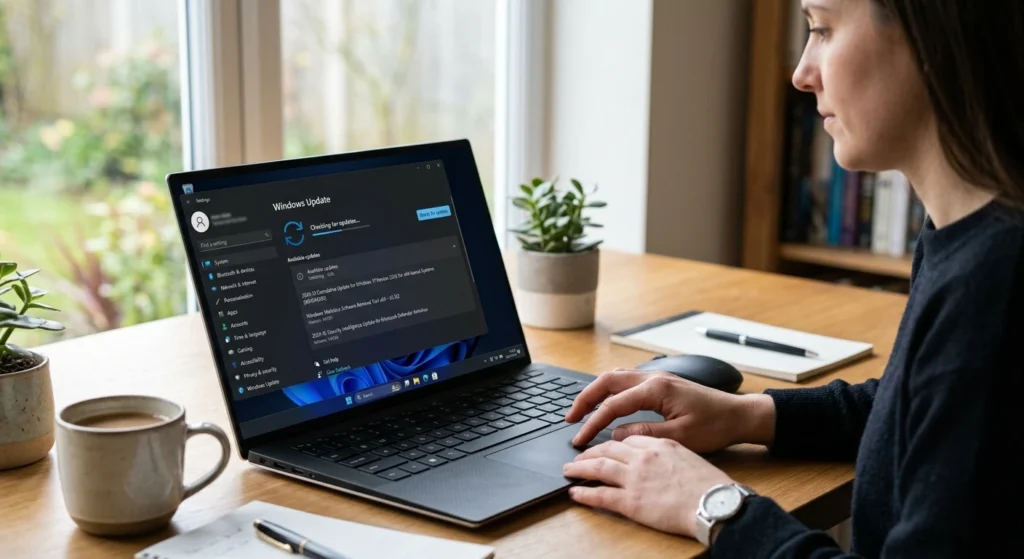
Regular updates are the backbone of a healthy Windows system. They ensure your device remains secure, stable, and compatible with modern applications.
Why Windows Updates Are More Than Just Feature Upgrades
Windows updates often include, Windows updates are often seen as simple feature upgrades, but they serve much more important purposes. While new features and enhancements are a part of the package, updates primarily focus on improving system security, stability, and overall performance.
They include patches for vulnerabilities that hackers might exploit, ensuring that your PC remains protected against the latest threats. Regular updates also help fix bugs that could cause software crashes or unexpected behavior, ensuring a smoother user experience.
Security Enhancements
Microsoft releases frequent patches to fix vulnerabilities. According to cybersecurity reports, over 60% of successful cyberattacks exploit outdated systems.
Performance Improvements
Updates optimize system processes, memory management, and hardware compatibility.
Stability Fixes
Bug fixes address crashes, freezing issues, and unexpected errors.
How to Properly Manage Windows Updates
Manual Update Check
Navigate to Settings → Windows Update and check for updates regularly.
Automatic Updates Configuration
Keeping automatic updates enabled ensures you don’t miss critical patches.
Optional Updates Matter Too
What Are Optional Updates?
These often include driver updates and minor system improvements.
Why You Shouldn’t Ignore Them
Optional updates can resolve hardware issues and improve system responsiveness.
Best Practices for Updates
- Install updates during non-working hours
- Restart your system after updates
- Avoid skipping multiple update cycles
Skipping updates for months can lead to compatibility issues and security risks that are harder to fix later.
Step 2: Clean Up Your Hard Drive and Remove Unnecessary Files
Storage clutter is one of the most common causes of slow system performance. Even high-end systems can struggle when storage is filled with unnecessary data.
Why Storage Cleanup Is Essential for Performance
When your drive is nearly full.
- The system struggles to allocate space for temporary operations
- Virtual memory performance decreases
- Application load times increase
Experts recommend keeping at least 15–20% of your storage free for optimal performance.
Types of Unnecessary Files That Slow Down Your System
Temporary Files
Generated by apps and the system, often left behind after use.
Cache Files
Used to speed up processes but can grow excessively over time.
System Update Residual Files
Old update files can consume several gigabytes if not cleaned.
Recycle Bin Data
Deleted files still occupy space until permanently removed.
Effective Methods to Clean Your Drive
your hard drive clean and organized is essential for maintaining optimal system performance. One effective method is using the built-in Disk Cleanup tool, which helps remove temporary files, system files, and other unnecessary data.
You can also manually delete old downloads, cached files, and unused programs that take up valuable space. Storage Sense, a feature in Windows, can automatically free up space removing files that are no longer needed, such as those in the Recycle Bin or old system restore points.
For deeper clean, consider using third-party tools like CCleaner, which can help you identify and remove residual files, browser histories, and even registry errors. Additionally, defragmenting your hard drive (for HDDs) can optimize storage and improve file access speeds. Regularly cleaning and maintaining your drive not only frees up space but also ensures your system runs faster and more efficiently over time.
Using Storage Sense
What It Does
Automatically removes temporary files and manages storage.
Why It’s Useful
Reduces manual effort and ensures regular cleanup.
Disk Cleanup Utility
Deep Cleaning Capabilities
Removes system files, old updates, and hidden junk.
Real Impact
Users often recover 5–15 GB of space using this tool.
Long-Term Storage Management Tips
- Regularly uninstall unused applications
- Avoid storing large unnecessary files on the system drive
- Organize files into external or secondary storage
Clean storage doesn’t just free space it directly improves system speed and responsiveness.
Step 3: Manage Startup Programs to Boost Performance

Startup programs have a direct impact on how quickly your system becomes usable after booting. Managing startup programs is a key step in boosting your PC’s performance. When your computer boots up, various applications are set to launch automatically, which can slow down the startup process and consume valuable system resources.
To improve boot times and overall speed, you can disable unnecessary startup programs. You can do this easily by opening the Task Manager (Ctrl + Shift+ Esc) and navigating to the “Startup” tab. here, you’ll see a list of all programs that start when your PC boots. Simply right-click and disable any non-essential programs that you don’t need running right away.
Why Startup Optimization Is Critical
When too many applications launch at startup.
- Boot time increases significantly
- RAM usage spikes immediately
- Background processes consume CPU resources
Studies suggest that reducing startup apps can improve boot speed by up to 50%.
Identifying Resource-Heavy Startup Programs
High Impact Applications
These consume the most resources and should be reviewed carefully.
Hidden Startup Processes
Some applications add themselves silently to startup without user awareness.
How to Manage Startup Programs Effectively
Using Task Manager
Steps.
- Open Task Manager
- Navigate to Startup tab
- Disable unnecessary apps
Evaluating What to Disable
Safe to Disable
- Messaging apps
- Media players
- Updater services
Keep Enabled
- Security software
- Essential system tools
Advanced Optimization Tips
Reduce Background Services
Limiting background processes further improves performance.
Monitor Startup Impact
Windows provides a “Startup Impact” rating use it as a guide.
Optimizing startup is one of the fastest ways to feel an immediate performance boost.
Step 4: Run Disk Defragmentation and Optimize Your Storage
Storage optimization ensures your system accesses data efficiently. Running disk defragmentation and optimizing your storage are essential steps in maintaining the performance of your computer, especially if you’re using a traditional hard disk drive (HDD).
Over time, as files are saved, deleted, and modified, they can become fragmented, meaning parts of a single file are scattered across different areas of the drive. it slow down file access and overall system speed. The Defragment and Optimize Drives tool in Windows helps reorganize fragmented files, making it easier and faster for the system to access them.
Understanding How Fragmentation Affects Performance
On traditional hard drives.
- Files are stored in scattered segments
- The system takes longer to read data
- Performance gradually declines
Fragmentation can reduce read speed by 10–30% over time.
Using Windows Optimize Drives Tool
How It Works
Reorganizes file fragments for faster access.
When to Use It
- Weekly for HDDs
- Occasionally for SSD checks
SSD Optimization Explained
Why SSDs Are Different
They don’t suffer from fragmentation like HDDs.
TRIM Function
Helps maintain performance by clearing unused data blocks.
Best Practices
- Schedule automatic optimization
- Avoid unnecessary manual defragmentation on SSDs
Proper storage optimization ensures consistent data access speed and system responsiveness.
Step 5: Update Device Drivers for Better Compatibility
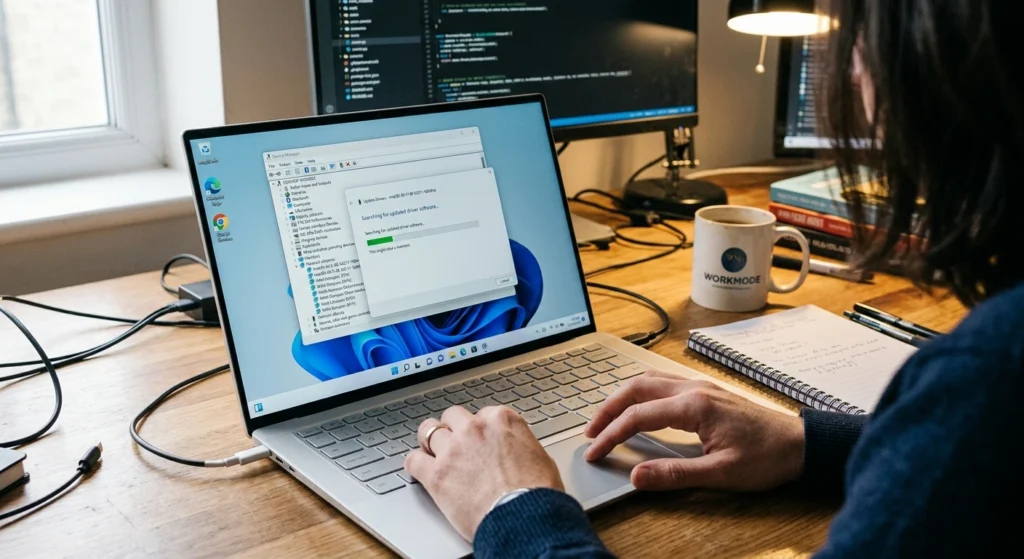
Drivers are essential for communication between hardware and the operating system. Updating your device drivers is a crucial step in ensuring your hardware components work smoothly and efficiently with Windows 11.
Drivers are the software that allows your operating system to communicate with your hardware, like your graphics card, sound device, network adapter, and more. Outdated or incompatible drivers can lead to performance issues, crashes, or even hardware malfunctions. To keep your system running at its best, it’s important to regularly check for driver updates.
Why Outdated Drivers Cause Problems
Outdated drivers can lead.
- Reduced hardware performance
- System instability
- Compatibility issues with new software
Key Drivers That Impact Performance Most
Graphics Drivers
Directly affect display performance and responsiveness.
Network Drivers
Impact internet speed and stability.
Chipset Drivers
Control communication between CPUand other components.
Updating Drivers Safely
Using Device Manager
Allows manual updates for individual components.
Through Windows Update
Provides verified and stable driver updates.
Signs You Need Driver Updates
- System crashes or freezes
- Poor graphics performance
- Connectivity issues
Keeping drivers updated ensures your hardware operates at peak efficiency.
Step 6: Perform a System Scan for Malware and Viruses
Security threats are a hidden cause of performance degradation. Performing regular system scans for malware and viruses is essential for maintaining both the security and performance of your PC. Malware, including viruses, ransomware, and spyware, can secretly infect your system, consuming resources, corrupting files, and potentially compromising sensitive data.
Fortunately, Windows 11 comes with built-in protection via Windows Defender, which automatically runs scans to detect and remove threats. To perform a manual scan, simply open Windows Security, select “Virus & Threat Protection,” and choose from options like a quick scan, full scan, or custom scan.
How Malware Impacts System Performance
Malicious software can.
- Run background processes
- Consume CPUand RAM
- Slow down applications
- Compromise data
Types of Threats to Watch For
Viruses
Attach to files and spread across the system.
Spyware
Collects user data without consent.
Adware
Displays unwanted ads and consumes resources.
Running Effective System Scans
Quick Scan
Targets common threat areas.
Full Scan
Analyzes the entire system thoroughly.
Offline Scan
Removes deeply embedded threats.
Best Practices for Protection
- Enable real-time protection
- Avoid suspicious downloads
- Scan your system regularly
Even a clean-looking system can have hidden threats affecting performance.
Step 7: Adjust Power Settings for Optimal Performance
Power settings control how your system balances performance and energy usage. Adjusting your power settings can make a significant difference in your PC’s performance, especially if you’re looking to balance between power conservation and system responsiveness. Windows 11 offers several power plans, each designed for different use cases.
For optimal performance, you can switch to the High Performance plan, which ensures your system runs at full capacity, giving priority to processing power. To do this, go to Control Panel > Power Options and select “High Performance” (if available).
How Power Plans Affect Performance
Different plans allocate system resources differently.
- Balanced: Moderate performance
- Power Saver: Reduced performance
- High Performance: Maximum speed
When to Use High Performance Mode
- Heavy multitasking
- Gaming
- Video editing
Customizing Power Settings
CPU Power Management
Adjust how aggressively the CPU operates.
Sleep and Display Settings
Control idle behavior to save resources.
Performance vs Energy Trade-Off
High performance mode.
- Increases speed
- Uses more power
- Generates more heat
Choosing the right plan ensures your system performs according to your needs.
Step 8: Optimize Windows 11 Visual Effects for Speed
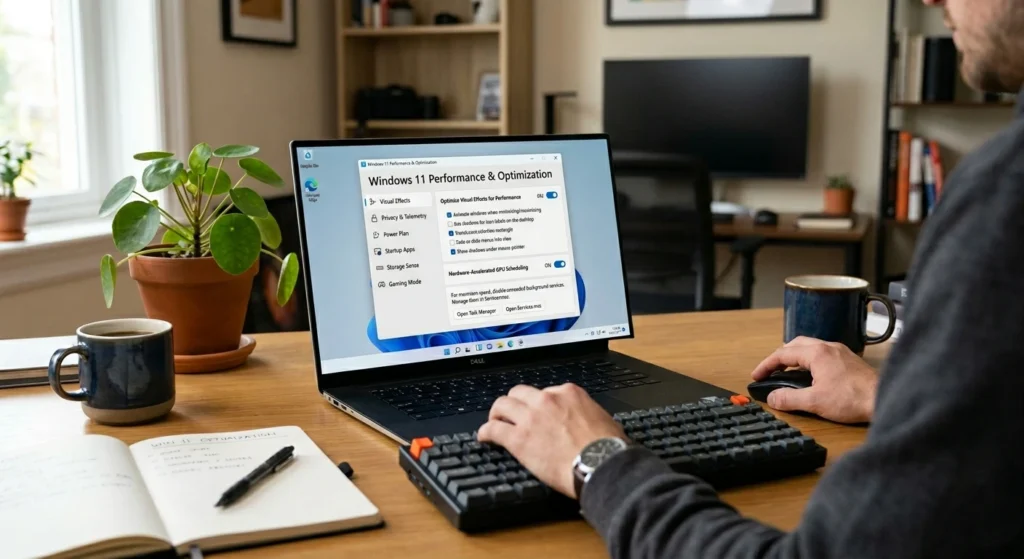
Visual effects enhance appearance but can impact performance. Optimizing Windows 11’s visual effects is a great way to boost your system’s speed, especially if you’re looking to get the most out of older or less powerful hardware.
While the sleek animations, transparency effects, and shadows enhance the user experience, they can also use up valuable system resources, slowing down performance. To improve speed, you can reduce or disable some of these effects. Go to Settings > System > Advanced System Settings and under the “Performance” section, click on Settings.
Why Visual Effects Matter
Windows 11 includes.
- Animations
- Transparency
- Shadows
These consume GPUand CPUresources.
Adjusting Visual Effects
Best Performance Option
Disables most visual effects for speed.
Custom Settings
Allows selective optimization.
Recommended Settings
- Disable animations
- Turn off transparency
- Keep font smoothing enabled
Real Impact on Performance
- Faster UI response
- Reduced lag
- Improved multitasking
Reducing visual effects is especially beneficial for low-end systems.
Step 9: Backup Your Data and Create a Restore Point
Data protection is a critical part of system maintenance. Backing up your data and creating a restore point are essential steps in protecting your files and ensuring system stability. Regular backups help safeguard your important documents, photos, and other personal data from unexpected issues like hardware failure, malware, or accidental deletion.
You can use Windows Backup or OneDrive to store copies of your files in the cloud or on an external drive. Additionally, creating a System Restore Point allows you to roll back your system to a previous, stable state in case something goes wrong after an update or software installation.
Why Backups Are Non-Negotiable
System failures can occur unexpectedly.
- Hardware failure
- Malware attacks
- Software corruption
Types of Backup Strategies
Local Backup
Stored on external drives.
Cloud Backup
Accessible from anywhere.
Creating a Restore Point
Purpose
Allows you to revert your system to a stable state.
When to Use It
- Before updates
- Before installing software
- Before major changes
Best Practices
- Schedule regular backups
- Keep multiple backup copies
- Test backup restoration
Backup strategies ensure you never lose critical data.
Conclusion: Maintaining Your Windows 11 System for Long-Term Performance
Maintaining Windows 11 is not about one-time fixes it’s about building consistent habits that keep your system running efficiently over time. Maintaining your Windows 11 system for long-term performancerequires a proactive approach to ensure it continues running smoothly and efficiently.
Regularlyupdating software, managing startup programs, and performing system scans for malware are all essential practices that help prevent slowdowns and security risks. Optimizing settings like power preferences, visual effects, and disk storage can further enhance system responsiveness and overall user experience.
Don’t forget the importance of backing up your data and creating restore points, so you’re always prepared for unexpected issues.
mplementing these steps, you create a system.
- Faster
- More stable
- Secure
- Reliable
The key is consistency. Even small maintenance actions, when performed regularly, can prevent major performance issues and extend the lifespan of your device.
A well-maintained system doesn’t just work better it works smarter, giving you a seamless and frustration-free computing experience.