Experiencing a Windows 11 black screen can be frustrating, especially when you are in the middle of important work or trying to boot up your PC. This problem can occur for various reasons, from driver issuesand recent updates to hardware conflicts or system glitches.
Most black screen issues in Windows 11 can be resolved without professional help. solutions to identify the cause and fix the problem helping you get your system back up and running smoothly. Whether your screen goes black after login during startup or randomly while using Windows 11 this has you covered.
Understanding the Windows 11 Black Screen Issue
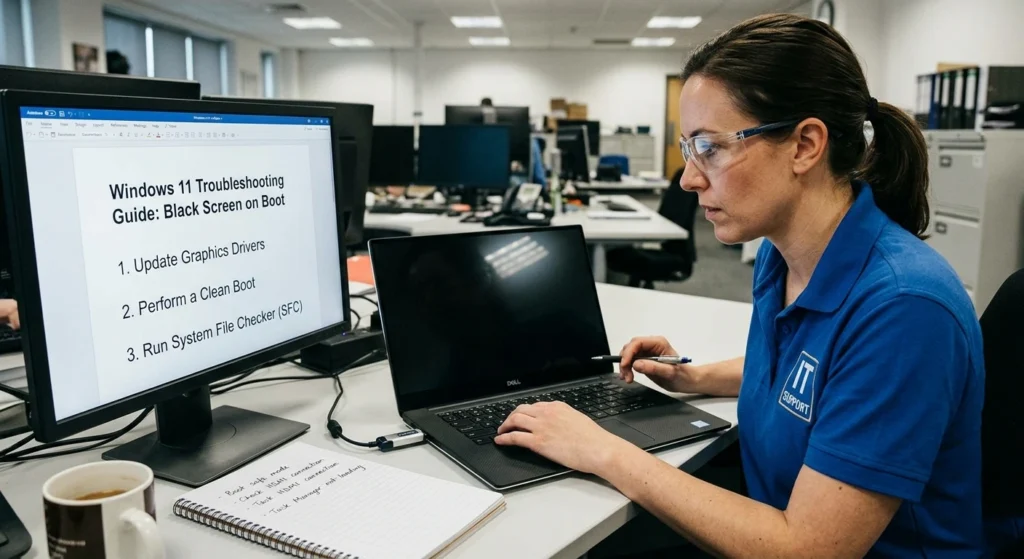
The black screen issue in Windows 11 typically appears when your system boots up, logs in, or resumes from sleep but fails to display the desktop or any interface. you are left staring at a blank or nearly blank screen sometimes with a cursor visible.
What actually happens during a black screen?
When your system starts, several processes run simultaneously.
- The operating system initializes
- Display drivers load
- System services begin execution
- The graphical interface renders
A failure in any of these stages can result in a black screen. the system is still running you might hear sounds or see cursor movement but the display fails to show anything meaningful.
Different types of black screen scenarios
Not all black screen problems are the same. Recognizing the type helps in applying the correct solution.
Black screen before login
This happens when your PC starts but doesn’t reach the login screen. It often indicates issues with system files or drivers or boot configuration.
Black screen after login
You can log in successfully, but the desktop does not appear. this is usually linked to display drivers or startup processes.
Black screen with cursor
A movable cursor on a blank screen suggests that the system is responsive, but the graphical shell (like Explorer) has not loaded properly.
Intermittent black screen
The display works but occasionally turns black. This may point to hardware instability or driver conflicts.
Understand these variations is essential because each scenario requires a slightly different troubleshooting approach.
Common Causes of the Black Screen Problem
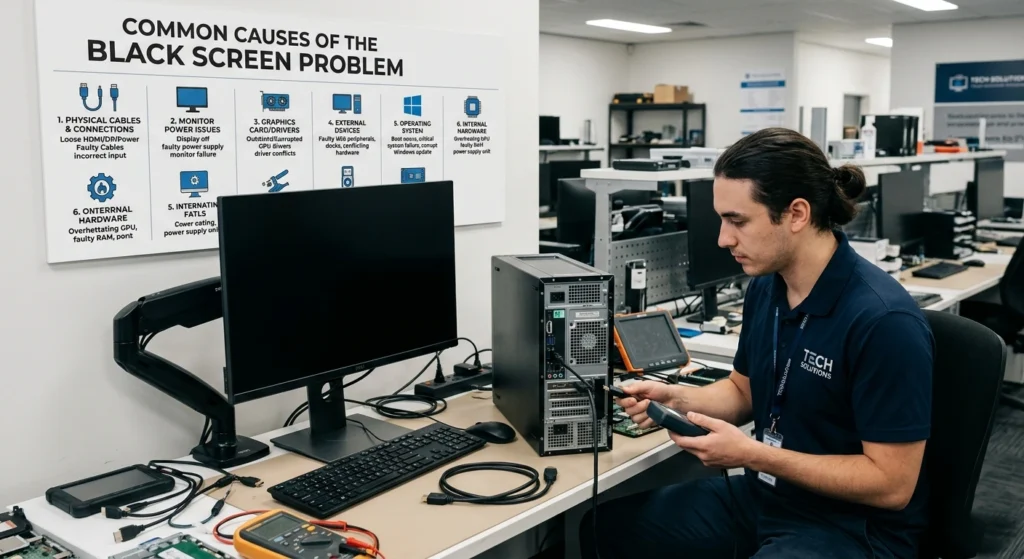
Before jumping into fixes, it is important to understand why this issue occurs. Identifying the root cause can save time and prevent unnecessary steps. black screen on Windows rarely appears without a reason. In most situations,
it is the result of a disruption in how your system communicates with its display components during startup or normal use. the root cause is essential because applying the wrong fix can waste time or even make the situation worse. Instead of guessing, it’s far more effective to look at the most common triggers behind this issue and how they impact your system’s behavior.
One of the the primary reasons users encounter this problem is related to display driver instability. Drivers act as the bridge between your operating system and your graphics hardware, and even a small inconsistency can break that connection.
When drivers become outdated, incompatible after a system update, or improperly configured, the display may fail to initialize correctly. This often leads to situations where the system is running, but nothing appears on the screen, leaving users confused about what is actually happening behind the scenes.
Display driver issues
One of the most frequent causes is a problem with display drivers. If a driver becomes outdated, incompatible or corrupted it may fail to communicate properly with your graphics hardware.
- Recent updatescan sometimes introduce instability
- Driver conflicts may occur after system upgrades
- Incorrect configurations can prevent proper display rendering
Faulty system updates
While updates are meant to improve performance, occasionally they can introduce unexpected issues.
- Incomplete installationscan disrupt system processes
- Compatibility issues with existing software
- Corrupted update files affecting system behavior
Hardware-related concerns
Sometimes, the issue lies beyond software.
- Loose display cables
- Faulty monitorsor ports
- Graphics card instability
Even a minor hardware inconsistency can result in a black screen.
Startup and background process conflicts
Windows loads several services during startup. If one of them fails or conflicts with another, it can prevent the desktop from appearing.
- Startup applications interfering with system processes
- Background services failing to initialize
- System resource overload during boot
Power and sleep settings
Improper power configurations can also lead to display issues.
- Screen not waking properly from sleep
- Fast startup causing incomplete initialization
- Power-saving features interrupting display output
Corrupted system files
Essential system files may become corrupted over time due to improper shutdowns or software conflicts.
- Missing or damaged files prevent normal operation
- System services may fail to launch
- Graphical interface may not load correctly
Preliminary Checks Before Fixing the Issue
Before applying advanced fixes, it’s essential to go through a few basic but important checks that can often resolve the Windows 11 black screen issue quickly. In many cases, the problem is not as serious as it seems and may be caused by temporary glitches, minor connection issues, or simple system interruptions during startup.
Start by confirming whether your system is actually running. If you notice signs like a visible cursor, keyboard response, or background activity, it usually means the system is working but the display output is not functioning properly. This helps narrow down the issue to display-related factors rather than a complete system failure.
Check External Connections and Temporary System Glitches.
You should also consider common external factors such as loose cables, unresponsive monitors, or connected devices interfering with startup. Additionally, temporary system glitches can occur during boot or when waking from sleep, and these can often be resolved with a simple restart or display reset.
Taking a few minutes to perform these preliminary checks can save time and prevent unnecessary troubleshooting. It ensures you address the most common causes first before moving on to more advanced solutions.
Check physical connections
Start with the simplest possibility.
- Ensure the monitoris poweredon
- Verify that cables are securely connected
- Try a different port or cable if available
A loose or faulty connection can easily mimic a system failure.
Restart your computer
A simple restart can refresh system processes and fix temporary glitches.
- Press the power button to restart
- Wait a few moments before turning it back on
- Observe whether the display returns
Test with an external display
If you’re using a laptop.
- Connect to an external monitoror TV
- Check if the display appears on the external screen
This helps determine whether the issue is with the screen or the system itself.
Use keyboard shortcuts to reset display
Windows provides built-in shortcuts to refresh the display driver.
- Press Win + Ctrl + Shift + B
- You may hear a beep and see the screen flicker
This action resets the graphics driver without restarting the system.
Disconnect unnecessary devices
External devices can sometimes interfere with startup.
- Remove USB drives, external storage, or accessories
- Restart the system with only essential components connected
This ensures that no external hardware is causing the issue.
Step-by-Step Solutions to Fix Windows 11 Black Screen
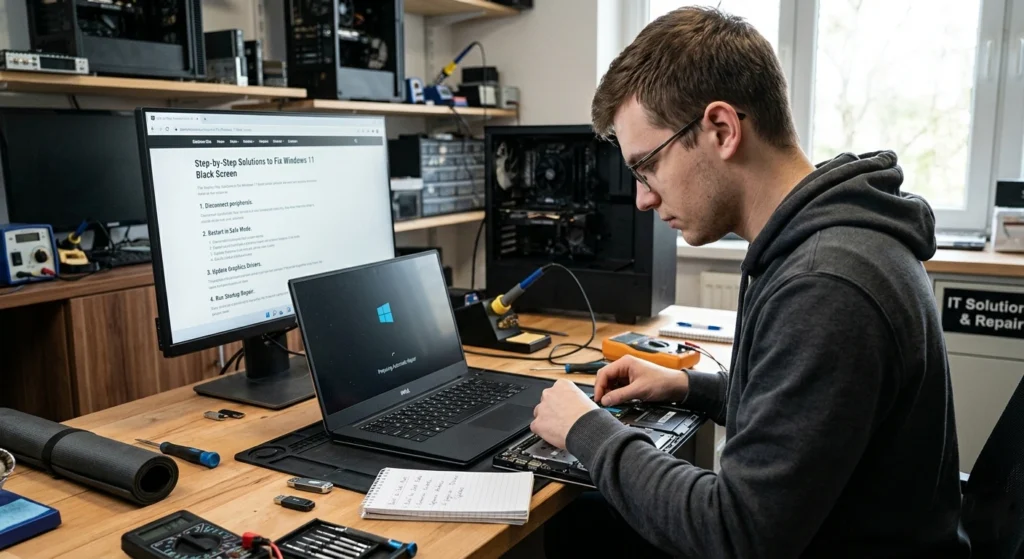
Once you’ve ruled out the basic issues, the next step is to apply practical, step-by-step solutions that directly address the root of the problem. Windows 11 black screen issue can stem from different sources such as system processes not loading correctly, display drivers failing to respond, or startup configurations causing conflicts. That is why it is important to follow a structured approach instead of trying random fixes.
At this stage, restore your system’s display by working through proven methods in a logical order. Some solutions focus on bringing back the desktop environment, while others target deeper system-level concerns like driver errors or corrupted files. You may not need to try every method, but moving step by step ensures you don’t overlook the exact cause of the issue.
Different Black Screen Scenarios Require Different Fixes
It’s also worth noting that different black screen scenarios require slightly different approaches. for example, a system showing only a cursor behaves differently from one that stays completely blank. carefully applying each solution and observing how your system responds, you can quickly identify what works for your specific case.
Following a clear, guided process not only improves your chances of fixing the issue but also helps you understand why the problem occurred in the first place, making it easier to avoid similar situations in the future.
Boot into Safe Mode
Safe Mode starts Windows with minimal drivers and services, making it easier to diagnose issues.
How to access Safe Mode
- Restart your computer
- Interrupt the boot process 2–3 times to trigger recovery mode
- Navigate to Advanced Options → Startup Settings → Restart
- Select Safe Mode
Why Safe Mode helps
- Loads only essential drivers
- Bypasses problematic startup programs
- Allows you to troubleshootwithout interference
Restart Windows Explorer manually
If you see a cursor but no desktop, Explorer may not be running.
Steps to restart Explorer
- Press Ctrl + Shift + Esc to open Task Manager
- Click “File” → “Run new task”
- Type explorer.exe and press Enter
This should bring back the desktop interface.
Update or reinstall display drivers
Driver issues are a common cause of black screens.
Updating drivers
- Open Device Manager
- Expand “Display adapters”
- Right-click your graphics device
- Select “Update driver”
Reinstalling drivers
- Uninstall the current driver
- Restart your system
- Windows will automatically reinstall a compatible version
Keeping drivers updated ensures smooth communication between hardware and software.
Disable fast startup
Fast startup can sometimes cause incomplete system initialization.
Steps to disable it
- Open Control Panel
- Go to Power Options
- Click “Choose what the power buttons do”
- Disable Fast Startup
This allows your system to perform a full boot process.
Perform system file repair
Corrupted system files can be repaired using built-in tools.
Running system scan
- Open Command Prompt as administrator
- Run: sfc /scannow
This scans and repairs damaged files automatically.
Why this matters
- Restores essential system components
- Improves overall stability
- Resolves hidden issues affecting display
Roll back recent updates
If the issue started after an update, reverting it can help.
Steps to roll back
- Go to Settings → Update & Security
- Access update history
- Uninstall recent updates
This restores the system to a previous stable state.
Adjust display settings
Incorrect display configurations can cause screen issues.
Reset display configuration
- Boot into Safe Mode
- Open display settings
- Set resolution to recommended values
This ensures compatibility with your hardware.
Check startup programs
Too many startup programs can interfere with system loading.
Disable unnecessary programs
- Open Task Manager
- Go to Startup tab
- Disable non-essential apps
This reduces system load during boot.
Preventing Black Screen Issues in the Future
Fixing the issue is important, but preventing it ensures long-term stability. Once your system is back to normal, taking steps to prevent the black screen issue from recurring is essential. Many black screen problems are avoidable with regular maintenance, careful updates, and proper system management.
Simple habits like keeping drivers& Windows updated, managing startup programs, and ensuring stable hardware connections can go a long way in maintaining a smooth and reliable display.
Adopting these preventive measures, you reduce the risk of future interruptions and ensure that your Windows system remains stable, responsive, and ready for daily use.
Keep your system updated
Regular updates improve compatibility and fix known bugs.
- Install updates consistently
- Avoid skipping critical patches
- Restart your system after updates
Maintain healthy drivers
Drivers should always be up to date.
- Check for updates periodically
- Avoid installing incompatible versions
- Use official sources for driver updates
Manage startup applications
Limit the number of programs that run at startup.
- Disable unnecessary apps
- Monitor system performance
- Keep startup clean and efficient
Monitor system performance
A slow or overloaded system can lead to display issues.
- Keep sufficient disk space available
- Close unused applications
- Optimize system resources
Use proper shutdown practices
Improper shutdowns can damage system files.
- Always shut down properly
- Avoid forced power-offs
- Restart occasionally to refresh processes
Check hardware regularly
Hardware wear and tear can cause unexpected issues.
- Inspect cables and connections
- Ensure proper ventilation
- Avoid overheating
When to Seek Professional Help
While many black screen issues can be resolved at home, some situations require expert assistance. While many black screen issues in Windows 11 can be resolved at home, there are times when professional assistance is the safest option.
If your system remains unresponsive despite following troubleshooting steps, shows signs of hardware failure, or experiences frequent black screens, it may indicate a deeper problem that requires expert diagnosis.
Consulting a professional ensures that the issue is addressed accurately and safely, preventing further damage and helping you restore your system quickly and reliably.
Signs you may need help
- The screen remains black despite all troubleshooting
- The system fails to boot consistently
- You suspect hardware damage
- Frequent crashesor instability
Why professional assistance matters
- Accurate diagnosis of complex issues
- Access to specialized tools
- Prevention of further system damage
If the problem persists, seeking help ensures that your system is handled safely and effectively.
Conclusion: Getting Your Windows 11 Back to Normal
The Windows 11 black screen issue may seem overwhelming at first, but with the right approach, it’s often manageable. understanding the causes, performing basic checks, and applying step-by-step solutions, you can restore your system without unnecessary complications.
The key is to stay systematic start simple, then move toward advanced solutions only if needed. Most importantly, maintaining your system regularly helps prevent such issues from occurring in the future.
With the guidance provided in this article, you now have a clear roadmap to diagnose, fix, and prevent black screen problems bringing your Windows 11 experience back to normal and ensuring smooth performance ahead.