The digital age, privacy is more important than ever, especially when it comes to the devices we use every day. Android smartphones, while packed with incredible features, can also leave your personal data vulnerable if not properly secured. If you’re concerned about your privacy and want to ensure your device is as secure as possible, changing your Android privacy settings is a must.
Top Android privacy settings you should change right now to enhance security and protect your personal information. From adjusting app permissions to enabling two-factor authentication, these easy-to-apply tips will help you safeguard your data against potential threats. Whether you’re new to Android or a seasoned user, these simple changes will make a significant difference in your device’s privacy.
Why Android Privacy Settings Matter
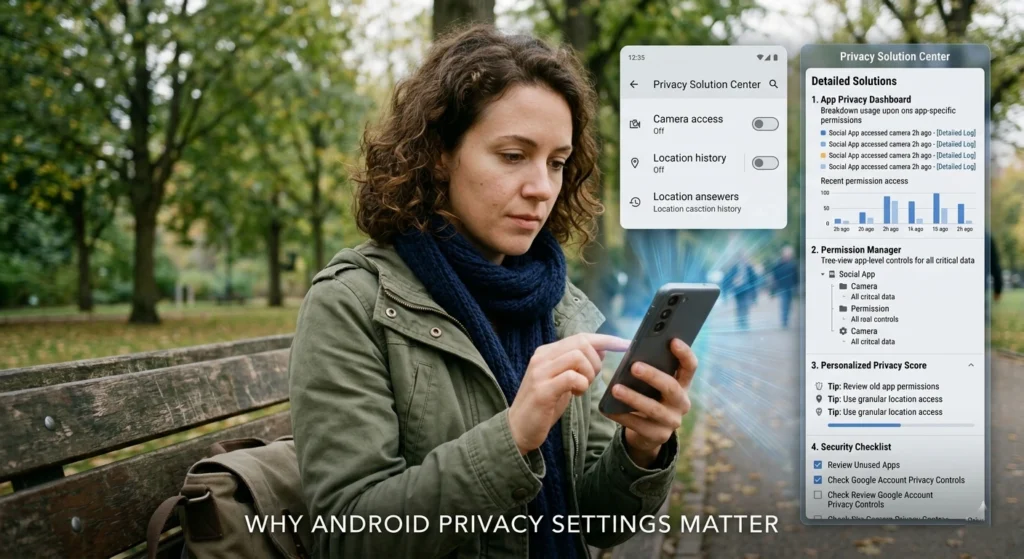
Your smartphone is no longer just a communication device it’s a digital vault of your personal life. From banking apps and private conversations to photos, emails, and location history, your Android phone holds more sensitive data than most people realize. Yet, despite this, many users rely on default settings that prioritize convenience over privacy.
Android, being one of the most widely used operating systems globally, offers a powerful set of privacy controls. However, these settings are often buried deep within menus, overlooked during setup, or misunderstood by users. This leaves your data exposed not necessarily to hackers, but to apps, services, and even background processes that collect information silently.
What makes this even more critical is the data-driven ecosystem we live in today. Apps track your behavior to personalize content, advertisers build profiles based on your activity, and location data is constantly being logged. While some of this enhances user experience, it also raises serious privacy concerns.
The good news? Android gives you the ability to take back control if you know where to look and what to change.
most important Android privacy settings you should update right now. These aren’t advanced hacks or technical tweaks. Instead, they are practical, impactful changes that can significantly reduce your digital footprint and protect your personal data.
1. Enable Two-Factor Authentication for Your Google Account
Your Google account is the backbone of your Android device. It connects your emails, contacts, photos, app downloads, and even backups. If someone gains access to it, they essentially gain control over your entire digital identity.
Why Passwords Alone Are Not Enough
Even if you use a strong password, it’s still vulnerable.
- Data breaches
- Phishing attacks
- Credential leaks
This is where Two-Factor Authentication (2FA) becomes essential.
What is Two-Factor Authentication?
2FA adds an extra layer of security requiring.
- Something you know (your password)
- Something you have (your phone or authentication code)
Even if your password is compromised, unauthorized access becomes nearly impossible without the second factor.
How to Enable It
- Go to your Google Account settings
- Navigate to Security
- Enable 2-Step Verification
- Choose your preferred method (SMS, authenticator app, or device prompt)
Why It Matters
Enabling 2FA is one of the most powerful security steps you can take.
It protects not just your phone but your entire online presence.
2. Review and Adjust App Permissions Regularly
Most apps request permissions during installation but many users tap “Allow” without thinking twice. Over time, this creates a system where apps have access to far more data than they actually need.
Understanding App Permissions
Permissions control what apps can access, including.
- Camera
- Microphone
- Contacts
- Storage
- Location
Some apps genuinely need these permissions. Others don’t.
The Hidden Risk
An app that has access to your microphone or location can potentially.
- Record audio in the background
- Track your movements
- Access personal files
This isn’t always malicious but it is unnecessary in many cases.
How to Manage Permissions
- Go to Settings > Privacy > Permission Manager
- Review each category (Location, Camera, etc.)
- Revoke access for apps that don’t need it
Smart Permission Strategy
- Allow permissions only when using the app
- Deny access for apps that don’t require it
- Regularly audit permissions every few weeks
Taking control of permissions ensures your data is shared only when absolutely necessary.
3. Turn Off Location Services for Unnecessary Apps
Location tracking is one of the most sensitive types of data collection. It can reveal.
- Where you live
- Where you work
- Your daily routines
Why Location Data is Valuable
Companies use location data for.
- Targeted advertising
- Analytics
- Behavioral tracking
While useful for navigation apps, it’s often overused by apps that don’t need it.
How to Limit Location Access
- Go to Settings > Location > App Location Permissions
- Set apps to.
- Allow only while using the app
- Ask every time
- Deny
Extra Privacy Tip
Disable Location History in your Google settings to prevent long-term tracking.
Why This Matters
Reducing location access minimizes your exposure to tracking and profiling.
It’s one of the easiest ways to protect your real-world privacy.
4. Disable Personalized Ads to Protect Your Data
Every time you browse, search, or use apps, your behavior is tracked to build a profile. This profile is used to deliver personalized ads.
What Data is Collected?
- Search history
- App usage
- Location data
- Interests and behavior
The Problem with Personalized Ads
While they may seem harmless, they rely on extensive data collection. Over time, this creates a detailed digital profile of you.
How to Disable It
- Go to Settings > Privacy > Ads
- Enable Opt out of Ads Personalization or Delete Advertising ID
What Changes After Disabling?
- Ads will still appear but they won’t be based on your behavior
- Your data won’t be used to build targeted profiles
This small change significantly reduces how much companies can track and analyze your activity.
5. Use a Strong Screen Lock and Fingerprint Authentication
Your phone’s lock screen is your first line of defense. Without it, anyone who picks up your device can access your personal data.
Types of Screen Locks
- PIN
- Password
- Pattern
- Fingerprint
- Face unlock
Why Biometric + PIN is Best
Combining a strong PIN with biometric authentication offers both security and convenience.
Best Practices
- Use a 6-digit or longer PIN
- Avoid simple patterns
- Enable auto-lock after short inactivity
Why It’s Critical
If your phone is lost or stolen, a strong lock can prevent immediate data access.
6. Review and Manage App Data Usage
Many apps run in the background and consume data even when you’re not using them.
Why This Matters for Privacy
Background data usage can indicate:
- Data syncing
- Tracking
- Hidden activity
How to Monitor It
- Go to Settings > Network & Internet > Data Usage
- Check which apps use the most data
Take Action
- Restrict background data for unnecessary apps
- Uninstall apps that consume excessive data
Controlling data usage helps you identify and limit unwanted data sharing.
7. Disable Bluetooth and Wi-Fi When Not in Use
Wireless connections are convenient but they can also expose your device to security risks.
Potential Risks
- Unauthorized connections
- Device tracking via Bluetooth
- Exposure to insecure networks
Best Practice
Turn off Bluetooth and Wi-Fi when you’re not actively using them.
Additional Tip
Avoid connecting to public Wi-Fi networks without proper precautions.
8. Enable Google Play Protect for Additional Security
Google Play Protect is a built-in security feature that scans apps for harmful behavior.
What It Does
- Scans apps before installation
- Monitors apps continuously
- Warns about suspicious activity
How to Enable It
- Open Google Play Store
- Go to Play Protect settings
- Ensure scanning is enabled
Why It Matters
It acts as a silent guardian, protecting your device from harmful apps.
9. Turn Off Data Sharing with Google and Third-Party Apps
Many apps and services share data with Google or third parties for analytics and personalization.
What is Being Shared?
- Usage data
- Device information
- Activity logs
How to Control It
- Go to Google Account > Data & Privacy
- Disable unnecessary data-sharing options
Why It’s Important
Limiting data sharing reduces your exposure to large-scale data collection systems.
10. Limit Background Apps and Data Syncing
Apps running in the background can.
- Sync data continuously
- Track activity
- Drain battery
Why It Matters
The more apps running, the more data is being shared silently.
How to Limit It
- Go to Settings > Apps > Running Apps
- Stop or restrict unnecessary apps
- Disable auto-sync for non-essential services
Smart Approach
Keep only essential apps active in the background.
This reduces both privacy risks and improves device performance.
Conclusion: How Regularly Updating Your Privacy Settings Keeps Your Data Safe
Androidprivacy isn’t something you set once and forget. It’s an ongoing process. Apps update, new permissions are added, and data practices evolve over time.
Regularly reviewing your privacy settings ensures you stay in control.
making the changes outlined.
- Reduce unnecessary data exposure
- Strengthen your device security
- Protect your personal and digital identity
The reality is simple.
Your privacy depends on the choices you make today.
Take a few minutes to review these settings and turn your Android device into a secure, privacy-first environment that truly works for you, not against you.