Is your computer feeling slower than usual? Whether it’s taking longer to boot up, lagging during tasks, or struggling to run multiple applications, performance issues can be frustrating. many of these common problems are preventable with the right strategies. you can boost performance, extend its lifespan, and ensure a smoother computing experience.
Practical tips to prevent system performance issues, optimize your computer’s speed, and keep it running efficiently. from software updates to memory management and hardware upgrades, these simple steps will help you get the most out of your device. Let’s dive in!
Why System Performance Matters and How to Improve It
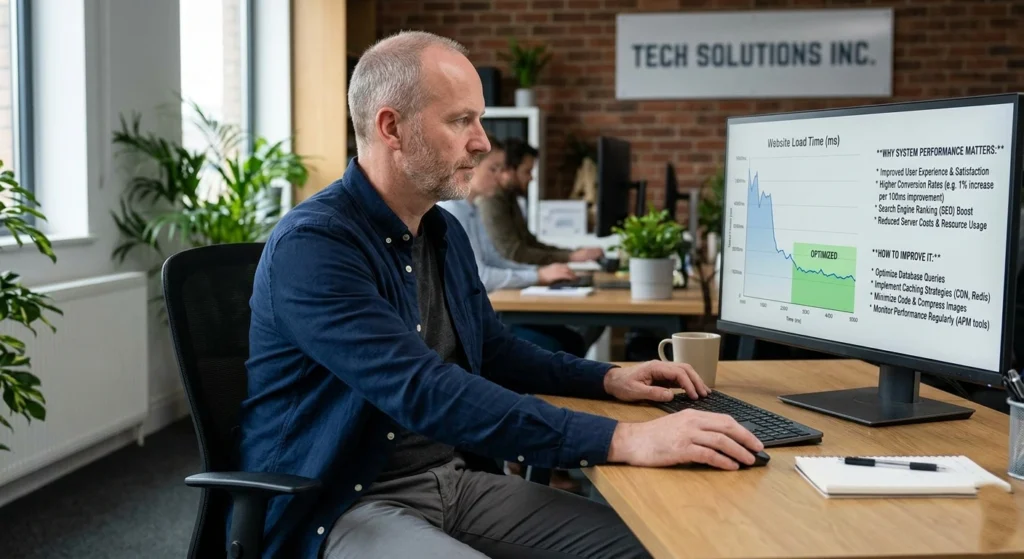
A slow computer is more than just an inconvenience it directly impacts productivity, efficiency, and even data safety. Whether you’re working, studying, or browsing, poor system performance can lead to delays, crashes, and frustration. Over time, even high-end systems degrade if not maintained properly, mainly due to software clutter, outdated components, and inefficient resource management.
System performance refers to how efficiently your computer processes tasks. This includes CPU speed, memory usage, disk performance, and background processes. When any of these elements are strained, your system begins to lag.
The Real Impact of Poor Performance
- Reduced productivity. Studies suggest users lose hours weekly due to slow systems
- Increased hardware wear. Overworked components degrade faster
- Security risks. Sluggish systems often delay updates, leaving vulnerabilities open
Core Principles of Improving Performance
Improving performance is not about one single fix it’s about maintaining a balanced system ecosystem.
- Keep software optimized
- Ensure hardware is not bottlenecked
- Minimize unnecessary background processes
- Maintain clean and organized storage
The goal is to create a system that runs smoothly, efficiently, and consistently over time, rather than just temporarily boosting speed.
Keep Your Operating System and Software Up to Date
Outdated systems are one of the most common causes of performance issues. Updates are not just about new features they often include security patches, performance improvements, and bug fixes.
One of the easiest and most effective ways to maintain optimal system performance is by regularly updating your operating–system & software. updates not only introduce new features but also fix bugs, improve security, and enhance overall stability. Ignoring updates can leave your computer vulnerable to security threats and cause compatibility issues with new programs.
Why Updates Are Critical
Modern operating systems constantly evolve. Developers release updates.
- Fix memory leaks that slow down systems
- Improve CPU scheduling efficiency
- Patch vulnerabilities that malware can exploit
- Enhance compatibility with newer applications
Ignoring updates can lead to system instability and slower performance over time.
Automatic vs Manual Updates
- Automatic updates ensure you never miss critical patches
- Manual updates allow control but require discipline
For most users, enabling automatic updates ensures consistent performance optimization without effort.
Software Updates Matter Too
Applications also play a major role in performance.
- Browsers release updates to reduce RAM usage
- Productivity tools optimize background processes
- Drivers improve hardware efficiency
Outdated software can consume more system resources than necessary, leading to slowdowns.
Manage Startup Programs to Improve Boot Time
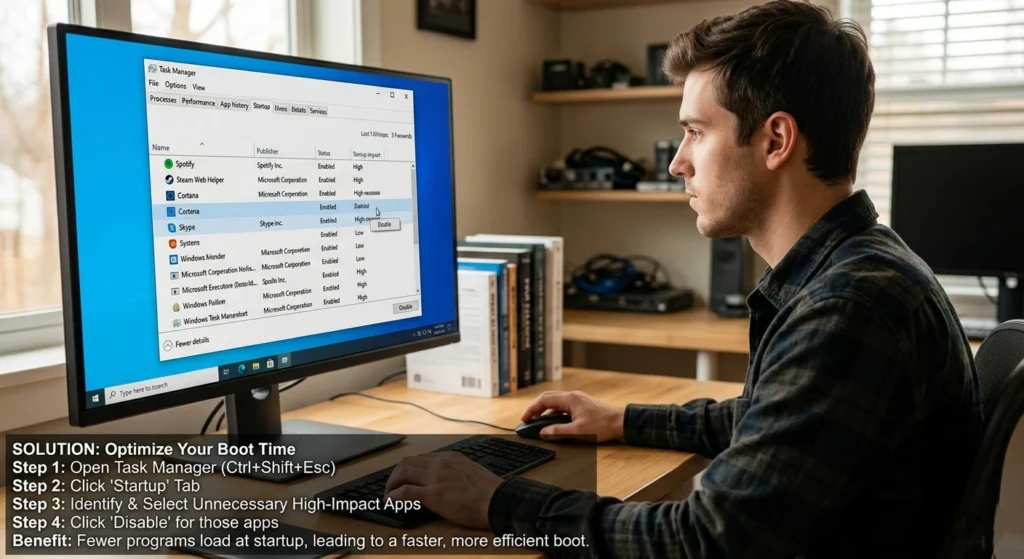
One of the biggest hidden causes of slow computers is excessive startup programs. When you turn on your system, multiple applications launch automatically, consuming resources before you even begin using the device.
Slow boot times can be one of the most noticeable signs that your computer’s performance is lagging. Often, the culprit is a long list of startup programs that automatically load every time you turn on your device, eating up valuable system resources.
Understanding Startup Load
Each startup program.
- Uses RAM immediately
- Adds load to the CPU
- Delays system readiness
A system with too many startup applications can take 2–3 times longer to boot.
Identifying Unnecessary Startup Apps
Common unnecessary startup items include.
- Messaging apps
- Updaters
- Media players
- Background sync tools
These programs often run silently but consume valuable system resources.
Smart Startup Optimization
Instead of disabling everything focus on.
- Keeping essential security software active
- Disabling non-critical apps
- Monitoring performance after changes
A well-optimized startup sequence ensures your system becomes usable within seconds instead of minutes.
Free Up Disk Space by Cleaning Unnecessary Files
Storage clutter is one of the most overlooked causes of slow performance. Over time, systems accumulate temporary files, cache data, logs, and unused applications.
Over time, your computer accumulates a variety of unnecessary files temporary files, old downloads, system caches, and more that can take up valuable disk space and slow down your system.
Regularly cleaning out these files not only frees up space but can also help improve your computer’s performance.
How Disk Clutter Affects Performance
When storage is nearly full.
- File access becomes slower
- Virtual memory performance drops
- System updates may fail
- Applications take longer to load
Maintaining at least 15–20% free disk space is essential for smooth performance.
Types of Files You Should Remove
- Temporary system files
- Browser cache and cookies
- Old downloads
- Duplicate files
- Unused applications
The Hidden Impact of Cache and Logs
While cache improves short-term speed excessive accumulation.
- Consume gigabytes of space
- Slow down applications
- Cause outdated data conflicts
Regular cleanup ensures your system remains lean and efficient.
Optimize Your Computer’s Memory and Storage
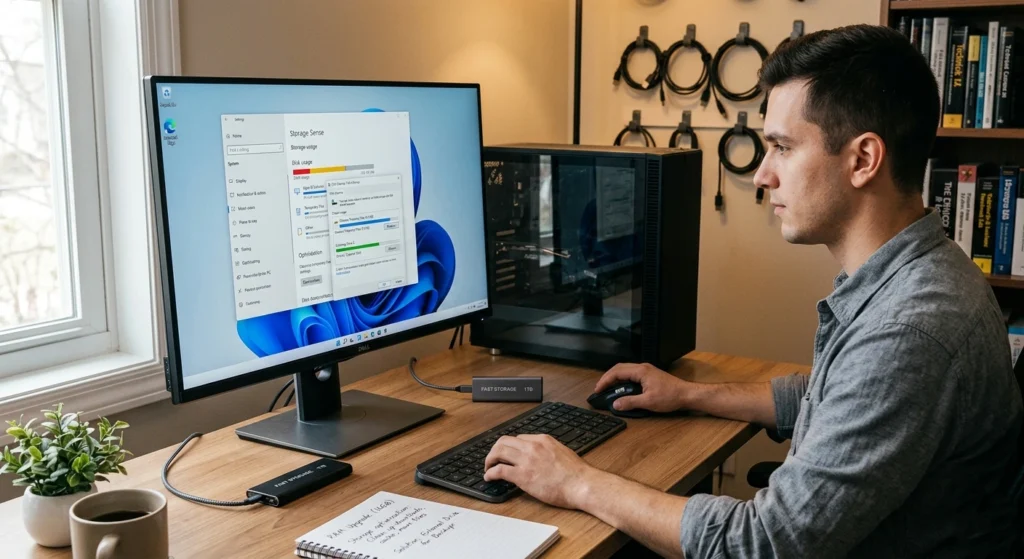
Memory (RAM) and storage are the backbone of system performance. Even a powerful CPUcannot perform well if memory is insufficient or storage is slow.
Optimizing these components can lead to a noticeable boost in performance, allowing your computer to handle tasks more efficiently. freeing up memory and organizing your storage, you can ensure that your system runs smoothly, even when juggling multiple applications or large files.
Understanding RAM Usage
RAM determines how many tasks your system can handle simultaneously.
When RAM is full.
- The system uses disk space as virtual memory
- Performance drops significantly
- Applications may freeze or crash
Practical Memory Optimization
- Close unused applications
- Limit browser tabs
- Reduce background services
- Use lightweight software alternatives
Efficient RAM usage can improve performance without upgrading hardware.
Storage Type Matters
The difference between storage types is significant.
- HDD (Hard Disk Drive): Slower, mechanical
- SSD (Solid State Drive): Faster, no moving parts
Switching to SSD can improve.
- Boot time by up to 70%
- Application loading speed dramatically
- Overall system responsiveness
Balancing Memory and Storage
A system performs best when.
- RAM handles active tasks
- Storage supports fast data access
- Neither component becomes a bottleneck
Regularly Scan for Malware and Viruses
Malware is one of the most dangerous causes of efficiency degradation. Unlike visible issues, malicious software often runs silently in the background. Malware and viruses are among the most common threats to your computer’s performanceand security.
These malicious programs can cause slowdowns, system crashes, and, in some cases, data loss. Regularly scanning your computer for malware and viruses is essential to keep your system secure and running smoothly.
How Malware Affects Performance
- Consumes CPU and RAM
- Slows internet speed
- Causes unexpected crashes
- Steals system resources
Some malware is designed specifically to remain hidden while degrading efficiency gradually.
Signs Your System May Be Infected
- Sudden slowdown without reason
- Unknown programs running
- Frequent pop-ups
- High CPU usage at idle
Importance of Regular Scanning
Routine scans help.
- Detect hidden threats
- Remove harmful processes
- Restore system efficiency
Keeping your system clean ensures consistent performance and security.
Upgrade Hardware Components for Better Performance
Sometimes, software optimization is not enough. If your system is outdated, upgrading hardware can provide a significant efficiency boost. While software optimizations can go a long way in improving your computer’s speed, sometimes the hardware itself may be holding you back.
Upgrading key hardware components, like adding more RAM, switching to a solid-state drive (SSD), or upgrading your graphics card, can make a noticeable difference in your system’s performance.
These upgrades can enhance multitasking, speed up data access, and improve overall responsiveness, allowing your computer to handle more demanding tasks with ease.
When Should You Upgrade?
Consider upgrading if.
- Your system struggles with basic tasks
- RAM usage is constantly maxed out
- Boot time is excessively long
- Applications take too long to load
Most Effective Hardware Upgrades
RAM Upgrade
- Improves multitasking
- Reduces lag
- Enhances responsiveness
SSD Upgrade
- Faster data access
- Quicker boot times
- Better overall speed
CPU Upgrade (Advanced Users)
- Improves processing power
- Useful for heavy tasks like editing or gaming
Cost vs Performance Benefit
Upgrading RAM or switching to SSD often provides the highest efficiency improvement for the lowest cost.
Adjust Power Settings for Optimal System Performance
Power settings play a crucial role in how your system performs. Many computers, especially laptops, are configured to save power rather than maximize efficiency. Your computer’s power settings can have a big impact on its performance, especially if you’re balancing between power efficiency and speed.
adjusting your power settings, you can ensure that your system performs at its best when you need it most. for instance, switching to a High-Performance power plan can make your computer run faster, while adjusting settings like screen brightness and sleep modes can help conserve battery life when you’re working on the go.
How Power Modes Affect Speed
- Power Saver Mode: Reduces CPU speed
- Balanced Mode: Moderate performance
- High Performance Mode: Maximum speed
Choosing the wrong mode can make your system feel unnecessarily slow.
When to Use High Performance Mode
- During heavy tasks
- While multitasking
- When plugged into power
This ensures your CPU and hardware operate at full capacity.
Balancing Performance and Battery Life
For laptop users.
- Use balanced mode for daily tasks
- Switch to high efficiency when needed
This approach maintains both efficiency and longevity.
Use Disk Defragmentation or Optimize SSD for Better Speed
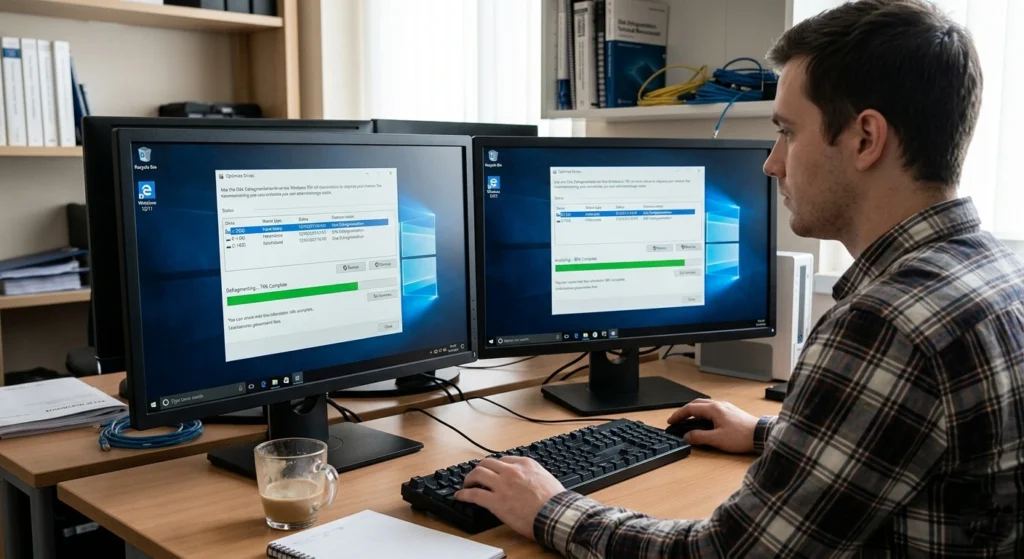
Storage optimization is essential for maintaining speed over time, especially depending on the type of drive you use. your computer’s hard drive can become fragmented, slowing down data retrieval and reducing overall system performance.
For traditional hard disk drives (HDDs), running disk defragmentation can reorganize fragmented data, allowing your system to access files more efficiently. If you have a solid-state drive (SSD), however, defragmentation isn’t necessary, but optimizing it using the TRIM command can help maintain speedand performance.
What is Disk Fragmentation?
On traditional hard drives, files become scattered across the disk over time.
- Slower file access
- Increased load times
- Reduced efficiency
Benefits of Defragmentation (HDD Only)
- Organizes data for faster access
- Improves read/write speed
- Enhances overall system efficiency
SSD Optimization is Different
SSDs do not require defragmentation. Instead, they use optimization techniques like.
- TRIM commands
- Efficient data management
Running defragmentation on SSDs can actually reduce lifespan, so proper optimization is key.
Conclusion: Best Practices for Maintaining Long-Term System Performance
Maintaining a fast and efficient computer is not a one-time task it’s an ongoing process. Systems naturally slow down over time, but with the right practices, you can prevent most common performance issues before they occur.
Key Takeaways for Long-Term Performance
- Keep your system updated consistently
- Manage startup programs wisely
- Maintain sufficient free disk space
- Optimize RAM and storage usage
- Protect your system from malware
- Upgrade hardware when necessary
- Adjust settings based on usage needs
The Bigger Picture
A well-maintained system doesn’t just run faster it also.
- Lasts longer
- Remains secure
- Provides a better user experience
applying these strategies, you create a system that stays fast, reliable, and efficient for years, rather than gradually slowing down over time.
Pingback: Windows 11 Black Screen Issue: Step-by-Step Fix Guide - All OS Insight
Pingback: Ultimate Android Optimization Guide: Tips and Tricks for Daily Users - All OS Insight