Running multiple apps in the background can slow down your Android device, making everyday tasks frustrating and laggy. Many apps continue to use system resources even when you’re not actively using them, which can impact performance and responsiveness.
Why Reducing Background Apps Matters on Android | Faster Performance
Modern smartphones are incredibly powerful, yet many users still experience slow performance, lag, overheating, and rapid battery drain. One of the most common reasons behind these issues is too many apps running in the background.
Android is designed to handle multitasking efficiently. The system allows applications to remain active in the background so they can deliver notifications, sync data, and provide seamless user experiences. However, when too many apps run simultaneously, they begin to compete for RAM, CPU resources, storage access, and network bandwidth.
Over time, this resource competition can cause several noticeable problems.
- Slower app launch times
- Delayed touch response
- Frequent freezing or lag
- Excessive battery consumption
- Higher mobile data usage
- Device overheating
For example, research from several mobile performance studies shows that background processes can consume up to 30–40% of a smartphone’s RAM and battery usage if not properly managed. This is particularly noticeable on devices with limited memory (4GB or less).
Android devices also vary widely in hardware capabilities. While flagship devices may handle dozens of background processes smoothly, mid-range or older smartphones often struggle when too many apps remain active.
Reducing background apps does not mean disabling multitasking entirely. Instead, the goal is to control unnecessary processes so the operating system can allocate resources more efficiently to the apps you actively use.
When managed correctly, limiting background activity can provide several benefits.
- Faster overall system performance
- Longer battery life
- Reduced data consumption
- Lower device temperature
- More stable app performance
practical and safe ways to reduce background apps on Android, understand how background processes work, and apply system settings that help your device run faster and more efficiently.
Understanding How Background Apps Affect Android Performance
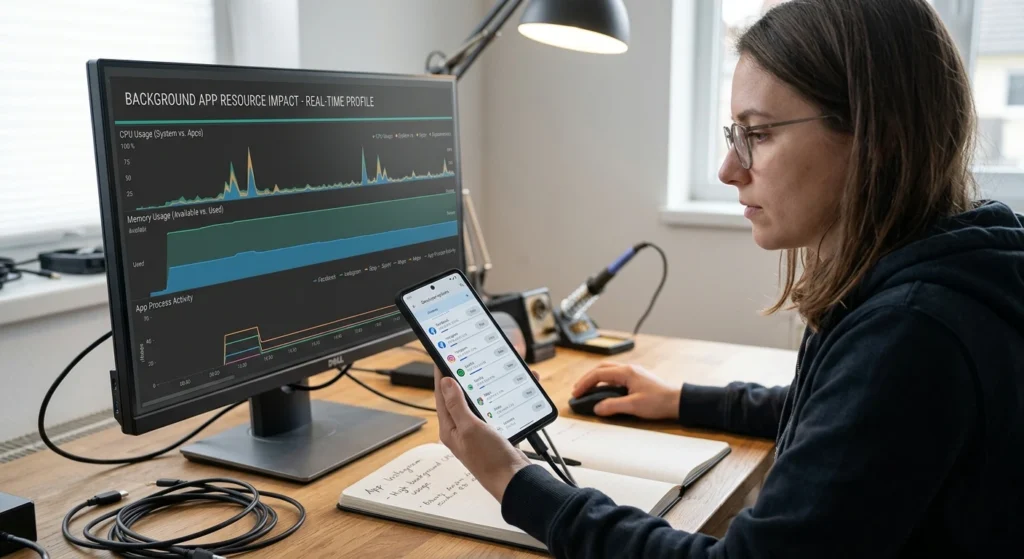
To effectively control background apps, it is important to understand how Android manages applications behind the scenes.
Android uses a sophisticated process management system that categorizes apps based on their current activity. These categories help the system decide which apps receive priority access to resources.
Android App Process Priority Levels
Android typically organizes apps into several priority groups.
1. Foreground Apps
These are the apps you are currently interacting with on the screen. They receive the highest priority and full access to system resources.
2. Visible Apps
Apps that are visible but not actively used, such as a video playing in picture-in-picture mode, are considered visible apps.
3. Service Processes
These apps perform tasks in the background.
- Email synchronization
- Music playback
- Cloud backup
- Messaging notifications
4. Cached Processes
Cached apps remain in memory for faster relaunching, even though they are not currently performing tasks.
While cached processes are generally harmless, too many active services can overload system resources.
How Background Apps Consume System Resources
Even when not actively used, some apps continue to perform tasks.
- Checking for updates
- Syncing online accounts
- Tracking location
- Downloading background data
- Sending notifications
These activities consume multiple resources simultaneously.
RAM Usage
Background apps remain loaded in Random Access Memory (RAM). If too many apps occupy memory, Android must frequently close and reload apps, which causes lag.
Devices with 3GB–4GB RAM are especially sensitive to excessive background activity.
CPU Usage
Many apps periodically wake the processor to perform tasks. Frequent CPU wake-ups can.
- Reduce performance
- Increase battery consumption
- Cause device heating
Network Activity
Apps often sync data in the background.
- Social media feeds
- Email updates
- Cloud backups
- App updates
Uncontrolled background data usage can consume significant mobile data and slow network performance.
Battery Drain
Background services often prevent the phone from entering deep sleep mode, which is essential for conserving battery.
According to mobile performance studies, background activity can account for over 50% of battery drain in poorly optimized apps.
Signs That Too Many Background Apps Are Running
Some common symptoms.
- Apps take longer to open
- The phone feels sluggish
- Battery drains unusually fast
- Device becomes warm during light usage
- Notifications arrive excessively or irregularly
Recognizing these symptoms helps users understand when background activity is negatively affecting performance.
Identify Which Apps Are Running in the Background
Before reducing background apps, it is essential to identify which applications are actively consuming system resources.
Many Android users assume that closing apps from the recent apps screen stops them completely. In reality, many apps continue running services even after being closed.
Understanding which apps remain active allows you to make informed decisions about which ones to restrict or remove.
Checking Running Apps in Android Settings
Most Android devices provide built-in tools to monitor running processes.
Steps to View Active Apps
- Open Settings
- Navigate to Apps or Apps & Notifications
- Select Running Apps, App Management, or See All Apps
This section shows.
- Active applications
- Background services
- Memory usage
Some devices also display how long an app has been running.
Using the Developer Options Menu
For more advanced monitoring, Android includes Developer Options, which provides deeper system insights.
Enable Developer Options
- Open Settings
- Tap About Phone
- Tap Build Number seven times
After activation, a new menu called Developer Options becomes available.
Inside this menu, you can view Running Services, which shows.
- Active background processes
- RAM consumption
- System services
This information helps identify apps consuming excessive memory.
Monitoring Battery Usage
Another useful way to identify background activity is through battery usage statistics.
Navigate to.
Settings → Battery → Battery Usage
This section reveals which apps consume the most power. Apps with high battery usage while running in the background are strong candidates for restriction.
Checking Data Usage by App
Apps that frequently sync data may be running background tasks.
To check this.
Settings→ Network & Internet → Data Usage → App Data Usage
Here you can see.
- Foreground data usage
- Background data usage
Apps using large amounts of background data are likely running frequent background services.
Signs of Problematic Apps
Certain categories of apps are known to run persistent background processes.
- Social media applications
- Messaging apps
- Weather apps
- News apps
- Fitness trackers
- Location-based services
This does not mean these apps are harmful. However, too many active background apps can overwhelm system resources.
Identifying them is the first step toward improving performance.
Use Built-In Android Settings to Limit Background Activity
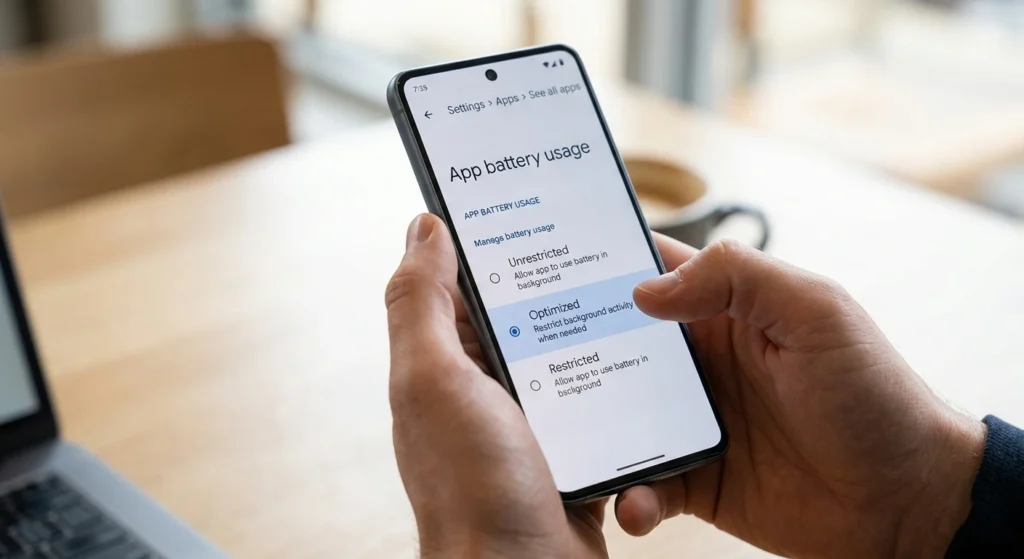
Android includes several built-in controls that allow users to manage background processes safely. These tools are designed to help users limit unnecessary activity without interfering with essential system functions.
Using these settings effectively can significantly improve performance, battery life, and system responsiveness.
Background Activity Controls
Many Android versions allow users to restrict background activity for specific apps.
Steps to Restrict Background Activity
- Open Settings
- Go to Apps
- Select a specific app
- Tap Battery
- Choose Restricted or Limit Background Usage
This prevents the app from performing tasks when not actively used.
Background Process Limit (Advanced Users)
Within Developer Options, Android offers a setting called Background Process Limit.
This option allows users to restrict how many apps remain active in memory.
Options may include.
- Standard limit
- No background processes
- At most 1 process
- At most 2 processes
- At most 3 processes
- At most 4 processes
Reducing this number forces Android to close inactive apps sooner, freeing RAM.
However, this setting should be used carefully because overly strict limits may affect multitasking performance.
Adaptive Battery Technology
Many modern Android versions include Adaptive Battery, which uses machine learning to limit background activity for rarely used apps.
When enabled, the system automatically.
- Identifies infrequently used apps
- Restricts their background activity
- Allocates resources to frequently used apps
This intelligent system helps maintain smooth performance without manual intervention.
Restrict Background Data for Select Apps
Background data usage is another major contributor to slow performance and excessive battery drain.
Many apps regularly access the internet to refresh content, check for updates, or synchronize information. While some of these activities are necessary, others occur far more frequently than required.
Limiting background data can reduce network load, improve battery life, and minimize unnecessary background processes.
How Background Data Works
When an app uses background data, it can communicate with online servers even when you are not actively using it.
Common examples.
- Email synchronization
- Social media updates
- Cloud storage syncing
- Automatic content refresh
If dozens of apps perform these tasks simultaneously, network traffic and system resource usage increase significantly.
Restrict Background Data for Specific Apps
Android allows users to disable background data for individual applications.
Steps
- Open Settings
- Tap Network & Internet
- Select Data Usage
- Choose App Data Usage
- Select an app
- Disable Background Data
This prevents the app from accessing the internet unless it is actively open.
When Restricting Background Data Is Useful
Background data restrictions are particularly helpful.
- News apps
- Shopping apps
- Weather apps
- Social media platforms
- Online games
These apps often refresh content frequently but do not always require constant updates.
Manage App Permissions to Prevent Unnecessary Background Processes
App permissions can significantly influence how applications behave in the background. Many apps request access to system features such as location, microphone, camera, contacts, or storage. When granted unrestricted access, these apps may continue using these resources even when you are not actively using them.
Limiting unnecessary permissions can reduce background activity and improve overall system efficiency.
Why Permissions Affect Background Activity
Certain permissions allow apps to perform background tasks automatically.
for example.
- Location access enables apps to track your position continuously.
- Microphone permissions may allow apps to listen for voice commands.
- Camera access can activate background image processing features.
- Contacts or storage access may trigger automatic synchronization processes.
When too many apps maintain these permissions, the device performs additional tasks that consume battery, CPU cycles, and memory.
Many users grant permissions without reviewing them carefully. Over time, this leads to multiple apps running services that are rarely needed.
Reviewing App Permissions in Android
Android provides a centralized dashboard for managing permissions.
Steps to review permissions.
- Open Settings
- Navigate to Privacy
- Tap Permission Manager
This section displays all permissions categorized by type, including location, camera, microphone, contacts, and more. Selecting a category shows which apps currently have access.
from here, you can revoke permissions that are unnecessary or rarely used.
Limiting Location Access
Location tracking is one of the most resource-intensive background activities. Apps that continuously monitor location may wake the processor and access GPS sensors frequently.
Android provides several options for location permissions.
- Allow all the time
- Allow only while using the app
- Ask every time
- Deny
Choosing “Allow only while using the app” for most applications prevents constant background tracking while still allowing the feature when needed.
This approach reduces unnecessary GPS usage and helps conserve battery life.
Restricting Notification Access
Some apps maintain background services specifically to push notifications. While notifications are useful, too many apps constantly polling servers can increase background network activity.
Within notification settings, you can disable notifications for apps that do not require immediate alerts. Reducing these requests decreases background data usage and processing.
Monitoring Permission Usage
Newer Android versions also provide a privacy dashboard that shows when apps recently accessed sensitive features such as the microphone, camera, or location.
Reviewing this data occasionally helps identify apps that are accessing resources more frequently than expected. If an app is repeatedly using these features without a clear reason, limiting its permissions can prevent unnecessary background processes.
Use Android’s Battery or Performance Settings to Control Apps
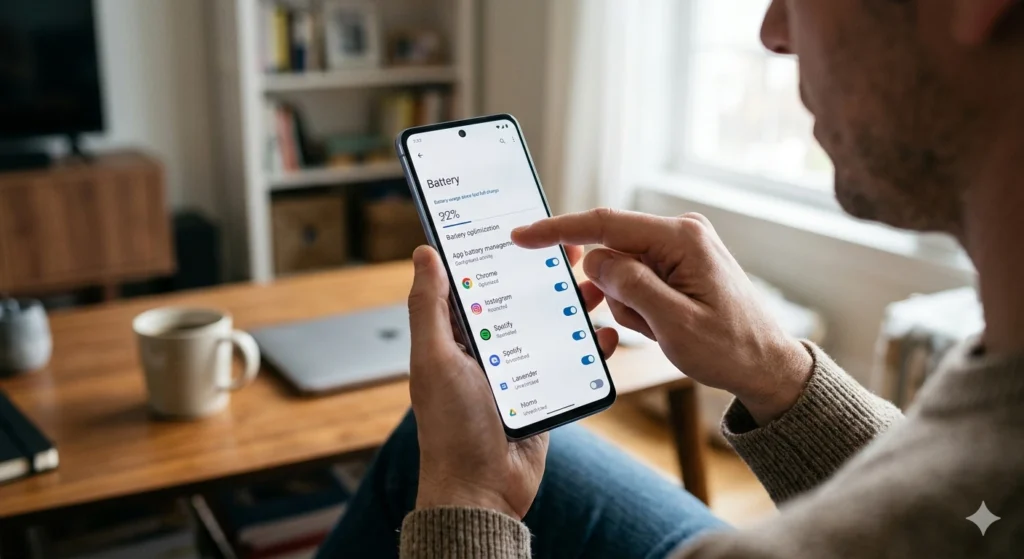
Android includes intelligent power management features designed to automatically regulate background activity. These tools help the system prioritize frequently used apps while restricting those that rarely run.
Understanding how these settings work allows users to balance performance, battery life, and app functionality.
Adaptive Battery Technology
Adaptive Battery is a system feature that uses machine learning to analyze how you use apps. Over time, Android categorizes apps into groups based on their usage patterns.
Common categories.
- Active apps used frequently
- Working set apps used occasionally
- Rare apps that are opened infrequently
- Restricted apps rarely used and heavily limited
Apps placed in the “rare” or “restricted” categories receive limited background access. This reduces unnecessary background processing without requiring manual intervention.
enable Adaptive Battery.
- Open Settings
- Tap Battery
- Select Adaptive Battery
- Turn the feature on
Once enabled, the system continuously learns from your usage habits and adjusts app behavior accordingly.
Battery Optimization Controls
Android also allows manual control over battery optimization for individual apps.
Steps to manage battery optimization.
- Open Settings
- Go to Apps
- Select an app
- Tap Battery
- Choose between optimization options
These options typically include.
- Unrestricted – the app can run freely in the background
- Optimized – Android manages background activity automatically
- Restricted – background processes are heavily limited
For most apps, leaving them in optimized mode is recommended. However, rarely used apps can be set to restricted mode to conserve system resources.
Extreme Battery Saver or Power Saving Modes
Many Android devices also include aggressive power-saving modes. These modes temporarily disable most background activities when the battery level becomes low.
Typical restrictions.
- Pausing background synchronization
- Reducing CPU performance
- Limiting network activity
- Restricting visual effects
Performance Modes on Some Devices
Certain Android manufacturers provide performance modes that adjust how the device allocates resources.
These modes may.
- Balanced mode
- Performance mode
- Power-saving mode
In performance mode, the system prioritizes active applications and limits background tasks that could interfere with responsiveness. This can make the device feel faster when running demanding apps or games.
Disable or Uninstall Unused Apps to Free Up Resources
Many smartphones accumulate dozens of apps over time. Some of these applications may only be used once or twice but remain installed indefinitely. Even when rarely opened, certain apps continue running background services or checking for updates.
Removing unused apps is one of the simplest and most effective ways to reduce background activity.
How Unused Apps Affect Performance
Every installed application occupies several types of system resources.
- Storage space
- Cached data
- Background services
- Scheduled tasks
- Notification checks
Even if an app runs only occasionally, its background processes can still consume RAM and processing power.
for example, some apps schedule periodic checks for updates or synchronize data with remote servers. When many apps perform these tasks simultaneously, overall system performance can suffer.
Identifying Apps That Are Rarely Used
Android provides tools that help identify apps that have not been used recently.
Within Settings → Apps, many devices display information.
- Last time the app was opened
- Storage usage
- Data consumption
Apps that have not been opened for several months are often good candidates for removal.
Uninstalling Applications Safely
Removing unnecessary apps frees up storage and prevents them from running background services.
Steps to uninstall apps.
- Open Settings
- Tap Apps
- Select the app
- Choose Uninstall
Once removed, the app’s background services and scheduled tasks are eliminated completely.
Disabling Preinstalled Applications
Some devices include system apps that cannot be uninstalled. These may include manufacturer utilities or preloaded services.
Although they cannot always be removed, many of these apps can be disabled.
Disabling an app prevents it from running and removes it from the app drawer.
Steps to disable apps.
- Open Settings
- Navigate to Apps
- Select the app
- Tap Disable
This action stops the app from launching background services and helps free system resources.
Automatic App Archiving (Newer Android Versions)
Recent Android versions also include an automatic feature that archives unused apps. When enabled, the system removes most of the app’s data while keeping the icon available for future reinstall.
This feature helps conserve storage and reduce background activity without permanently removing the app.
Leverage Third-Party Tools to Monitor and Control Background Apps
While Android provides powerful built-in controls, some users prefer additional visibility into how apps use system resources. Monitoring tools can provide detailed insights into background processes, memory usage, and battery consumption.
However, these tools should be used carefully and primarily for monitoring rather than aggressive task management.
Why Monitoring Tools Can Be Helpful
Advanced monitoring tools can reveal information that standard system settings may not display clearly. for example, they can show.
- Real-time CPU usage by apps
- Memory consumption
- Active background services
- Network activity
- Wake locks that keep the device active
Understanding these metrics helps users identify apps that are behaving inefficiently or consuming excessive resources.
The Role of Task Managers
In the early days of Android, task manager apps were commonly used to force-close background processes. however, modern Android systems manage memory far more effectively.
Force-closing apps repeatedly can sometimes reduce efficiency rather than improve it, because Android may immediately restart essential services.
For this reason, modern best practices recommend using monitoring tools mainly for analysis rather than constant task killing.
Identifying Problematic Apps Through Monitoring
When reviewing monitoring data, some warning signs may indicate problematic apps.
- Constant CPU usage while the phone is idle
- Excessive background data traffic
- Frequent wake locks preventing the device from sleeping
- High battery consumption without active usage
If an app consistently shows these patterns, restricting its background activity or removing it may improve performance.
Maintaining Balance
The goal of using monitoring tools is not to eliminate all background activity. Many essential functions such as messaging notifications or email synchronization depend on background processes.
Conclusion: Keep Your Android Fast and Efficient
Background apps are a fundamental part of the Android operating system. They allow apps to synchronize data, deliver notifications, and maintain seamless functionality. However, when too many apps run simultaneously in the background, they can significantly reduce device performance.
- Excessive background activity can lead to slower responsiveness, increased battery consumption, higher data usage, and device overheating.Fortunately, Android provides several built-in tools that allow users to manage these processes effectively.
- Identifying which apps are running in the background, limiting unnecessary permissions, controlling background data usage, and applying battery optimization settings, users can significantly improve device efficiency.
- Removing unused applications and disabling unnecessary services further reduces system load, freeing valuable resources such as RAM and processing power.
- Monitoring background activity occasionally helps maintain a healthy balance between functionality and performance. The goal is not to eliminate background processes entirely but to ensure that only necessary apps remain active.
When managed properly, Android devices can deliver smooth performance, longer battery life, and a more responsive user experience. Taking a few minutes to review and optimize background activity can make a noticeable difference in how fast and efficient your smartphone feels during everyday use.