If your computer is running slow or lagging, it could be a sign that your RAM (Random Access Memory) and CPU (Central Processing Unit) are not optimized for peak performance. Whether you’re a beginner or just looking to improve your computer’s speed, understanding how to optimize these two crucial components can make a world of difference.
Complete RAM and CPU Optimization Guide for Beginners, we’ll break down simple yet effective strategies to help you boost your system’s performance. From clearing unused memory to managing CPU usage, this guide covers all the essential steps you need to know to enhance your computer’s speed and efficiency.
Introduction to RAM and CPU Optimization
When your computer starts slowing down apps lag, browser tabs freeze, or startup takes forever the root cause is often tied to two critical components, RAM (Random Access Memory) and the CPU (Central Processing Unit). These are the core engines behind everything your system does, from opening files to running complex applications.
RAM acts as your system’s short-term memory. It temporarily stores data that your CPU needs quick access to. The more RAM you have (and the better it’s managed), the smoother your multitasking experience becomes. Meanwhile, the CPU is the brain, handling instructions and calculations that power every operation.
But here’s something beginners often misunderstand.
👉 You don’t always need new hardware to improve performance.
In many cases, proper optimization can boost performance by 20–40%, especially on systems cluttered with unnecessary background processes or poorly managed resources.
Why Optimization Matters
Over time, systems naturally become slower due to.
- Accumulation of background apps
- Inefficient startup programs
- Memory leaks from poorly coded software
- Fragmented system resources
- Excessive multitasking
Without optimization, even a powerful computer can feel sluggish.
What You’ll Learn
In this guide, you’ll understand.
- How RAM and CPU actually behave under load
- Practical ways to reduce unnecessary usage
- Safe optimization methods that don’t risk system stability
- Advanced tweaks for long-term performance improvement
This isn’t about quick hacks it’s about building a system that runs efficiently every day.
Essential Tools for RAM and CPU Optimization
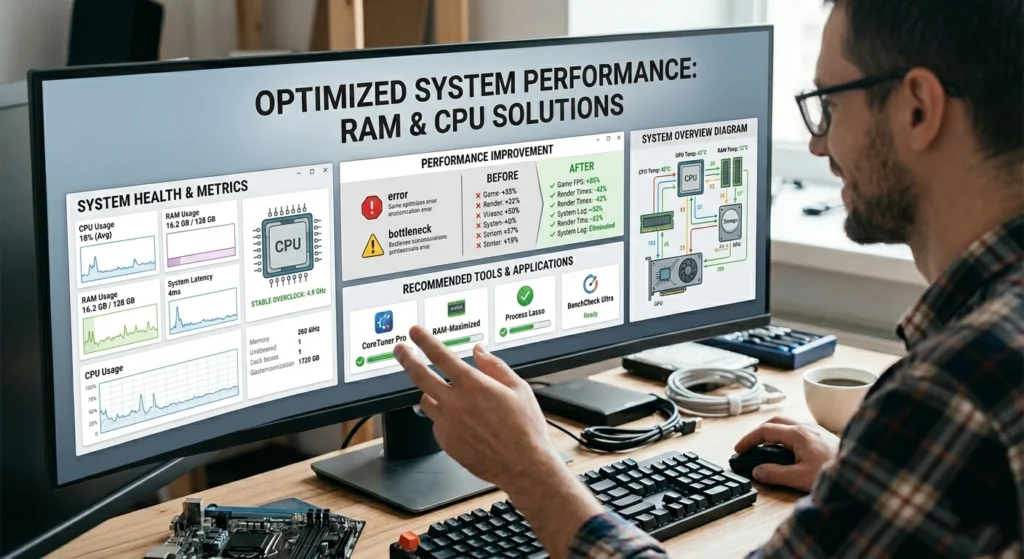
Before making changes, it’s important to understand what’s happening inside your system. Optimization without visibility is guesswork.
Built-in System Monitoring Tools
Most operating systems provide powerful built-in tools that are often overlooked.
Task Manager (Windows)
This is your first stop for diagnosing performance issues.
What to check.
- CPU usage (%). If constantly above 80%, your system is overloaded
- Memory usage. Look for apps consuming large chunks of RAM
- Startup impact. Identify programs slowing down boot time
👉 Pro tip: Sort processes by CPU or Memory to instantly find resource hogs.
Resource Monitor
A more detailed tool than Task Manager.
It shows.
- Real-time RAM allocation
- Disk and CPU activity per process
- Background services impact
This is useful when your system slows down but Task Manager doesn’t clearly explain why.
System Configuration Utility
This tool allows you to control startup behavior.
Key benefit.
- Reduces boot time by disabling unnecessary services
Be cautious.
- Only disable services you recognize
- Avoid turning off essential system processes
Performance Monitoring Tools
For deeper insights, performance monitors track trends over time.
What they reveal.
- CPU spikes during specific tasks
- Memory leaks in applications
- System bottlenecks
These insights help you make data-driven optimization decisions rather than guessing.
Why You Don’t Need Third-Party Tools
Many beginners rush to install “optimization software,” but most are unnecessary.
Important truth.
👉 Modern operating systems already include highly efficient resource management systems.
Over-reliance on third-party tools can.
- Increase CPU usage
- Add unnecessary background services
- Create security risks
Stick with built-in tools unless you fully understand what additional software does.
How to Optimize RAM for Better Performance
RAM optimization is one of the most effective ways to improve system responsiveness. Optimizing your RAM is one of the most effective ways to improve your computer’s performance. When your RAM is underutilized or clogged with unnecessary processes, it can slow down your entire system. Start by closing unused programs and background processes that consume memory.
You can also adjust your computer’s virtual memory settings to create additional space for active applications. For a more hands-on approach, consider using specialized software to clean and defragment your RAM, removing junk files and freeing up valuable memory.
Upgrading to a higher capacity RAM can also significantly boost performance, especially for memory-heavy tasks like gaming or video editing. With these simple steps, you’ll notice a faster, more responsive computer, even when juggling multiple applications at once.
Understanding RAM Usage
Your system uses RAM in three main ways.
- Active memory. Used by running applications
- Cached memory. Stored for quick access
- Free memory. Available for new processes
Many users panic when RAM usage is high, but.
👉 High RAM usage isn’t always bad unused RAM is wasted RAM.
The goal is efficient usage, not just lower numbers.
Reduce Unnecessary Background Applications
One of the biggest RAM drains is background apps.
Common offenders.
- Messaging apps running constantly
- Browser tabs (especially Chrome-based browsers)
- Auto-starting utilities
Steps to fix this.
- Close apps you’re not actively using
- Limit browser tabs to essential ones
- Disable auto-start for non-critical programs
Real impact.
Reducing background apps can free 1–3 GB of RAM on average systems.
Manage Startup Programs
Startup programs consume RAM immediately after boot.
Why this matters.
Even if you don’t use them, they stay loaded in memory.
How to optimize.
- Open Task Manager → Startup tab
- Disable high-impact programs
- Keep only essentials like security services
Result.
- Faster boot time
- More available RAM immediately after startup
Optimize Virtual Memory (Paging File)
When RAM is full, your system uses disk space as virtual memory.
But disk storage is much slower than RAM.
Best practices.
- Keep virtual memory enabled
- Allow system-managed size (recommended for beginners)
- Avoid setting it too low
Important.
👉 Disabling virtual memory can cause crashes or app failures.
Reduce Memory Leaks
Some applications fail to release RAM after use.
Signs of a memory leak.
- RAM usage keeps increasing over time
- System slows down without opening new apps
Solution.
- Restart the affected application
- Reboot your system periodically
- Update software regularly
Use Lightweight Alternatives
Heavy applications consume excessive RAM.
Examples.
- Use lightweight browsers or fewer extensions
- Replace heavy software with optimized versions
Impact.
Switching to lighter apps can reduce RAM usage by 30–50% in some cases.
CPU Optimization: Boosting Speed and Efficiency
CPU optimization focuses on reducing unnecessary workload and ensuring efficient processing. Your CPU is the heart of your computer, and optimizing it can make a noticeable difference in your system’s speed and efficiency.
One of the first steps to optimize your CPU is managing background processes that unnecessarily consume processing power. You can use task managers or optimization software to identify and disable these tasks. Additionally, adjusting your system’s power settings can help prioritize performance, especially for high-demand tasks like gaming or video editing.
Overclocking is another technique, though it should be done cautiously and with proper cooling to avoid overheating. Regularly updating your CPU drivers also ensures that your processor is running efficiently.
Identify CPU Bottlenecks
High CPU usage can cause.
- System lag
- Overheating
- Reduced lifespan of components
Common causes.
- Background processes
- Malware or hidden scripts
- Poorly optimized applications
Limit Background Processes
Many processes run without your knowledge.
Steps.
- Use Task Manager to identify high CPU usage
- End unnecessary tasks carefully
👉 Never end processes you don’t recognize without checking their purpose.
Adjust Power Settings
Power plans directly affect CPU performance.
Recommended setting.
- Use Balanced mode for everyday tasks
- Use High Performance only when needed
Why this matters.
- High Performance mode increases CPU frequency
- It also increases heat and power consumption
Keep Your System Updated
Updates often include.
- Performance improvements
- Bug fixes
- Better resource management
Skipping updates can lead to inefficient CPU usage.
Reduce Browser Load
Modern browsers are CPU-intensive.
Optimization tips.
- Limit extensions
- Avoid heavy websites running scripts
- Close unused tabs
Fact:
Some websites can consume 20–30% CPU usage alone.
Manage Background Services
Operating systems run hundreds of services.
Not all are necessary for every user.
Strategy.
- Identify non-essential services
- Disable only safe ones
Caution.
Incorrect changes can affect system stability.
Advanced Techniques for RAM and CPU Optimization
Once you’ve handled the basics, advanced methods can push performance further. For CPU optimization, diving into your BIOS/UEFI settings allows you to tweak advanced options like memory timing and CPU clock speeds, which can improve performance, especially for power users and gamers.
Another approach is overclocking your CPU and RAM, pushing them beyond their factory settings for higher speeds, though this should only be done with adequate cooling solutions to avoid system instability. Additionally, tweaking system cache settings and utilizing solid-state drives (SSDs) for faster data retrieval can also drastically improve overall performance.
These advanced techniques require a deeper understanding of your system’s components but can yield impressive results for users looking to squeeze every bit of performance out of their hardware.
Optimize System Visual Effects
Graphical effects consume CPU and RAM.
Steps.
- Disable animations
- Reduce transparency effects
- Use basic themes
Result.
Noticeable improvement on older systems.
Disk Optimization and Its Impact
Even though this guide focuses on RAMand CPU, storage performance affects both.
Why.
- Slow disk = slower virtual memory
- Slower app loading increases CPU workload
Solutions.
- Keep disk space at least 20% free
- Use SSDs for better performance
Thermal Management
Heat reduces CPU efficiency.
When temperatures rise.
- CPU throttles performance
- System slows down automatically
How to manage.
- Keep vents clean
- Ensure proper airflow
- Avoid using laptops on soft surfaces
Multitasking Discipline
Running too many apps at once overloads both RAMand CPU.
Best practice.
- Focus on fewer applications at a time
- Close unused processes regularly
Background Sync and Updates
Automatic syncing consumes resources.
Examples.
- Cloud storage syncing
- Software auto-updates
Optimization.
- Schedule updates during idle time
- Pause syncing when not needed
Common Mistakes to Avoid in RAM and CPU Optimization
Optimization can go wrong if done incorrectly. While optimizing your RAM and CPU can significantly improve your computer’s performance, there are a few common mistakes that can actually hinder progress or even cause problems.
One of the most frequent errors is over-optimization, where users make unnecessary tweaks that don’t yield noticeable improvements or, worse, destabilize the system.fFor example, overclocking your CPU without proper cooling or tweaking RAM settings beyond your system’s capabilities can lead to crashes or long-term damage.
Disabling Critical System Processes
This is one of the most dangerous mistakes.
Result.
- System instability
- Crashes or boot failure
Overusing “RAM Cleaner” Tools
Many tools claim to free RAM instantly.
Reality.
- They often force-clear cached memory, which is actually useful
- This can reduce performance instead of improving it
Setting Unrealistic Virtual Memory Values
Too low → system crashes
Too high → wasted disk space
Always use balanced settings.
Ignoring Software Updates
Outdated software.
- Consumes more CPU
- Causes memory leaks
Running Too Many Startup Programs
This leads to.
- Slow boot times
- High idle RAM usage
Expecting Hardware-Level Performance from Software Tweaks
Optimization helps, but it has limits.
👉 If your system has very low RAM (e.g., 2GB), no optimization can fully compensate.
Conclusion: Maintaining Long-Term RAM and CPU Health
Optimization isn’t a one-time task it’s an ongoing process. Optimizing your RAM and CPU for immediate performance improvementsis a great first step, but maintaining their health over time is just as important.
Regular system maintenance, such as clearing out unnecessary files, updating drivers, and checking for software conflicts, can keep your computer running smoothly in the long run. Additionally, ensure your system has proper cooling to prevent overheating, which can damage both the CPU and RAM.
Build Good Habits
- Regularly review running applications
- Keep startup programs minimal
- Restart your system periodically
Monitor Performance Consistently
Don’t wait for slowdowns.
Check usage patterns and fix issues early.
Balance Performance and Stability
Aggressive optimization can cause problems.
👉 The goal is stability with efficiency not maximum performance at any cost.
Final Thought
A well-optimized system doesn’t just run faster it feels smoother, more responsive, and more reliable.
By applying the strategies in this guide, you can.
- Extend your system’s lifespan
- Improve daily productivity
- Avoid unnecessary hardware upgrades
Smart optimization is the key to long-term performance.