Modern computers are powerful, yet many users still experience slow startups, delayed responses, and reduced system performance over time. The main reason is not always outdated hardware. In many cases, system configuration, background processes, unnecessary files, and outdated drivers can significantly affect performance. When these factors accumulate, even a high-performance PC can begin to feel sluggish.
Windows 11 is designed with improved system efficiency, advanced memory management, and optimized scheduling for modern processors. However, achieving maximum speed requires proper system optimization. adjusting startup programs, cleaning up unnecessary files, updating drivers, and using built-in performance tools, users can dramatically improve responsiveness and stability.
This comprehensive guide explains practical and safe methods to optimize Windows 11 for maximum speed. Each section explores proven strategies that help improve boot time, reduce background resource usage, enhance system responsiveness, and maintain long-term stability.
Adjust Startup Programs to Improve Windows 11 Boot Time
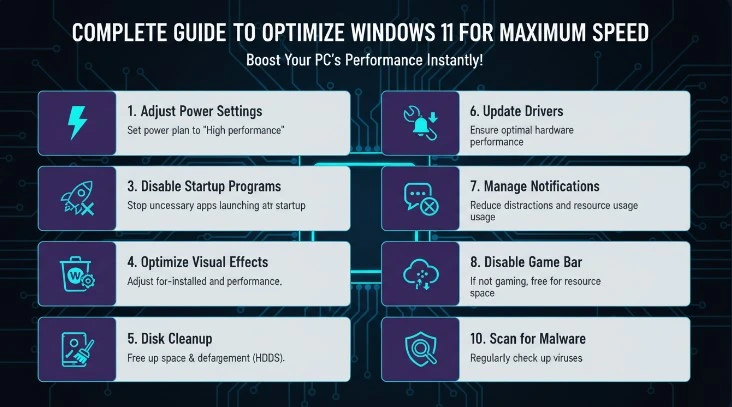
When a computer starts, Windows loads essential system services along with applications configured to run automatically. While some startup programs are necessary, many applications add themselves to the startup list without providing significant value. Over time, these programs can drastically increase boot time and consume system resources before the user even begins working.
Managing startup applications is one of the most effective ways to improve boot performance.
Understanding How Startup Programs Affect Performance
Every startup application consumes a portion of the system’s memory and processor resources during boot. If multiple applications attempt to load simultaneously, the operating system must divide system resources among them, which can slow the overall startup process.
Applications that commonly add themselves to startup.
- Messaging applications
- File synchronization utilities
- System monitoring software
- Update services
- Media players
While these programs may provide convenience, many of them do not need to run immediately when the system starts.
Identifying High Impact Startup Applications
Windows 11 includes a built-in feature that helps users identify which startup applications have the greatest impact on boot time.
Each program is categorized.
- High impact
- Medium impact
- Low impact
- Not measured
Programs labeled as high impact significantly increase the time it takes for Windows to become fully responsive.
How to Review Startup Impact
- Open Task Manager
- Select the Startup Apps tab
- Review the Startup Impact column
- Disable applications that are not essential
Reducing the number of high-impact startup applications can significantly shorten boot time.
Best Practices for Startup Optimization
Instead of disabling everything, focus on applications that are unnecessary during system startup.
Keep Enabled
- Security software
- Essential system services
- Hardware control utilities
Safe to Disable
- Messaging apps
- Media players
- Cloud utilities that can run manually
- Non-essential update services
After disabling unnecessary startup programs, many users notice a faster boot experience and improved system responsiveness.
Clean Up Unnecessary Files and Free Up Disk Space
Storage devices gradually fill with temporary files, system cache, installation remnants, and outdated update data. These files may not appear significant individually, but collectively they can occupy several gigabytes of disk space and reduce system efficiency.
How Storage Clutter Affects System Speed
When a storage drive approaches its capacity, Windows has less free space available for virtual memory, temporary processing files, and system operations. This can lead to slower file access and delayed system responses.
Common sources of storage clutter.
- Temporary system files
- Application cache
- Browser cache
- Old update packages
- Recycle bin contents
Removing unnecessary files helps maintain a healthy storage environment.
Using Storage Management Features
Windows 11 includes built-in storage management tools that help identify and remove unnecessary files safely.
Storage Insights
The system can analyze storage usage and categorize data.
- Applications
- System files
- Temporary files
- Documents
- Media
This overview helps users identify which areas consume the most storage space.
Temporary File Cleanup
Temporary files are created during software installation, browsing activity, and system operations. While some are automatically removed, many remain stored indefinitely.
Removing temporary files can free significant space and improve system responsiveness.
Maintaining Healthy Storage Habits
Regular maintenance helps prevent performance issues.
Recommended Practices
- Empty the recycle bin regularly
- Remove unused applications
- Delete outdated downloads
- Clear temporary system files periodically
Keeping sufficient free storage space allows Windows to manage memory and system processes more efficiently.
Optimize Windows 11 Settings for Better Performance
Windows 11 includes a variety of visual effects, background animations, and interface enhancements that improve the appearance of the operating system. However, these features can consume system resources, particularly on devices with limited memory or older processors.
Adjusting performance settings can significantly improve responsiveness.
Visual Effects and System Resources
Visual effects require the operating system to allocate additional GPU and CPU resources to render animations and transitions. On powerful systems this may not be noticeable, but on mid-range or older devices the effect can contribute to slower interface response.
Examples of visual features.
- Window animations
- Transparency effects
- Shadow effects
- Smooth scrolling
Reducing these effects allows Windows to prioritize system performance over visual appearance.
Adjusting System Performance Settings
Windows provides performance profiles that balance appearance and efficiency.
Performance Options
Users can choose from several settings.
- Let Windows choose what’s best
- Adjust for best appearance
- Adjust for best performance
- Custom settings
Selecting performance-focused options reduces graphical overhead and improves system responsiveness.
Optimizing Notifications and System Features
Background services such as notifications, widgets, and live updates may also consume resources.
Disabling unnecessary system features helps maintain a streamlined environment and ensures system resources are used for active tasks rather than background processes.
Update Drivers and Windows for Maximum Speed

System updates play a critical role in maintaining both performance and stability. Drivers allow hardware components to communicate with the operating system, and outdated drivers can cause inefficiencies, compatibility issues, and slower system performance.
Why Driver Updates Matter
Drivers control how hardware components function. When drivers are outdated, hardware may not operate at full efficiency.
Common components that benefit from updated drivers.
- Graphics hardware
- Storage controllers
- Network adapters
- Chipsets
Updated drivers often include bug fixes, performance improvements, and compatibility enhancements.
Benefits of Windows Updates
System updates are not limited to security improvements. They frequently include performance optimizations that improve system efficiency.
Updates may provide.
- Improved memory management
- Better processor scheduling
- Optimized power management
- Enhanced compatibility with modern hardware
Regularly installing system updates ensures the operating system operates with the latest improvements.
Use Built-in Windows Tools to Enhance System Performance
Windows includes several built-in tools that help maintain system health and optimize performance without requiring additional software.
Task Manager for Performance Monitoring
Task Manager provides real-time insight into how system resources are being used.
Users can monitor.
- CPU usage
- Memory consumption
- Disk activity
- Network usage
By identifying resource-heavy applications, users can close unnecessary programs and restore system responsiveness.
System Maintenance Utilities
Windows also includes maintenance features that automatically detect and fix common system issues.
These utilities.
- Identify system errors
- Repair corrupted files
- Optimize system processes
Regular maintenance ensures that the operating system remains stable and responsive.
System File Integrity
Corrupted system files can lead to unpredictable behavior and reduced performance. Windows includes system repair tools that scan for damaged files and restore them automatically.
Maintaining system integrity helps prevent performance degradation over time.
Upgrade Hardware Components for Faster Windows 11
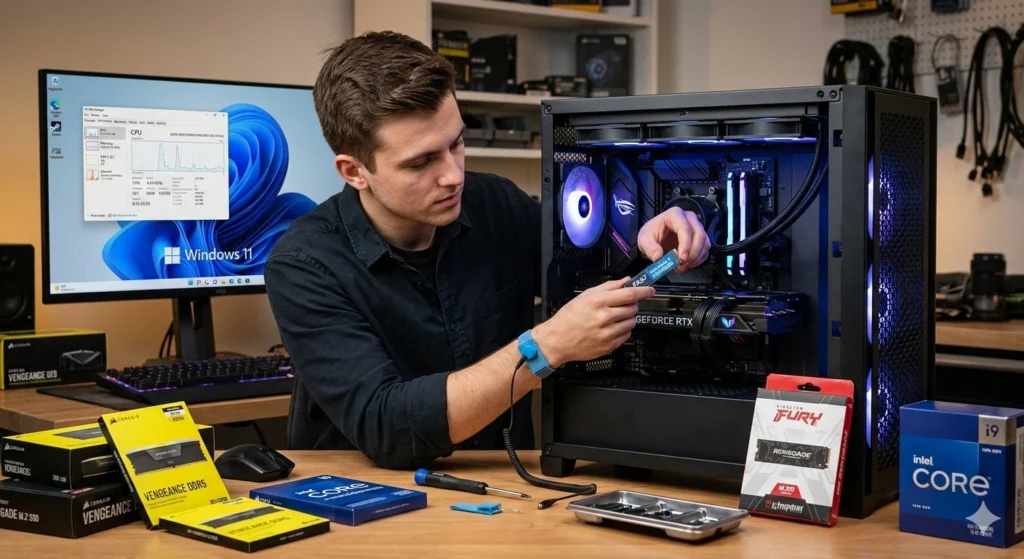
While software optimization improves performance, hardware upgrades can provide the most dramatic speed improvements.
Modern applications and operating systems rely heavily on storage speed, memory capacity, and processor performance.
Increasing System Memory
Random Access Memory (RAM) allows the computer to handle multiple tasks simultaneously. When memory capacity is insufficient, the system relies on slower virtual memory stored on the storage drive.
Upgrading memory improves.
- Multitasking performance
- Application responsiveness
- System stability
For many users, increasing memory capacity significantly improves overall performance.
Storage Technology Improvements
Traditional mechanical hard drives are significantly slower than modern solid-state storage devices.
Faster storage improves.
- System boot time
- Application launch speed
- File transfer performance
Upgrading storage can transform the responsiveness of a system.
Processor Considerations
Although upgrading a processor may not always be practical, newer processors include improved architecture and efficiency that benefit multitasking and demanding workloads.
Manage Background Apps and Processes Efficiently
Many applications continue running in the background even after they are closed. These processes consume memory, processing power, and network resources.
Managing background activity helps ensure that system resources remain available for active tasks.
Background Application Behavior
Background applications may perform tasks.
- Synchronizing data
- Checking for updates
- Sending notifications
- Monitoring system status
While these features can be useful, too many background processes can slow the system.
Limiting Background Activity
Reducing unnecessary background activity improves.
- System responsiveness
- Battery efficiency on portable devices
- Overall system performance
Enable Performance Mode and Optimize Power Settings

Power management settings influence how the system balances performance and energy efficiency.
By adjusting power settings, users can ensure the system prioritizes performance when needed.
Understanding Power Modes
Windows includes several power modes designed for different scenarios.
- Power efficiency mode
- Balanced mode
- High performance mode
Performance-focused modes allow the processor to operate at higher speeds and respond more quickly to workload demands.
Optimizing Processor Performance
Performance modes adjust how the processor handles workload bursts. When performance mode is enabled, the processor can maintain higher operating frequencies, improving responsiveness for demanding tasks.
For desktop users or high-performance laptops, selecting a performance-focused power plan can noticeably improve system speed.
Keep Your PC Secure to Maintain Smooth Performance
Security plays an important role in system performance. Malicious software, unauthorized background activity, and compromised applications can consume significant system resources.
Maintaining strong security practices helps ensure the system remains efficient and stable.
How Security Issues Affect Performance
Security threats often run hidden processes that consume CPU power, memory, and network bandwidth. These processes can slow down the entire system.
Common signs include.
- Unexpected CPU spikes
- Increased disk activity
- Slower system response
Protecting the system from security threats helps preserve system resources.
Maintaining System Security
Key security practices include.
- Keeping the operating system updated
- Using built-in security protections
- Avoiding suspicious downloads or websites
- Monitoring unusual system activity
maintaining a secure computing environment, users reduce the risk of hidden processes that degrade system performance.
Conclusion
Optimizing Windows 11 for maximum speed requires a combination of smart system management, regular maintenance, and efficient resource usage. While modern computers are capable of impressive performance, improper configuration, unnecessary background activity, and storage clutter can gradually slow down even the most powerful systems.
Adjusting the startup programs, cleaning up unnecessary files, optimizing system settings, and maintaining updated drivers, users can dramatically improve both system responsiveness and long-term stability. Built-in Windows tools provide powerful diagnosticand maintenance capabilities that allow users to monitor performance and address potential issues before they become serious problems.