Waiting for your Windows PC to boot can be frustrating, especially when you just want to get to work or start gaming. Slow startup times in Windows 10 and 11 are a common problem, caused by factors like too many startup programs, outdated drivers, or fragmented storage. Optimizing startup programs to using built-in tools and system tweaks.
Introduction: Why Fast Boot Times Matter
A computer that takes several minutes to start can quickly turn everyday tasks into frustrating experiences. Whether you’re preparing for work, opening essential files, or simply browsing the web, boot speed plays a critical role in overall productivity and system responsiveness. Modern operating systems like Windows 10 and Windows 11 are designed with advanced startup technologies, but many computers still experience slow boot times due to configuration issues, hardware limitations, or unnecessary background processes.
Boot time refers to the total amount of time a computer needs to power on and reach a usable desktop environment. During this process, the operating system initializes hardware, loads system services, starts background applications, and prepares the graphical interface. If any part of this process becomes overloaded or inefficient, the startup sequence can slow down dramatically.
For many users, slow startup is not caused by a single problem. Instead, it usually results from multiple small factors working together. Startup applications, outdated drivers, fragmented storage, excessive background services, and system configuration issues can all contribute to longer boot times.
A faster startup offers several important benefits.
- Improved productivity because the system becomes usable sooner
- Better system efficiency as fewer unnecessary processes run at startup
- Reduced system strain on hardware components
- A smoother overall computing experience
Modern versions of Windows include several built-in mechanisms designed to accelerate startup performance. Features like Fast Startup, improved memory management, and optimized service loading help reduce boot time significantly when properly configured.
However, many users unintentionally slow down their computers by installing numerous applications that automatically start with the system. Over time, these programs accumulate and compete for system resources during startup.
This guide explores how Windows startup works, why computers sometimes boot slowly, and the most effective ways to optimize the boot process safely. how the system initializes and learning how to manage startup processes, you can significantly improve your computer’s responsiveness.
Understanding How Windows 10 and 11 Startup Works
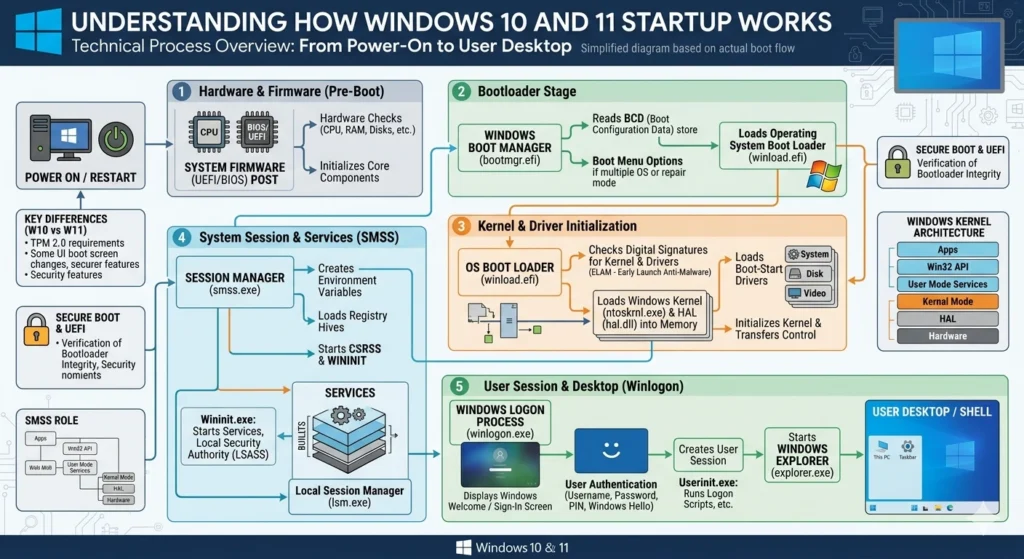
To improve boot performance, it helps to understand what actually happens when a Windows computer starts. The startup process involves several technical stages that occur in sequence before the desktop appears.
The System Boot Sequence
When a computer powers on, the first component to activate is the firmware, either BIOS or UEFI. This firmware checks essential hardware components such as memory, processors, and storage devices. This process is known as the Power-On Self-Test (POST).
Once hardware checks are completed, the firmware searches for the operating system on the primary storage device and loads the Windows Boot Manager, which begins the operating system startup.
Key stages in the boot process.
- Firmware initialization
- Boot loader activation
- Kernel loading
- Driver initialization
- System services startup
- User login and desktop loading
Each stage requires coordination between hardware and software components.
Kernel and Driver Initialization
After the boot loader starts the operating system, the Windows kernel begins loading into memory. The kernel acts as the core of the operating system, managing hardware communication, system processes, and memory allocation.
During this stage, Windows loads essential drivers, which allow the operating system to communicate with hardware components.
- Storage controllers
- Graphics processors
- Network adapters
- USB devices
If any driver takes longer to initialize or encounters compatibility issues, it can slow the entire boot sequence.
Service and Application Startup
Once core drivers load successfully, Windows begins starting system services and background processes.
These services perform critical tasks.
- Managing network connections
- Handling security processes
- Running update services
- Enabling device communication
Finally, the operating system launches user-level startup applications, which are programs configured to run automatically when the system starts.
This is often where the largest delays occur, especially when multiple programs attempt to load simultaneously.
Understanding these stages makes it easier to identify which areas of the startup process may need optimization.
Common Reasons Your Windows PC Boots Slowly
A slow startup rarely happens without a cause. In most cases, boot performance gradually declines over time as more software and services are installed.
Too Many Startup Programs
One of the most common causes of slow boot times is an excessive number of applications launching during startup.
Programs such as.
- Communication software
- Cloud synchronization tools
- System utilities
- Background update services
often configure themselves to run automatically. When several of these programs start at the same time, they compete for CPU time, memory, and disk activity.
The result is longer login times and slower desktop responsiveness.
Outdated or Inefficient Drivers
Drivers play a critical role in the startup process. If a driver is outdated, incompatible, or poorly optimized, Windows may take longer to initialize the associated hardware.
Some common driver-related issues.
- Graphics driver delays
- Network adapter initialization problems
- Storage controller inefficiencies
Updating drivers often improves not only system stability but also boot speed and hardware responsiveness.
Background Services Consuming Resources
Windows runs numerous services in the background to support system operations. While many are essential, others may be unnecessary for certain users.
Excessive background services can lead.
- Increased boot processing time
- Higher memory usage
- Slower system initialization
Managing these services carefully can significantly reduce startup load.
Fragmented or Overloaded Storage
If a computer uses a traditional hard drive, file fragmentation can slow down read operations during startup. Since Windows must load hundreds of files during boot, slower disk access results in longer startup times.
Additionally, storage devices that are nearly full often experience reduced performance, which further delays the boot process.
System Updates and Configuration Issues
Occasionally, system updates or configuration changes can impact startup performance. Some updates introduce new services or drivers that require additional initialization time.
How to Optimize Startup Programs in Windows
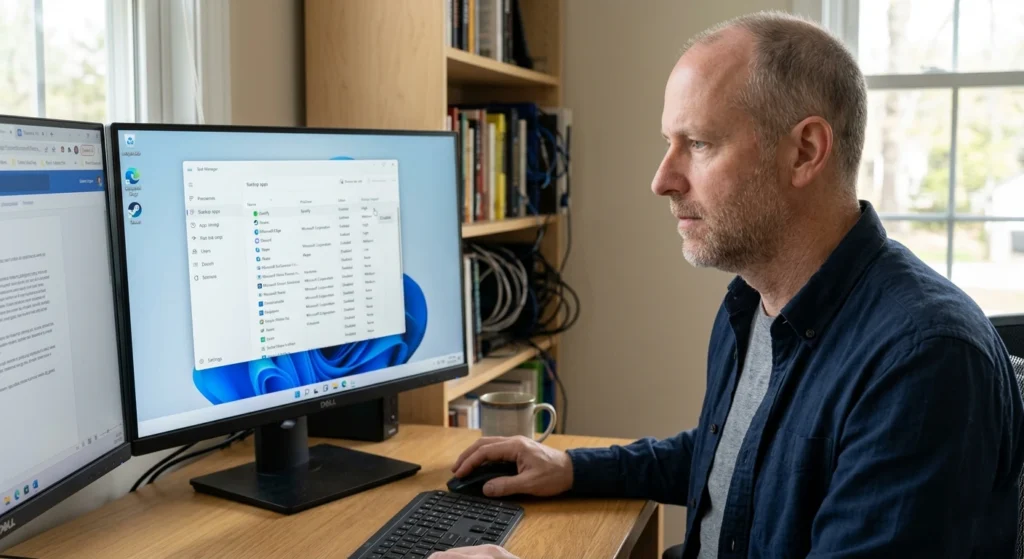
Managing startup applications is one of the most effective ways to reduce boot time. Many programs automatically configure themselves to launch during system startup even when they are rarely needed immediately.
Checking Startup Applications
Windows includes a built-in interface that allows users to view and manage startup programs. This tool provides a clear overview of which applications run during startup and how much impact they have on boot performance.
Applications are usually categorized by startup impact, which indicates how heavily they affect system initialization.
Programs with high startup impact often consume more CPU or disk resources during boot.
Deciding Which Programs Should Start Automatically
Not all startup applications are necessary. In fact, most everyday programs do not need to launch immediately when Windows starts.
Applications that typically do not require automatic startup.
- Media players
- Office tools
- Messaging applications
- Software updaters
Benefits of Reducing Startup Load
Reducing the number of startup applications offers several advantages.
- Shorter boot times
- Lower memory usage
- Faster desktop responsiveness
- Reduced CPU activity during login
The goal is not to disable everything but rather to keep only essential services and drivers active during startup.
Using Built-in Windows Tools to Speed Up Boot Time
Task Manager Startup Management
One of the most accessible tools for managing startup performance is Task Manager. In addition to displaying running processes, Task Manager also provides a dedicated startup management interface.
This feature allows users.
- View startup applications
- Identify high-impact programs
- Enable or disable automatic startup entries
Because this tool is integrated into the operating system, it provides safe and reliable control over startup behavior.
Windows Fast Startup Feature
Windows includes a technology known as Fast Startup, designed to shorten boot times by partially saving system state before shutdown.
Instead of fully restarting every system component,
fast Startup.
- Saves the kernel state to disk
- Restores system informationquickly during the next startup
- Reduces initialization time
This hybrid shutdown process often cuts startup time significantly, particularly on systems using traditional hard drives.
System Configuration Utility
Another useful built-in utility allows deeper control over startup services and boot behavior. Through this interface, users can review system services and configure how Windows loads during startup.
Managing Services to Improve Windows Startup Performance
Windows relies on dozens of services to manage system operations. While many are essential, others may not be necessary for every user.
Careful service management can help reduce system load during startup.
Understanding Windows Services
Services are background processes that run independently of user applications. They support tasks such as.
- Network communication
- Device management
- Security monitoring
- System updates
Some services start automatically when Windows boots, while others activate only when needed.
Identifying Unnecessary Services
Not every service is required for every system configuration. For example, services related to specialized hardware or enterprise features may not be needed on personal computers.
Reducing unnecessary services.
- Decrease startup processing time
- Reduce memory consumption
- Improve system responsiveness
however, service changes should be approached cautiously. Disabling essential services may cause system instability.
Best Practices for Service Optimization
When optimizing services, it is important to follow safe guidelines.
- Only modify services that are clearly understood
- Avoid disabling core Windows services
- Prefer changing services to manual start instead of disabling them entirely
These practices ensure that system functionality remains intact while still improving startup performance.
How to Keep Your Hard Drive or SSD Optimized
Storage performance has a direct impact on boot speed because Windows must load hundreds of files during startup.
Differences Between HDD and SSD Boot Performance
Traditional hard drives rely on mechanical components to read data, which makes them slower than solid-state drives. As a result, systems with hard drives often experience longer startup times.
Solid-state drives use flash memory and provide much faster data access, dramatically improving boot speed.
Maintaining Storage Health
Regardless of storage type, maintaining disk health helps ensure optimal performance.
Important maintenance practice.
- Keeping sufficient free disk space
- Removing unnecessary files
- Maintaining organized file structures
These steps reduce disk workload during startup.
Built-in Disk Optimization
Windows includes a built-in disk optimization system that helps maintain storage efficiency.
For traditional hard drives, this system reorganizes fragmented data to improve read performance. For solid-state drives, it performs storage maintenance tasks that maintain long-term performance stability.
Keeping storage optimized ensures that Windows can load startup files as quickly as possible.
Updating Drivers and System Software for Faster Boot
System software updates often include performance improvements, bug fixes, and compatibility enhancements that can improve startup speed.
Importance of Updated Drivers
Drivers act as communication bridges between the operating system and hardware components. When drivers are outdated, Windows may take longer to initialize devices during boot.
Updated drivers often provide.
- Faster hardware initialization
- Improved power management
- Better compatibility with system updates
These improvements contribute to shorter startup times and more reliable system operation.
Windows Update and System Stability
Operating system updates frequently include optimizations that improve performance and stability.
Regular updates ensure that Windows can.
- Handle hardware more efficiently
- Load services faster
- Resolve startup-related issues
Maintaining an updated system is therefore a key component of long-term performance optimization.
Advanced Tips: Registry Tweaks and Performance Settings
Advanced users sometimes explore deeper system configuration options to improve startup performance.
Understanding the Windows Registry
The Windows Registry stores configuration data that controls how the operating system behaves. Some startup settings are stored in registry entries that define how programs and services launch.
Because the registry is a core system component, changes should be made carefully.
Performance-Oriented System Settings
Windows includes several performance options that influence how system resources are allocated.
These settings allow users to adjust.
- Visual effects
- Animation behavior
- Resource prioritization
Reducing unnecessary visual effects can slightly reduce system load, allowing more resources to focus on core processes.
When Advanced Tweaks Are Useful
Advanced configuration changes are usually beneficial when.
- A system has limited hardware resources
- Startup performance problems persist after basic optimization
- Users require maximum system responsiveness
However, most startup improvements can be achieved through startup management, service optimization, and storage maintenance without modifying advanced settings.
Conclusion: Enjoy a Faster, More Responsive Windows PC
A slow startup can significantly affect the overall computing experience, but fortunately, Windows 10 and Windows 11 offer numerous ways to improve boot performance.
By understanding how the startup process works and addressing the most common causes of delays, users can dramatically reduce boot time and improve system responsiveness.
Key strategies for improving startup speed include.
- Managing startup applications carefully
- Optimizing system services
- Maintaining healthy storage performance
- Keeping drivers and system software updated
- Using built-in Windows performance tools
Even small adjustments can produce noticeable improvements when combined. Over time, these optimizations help maintain a stable, efficient, and responsive computing environment.
With proper system maintenance and thoughtful startup management, it is entirely possible to enjoy a faster, smoother Windows experience every time the computer starts.