Modern computers are powerful, yet many users still experience slow startup times and unstable performance. A PC that takes several minutes to boot or frequently freezes can significantly affect productivity. In most cases, the problem is not the hardware itself but poor system management, unnecessary background processes, outdated drivers, or unoptimized storage.
Boot time refers to the duration it takes for your computer to move from a powered-off state to a fully usable desktop environment. Stability, on the other hand, reflects how reliably your system operates without crashes, freezes, or errors. Optimizing both aspects ensures that your computer starts quickly, runs smoothly, and remains dependable during everyday tasks.
improving startup speed and system stability does not always require complex technical knowledge. With the right adjustments ranging from managing startup programs to maintaining software updates you can dramatically improve your computer’s responsiveness and reliability.
This guide explores practical and proven strategies to optimize your PC for faster boot time and long-term stability.
Speed Up Your PC’s Startup with Simple Tweaks
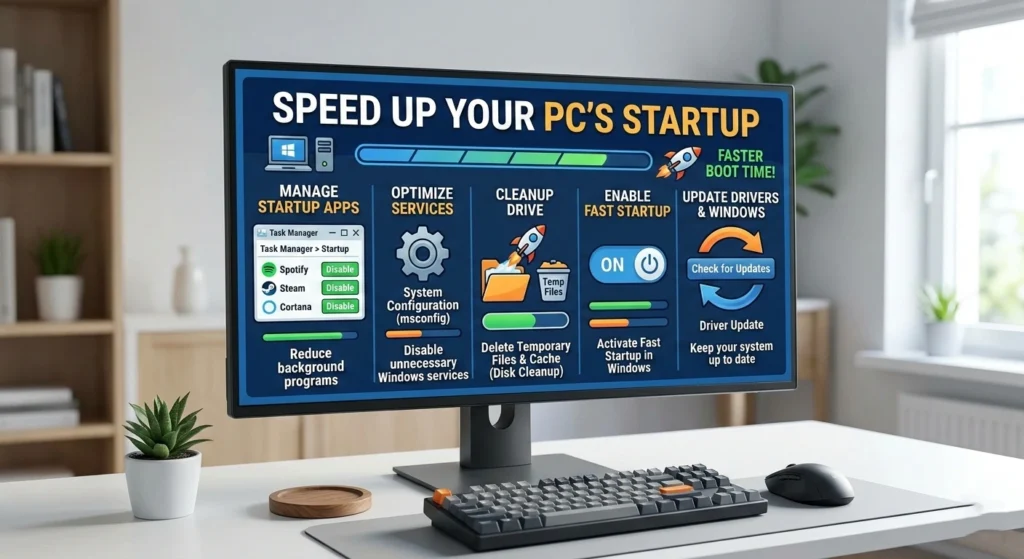
A slow startup is one of the most common performance complaints among PC users. Over time, operating systems accumulate background services, startup applications, and temporary files that increase boot time. applying a few simple tweaks, you can significantly reduce the time it takes for your computer to become ready for use.
Understanding What Happens During Boot
When you power on your PC, several processes occur before the desktop appears.
- The firmware initializes hardware components such as memory and storage.
- The operating system begins loading core system files.
- Essential services and drivers start running.
- Startup applications launch in the background.
Adjust Power and Startup Settings
Windows includes several settings that influence how quickly the system starts. One of the most effective options is Fast Startup, which allows the operating system to store certain system information before shutdown so it can load faster during the next boot.
Why Fast Startup Matters
Fast Startup works by saving the system kernel and driver state to a file when the computer shuts down. When the PC powers on again, Windows loads this saved state instead of initializing everything from scratch.
This process can reduce startup times by several seconds, particularly on older systems using traditional hard drives.
Reduce Background Services
Background services are essential for system operations, but some may run unnecessarily depending on your system configuration.
Common Services That Affect Boot Time
- Print services on systems without printers
- Legacy networking services
- Diagnostic tracking services
Restart Instead of Continuous Sleep Cycles
Many users rarely restart their computers, relying instead on sleep mode or hibernation. While convenient, long periods without restarting can cause memory clutter and temporary process buildup.
Restarting the system periodically clears temporary data and resets system processes, often improving both performanceand stability.
Manage Startup Programs to Improve Boot Time
One of the biggest causes of slow boot times is an excessive number of startup applications. Many programs automatically add themselves to the startup list during installation, which means they begin running every time the computer starts.
Over time, this can lead to dozens of background programs launching simultaneously.
Why Too Many Startup Apps Slow Down Your PC
Each startup application consumes system resources such as CPU time, memory, and disk activity. When multiple programs attempt to load at once, they compete for resources, causing the system to start more slowly.
Some applications that frequently appear in startup lists include.
- Messaging applications
- Cloud synchronization tools
- Game launchers
- Background update services
Not all of these programs need to run immediately when your PC starts.
Identify High-Impact Startup Programs
Windows includes a built-in feature that shows how much impact each startup application has on system performance.
Categories of Startup Impact
Startup programs are typically classified into three categories.
- High impact. Significantly increases boot time.
- Medium impact. Moderate effect on startup.
- Low impact. Minimal effect on performance.
Disabling high-impact programs can noticeably improve boot speed.
Deciding Which Programs to Disable
Before disabling a startup application, it is important to understand its function. Security software, for example, should remain enabled to protect your system.
Programs that are safe to disable typically include.
- Music streaming clients
- Collaboration apps
- Software updaters
- Media launchers
These applications can still be opened manually when needed.
Benefits Beyond Faster Boot Time
Reducing startup programs provides benefits beyond faster boot times. It also improves system responsiveness after login because fewer background processes are competing for resources.
Many users notice that their PC feels smoother and more responsive once unnecessary startup applications are disabled.
Upgrade Hardware Components for Better Performance
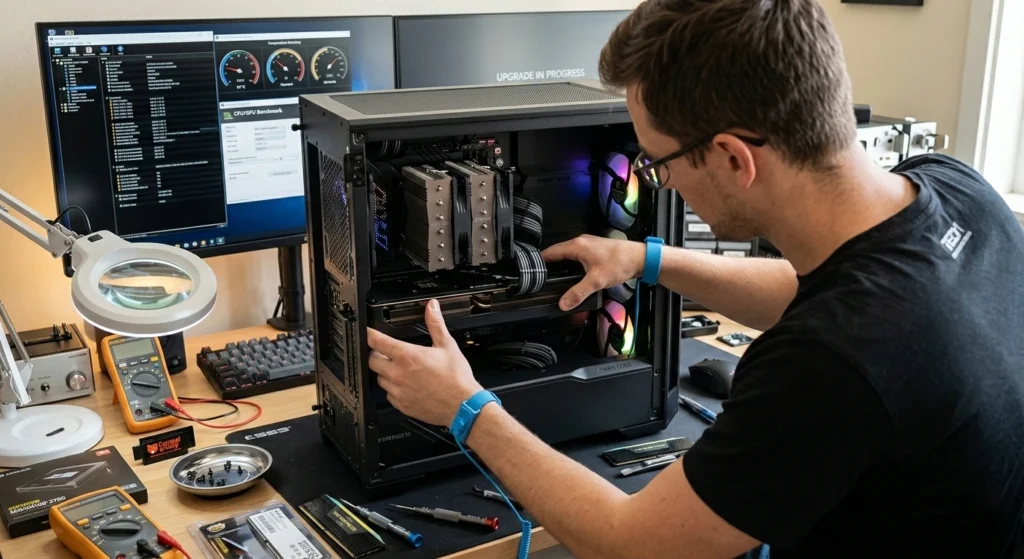
While software optimizations can significantly improve performance, hardware upgrades often deliver the most noticeable improvements in boot time and system stability.
Modern operating systems rely heavily on fast storage and sufficient memory to perform efficiently.
Solid-State Drives: The Most Effective Upgrade
Replacing a traditional hard disk drive (HDD) with a solid-state drive (SSD) is widely considered the single most effective upgrade for improving boot time.
Why SSDs Are Faster
SSDs use flash memory instead of spinning disks, allowing them to access data almost instantly. Traditional hard drives rely on mechanical components that take longer to locate and read files.
Typical differences include.
- HDD boot time. 60–120 seconds
- SSD boot time. 10–20 seconds
This dramatic improvement comes from faster data access speeds.
Increase System Memory (RAM)
Random Access Memory (RAM) plays a critical role in system stability. When your PC runs out of available memory, the operating system begins using disk storage as temporary memory, which is significantly slower.
Signs Your PC Needs More RAM
You may benefit from additional memory if you notice.
- Frequent system freezes
- Slow application launches
- High memory usage during normal tasks
Upgrading RAM allows the system to handle more processes simultaneously without slowing down.
Improve Cooling for System Stability
Hardware performance is closely tied to temperature. When components such as the CPU or GPU become too hot, they automatically reduce their speed to prevent damage.
This process, known as thermal throttling, can affect both performance and stability.
Simple Cooling Improvements
- Ensure proper airflow inside the PC case
- Clean dust from fans and vents
- Replace worn thermal paste on processors
Keeping temperatures under control helps maintain consistent performance and prevents unexpected shutdowns.
Clean Up Unnecessary Files and Optimize Storage
Storage management plays a crucial role in maintaining a fast and stable system. Over time, computers accumulate temporary files, outdated system logs, and unused data that can clutter the storage drive.
This clutter can slow down disk operations and increase boot times.
Temporary Files and System Clutter
Temporary files are created by operating systems and applications to store short-term data. While useful during operation, these files are often left behind after tasks are completed.
Examples include.
- Browser cache files
- Installation logs
- Temporary update files
Removing these files helps free up disk space and improves storage efficiency.
The Impact of a Nearly Full Drive
A storage drive that is almost full can significantly affect performance.
Why Full Drives Slow Down Systems
Operating systems require free space to manage virtual memory, temporary files, and background processes. When free space becomes limited, the system struggles to perform these tasks efficiently.
Experts recommend keeping at least 15–20% of storage space free for optimal performance.
Disk Fragmentation on Hard Drives
Disk fragmentation occurs when files are stored in scattered locations across the drive. This forces the system to work harder to retrieve data.
When Fragmentation Matters
Fragmentation primarily affects traditional hard drives. Solid-state drives do not suffer from the same performance impact because they access data electronically rather than mechanically.
Regularly optimizing storage layout can improve read efficiency on older systems using HDDs.
Use Built-in Windows Tools for System Optimization

Windows includes several built-in utilities designed to help maintain performance and system stability. These tools analyze system health, repair corrupted files, and manage storage efficiency.
Understanding how these utilities work can help you maintain a well-optimized computer without relying on external software.
Disk Cleanup Utility
Disk Cleanup is a long-standing Windows feature that removes unnecessary files such as temporary data, system logs, and cached files.
What Disk Cleanup Removes
This utility typically targets.
- Temporary system files
- Error reporting logs
- Old update files
- Recycle Bin contents
Removing these files reduces storage clutter and helps the operating system run more efficiently.
System File Checker
Corrupted system files can lead to crashes, boot failures, and general instability.
Why This Tool Is Important
System corruption can occur due to unexpected shutdowns, software conflicts, or incomplete updates. Running this tool periodically helps maintain operating system integrity.
Performance Monitoring Tools
Windows also includes performance monitoring toolsthat allow users to analyze system resource usage.
These tools provide insights.
- CPU utilization
- Memory usage
- Disk activity
- Background processes
Understanding which components are under heavy load helps identify performance bottlenecks.
Keep Your Software and Drivers Up-to-Date
Software updates play a critical role in system performance and stability. Many users delay updates, assuming they are unnecessary, but updates often include important fixes and performanceimprovements.
Why Software Updates Matter
Software developers regularly release updates to address security vulnerabilities, improve compatibility, and optimize performance.
Older versions of software may contain bugs that cause crashes or slowdowns.
Benefits of Updated Software
- Improved system compatibility
- Reduced risk of crashes
- Enhanced security
- Better hardware support
These improvements collectively contribute to a more stable computing environment.
The Role of Device Drivers
Device drivers act as communication bridges between the operating system and hardware components.
Outdated drivers can cause.
- Hardware malfunctions
- Performance degradation
- System instability
Common Drivers That Affect Performance
The most important drivers to keep updated.
- Graphics drivers
- Storage controllers
- Network adapters
- Chipset drivers
Updated drivers often include optimizations that improve hardware efficiency.
Avoid Driver Conflicts
Installing incompatible or outdated drivers can cause conflicts within the operating system.
Symptoms of driver conflicts.
- Blue screen errors
- Random restarts
- Hardware not functioning correctly
Maintaining properly updated drivers helps prevent these issues.
Perform Regular Maintenance to Maintain Stability
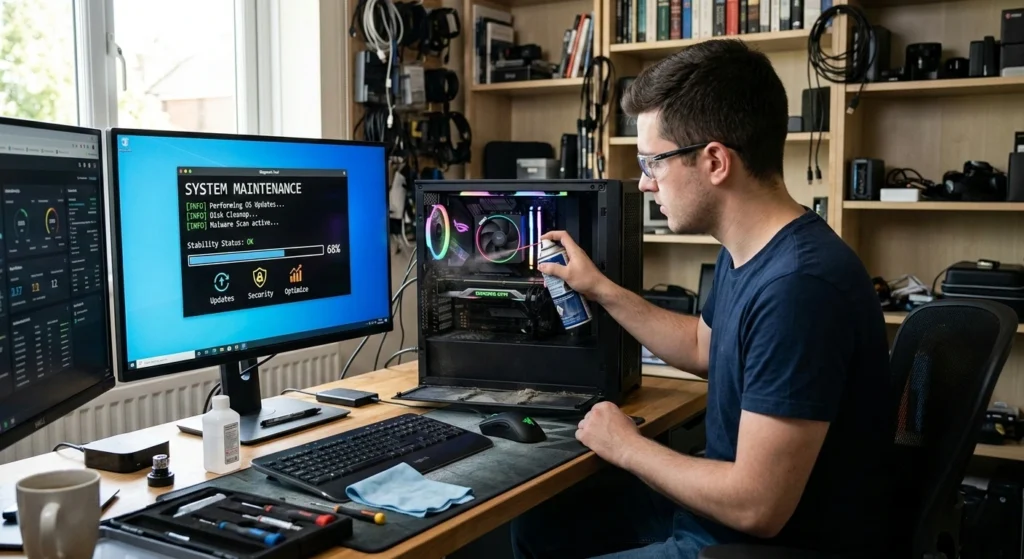
Even well-optimized systems require ongoing maintenance. Without regular upkeep, performance gradually declines as files accumulate, software ages, and system components experience wear.
Consistent maintenance ensures long-term stability and reliable performance.
Schedule Routine System Checks
Periodic system checks help identify potential issues before they escalate into serious problems.
Recommended maintenance task.
- Checking disk health
- Monitoring system temperatures
- Reviewing system logs for errors
These checks allow users to detect hardware or software problems early.
Monitor Resource Usage
Performance problems often occur when system resources are overloaded.
Monitoring CPU, memory, and disk usage can help identify which applications consume the most resources.
Why Monitoring Matters
Some applications may run hidden background processes that consume resources continuously. Identifying these programs allows users to make informed decisions about which applications should remain installed.
Maintain a Clean Operating Environment
Keeping the pc operating system environment organized helps prevent software conflicts.
This include.
- Removing unused applications
- Organizing files and folders
- Keeping essential software updated
A well-maintained system environment is less prone to crashes and performance issues.
Protect System Stability with Safe Practices
System stability is also influenced by how users interact with their computers.
good practice.
- Avoiding abrupt shutdowns
- Installing trusted software only
- Maintaining regular backups of important data
These habits reduce the risk of system corruption and data loss.
Final Thoughts
Optimizing your PC for faster boot time and long-term stability does not require advanced technical expertise. focusing on the combination of system settings, hardware improvements, and regular maintenance, users can significantly improve their computer’s overall performance.
Managing pc startup applications, maintaining clean storage, keeping drivers updated, and using built-in system tools all contribute to a more responsive and reliable computing experience.
Hardware upgrades such as installing a solid-state drive or increasing system memory can further enhance performance, especially on older systems.
Ultimately, the key to a fast and stable computer lies in consistent maintenance and thoughtful system management. When these practices are applied regularly, your PC can remain efficient, responsive, and dependable for years to come.