Keeping your Android device secure isn’t just about installing apps from trusted sources it also means staying up to date with the latest security patches. While most users rely on automatic over-the-air (OTA) updates, there are times when the update doesn’t show up, gets delayed by carriers, or fails to install properly. That’s where manually flashing Android OTA updates using Fastboot becomes a powerful solution.
If you’re comfortable using a computer and want more control over your device, Fastboot allows you to install official Android OTA security updates directly, without waiting for the rollout to reach your region. Whether you’re fixing a failed update, restoring a device to a clean state, or simply want the latest Android security patch immediately, this method gives you full control over the update process.
Manually flash Android OTA updates using Fastboot step by step. We’ll cover the tools you need, important precautions to take, and how to safely apply security updates without damaging your device or losing important data.you’ll be able to update your Android phone confidently and keep it protected against the latest vulnerabilities.
Step-by-Step Guide to Flashing Android OTA Security Updates with Fastboot
Android security updates are essential for protecting your device against newly discovered vulnerabilities, malware threats, and performance issues. While most updates arrive automatically through over-the-air (OTA) notifications, they don’t always roll out instantly to every device or region. If you’re tired of waiting or dealing with failed installations, manually flashing the update using Fastboot can be a reliable alternative.
This step-by-step guide to flashing Android OTA security updates with Fastboot is designed for users who want more control over their device. Whether you’re troubleshooting a software issue, updating a device that hasn’t received the latest patch yet, or simply prefer a hands-on approach, Fastboot gives you direct access to install official firmware safely.
OTA updates typically include:
- Updated system partitions
- Boot image updates
- Vendor security patches
- Updated firmware components
- Security patch level modifications
Android security bulletins are released monthly by Google and often include fixes for critical vulnerabilities in:
- Framework
- System components
- Media framework
- Kernel
- Qualcomm / MediaTekdrivers (device-specific)
Understanding the Difference: OTA ZIP vs Factory Image
There are two primary ways to manually update:
| Method | Use Case | Risk Level | Data Wipe |
|---|---|---|---|
| OTA Sideload | Minor update | Low | No |
| Fastboot Flash (Factory Image) | Full manual install | Medium | Usually Yes |
This article focuses on Fastboot-based flashing, which directly writes partitions.
Prerequisites Before Flashing
1. Unlock Bootloader (If Required)
Most devices require bootloader unlocking before flashing system partitions.
Warning:
- Unlocking wipes data.
- May void warranty.
- Triggers factory reset.
Command to check bootloader status:
fastboot flashing get_unlock_abilityUnlock (if allowed)
fastboot flashing unlock2. Install Platform Tools
You need:
- ADB
- Fastboot
- Proper USB drivers
Verify installation:
adb devices
fastboot devices
If your device ID appears, you’re connected properly.
3. Enable Developer Options
On your device:
- Settings → About Phone
- Tap “Build Number” 7 times
- Enable:
- OEM Unlocking
- USB Debugging
4. Verify Device Model and Build
Check your exact build:
adb shell getprop ro.build.version.security_patch
adb shell getprop ro.build.display.id
Flashing the wrong build can soft-brick your device.
Manually Install Android OTA Security Updates via Fastboot (Complete Guide)
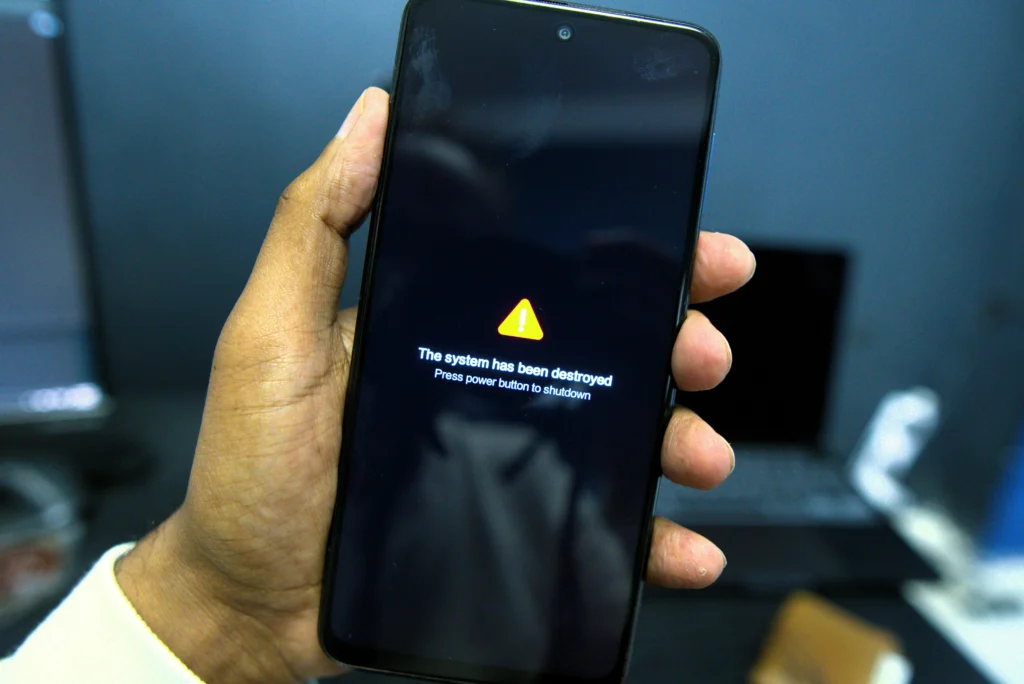
Keeping your Android device up to date with the latest security patches is crucial for protecting your data and ensuring smooth performance. While most devices automatically receive over-the-air (OTA) updates, delays or installation issues can leave your phone vulnerable. Manually installing Android OTA security updates via Fastboot is a reliable way to stay current without waiting for the automatic rollout.
OTA updates using Fastboot, giving you full control over your device. You’ll learn what tools are required, how to prepare your phone, and the step-by-step commands needed to safely apply updates. By following this guide, you can ensure your device stays secure, up to date, and running at its best.
Step 1: Download Correct Factory Image
Ensure:
- Exact model match
- Same region
- Correct architecture
- Latest security patch
Factory images typically include:
- boot.img
- system.img
- vendor.img
- vbmeta.img
- dtbo.img
- radio.img (if applicable)
- flash-all script
Step 2: Boot Into Fastboot Mode
Method 1 (ADB):
adb reboot bootloaderMethod 2 (Hardware keys):
- Power + Volume Down (varies by manufacturer)
Verify connection:
fastboot devicesStep 3: Flash Partitions Manually
If using manual flashing instead of script:
fastboot flash boot boot.img
fastboot flash vendor vendor.img
fastboot flash system system.img
fastboot flash vbmeta vbmeta.img
fastboot flash dtbo dtbo.img
If device uses A/B partition scheme:
fastboot --set-active=a Or: fastboot flash system_a system.imgStep 4: Reboot
fastboot rebootFirst boot may take 5–10 minutes.
Flashing Android OTA Updates Using Fastboot: A Security Update Tutorial
Security updates are not cosmetic. Keeping your Android device secure means staying on top of the latest security updates. While most phones receive over-the-air (OTA) updates automatically, sometimes updates are delayed, fail to install, or aren’t available in your region yet. In these cases, flashing Android OTA updates manually using Fastboot is an effective way to ensure your device stays protected.
They Often Patch:
- Privilege escalation vulnerabilities
- Kernel memory corruption flaws
- Remote code execution risks
- Bluetooth and Wi-Fi exploits
Why Manual Flashing Is Sometimes Necessary
You may need manual flashing if:
- OTA fails to install
- Bootloop after update
- Root modifications block OTA
- Custom recovery interferes
- Carrier delays security patch rollout
Manual flashing ensures:
- Clean system state
- Proper partition alignment
- Verified boot integrity restored
Understanding Verified Boot (AVB)
Android uses Android Verified Boot (AVB) to ensure:
- System partition integrity
- Bootloader security
- Protection against tampering
If flashing manually, vbmeta must match:
fastboot flash vbmeta vbmeta.imgIncorrect vbmeta causes boot failure.
How to Use Fastboot to Manually Flash Android OTA Security Patches
Not all updates require full system flashing. Want to keep your Android device secure without waiting for automatic updates? Learning how to use Fastboot to manually flash Android OTA security patches lets you install the latest updates immediately. Fastboot is a powerful command-line tool that works with your bootloader to flash system images, recovery files, and OTA packages safely. This guide walks you through the requirements, step-by-step process, and common errors to avoid, so you can update your device securely and efficiently, even on devices like Google Pixel.
Some devices support:
OTA Sideload via Recovery
Boot into recovery:
adb reboot recovery Then: adb sideload update.zipHowever, when OTA fails, Fastboot flashing becomes necessary.
Partition Layout in Modern Android (A/B Devices)
Modern Android devices use:
- Seamless updates
- Dual system partitions
- Slot switching
Check active slot:
fastboot getvar current-slot Switch slot: fastboot set_active bThis architecture reduces update failure risk but requires careful flashing.
Complete Guide to Manually Flashing Android OTA Updates with Fastboot
Let’s break down flashing strategies based on device types.
Devices With A/B Partition
Flash both slots:
fastboot flash system_a system.img
fastboot flash system_b system.img
Or use official script:
flash-all.batDevices Without A/B Partition
Flash single partitions:
fastboot flash system system.imgThen reboot.
Handling Bootloops After Flashing
If stuck:
- Re-flash vbmeta
- Wipe userdata:
fastboot -w- Ensure correct firmware
Bootloops usually result from:
- Mismatched firmware
- Downgrade attempt without wipe
- Corrupted download
Install Android OTA Security Updates Manually Using Fastboot Tools
Security patch level verification:
After boot..
adb shell getprop ro.build.version.security_patchIt should show updated patch date (e.g., 2025-01-05).
Common Errors and Solutions
Error: Fastboot Flashing is Not Allowed
Enable OEM Unlocking.
Error: Partition Size Too Large
Wrong build version.
Error: AVB Verification Failed
Flash correct vbmeta.
Device Not Detected
- Check drivers
- Change USB cable
- Use rear USB port
Data Safety Best Practices
Before flashing:
- Backup internal storage
- Disable screen lock
- Remove Google account (if necessary)
- Charge battery above 60%
Fastboot Method: How to Flash Android OTA Updates for Security Fixes
Need a reliable way to install Android security fixes manually? The Fastboot method lets you flash OTA updates directly to your device, bypassing delays in automatic rollouts. Using Fastboot, a powerful bootloader tool, you can safely apply system images and update packages, ensuring your device stays secure and up to date.
Security fixes often include:
- CVE patches
- Kernel LTS updates
- Updated device firmware blobs
Flashing ensures:
- Removal of malicious system modifications
- Reset of compromised partitions
- Restoration of stock boot image
Real Example: Monthly Security Patch Structure
Typical patch update modifies:
| Component | Impact |
|---|---|
| Framework | App sandbox fixes |
| System | Privilege checks |
| Kernel | Memory corruption fixes |
| Vendor | Hardware driver security |
Manual flashing guarantees these are properly written to partitions.
Beginner’s Guide to Flashing Android OTA Security Updates with Fastboot
If you’re new, follow this simplified workflow:
- Enable Developer Options
- Unlock bootloader
- Install ADB & Fastboot
- Download correct factory image
- Boot into Fastboot
- Flash partitions
- Reboot
- Verify security patch level
Avoid:
- Random firmware
- Cross-region flashing
- Downgrading without wipe
- Flashing partial packages
Is It Safe?
Yes, if:
- Correct image is used
- Bootloader unlocked properly
- Commands typed accurately
- No interruption during flashing
Most bricks happen due to:
- Wrong firmware
- Cable disconnection
- Power failure mid-flash
Manual Android OTA Update Installation Using Fastboot – Step-by-Step
Here is the full summarized technical workflow:
adb reboot bootloader
fastboot devices
fastboot flashing unlock
fastboot flash boot boot.img
fastboot flash system system.img
fastboot flash vendor vendor.img
fastboot flash vbmeta vbmeta.img
fastboot reboot
After reboot:
adb shell getprop ro.build.version.security_patchIf patch date matches latest bulletin, update succeeded.
When Should You Avoid Manual Flashing?
- Device under warranty restrictions
- Bootloader unlock not supported
- You lack backup
- You’re unsure about firmware version
Manual flashing is powerful but requires responsibility.
Conclusion
Manually flashing Android OTA security updates using Fastboot gives you full control over your device’s update process. It ensures that security patches are correctly installed, system partitions are clean, and verified boot integrity is restored.
While OTA updates are convenient, manual flashing is invaluable when updates fail, devices become unstable, or you need to restore stock firmware after modification.
If performed carefully using correct firmware, proper commands, and verified builds the Fastboot method remains one of the most reliable ways to apply Android security updates manually.
Security updates are not optional. They patch real-world vulnerabilities. Knowing how to manually flash them gives you control, recovery capability, and long-term device security.