Install Linux on your PC might sound technical, but for most users in 2026, it’s simpler than installing older versions of Windows used to be. Modern Linux distributions offer polished installers, automatic hardware detection, and long-term support. Whether you’re switching from Windows, setting up an old laptop, or learning open-source systems, this guide walks you through everything step by step without assuming prior experience.
Are you curious about switching to Linux but don’t know where to start? Whether you’re frustrated with Windows, seeking a more secure and customizable operating system, or simply exploring the world of open-source software, installing Linux on your PC is a great choice. Linux offers a range of benefits: it’s free, fast, and highly customizable. Plus, with its active community and strong support for a wide range of hardware, Linux can be a powerful, yet beginner-friendly, alternative to traditional operating systems.
However, for first-time users, the idea of installing Linux may seem intimidating. But don’t worry! In this guide, we’ll walk you through the entire process, from downloading the Linux distribution (distro) of your choice to completing the installation and running your first Linux application. You’ll learn how to prepare your system, create a bootable USB, and choose the right Linux version for your needs, all in simple, easy-to-follow steps.
Why Choose Linux for Your PC?
Linux is no longer just for developers or system administrators. Today, it powers everything from servers and supercomputers to laptops and desktops.
Open-Source and Transparent
Linux is built on the Linux kernel created by Linus Torvaldsin 1991. Unlike proprietary operating systems, Linux is open-source.
That means..
- The source code is publicly available.
- Anyone can inspect or improve it.
- Security vulnerabilities are often discovered and patched quickly.
Large organizations like Google, NASA, and IBM rely on Linux-based systems because of this transparency.
Performance on Older Hardware
One of Linux’s biggest strengths is efficiency. Lightweight desktop environments such as XFCE or LXQt can run smoothly on PCs with.
- 4 GB RAM
- Dual-core processors
- Older SATA hard drives
Instead of replacing your PC, installing Linux can extend its lifespan by years.
Security and Stability
Linux benefits..
- Strong user permission controls
- Software repositories instead of random executable downloads
- Frequent security updates
Privacy and Control
Most Linux distributions do not collect telemetry data by default. Users have greater control over.
- System updates
- Software installation
- Background services
If privacy matters to you, Linux offers a more transparent environment.
Preparing Your PC for a Linux Installation
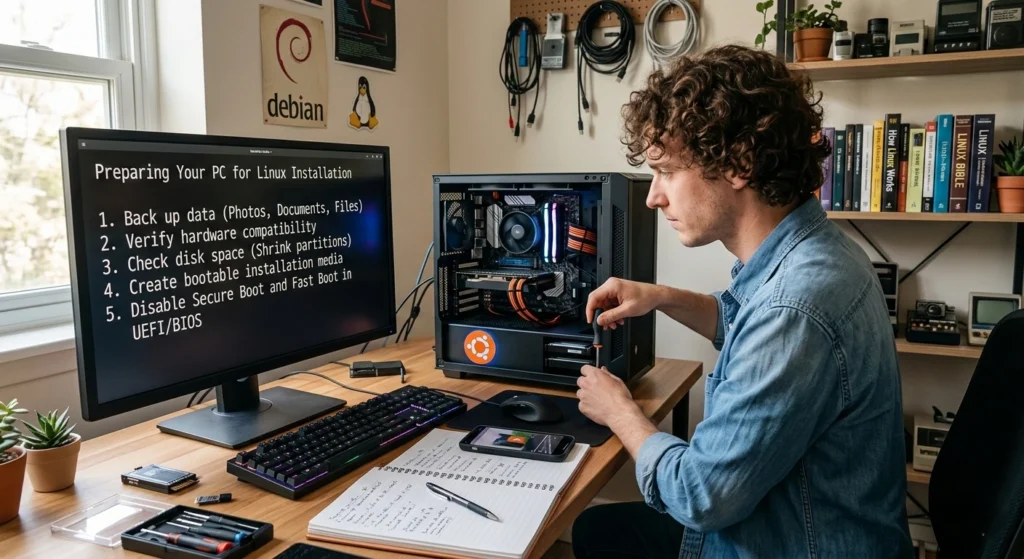
Before installing Linux, preparation ensures a smooth process. Before you jump into installing Linux on your PC, it’s important to take a few preparatory steps to ensure a smooth and successful installation process.
Setting up your system properly will help prevent potential issues down the road and give you a better experience with your new operating system.
The first thing you should do is back up your data. If you’re planning on installing Linux alongside an existing OS like Windows, there’s no need to worry, but it’s always a good idea to back up important files to an external drive or cloud storage, just in case.
If you’re replacing your current operating system with Linux, a backup is crucial to avoid losing any personal data.
PC minimum hardware requirements.
Next, make sure your PC meets the minimum hardware requirements for Linux. Most modern computers should work just fine, but it’s good to verify that your processor, RAM, and storage are up to the task. If you’re unsure about the specs, a quick look in your system settings will tell you everything you need to know. Fortunately, Linux is lightweight and can run well on older hardware, which is one of its major advantages.
Check Minimum System Requirements
For most beginner-friendly distributions like Ubuntu or Linux Mint, recommended specs.
- 4 GB RAM (8 GB ideal)
- 25 GB free disk space
- 64-bit processor
- USB port (8 GB flash drive)
You can check system specs in Windows by pressing.
Win + R → type msinfo32Back Up Your Important Files
Installation may involve disk partitioning.
Always back up.
- Documents
- Photos
- Browser bookmarks
- Email archives
Use external drives or cloud storage before proceeding.
Decide: Dual Boot or Full Replacement?
You have two options.
- Dual Boot – Install Linux alongside Windows.
- Full Replacement – Erase Windows completely.
Beginners often start with dual boot for flexibility.
Downloading and Creating a Bootable Linux USB
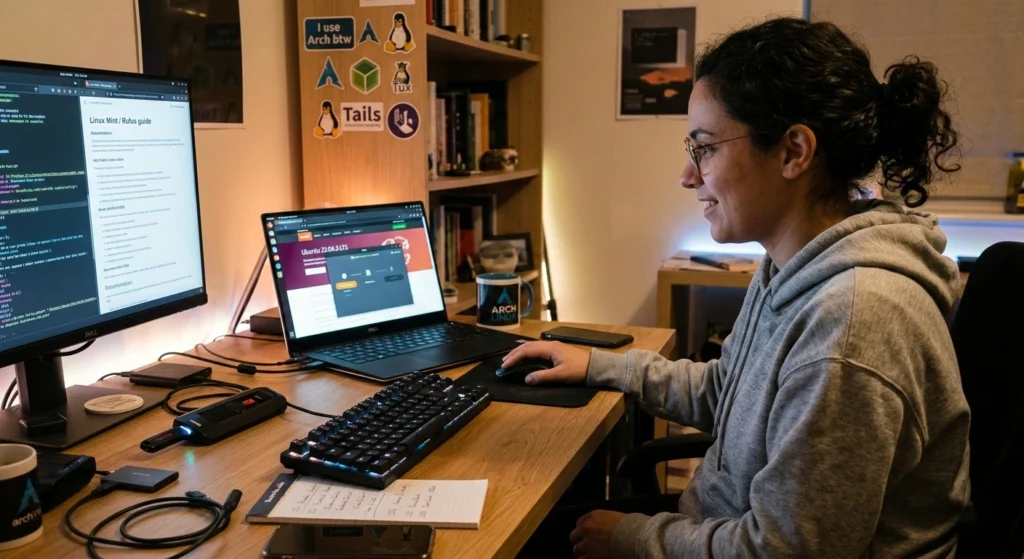
The installation begins with creating a bootable USB drive. One of the essential steps in installing Linux on your PC is creating a bootable USB drive. This allows you to install Linux operating system without needing a DVD drive, and it’s a quick and efficient way to try out Linux on your computer before making it your primary OS.
Here’s how to do it step-by-step.
- Verify the Bootable USB.
After the process is complete, safely eject the USB stick from your computer. You can double-check by plugging it into another machine and seeing if it boots up, or if the USB drive shows the Linux installation files. - Choose a Linux Distribution.
The first thing you need to do is download a Linux distribution (distro). Popular beginner-friendly choices include Ubuntu, Linux Mint, and Fedora. Go to the official website of the chosen distro and download the ISO file for your system (either 32-bit or 64-bit depending on your hardware). - Download a USB Creation Tool.
To create a bootable USB, you’ll need software to burn the ISO to the drive. Tools like Rufus (for Windows), Etcher, or UNetbootin are widely used and easy to install. These tools will help you transfer the Linux ISO to your USB stick in a bootable format. - Prepare a USB Drive.
Insert a USB stick (at least 4GB in size, but 8GB or more is recommended) into your PC. Keep in mind that this process will erase all data on the USB, so make sure it’s empty or that you’ve backed up any important files. - Create the Bootable USB.
Open your USB creation tool (e.g., Rufus), and select the USB drive as the target device. Then, choose the Linux ISOfile you downloaded and configure the settings. Most tools will automatically select the right partition scheme and file system for your system. Simply click “Start” or “Create” to begin the process. This may take several minutes, depending on the size of the ISO and the speed of your USB drive.
Downloading the ISO File
Visit the official website of your chosen distribution and download the ISO image.
for example.
- Ubuntu
- Fedora
- Debian
Make sure to download the 64-bit version unless you have very old hardware.
Creating the Bootable USB in Windows
Insert your USB drive (minimum 8 GB).
Using a USB writing utility.
- Select the downloaded ISO file.
- Choose your USB drive.
- Select GPT (for UEFI systems).
- Click Start.
⚠️ This will erase all data on the USB.
Verifying the ISO (Optional but Recommended)
Advanced users verify the ISO checksum.
In PowerShell.
Get-FileHash path\to\linux.isoCompare it with the official SHA256 hash on the website.
How to Boot From a USB Drive to Install Linux
Once your USB is ready, you need to boot from it. Now that you’ve created a bootable USB drive with Linux, the next step is to boot your PC from the USB and start the installation process. This step is crucial because it tells your computer to run the Linux installer directly from the USB, bypassing the current operating system.
Follow these steps to boot from a USB drive and install Linux on your PC..
- Start the Linux Installation Process:
Once your PC successfully boots from the USB, you should see a screen with the option to either Try Linux or Install Linux. Select the Install Linux option to begin the installation. From here, you can follow the prompts to set up your language, time zone, partitioning, and other system preferences. - Insert the Bootable USB Drive:
Plug the USB drive you created into an available USB port on your PC. Make sure the PC is powered off before moving on to the next step. - Power On and Enter BIOS/UEFI:
Turn on your PC and immediately start pressing the key to enter the BIOS/UEFI setup. The key varies by manufacturer but is usually F2, F12, Esc, or Delete. You should see a prompt on the screen during startup indicating which key to press. - Enable USB Boot in BIOS/UEFI Settings:
Once inside the BIOS/UEFI, look for the Boot Options or Boot Order settings. You need to ensure that your computer is set to boot from the USB drive first. Use the arrow keys to move the USB device to the top of the boot priority list. If Secure Boot is enabled, disable it as it can sometimes block booting from external devices. - Save and Exit BIOS/UEFI:
After adjusting the boot order, save the changes and exit the BIOS/UEFI. Your PC will now restart. - Select the USB Drive for Booting:
After saving, your PC should automatically boot from the USB drive. If it doesn’t, you may need to manually select the boot device by pressing a special key (often F12) during startup to open the boot menu. From the boot menu, choose the USB drive as the device to boot from.
Accessing BIOS/UEFI
Restart your PC and repeatedly press.
- F2
- F12
- DEL
- ESC
(The key depends on manufacturer.)
Disable Secure Boot (If Necessary)
Some systems require Secure Boot to be disabled in BIOS before Linux installation.
Select USB Boot Device
Choose the USB drive from the boot menu.
You’ll see a screen like.
- Try Linux
- Install Linux
Choose “Try” first if you want to test without installing.
Selecting the Right Linux Distribution for Beginners
Not all Linux distributions are the same. When you first start exploring Linux, one of the most important decisions you’ll make is which Linux distribution (distro) to choose. Linux comes in many flavors, each with its unique features, user interface, and focus areas. As a beginner, it’s essential to pick a distro that is easy to use, well-supported, and has a large community to help you along the way. what to consider when selecting the right Linux distribution for your needs.
First, think about the user interface. Some Linux distros, like Ubuntu and Linux Mint, come with a user-friendly interface that closely resembles Windows, making the transition easier for those who are new to Linux. If you’re coming from a macOS environment, you might prefer distros like elementary OS, which offers a similar design style. The key is to choose a distro with an interface that feels intuitive and comfortable for you.
Beginner-Friendly Options
Ubuntu
- Clean interface (GNOME)
- Large community support
- Long-Term Support (LTS) releases
Linux Mint
- Familiar Windows-like layout
- Excellent for switching users
- Lightweight versions available
Fedora
- Latest software packages
- Strong developer support
What Should You Choose?
If you are completely new → Linux Mint
If you want strong documentation → Ubuntu
If you enjoy latest features → Fedora
Step-by-Step Instructions for Installing Linux
Once booted into live mode. Installing Linux on your PC doesn’t have to be complicated.
here is a straightforward approach to get you up and running.
- Post-Installation Setup: After the first boot, you may want to install linux updates, add extra software, and customize your settings.
- Download the Linux ISO: Choose a beginner-friendly Linux distribution like Ubuntu or Linux Mint. Go to the official website and download the ISO file for your chosen distro.
- Create a Bootable USB: Use tools like Rufus (on Windows) or Etcher to create a bootable USB drive. This will allow you to install Linux directly from the USB.
- Prepare Your PC: Backup any important data and, if necessary, resize your current partitions to free up space for Linux. Ensure your BIOS is set to boot from USB.
- Boot from USB: Insert the bootable USB into your PC, restart it, and select the USB drive as the boot device from the BIOS or boot menu.
- Start the Installation: Once the system boots into the Linux installer, follow the on-screen instructions. Choose your language, time zone, and keyboard layout.
- Partitioning and Disk Setup: You can choose to install Linux alongside your current OS (dual-boot) or erase the disk and install Linux as the sole operating system. Make sure to select the right option for your needs.
- Create User Accounts: Set up your username and password. You’ll use these to log in once Linux is installed.
- install Linux and Reboot: After confirming all settings, let the installer run. Once finished, remove the USB drive and reboot your system.
Launch the Installer
Click “Install” on the desktop.
Choose Language and Keyboard
Select.
- Language
- Keyboard layout
- Time zone
Installation Type
Options include.
- install Linux alongside Windows
- Erase disk and install Linux
- Manual partitioning
Choose based on your earlier decision.
Setting Up Partitions for Linux Installation
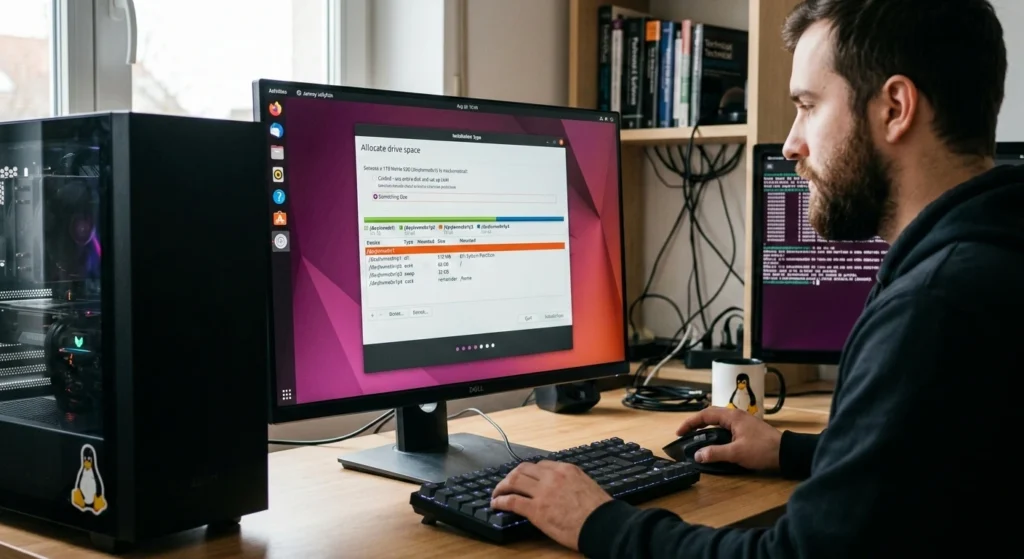
Partitioning defines how disk space is allocated. Partitioning is a critical step when installing Linux, especially if you plan to dual-boot with another operating system like Windows. Proper partitioning helps organize your system, making it more efficient and easier to manage.
here is a breakdown of the key points for setting up partitions during your Linux installation.
1: Understand Partitioning Basics.
- Root Partition (/). This is where the core system files will be installed. It’s required for every Linux installation.
- Swap Partition. This is used as virtual memory if your physical RAM is full. It is helpful for performance, particularly on systems with less RAM.
- Home Partition (/home). This stores your personal files, settings, and installed applications. It’s useful if you plan to reinstall Linux in the future, as it allows you to keep your files intact.
2: Decide on Partitioning Scheme.
If you’re dual-booting, you’ll need to shrink your existing partition (e.g., Windows) to free up space for Linux. If you’re installing Linux as the only OS, you can choose to allocate the entire disk to Linux. You’ll be given the option to manually set partitions or let the installer do it automatically.
3: Create Partitions.
During installation, the installer will ask where to install Linux. If you’re manually partitioning, use tools like GParted (usually built into the installer)
Create.
- A root partition (ext4 format is most common)
- A swap partition (typically 1-2x the size of your RAM)
- Optionally, a separate /home partition for your data.
4: Allocate Space Correctly.
Make sure you allocate enough space for each partition.
for a basic Linux setup.
- Root: 20-30GB (or more, depending on what you plan to install)
- Swap: Equal to or 1.5 times your RAM (especially if you have less than 8GB of RAM)
- Home: The remaining free space for personal files
5: Proceed with Installation.
Once your partitions are set, the installer will use them to install Linux operating system. Double-check the partitions before confirming, as this process may overwrite data if not done carefully.
Partitioning can seem tricky at first, but following these steps will ensure a smooth installation. A good partition scheme not only helps with the initial setup but also makes managing your system easier down the road.
Automatic Partitioning
The installer handles.
/(root)swap/home(optional)
Recommended for beginners.
Manual Partitioning (Advanced Users)
Typical layout.
| Partition | Size | Type |
|---|---|---|
| / | 20–30 GB | ext4 |
| swap | 2–8 GB | swap |
| /home | Remaining | ext4 |
Linux commonly uses ext4 filesystem.
Customizing Your Linux Installation Settings
Once you’ve set up your partitions and started the installation process, customizing your Linux settings is the next crucial step to make your system truly your own.
here is how you can tailor your installation to suit your preferences.
- Choose Your Time Zone and Keyboard Layout.
During the installation, you’ll be prompted to select your time zone and keyboard layout. These settings are essential for ensuring that your system displays the correct local time and that your keyboard is mapped properly. - Create User Accounts.
You’ll need to set up a primary user account. This will be your default login and allow you to access administrative privileges. You can also set up a password for the root (administrator) account, although many modern distros, like Ubuntu, don’t require a root password and rely onsudofor elevated access. - Select a Desktop Environment.
Some Linux distributions allow you to choose from different desktop environments (DE) during installation, such as GNOME, KDE Plasma, XFCE, or Cinnamon. These DEs provide the visual interface for your Linux system, so choose one that matches your style and system performance preferences. For example, GNOME is clean and modern but can be resource-heavy, while XFCE is lightweight and great for older hardware. - Enable or Disable Third-Party Repositories.
Most Linux distros offer the option to enable third-party repositories during installation, which may include non-free software or media codecs. If you need support for proprietary software like Flash or want to play media files right away, you might want to check this box. However, enabling third-party sources can sometimes lead to stability issues, so it’s best to proceed with caution if you want a purely open-source setup. - Set Up Automatic Updates.
During installation, some distributions will ask if you want to enable automatic updates. Enabling this ensures that your system stays secure and up to date without manual intervention. However, you can always choose to update manually later if you prefer more control over the process. - Select Installation Type.
Depending on your needs, you can choose from different installation options. You might install Linux as the sole OS, dual-boot alongside an existing operating system, or use a minimal installation that only includes the essentials. Make sure to choose the one that best fits your setup goals. - Choose System Language and Locale.
If you speak a language other than English or prefer a specific locale, you’ll have the opportunity to set this up during installation. This will affect how dates, times, and currency symbols are displayed on your system.
taking the time to customize these settings during installation, you’re ensuring that your Linux system is tailored to your needs and preferences right from the start.
Create User Account
You’ll set.
- Username
- Computer name
- Password
Avoid weak passwords.
Choose Login Options
- Require password to log in
- Log in automatically
Security best practice: require password.
Completing the Installation and First Boot
Installation usually takes 10–20 minutes depending on hardware.
When finished.
- Click Restart.
- Remove USB when prompted.
You’ll now see the boot menu if dual booting.
Welcome to your Linux desktop.
Basic Linux Commands Every Beginner Should Know
Linux uses terminal commands for many tasks. Basic Linux commands are essential for navigating and managing your system. Some of the most important commands every beginner should know include pwd to display your current directory, lsto list files and directories, and cd to change directories.
To create directories, you can use mkdir, and to remove files or directories, rm is the command you’ll need. For copying and moving files, cpand mvcome in handy, respectively. If you need to edit a file, nano and vim are the go-to text editors.
To check disk usage, use df and du. The chmod command is essential for changing file permissions, while top and ps let you monitor system processes. Package management on Debian-based systems can be done with apt-get, and sudo allows you to run commands with administrative privileges.
Finally, man provides manuals for commands, clear clears the terminal, and exit closes the terminal session. Mastering these basic commands will give you a solid foundation for using Linux effectively.
Open Terminal and try.
Navigation Commands
pwd # Show current directory
ls # List files
cd folder # Change directory
File Management
mkdir test
rm file.txt
cp file1 file2
mv old new
System Info
uname -a
df -h
free -m
Learning terminal basics builds confidence quickly.
How to Install Software and Updates on Linux
Linux does not rely on random installers. Installing software and keeping your Linux system updated is crucial for maintaining performance and security. On most Linux distributions, package managementtools make this process straightforward.
To install Linux software, you can use the package manager for your specific distro. For example, on Debian-based systems like Ubuntu, you would use apt to install Linux packages. Simply open the terminal and run sudo apt update to refresh the package database, followed by sudo apt install <package_name> to install Linux desired software. For Red Hat-based systems like Fedora, the package manager is dnf, and the command is sudo dnf install <package_name>.
For graphical users, many Install Linux distributions come with a software center or store, where you can search for and install Linux applications without needing to use the terminal. To keep your system up to date, you should regularly run system updates.
On Debian-based systems, this can be done by running sudo apt update && sudo apt upgrade in the terminal, which fetches the latest updates and installs them. Most distros will also have a graphical update tool that automatically notifies you when updates are available. Regularly updating your software ensures your system remains secure and runs the latest features.
Updating System (Debian/Ubuntu-based)
sudo apt update
sudo apt upgrade
Installing Software
sudo apt install vlcFor Fedora.
sudo dnf install vlcSoftware comes from official repositories, improving security.
Troubleshooting Common Linux Installation Issues
Even smooth installations can face problems. Common issues during Install Linux include problems with the bootloader, where the system may fail to boot into Linux. This can usually be fixed by repairing the bootloader with tools like boot-repair.
Partitioning errors can also occur, especially if you’re dual-booting with another OS ensure you have unallocated space and correct partition schemes. If Wi-Fi or drivers aren’t working, you may need to install Linux proprietary drivers, which can be done through the terminal or software manager.
Lastly, if your system feels slow or unresponsive, switching to a lighter desktop environment or adjusting system settings might improve performance.
Wi-Fi Not Working
Check drivers.
lspci | grep -i networkinstall Linux missing firmware if required.
Black Screen After Install
Possible causes.
- Graphics driver conflicts
- Secure Boot enabled
Boot into recovery mode to fix drivers.
Bootloader Issues (GRUB)
Reinstall GRUB from live USB if necessary.
Final Thoughts
Installing Linux on your PC is no longer complicated. Modern distributions offer user-friendly installers, strong hardware compatibility, and large communities ready to help.
Whether you choose Ubuntu, Linux Mint, or Fedora, the installation process follows the same core principles.
- Prepare your system
- Create bootable USB
- Boot from USB
- install Linux and configure
- Update and explore
Install Linux gives you performance, privacy, and control. For beginners willing to learn, it offers one of the most rewarding computing experiences available today.