A kernel panic on macOS can be a frustrating experience, as it often leads to system crashes and unexpected reboots. Understanding what causes these errors and knowing how to fix them is crucial for maintaining a stable system. Kernel panics are typically caused by software conflicts, corrupted system files, or faulty hardware.
identifying the cause of a macOS kernel panic and offer practical solutions. You learn how to boot your Mac in Safe Mode, run Disk Utility to repair disk errors, reset the NVRAM/PRAM, and update macOS to eliminate bugs that might be triggering the panic.
Kernel Panic errors on macOS are frustrating, especially when your screen suddenly turns black and your Mac restarts without warning. If you’ve ever seen the message:
“Your computer restarted because of a problem.”
What is a macOS Kernel Panic? Understanding the Issue

A macOS Kernel Panic occurs when the operating system core the kernel encounters a fatal error it cannot safely recover from. The kernel is the central component of macOS, responsible.
- Managing memory
- Controlling CPU scheduling
- Handling hardware communication
- Running system-level drivers (kernel extensions)
If something corrupts memory, conflicts with hardware drivers, or causes a low-level crash, macOS forces an immediate shutdown to prevent data corruption.
What Actually Happens During a Kernel Panic?
Under the hood, macOS (built on Darwin, a Unix-based system) triggers a panic.
- The kernel detects invalid memory access
- A kernel extension (kext) crashes
- A hardware interrupt fails
- A watchdog timeout occurs
In older macOS versions, you had see a black screen with multilingual text telling you to restart. In modern versions like macOS Sonoma or macOS Ventura, the Mac usually reboots automatically and displays a message afterward.
Where macOS Stores Panic Logs
Kernel panic logs are saved in.
/Library/Logs/DiagnosticReports/Or viewable through.
Console.app → Crash ReportsThese logs contain.
- Backtrace data
- Kernel version
- Loaded kernel extensions
- Faulting process
Understanding these logs is critical for diagnosing repeated macOS Kernel Panic errors.
Common Causes of macOS Kernel Panic Errors
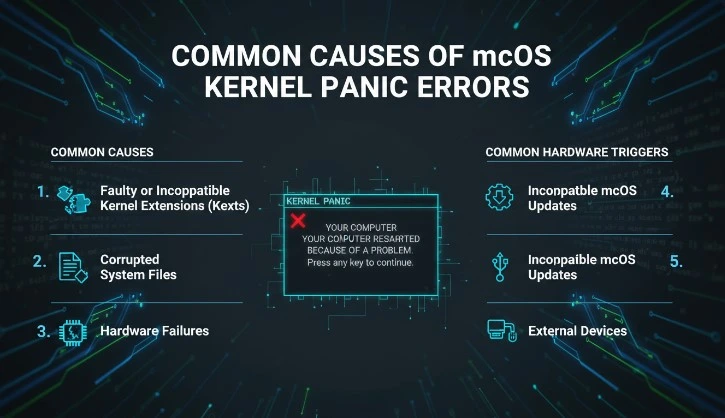
A macOS Kernel Panic is rarely random. It usually stems from one of several technical issues. kernel panic on macOS is essentially the system’s way of saying something has gone terribly wrong, causing the operating system to shut down unexpectedly to prevent further damage. While it can be alarming, understanding the common causes behind these errors can help you troubleshoot and fix the issue more effectively.
Often, macOS kernel panics are triggered by software issues like incompatible applications, outdated drivers, or corrupted system files. In some cases, faulty hardware such as bad RAM, a failing hard drive, or even connected peripherals can also be the culprit.
1. Faulty or Incompatible Kernel Extensions (Kexts)
Kernel extensions run at the system level. If a third-party kext is outdated or incompatible with a new macOS version, it can trigger panic errors.
Example causes.
- Antivirus software conflicts
- Old virtualization drivers
- Legacy USB or GPU drivers
Apple has gradually reduced third-party kernel extensions since macOS Catalina, replacing many with system extensions to improve stability.
2. Corrupted System Files
If macOS system files are corrupted often after forced shutdowns or disk errors the kernel may fail during boot.
File corruption can occur due to.
- Power outages
- Failing SSD
- Interrupted updates
3. Hardware Failures
Hardware issues are one of the leading causes of repeated macOS Kernel Panic errors.
Common hardware triggers
- Faulty RAM
- Failing SSD
- GPU malfunction
- Logic board issues
- Overheating CPU
Apple Diagnostics can detect many hardware-level issues (more on that later).
4. Incompatible macOS Updates
Major macOS upgrades can conflict with older drivers or legacy software.
For example.
- Upgrading from macOS Monterey to Ventura without updating third-party drivers
- Unsupported peripherals
5. External Devices
USB hubs, Thunderbolt docks, and external GPUs can trigger kernel panics if firmware conflicts occur.
How to Identify Kernel Panic Error Messages on macOS
Identifying the exact cause is critical before applying fixes.
Step 1: Check Panic Logs
Open Terminal and run.
log show --predicate 'eventMessage contains "panic"' --last 7dThis command filters panic logs from the last 7 days.
Look for lines like.
panic(cpu 0 caller 0xffffff801234abcd): Kernel trap at 0xffffff801234abcdKey things to check.
- Faulting kext name
- CPU core
- Backtrace process
Step 2: Use Console App
Open.
Applications → Utilities → ConsoleSearch.
panicStep 3: Look for Repeated Patterns
If the same kext appears repeatedly, that’s likely the root cause.
Example.
com.apple.driver.AppleIntelHDGraphicsThat would indicate a GPU-related issue.
Basic Troubleshooting Steps for macOS Kernel Panic
Before diving into advanced solutions, try these foundational steps.
1. Disconnect All External Devices
Remove.
- USB drives
- External displays
- Docking stations
- Printers
Restart your Mac. If the panic stops, reconnect devices one by one.
2. Check for Software Conflicts
Uninstall recently installed apps especially:
- System cleaners
- Virtual machine software
- Antivirus programs
3. Free Up Disk Space
Low disk space can destabilize macOS.
Check storage.
df -hIf your startup disk is above 90% full, free up space.
4. Run Apple Diagnostics
Shut down your Mac.
Turn it on and immediately hold D.
Apple Diagnostics will check.
- RAM
- Logic board
- Storage
- Sensors
It will display a reference code if hardware issues are found.
How to Boot macOS in Safe Mode to Resolve Kernel Panic
Safe Mode loads only essential system components.
For Apple Silicon Macs
- Shut down
- Press and hold power button
- Select startup disk
- Hold Shift → Continue in Safe Mode
For Intel Macs
- Restart
- Hold Shift immediately
What Safe Mode Does
- Disables third-party kernel extensions
- Clears system caches
- Runs disk verification
If macOS Kernel Panic does not occur in Safe Mode, the issue likely involves:
- Third-party drivers
- Login items
- Startup processes
Using macOS Disk Utility to Fix Kernel Panic Errors
File system corruption can trigger panic errors.
Step 1: Boot into Recovery Mode
For Apple Silicon.
- Hold power button → Options
For Intel.
- Restart → Hold Command (⌘) + R
Step 2: Run First Aid
Open Disk Utility → Select startup disk → Run First Aid
First Aid checks.
- File system structure
- Volume integrity
- Metadata corruption
If errors are fixed, restart normally.
Resetting the NVRAM/PRAM to Resolve Kernel Panic Issues
NVRAM stores settings like.
- Display resolution
- Kernel panic info
- Startup disk selection
Corrupted NVRAM can cause boot instability.
Reset NVRAM (Intel Macs Only)
- Shut down
- Power on
- Hold:
Option + Command + P + RHold for 20 seconds.
Apple Silicon Macs reset NVRAM automatically during restart.
How to Update macOS and Drivers to Prevent Kernel Panic
Outdated system files are a major cause of macOS Kernel Panic errors.
Check macOS Version
Click.
Apple Menu → About This MacIf an update is available, install it via.
System Settings → General → Software UpdateApple regularly releases kernel patches to fix.
- Memory leaks
- Driver conflicts
- Security vulnerabilities
For example, many macOS Ventura updates included GPU stability fixes.
Keep Drivers Updated
If you use.
- External GPUs
- Audio interfaces
- Thunderbolt devices
Visit manufacturer websites for firmware updates.
Checking Hardware and External Devices for Kernel Panic Triggers
1. Check RAM Health
Frequent panics during memory-intensive tasks indicate possible RAM issues.
Run Apple Diagnostics or visit an Apple Store for deeper testing.
2. Monitor Temperature
Use Activity Monitor → CPU tab.
If CPU constantly runs above 90%, overheating may cause panic shutdowns.
3. Disconnect Peripherals
Test Mac without.
- USB hubs
- External monitors
- Third-party keyboards
Faulty USB controllers are common panic triggers.
Reinstalling macOS to Fix Persistent Kernel Panic Errors
If nothing works, reinstall macOS.
Step 1: Backup Your Data
Use Time Machine.
Step 2: Boot into Recovery Mode
Command + R (Intel)
Power button → Options (Apple Silicon)
Step 3: Select Reinstall macOS
This reinstalls system files without erasing data.
If panics persist after reinstall, hardware failure is likely.
When to Seek Professional Help for macOS Kernel Panic Issues
You should contact Apple Support.
- Kernel panic happens daily
- Apple Diagnostics shows error codes
- Mac won’t boot
- Logic board suspected failure
Visit.
Apple Support
Or schedule a Genius Bar appointment.
Persistent panic errors after OS reinstall usually indicate hardware-level faults.
Conclusion
Fixing macOS Kernel Panic errors requires a structured approach.
- Identify logs
- Isolate hardware
- Boot in Safe Mode
- Run Disk Utility
- Reset NVRAM
- Update macOS
- Reinstall if necessary
To prevent future macOS Kernel Panic issues.
- Keep macOS updated
- Avoid unsupported third-party kernel extensions
- Use certified hardware
- Maintain free disk space
- Shut down properly
Kernel Panic errors can seem alarming, but with systematic troubleshooting, most issues can be resolved without replacing your Mac.
If you follow this step-by-step guide carefully, you can diagnose and fix macOS Kernel Panic errors confidently and safely.