Modern computers are designed to handle complex tasks, multitasking environments, and demanding software. However, even powerful systems can start running slow, freezing, or lagging when CPU and RAM usage becomes unusually high. Many users experience situations where their computer becomes unresponsive, applications take longer to open, or the system fan constantly runs at high speed. These symptoms often indicate that the processor and memory resources are being overused.
High CPU and RAM usage is a common issue in both Windows 11and Windows 10.
High CPU and RAM usage is a common issue in both Windows 11 and Windows 10, especially when multiple programs are running simultaneously or when background processes consume system resources. While it might appear like a serious hardware problem, in most cases the issue can be resolved by adjusting system settings, managing background processes, and optimizing built-in Windows features.
The good news is that you do not need advanced technical knowledge to address these problems. Windows includes several built-in tools and system controls that allow users to identify resource-heavy processes and reduce unnecessary workload on the system.
why CPU and RAM usage becomes high, how to monitor system performance, and practical ways to reduce resource consumption. By applying these methods, you can significantly improve your computer’s responsiveness and maintain stable performance over time.
Why High CPU and RAM Usage Happens in Windows 11/10
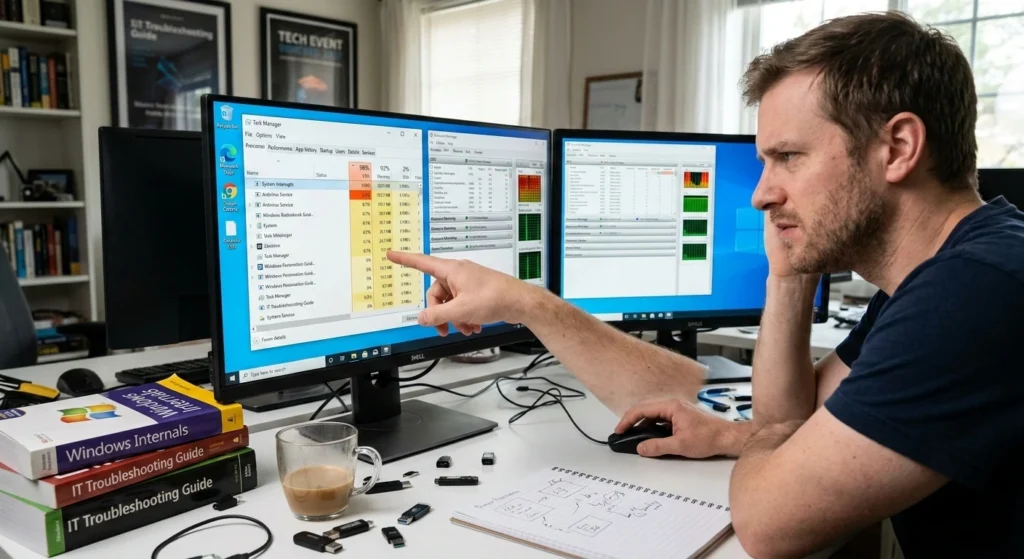
Understanding the root causes of high CPU and memory usage is the first step toward fixing performance problems. Many users assume their computer is failing, but often the issue comes from software behavior, system processes, or background services rather than hardware limitations.
The Role of the CPU in System Performance
The Central Processing Unit (CPU) is the primary component responsible for executing instructions and performing calculations required by programs and the operating system. Every task you perform opening applications, browsing the internet, editing files, or streaming media requires processing power.
When the CPU is overloaded with tasks, it must divide its attention among multiple processes.
This results in.
- Slower program response
- System delays
- Increased fan noise
- Temporary freezingor lag
If a single process continuously uses a large percentage of CPU resources, it can affect the overall responsiveness of the entire system.
How RAM Usage Affects Computer Speed
Random Access Memory (RAM) temporarily stores data that programs need while running. When you open applications or switch between tasks, the system uses RAM to access that information quickly.
However, if RAM usage becomes too high, Windows may start relying on virtual memory, which uses storage space instead of physical memory. Because storage drives are slower than RAM, this process can cause.
- Noticeable system lag
- Slow application loading
- Reduced multitasking performance
Background Services and System Processes
Windows constantly runs background services that support system operations such as updates, notifications, indexing, and device management. While these services are essential, too many running simultaneously can increase CPU and memory consumption.
Additionally, certain programs may continue running in the background even when you are not actively using them. These background activities can gradually accumulate and consume system resources without the user realizing it.
Software Behavior and Resource Demands
Some modern applications require significant processing power and memory. Web browsers with many open tabs, media editing software, and complex productivity applications may place heavy demands on the system.
When multiple resource-intensive programs operate at the same time, the combined workload can push the CPUand RAMtoward their limits, resulting in performance slowdowns.
How to Check CPU and RAM Usage on Your PC
Before attempting to fix high CPU or memory usage, it is important to identify which processes are consuming the most resources. Windows provides built-in tools that allow users to monitor system performance in real time.
Using Task Manager to Monitor System Resources
One of the most effective ways to check system activity is through Task Manager, a built-in Windows utility designed for performance monitoring.
Steps to open Task Manager
- Press Ctrl + Shift + Esc on your keyboard
- The Task Manager window will open immediately
- Click on the Processes tab
This section displays all running applications and background processes along with their CPU and memory usage percentages.
Understanding the Resource Columns
Within the Processes tab, you will see columns labeled.
- CPU
- Memory
- Disk
- Network
These indicators show how much system power each process is using. If a particular program shows unusually high CPU or memory usage, it may be responsible for slowing down the system.
Using the Performance Tab
The Performance tab in Task Manager provides a broader overview of system health.
Here you can monitor.
- Overall CPU usage
- Total RAM consumption
- Disk activity
- System uptime
This visual representation allows you to quickly determine whether your computer is experiencing consistent resource pressure or temporary spikes.
Resource Monitor for Detailed Insights
This tool allows users to analyze.
- Active processes
- Memory allocation
- CPU usage by service
- Network activity
reviewing these details, you can identify which applications are responsible for long-term resource consumption.
Common Causes of High CPU and RAM Usage
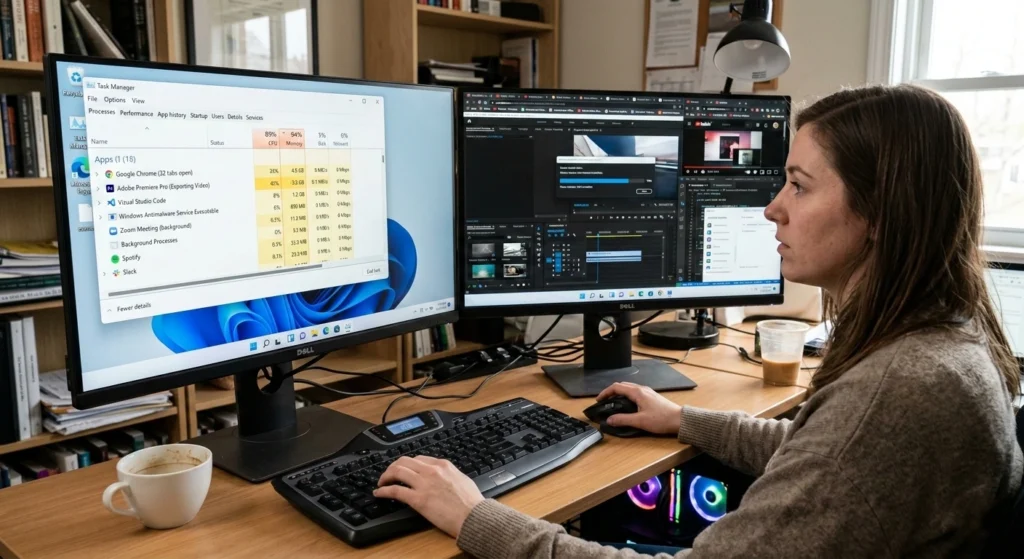
There are several common factors that lead to excessive CPU and RAM usage in Windows systems. Understanding these causes helps users apply the correct solution rather than guessing randomly.
Too Many Startup Programs
Many applications automatically configure themselves to start when Windows boots. Over time, the number of startup programs may increase significantly.
When multiple programs launch simultaneously during startup, they consume CPU cycles and memory even before the user begins working.
This can result.
- Slow boot times
- High background resource usage
- Reduced available RAM
Excessive Browser Tabs
Modern web browsers are powerful but resource-intensive. Each open tab may consume additional memory and processing power, especially when pages include multimedia content, interactive scripts, or dynamic features.
Keeping dozens of tabs open can quickly increase RAM usage and place additional pressure on the CPU.
Outdated System Drivers
Drivers allow hardware components to communicate with the operating system. When drivers become outdated or incompatible, they may cause inefficient system performance.
Poorly optimized drivers can lead.
- Unnecessary CPU activity
- Increased memory usage
- Reduced system stability
System Indexing and Background Scanning
Windows performs background indexing to improve search functionality. While useful, indexing can temporarily increase CPU usage as the system scans files and organizes data.
Similarly, background scanning activities such as file verification or system maintenance may occasionally raise resource usage.
Software Conflicts
Sometimes two programs attempt to access the same system resources simultaneously, causing conflicts. These conflicts can lead to excessive CPU cycles being consumed while the system attempts to resolve the issue.
Such situations are particularly common when multiple large applications run together.
Quick Fixes to Reduce CPU and RAM Usage
If your system suddenly becomes slow, several quick adjustments can help reduce resource usage immediately.
Restart Your Computer
Restarting your system refreshes the operating system and clears temporary processes that may have accumulated during long usage sessions.
This simple step can often resolve temporary spikes in CPU or memory consumption.
Close Unnecessary Applications
If multiple programs are running simultaneously, consider closing the ones that are not currently needed.
Doing so frees both CPU resources and memory, allowing the system to allocate more power to essential tasks.
Disable Unnecessary Startup Programs
Reducing the number of startup programs can significantly improve system performance.
How to manage startup applications
- Open Task Manager
- Select the Startup tab
- Review the list of applications
- Disable programs that are not essential
This helps reduce background activity and allows the system to start more efficiently.
Clear Temporary Files
Temporary files accumulate over time as applications store short-term data. While useful for performance optimization, excessive temporary files can occupy system resources.
Cleaning these files regularly helps maintain optimal system responsiveness.
Update Windows Regularly
System updates often include performance improvements, security enhancements, and bug fixes. Keeping Windows updated ensures that your system benefits from the latest optimizations.
Advanced Methods to Fix High CPU and RAM Usage
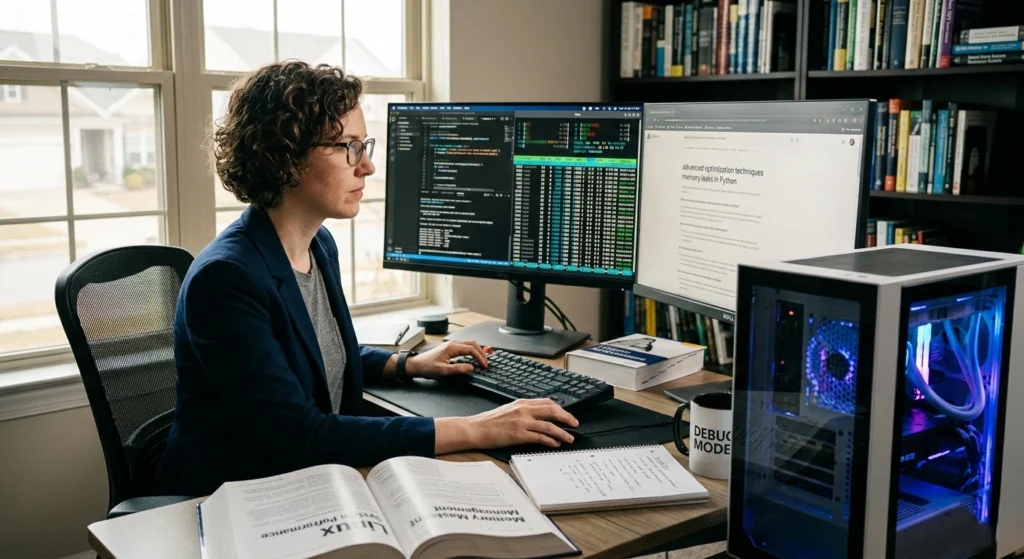
If quick fixes do not resolve the problem, deeper optimization steps may be necessary. When basic fixes don’t solve high CPU and RAM usage, it’s time to dig deeper.
Advanced methods target hidden issues like outdated drivers, misconfigured system settings, and software conflicts to restore your PC’s speed and stability.
Adjust Windows Visual Effects
Windows includes various visual effects and animations designed to improve the appearance of the interface. While visually appealing, these features consume additional resources.
Disabling unnecessary effects can help reduce CPU and memory usage.
Steps to adjust visual performance
- Open System Settings
- Navigate to Advanced System Settings
- Select Performance Settings
- Choose Adjust for best performance
This reduces graphical effects and frees system resources.
Optimize Background Apps
Windows allows certain apps to run in the background to provide updates and notifications. However, not all apps need this permission.
Limiting background activity ensures that system resources remain available for active tasks.
Manage Virtual Memory
When RAM usage becomes high, Windows uses virtual memory, which relies on storage space.Adjusting virtual memory settings can improve system stability during heavy workloads.
Ensuring that virtual memory is properly configured helps prevent system slowdowns when RAM usage increases.
Scan for System Errors
Occasionally, system files may become corrupted or damaged. Built-in Windows maintenance tools can help identify and repair these files.
Repairing system files ensures that Windows components operate efficiently and reduces unnecessary CPU usage caused by repeated error handling.
Preventing High CPU and RAM Usage in the Future
Preventing performance problems is easier than fixing them after they occur. Maintaining healthy system habits can significantly reduce the likelihood of resource overload.
Maintain Organized Storage
Keeping storage organized allows the system to access files more efficiently. Regularly removing unnecessary files and folders ensures that the operating system functions smoothly.
Limit Unnecessary Applications
Installing too many applications increases the likelihood of background processes running automatically. Only keeping essential programs installed helps maintain stable system performance.
Monitor System Performance Regularly
Monitoring tools such as Task Manager provide valuable insights into how system resources are being used.
Keep Drivers and Windows Updated
Regular updates ensure that hardware and software operate efficiently. Updated drivers often improve compatibility and reduce resource usage.
Restart Your System Periodically
Many users keep their computers running continuously for extended periods. Restarting occasionally clears temporary processes and refreshes the system environment.
Conclusion: Keep Your PC Running Smoothly
High CPU and RAM usage can significantly affect computer performance, making even simple tasks feel slow and frustrating. Fortunately, most of these issues can be resolved through proper system monitoring, optimized settings, and responsible application management.
CPU and memory resources work, users can identify which processes are consuming excessive system power and take the appropriate steps to reduce the load. Simple actions such as managing startup programs, closing unnecessary applications, and adjusting system settings can lead to noticeable improvements in speed and responsiveness.
For long-term performance, maintaining good system habits such as keeping software updated, limiting background activity, and monitoring resource usage can help ensure that your computer continues to operate smoothly.