Android storage problems are more common than most users think. According to industry reports, the average smartphone user now consumes 20–30GB of storage within the first year of ownership due to high-resolution photos, 4K videos, social media apps, and system updates. Even phones with 64GB storage can feel “full” surprisingly fast especially on devices running modern versions like Android 14 and Android 13, where apps and updates are larger than ever.
If you’re an Android user, you’ve probably faced the dreaded “storage full” notification at some point. It’s frustrating, especially when it pops up just when you need space the most whether it’s for a new app, photo, or software update. While clearing out apps or deleting photos might temporarily free up space, these quick fixes don’t always address the root cause of the issue.
Permanent Fixes for Android Storage Full Issues
Storage warnings don’t appear randomly. They’re usually the result of hidden data buildup, cached files, large media folders, and system partitions filling up over time.
Understanding Why Android Storage Fills Up
Before fixing the issue permanently, you need to know what consumes space.
- System & OS files (10–20GB on modern Android devices)
- App data and cache
- Media files (photos & videos)
- Messaging apps auto-downloading media
- Hidden temporary files
- Duplicate files
- Offline content (YouTube, Spotify, Netflix)
On many phones, the “System” category can appear unusually large. This often includes update leftovers and cached system logs.
Check What’s Actually Using Storage
Go to.
Settings → Storage
Review these categories carefully.
- Apps
- Images
- Videos
- Audio
- Documents
- System
Instead of randomly deleting files, identify the top storage consumers first.
Clear App Cache the Right Way
Cached data helps apps load faster but over time, it can occupy several gigabytes.
How to clear cache safely:
- Settings → Apps
- Select app
- Storage → Clear Cache
Do not use “Clear Data” unless necessary, as it resets the app.
Apps like browsers and social media platforms are major cache offenders.
Proven Ways to Resolve the Android Storage
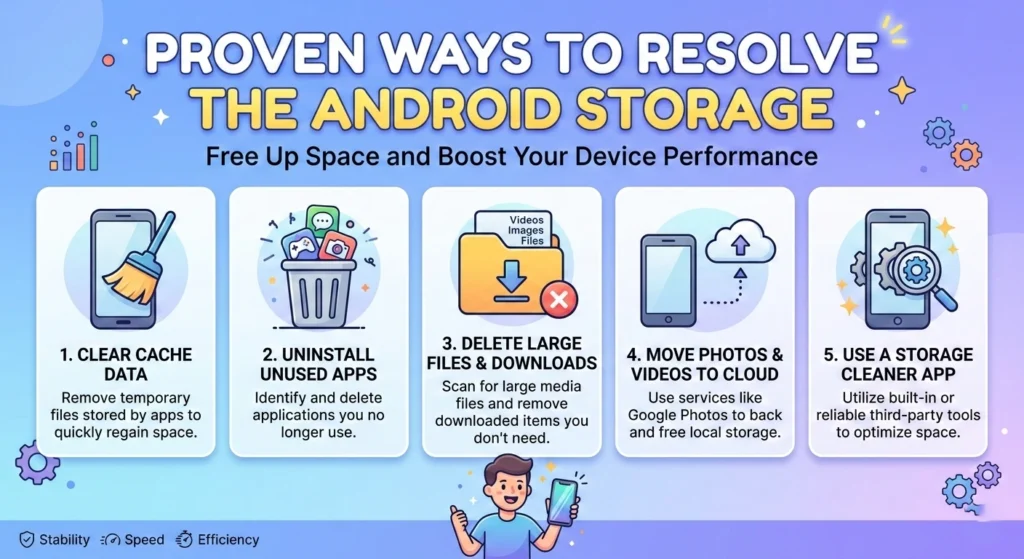
If you’ve been using an Android device for a while, you know the frustration that comes with the “storage full” notification. Whether you’re trying to download an app, capture a photo, or update your system, running out of space can be a major roadblock. but do not worry this issue is not permanent, and with a few simple steps, you can resolve it for good.
proven ways to fix the Android storage full problem. These strategies will help you free up valuable space on your device, improve performance, and ensure that you’re not constantly running into storage issues.
1. Clear Cache Data and App Storage
One of the quickest ways to free up space is by clearing the cache data from your apps. Over time, apps store temporary files to speed up performance, but these can quickly pile up and take up unnecessary space.
clear the cache.
- Go to Settings > Storage > Cached data.
- Tap on Clear Cache.
You can also clear storage for individual apps by navigating to Settings > Apps > Select the app > Storage > Clear Storage. This can free up significant space without affecting your personal data.
2. Uninstall Unused Apps
If you have apps that you no longer use, uninstalling them can free up a considerable amount of space. While Android devices usually give you an easy way to uninstall apps, sometimes unused apps tend to pile up over time.
uninstall an app.
- Go to Settings > Apps.
- Find the app you no longer need.
- Tap on Uninstall.
Alternatively, you can do this directly from your home screen by dragging the app icon to the trash bin.
3. Move Files to the Cloud or External Storage
If you have a lot of photos, videos, or documents taking up space, consider moving them to the cloud or external storage options. Google offers Google Photos and Google Drive for cloud storage, allowing you to back up photos, videos, and documents so they no longer consume local storage.
back up.
- Open Google Photos and enable Backup & Sync.
- For other documents, upload them to Google Drive.
Alternatively, if you have a microSD card slot, moving files to an external card is a great option for freeing up internal storage.
4. Use Storage Management Features in Android
Android offers built-in tools to help you identify what’s consuming your storage and how to manage it.
access this tool.
- Go to Settings > Storage.
- You’ll see a breakdown of how much space is being used by apps, photos, videos, and other files.
- You can tap on each category to get more details and delete unnecessary files.
Android also provides a Free Up Space tool that automatically suggests files and apps to delete.
5. Perform a Factory Reset (Last Resort)
If your storage issue persists despite trying the above methods, a factory reset can be a last resort. This will erase all data on your device, essentially returning it to its original state. While this can be time-consuming, it can help if your storage has been overloaded with files and data you can’t easily manage.
perform a factory reset.
- Go to Settings > System > Reset > Factory Data Reset.
- Make sure to back up all your important data first, as this will wipe everything from your device.
6. Consider Upgrading Your Storage
If you’ve exhausted all other options and you’re still facing storage issues, upgrading your Android device’s storage might be the solution. For devices with microSD card slots, you can add additional storage to your phone, giving you more room for apps, photos, and files.
For phones without expandable storage, you may need to consider upgrading to a newer device with larger internal storage.
How to Free Up Space and Fix Android Storage
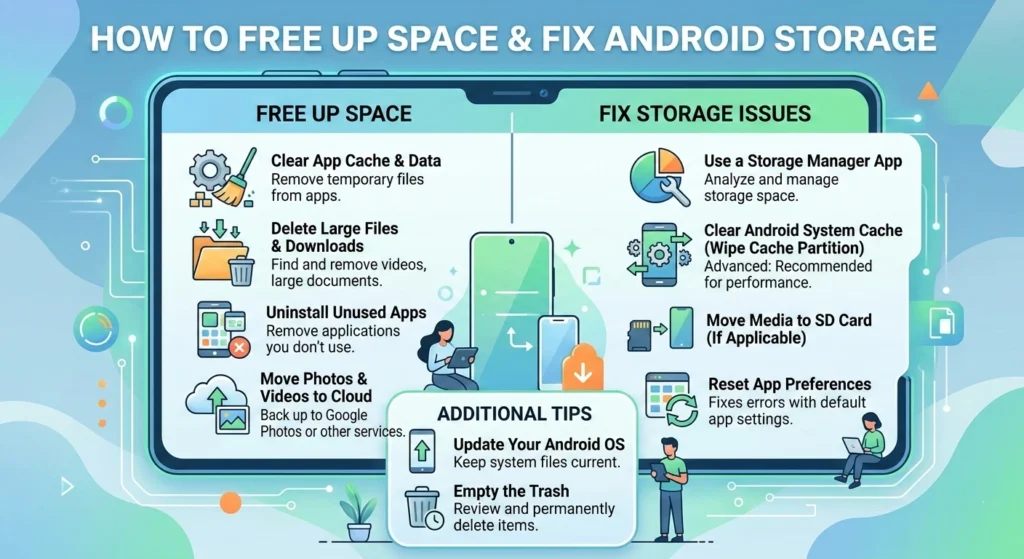
Running out of storage on your Android device can be a major headache. From preventing you from installing new apps to interrupting important updates, low storage is more than just an inconvenience it can affect the overall performance of your device. Luckily, freeing up space and fixing Android storage is possible with a few simple, actionable steps.
1. Clear Cached Data
Apps store temporary files (cache) to speed up your experience, but over time, this cached data can accumulate and take up a significant amount of storage. Clearing cache data can free up space without deleting your app data.
how to clear cached data.
- Go to Settings > Storage > Cached Data.
- Tap Clear Cache to remove temporary files across all apps.
Alternatively, for individual apps:
- Go to Settings > Apps > Select the app.
- Tap Storage > Clear Cache.
2. Delete Unnecessary Apps
Unused apps can take up valuable space on your device. Even if you don’t use them often, they continue to consume storage. Identify apps you rarely use and uninstall them to free up space.
uninstall an app.
- Go to Settings > Apps > Select the app.
- Tap Uninstall.
Or you can remove apps directly from the Home Screen by dragging the app icon to the trash bin.
3. Move Files to Cloud Storage
Photos, videos, and documents can consume a lot of storage over time. Moving them to the cloud can significantly free up space while keeping your files accessible. Google Photos, Google Drive, and OneDrive are excellent options to back up your files.
how to use Google Photos.
- Open the Google Photos app.
- Tap on Menu (three horizontal lines) > Settings > Back up & sync.
- Enable Backup & Sync to upload photos and videos to the cloud.
For Google Drive.
- Open Google Drive.
- Tap the + sign to upload files from your phone.
4. Use Android’s Storage Management Tools
Android has a built-in feature to help you see what’s consuming space on your device and suggest ways to free it up. This tool allows you to get rid of files you no longer need, such as old downloads, temporary files, and unused apps.
use this tool.
- Go to Settings > Storage.
- Tap on Free up space. Android will display recommendations on what you can delete, including unused apps, large files, and old media.
5. Delete Old Media Files
Old photos, videos, music, and podcasts are some of the most common culprits for taking up storage. These files can easily add up without you noticing. Check your gallery or media apps and delete any files you no longer need.
You can also move media files to an external storage device like a microSD card (if your device supports it) or to cloud storage, freeing up internal storage.
6. Clear Downloads Folder
The Downloads folder often becomes a cluttered mess with old PDFs, installers, and other files you don’t need anymore. Check the Downloads folder and delete anything that isn’t necessary.
clean up.
- Open your File Manager app.
- Go to the Downloads folder.
- Select and delete unnecessary files.
7. Transfer Data to External Storage
If your phone has a microSD card slot, it’s a great option to expand storage and free up space on the internal memory. You can move photos, videos, apps, and other files to the SD card.
To move files.
- Go to Settings > Storage > Move to SD card.
- Choose the files you want to transfer and move them to the SD card.
8. Perform a Factory Reset (When Necessary)
If your storage is full due to long-term accumulation of junk files, and none of the other solutions have worked, performing a factory reset can clear everything on your device and give it a fresh start. Make sure to back up your data before performing this step.
factory reset.
- Go to Settings > System > Reset > Factory Data Reset.
- Follow the on-screen instructions.
Effective Solutions to Permanently Fix Android Storage
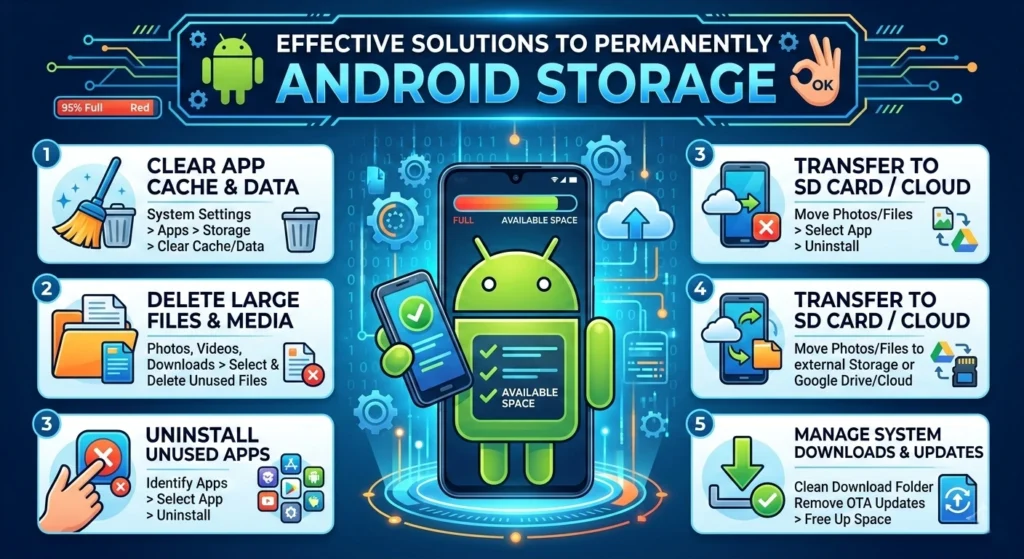
Running into the “storage full” issue on your Android device is a common problem, but it doesn’t have to be a recurring one. By taking the right steps, you can not only free up space but also ensure that you won’t face the same problem again in the future. Here are some effective solutions to permanently fix Android storage issues, keeping your device running smoothly.
1. Enable Cloud Backup and Storage
One of the most reliable ways to free up space permanently is by utilizing cloud storage. Cloud services like Google Photos, Google Drive, and Dropbox allow you to offload large files, photos, and videos, freeing up your device’s storage without losing access to your files.
set up Google Photos for automatic backups.
- Open Google Photos and sign in with your Google account.
- Tap Menu (three lines) > Settings > Back up & sync.
- Toggle the switch to On to automatically back up your media to the cloud.
For Google Drive, simply upload documents, music, or videos by selecting them in the app and tapping the + sign to upload them to the cloud.
2. Use External Storage (SD Card or USB OTG)
For devices that support microSD cards, this is one of the easiest and most cost-effective ways to permanently expand your storage. Moving your files to external storage can make a significant difference in how much space you have left on your device.
move files to a microSD card.
- Go to Settings > Storage > Move to SD card.
- Select the files or apps you wish to move.
- for phones without a microSD card slot, USB OTG (On-the-Go) adapters can allow you to connect an external drive, giving you more storage options.
3. Uninstall Bloatware and Unnecessary Apps
Many Android devices come pre-loaded with apps that you don’t need and can’t uninstall easily. These apps (known as bloatware) can take up a significant chunk of storage. While some can be disabled, others can be removed if you have the right permissions or tools.
uninstall bloatware.
- Go to Settings > Apps.
- Tap on the app you don’t need and select Uninstall (if available) or Disable (if it can’t be uninstalled).
4. Use Storage ManagementApps
There are several apps available that help manage your storage by identifying large files, duplicate content, and rarely used apps. Apps like Files by Google and DiskUsage can scan your device and highlight the space-hogging files that you can remove.
use Files by Google.
- Open the app and tap Clean at the bottom.
- It will suggest files to delete, such as junk files, large files, and unused apps.
These apps provide a quick overview of where your storage is being used and suggest easy ways to free up space.
5. Enable Smart Storage for Photos and Videos
Android offers a feature called Smart Storage, which automatically removes older backed-up photos and videos from your device while keeping them in the cloud. This ensures that your device doesn’t run out of storage, while still retaining access to all your media.
enable Smart Storage.
- Go to Settings > Storage > Smart Storage.
- Toggle it On to automatically free up space by removing photos and videos that are already backed up to Google Photos.
6. Clear Cache and App Data Regularly
App cache can build up over time and take up a surprising amount of space. While it’s generally safe to clear cache, app data might contain personal information, settings, or logins, so it’s important to clear it selectively.
clear cache and data.
- Go to Settings > Apps > Select an app.
- Tap Storage > Clear Cache or Clear Data (for data clearing).
Doing this regularly ensures your apps aren’t using unnecessary space while keeping your device running smoothly.
7. Perform a Factory Reset (If Needed)
If your storage problems persist despite trying all of the above, performing a factory reset is a surefire way to clear up space and restore your device to its original settings. While this will delete all your data, it’s effective in solving storage issues caused by long-term file accumulation and settings mismanagement.
perform a factory reset.
- Go to Settings > System > Reset > Factory Data Reset.
- Follow the on-screen instructions to erase all data from the device.
Be sure to back up your important data before performing a factory reset.
following these effective solutions, you can address your Android storage issues permanently. Whether through cloud storage, external storage, or regular maintenance practices, these methods will ensure that you have more control over your device’s space, allowing you to enjoy a faster, more responsive experience.
Fix Android Storage Full Once and For All: Proven Tips
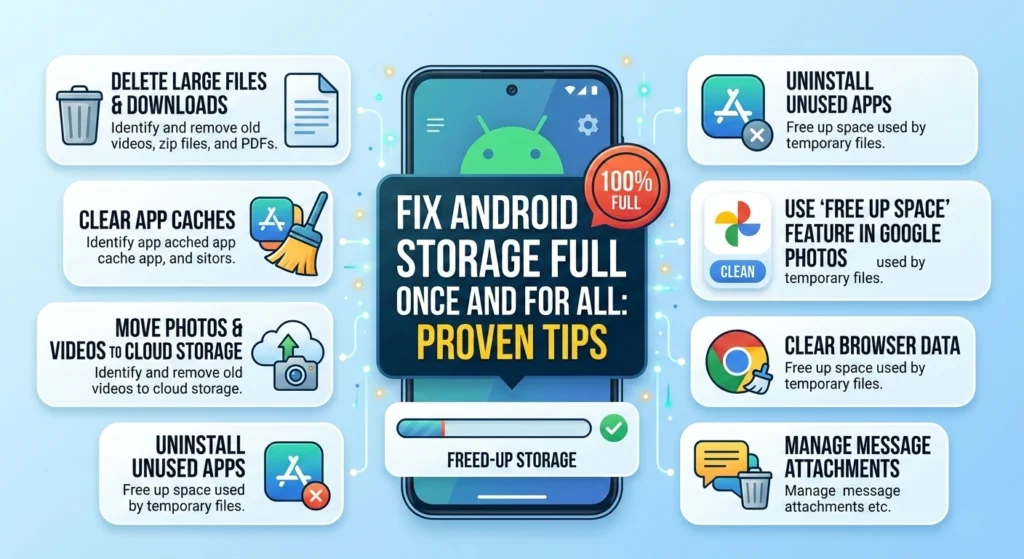
If you’re tired of seeing the “storage full” message on your Android device, you’re not alone. It’s a common issue that can disrupt your daily use, whether you’re trying to update apps, download media, or take new photos.
Fortunately, you don’t have to constantly delete files or uninstall apps just to keep your device running smoothly. With the right strategies, you can fix this problem once and for all.
1. Offload Large Files to the Cloud
One of the easiest ways to free up space is by moving large files like photos, videos, and documents to the cloud.Services like Google Photos and Google Drive provide free storage options that allow you to back up media and access it anywhere. offloading your files to the cloud, you can free up significant space without losing access to your data.
back up photos.
- Open Google Photos.
- Go to Menu (three horizontal lines) > Settings > Back up & sync.
- Enable Backup & Sync.
for the documents.
- Upload them to Google Drive or another cloud storage service.
2. Use the Android Storage Manager
Android comes with a built-in Storage Manager tool that helps you identify what’s taking up the most space on your device. It gives you a clear breakdown of your storage usage and suggests files and apps you might want to delete.
use this tool.
- Go to Settings > Storage.
- Review the categories and tap on each to see which files and apps are taking up space.
- Tap Free up space to remove unnecessary files.
3. Clear App Cache and Unnecessary Data
Apps store cache data to speed up performance, but over time, this data can accumulate and take up a lot of space. Clearing the cache won’t affect app functionality, but it can help regain some valuable space.
clear cache.
- Go to Settings > Storage > Cached data.
- Tap Clear Cache to remove temporary files.
for specific apps.
- Go to Settings > Apps > Select the app > Storage > Clear Cache.
Additionally, clearing app data (which resets the app to its original state) can also free up space, but be aware that it may remove saved information like settings or login data.
4. Uninstall Unnecessary Apps
Over time, we accumulate apps that we no longer use. These apps consume storage, and in some cases, even run background processes that use up resources. To fix Android storage full for good, consider uninstalling unused apps.
uninstall an app.
- Go to Settings > Apps > Select the app.
- Tap Uninstall.
You can also disable apps that cannot be uninstalled (usually pre-installed bloatware) by going to the app settings and selecting Disable.
5. Move Files to External Storage
If your device supports microSD cards, you can move files to an external storage option to free up your internal storage. This is especially useful for media files like photos, videos, and music that take up a lot of space.
move files to an SD card.
- Go to Settings > Storage > Move to SD card.
- Choose the files or apps you want to transfer.
If your device doesn’t support microSD cards, you can also use USB OTG adapters to connect external drives for additional storage.
6. Remove Old or Large Files
Your Downloads folder can accumulate files over time that you no longer need. PDFs, APK files, or old installation files can easily take up significant space. Go through your Downloads folder and delete any files you don’t need anymore.
clean your Downloads folder.
- Open your File Manager app.
- Navigate to the Downloads folder.
- Select and delete unnecessary files.
7. Enable Smart Storage for Photos and Videos
If you want to keep your media backed up without taking up too much storage, enable Smart Storage on Android. This feature automatically removes old photos and videos that have already been backed up to the cloud, keeping your storage usage under control.
enable Smart Storage.
- Go to Settings > Storage > Smart Storage.
- Toggle it On.
8. Perform a Factory Reset (If Necessary)
If your device is still running low on storage and you’ve tried all the other solutions, performing a factory reset is an effective way to start fresh. This will wipe your device clean, removing all files and apps, and give you a fresh start with ample storage.
perform a factory reset.
- Go to Settings > System > Reset > Factory Data Reset.
- Follow the on-screen instructions.
Before resetting, make sure you back up your important data to the cloud or an external drive.
these proven tips, you can fix the Android storage full issue once and for all. Regular maintenance, such as clearing cache, backing up media, and managing your apps, will ensure that your device continues to run efficiently and that you’re never stuck with a full storage message again.
Step-by-Step Guide to Solving the Android Storage Full Problem Permanently
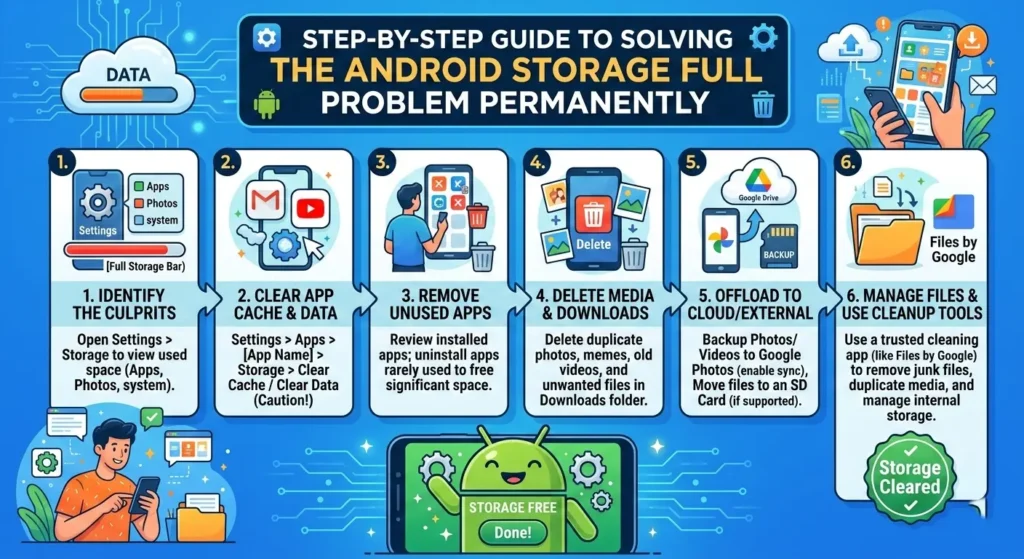
If you’re tired of constantly dealing with low storage notifications and want to solve the problem permanently, this step-by-step guide will show you exactly what to do. from freeing up space to preventing future storage problems, these strategies will help keep your Android device running smoothly.
Step 1: Check Your Storage Usage
Before you start fixing the issue, it’s important to understand what’s taking up the most space on your device. Android devices come with a built-in Storage Manager that gives you a clear breakdown of what’s using up space.
check storage usage.
- Go to Settings > Storage.
- You’ll see a visual breakdown of storage usage by apps, photos, videos, music, and other files.
- Tap on each category to identify what’s taking up the most space.
Step 2: Clear App Cache and Data
Apps store temporary files and data to speed up performance, but these files can accumulate and eat up storage. Clearing the cache and data can free up valuable space.
clear cache.
- Go to Settings > Apps > Select the app you want to manage.
- Tap Storage > Clear Cache.
clear app data.
- Go to Settings > Apps > Select the app.
- Tap Storage > Clear Data (this will reset the app, so use it carefully).
Step 3: Delete or Move Unused Apps
Unused apps can take up a lot of storage, especially if they include large files or data. To permanently solve your storage problem, go through your apps and remove the ones you no longer need.
uninstall apps.
- Go to Settings > Apps > Select the app.
- Tap Uninstall to remove it from your device.
For apps you don’t use frequently but still want to keep, consider disabling them to prevent them from using up storage and running in the background.
Step 4: Move Files to Cloud Storage
Media files like photos, videos, and music can quickly consume your storage. Moving these files to cloud storage is a great way to keep your device’s storage usage under control.
back up photos.
- Open Google Photos and enable Backup & Sync to automatically upload your photos to the cloud.
for documents and other files.
- Upload them to Google Drive, Dropbox, or any other cloud storage service you prefer.
Step 5: Use an SD Card or External Storage
If your device supports a microSD card, this is one of the most effective ways to expand your storage and permanently solve the problem. By moving files such as media and apps to external storage, you can free up your internal storage.
move files to an SD card.
- Go to Settings > Storage > Move to SD card.
- Select the files or apps you want to transfer.
For devices without an SD card slot, you can use USB OTG adapters to connect an external drive for extra storage.
Step 6: Delete Old or Large Files
Sometimes, the Downloads folder or old files from previous apps can accumulate over time. Go through these folders and remove any files you no longer need.
clean up the Downloads folder.
- Open the File Manager app.
- Navigate to Downloads and delete any unnecessary files.
Additionally, check for large files like old movies, games, or documents that may be taking up space.
Step 7: Enable Smart Storage for Photos and Videos
Smart Storage automatically removes older photos and videos from your device that have already been backed up to Google Photos, keeping your storage usage in check.
enable Smart Storage.
- Go to Settings > Storage > Smart Storage.
- Toggle it On to automatically remove older media from your device.
Step 8: Perform a Factory Reset (If Necessary)
If your storage issues persist despite trying all of the above steps, performing a factory reset may be your final solution. This will remove all apps, data, and settings from your device, essentially giving it a fresh start.
perform a factory reset.
- Go to Settings > System > Reset > Factory Data Reset.
- Follow the on-screen instructions to erase all data from your device.
Make sure to back up all your important files before performing a factory reset.
step-by-step guide, you can permanently fix the Android storage full problem and enjoy a faster, more efficient device. Regular maintenance, such as moving files to the cloud, clearing caches, & managing apps, will help keep your storage under control for the long term.
Conclusion
Dealing with the “Android storage full” issue doesn’t have to be a recurring problem. following the steps outlined in this guide, you can free up space, optimize your device, and prevent storage issues in the future.
From managing your apps and moving files to the cloud to using external storage options and enabling automatic storage management, these proven solutions will keep your device running smoothly. Regular maintenance and mindful storage habits will ensure that you enjoy a faster, more efficient Android experience for the long term.
With these strategies, you can fix your Android storage problem permanently and get back to enjoying all the features and apps your device has to offer without the constant fear of running out of space.