If your Linux machine feels like it takes ages to boot, you’re not alone. Slow startup can be caused by a bunch of things extra services running in the background, outdated drivers, or even just messy system settings. Most of it is fixable without reinstalling your OS.
Introduction: Why Linux Boot Speed Matters
For many users, Linux is known for efficiency, stability, and performance. One of the biggest advantages of Linux-based systems compared to many other operating systems is their ability to start quickly and run smoothly even on modest hardware. However, over time, some Linux systems begin to experience slow boot times, which can reduce productivity and make the system feel less responsive.
Boot time refers to the total duration between powering on your computer and reaching a fully usable desktop or login screen. Ideally, modern Linux distributions should boot within 10–25 seconds on SSD systems and 30–60 seconds on traditional HDD systems, depending on hardware and system configuration.
When Linux boot time increases significantly, it usually indicates system configuration issues, unnecessary startup services, disk performance limitations, or outdated components.
Improving Linux startup speed is important because it provides several benefits.
- Faster system accessibility
- Reduced waiting time
- Improved system efficiency
- Better resource utilization
- Smoother daily workflow
Unlike many operating systems, Linux gives users full control over system startup behavior. understanding what happens during boot and optimizing specific components, you can dramatically reduce startup time without upgrading hardware.
The Linux boot process typically involves several stages.
- BIOS or UEFI initialization
- Bootloader execution (GRUB)
- Kernel loading
- System initialization via systemd
- Starting background services
- Launching the desktop environment
Each of these steps can influence how quickly your system starts. The good news is that Linux provides built-in tools that allow you to analyze boot delays and fix them effectively.
practical and safe methods to identify and fix slow boot issues in Linux, helping your system start faster and perform better.
Common Causes of Slow Boot in Linux
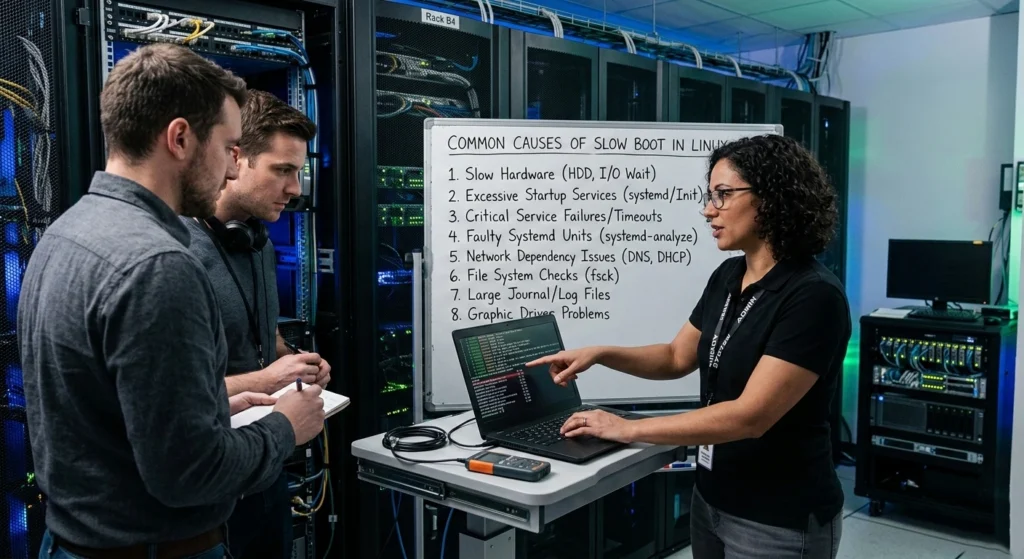
Before attempting to fix boot time issues, it is essential to understand what causes slow startup in Linux systems. In most cases, boot delays occur due to misconfigured services, disk performance problems, or unnecessary background processes.
Below are the most common causes that affect Linux boot speed.
Too Many Startup Services
Linux systems use a service manager such as systemd to start various background services during boot.
Some services are critical, including.
- Network management
- Logging services
- Hardware initialization
- System monitoring
Examples may include.
- Printing services
- Bluetooth services
- Remote access tools
- Virtualization tools
- Network discovery services
Each additional service adds a small delay, and collectively they can significantly increase boot time.
Slow Storage Devices (HDD vs SSD)
Storage hardware plays a major role in startup performance.
Typical differences include.
| Storage Type | Average Boot Speed |
|---|---|
| HDD | 40–90 seconds |
| SATA SSD | 15–30 seconds |
| NVMe SSD | 8–20 seconds |
If your system uses an HDD, the boot process can slow down because many small system files must be accessed quickly during startup.
File System Checks at Boot
Linux may run file system integrity checks during boot to ensure storage health.
This process is usually triggered if.
- The system was not shut down properly
- Disk errors were detected
- Periodic checks are scheduled
While these checks are important for data integrity, they can temporarily increase boot time significantly.
Outdated Kernel or Drivers
The Linux kernel is responsible for managing hardware communication and system resources.
Older kernels or outdated drivers may cause.
- Hardware initialization delays
- Device recognition problems
- Slower driver loading
Keeping your system updated ensures better compatibility and faster boot performance.
Network Configuration Delays
Sometimes the system waits for network configuration during startup.
This happens when.
- DHCP servers respond slowly
- Network interfaces are misconfigured
- Wireless connections delay initialization
These delays often add 5–20 seconds to boot time if not optimized.
Understanding these causes makes it easier to identify where the boot process slows down and apply targeted solutions.
Checking Your Boot Time Using Tools Like systemd-analyze
Before making any changes to your system, you should measure your current boot time. Linux provides a powerful built-in utility called systemd-analyze, which helps users understand exactly how long each stage of the boot process takes.
Using this tool allows you to identify performance bottlenecks during startup.
Check Total Boot Time
Open the terminal and run.
systemd-analyzeExample output may look like.
Startup finished in 4.821s (kernel) + 12.345s (userspace) = 17.166sThis output provides two key values.
- Kernel time – Time taken to load the Linux kernel
- Userspace time – Time taken to start services and desktop environment
A userspace time significantly longer than kernel time usually indicates too many startup services.
Identify Slow Services
To find services slowing down your system, run.
systemd-analyze blameThis command lists services in descending order of startup time.
Example.
5.432s NetworkManager.service
3.112s snapd.service
2.901s bluetooth.service
From this output, you can immediately identify which services consume the most time during boot.
View the Boot Process Timeline
Another useful command is.
systemd-analyze critical-chainThis shows the chain of services responsible for delaying boot completion.
It helps you understand dependencies between services and which component causes the longest delay.
Visualize Boot Performance
You can also generate a graphical representation of the boot process.
systemd-analyze plot > bootchart.svgThis creates a boot chart image that visually displays.
- Kernel initialization
- Service startup order
- System delays
Opening the .svg file in a browser provides a detailed timeline of the entire boot process.
Analyzing boot performance with these tools is essential because it ensures you only optimize components that actually cause delays.
Disable Unnecessary Startup Services

One of the most effective ways to reduce Linux boot time is disabling services that are not required during startup.
Many services start automatically even though they may not be needed for everyday usage.
Removing unnecessary services can significantly reduce boot delays.
List Enabled Services
To see which services start automatically, run.
systemctl list-unit-files --type=serviceLook for services marked as enabled.
These services run during boot and may contribute to delays.
Check Service Status
To inspect a specific service.
systemctl status service-nameExample.
systemctl status bluetooth.serviceIf you do not use Bluetooth, this service may be unnecessary.
Disable a Service
To disable a service from starting at boot.
sudo systemctl disable service-nameExample.
sudo systemctl disable bluetooth.serviceThis command prevents the service from loading during startup.
Stop a Running Service
To stop the service immediately without rebooting.
sudo systemctl stop service-nameDisabling unused services can reduce userspace boot time significantly.
However, always ensure that critical services are not disabled.
- NetworkManager
- systemd-logind
- display-manager
Careful service management leads to cleaner and faster system startup.
Optimize Your GRUB Bootloader Settings
The GRUB bootloader plays a crucial role in the Linux startup process. It is responsible for loading the kernel and allowing users to select operating systems or recovery options.
By default, GRUB often includes a menu delay, which pauses the boot process before the system starts automatically.
Optimizing this delay can reduce unnecessary waiting time during boot.
Locate the GRUB Configuration File
Open the configuration file using a text editor.
sudo nano /etc/default/grubInside this file, look for the following line.
GRUB_TIMEOUT=10This value indicates the number of seconds GRUB waits before starting the default system.
Reduce GRUB Timeout
You can reduce the timeout value to 2 or 3 seconds.
Example.
GRUB_TIMEOUT=2After editing the file, update GRUB with.
sudo update-grubThis change reduces unnecessary waiting time during system startup.
Hide the GRUB Menu
If you use only one operating system, you can hide the GRUB menu completely.
Modify the configuration.
GRUB_TIMEOUT_STYLE=hidden
GRUB_TIMEOUT=0
This allows Linux to boot instantly without displaying the bootloader menu.
Proper GRUB optimization can save several seconds during each startup.
Improve Disk Performance (SSD vs HDD, File System Tweaks)
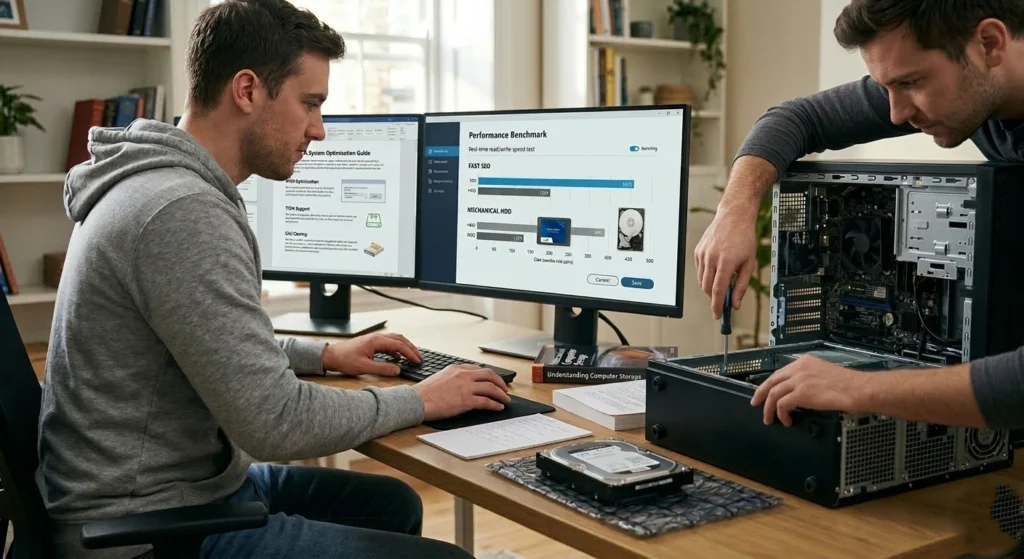
Storage speed has a direct impact on Linuxboot performance because the operating system loads many small files during startup.
SSD vs HDD Boot Performance
Traditional HDDs are slower due to mechanical components, while Solid State Drives (SSDs) use flash memory for faster data access.
Typical boot comparison.
- HDD systems: 40–90 seconds
- SSD systems: 10–25 seconds
If your system still runs on an HDD, upgrading to an SSD can dramatically improve startup speed.
Enable TRIM for SSD
TRIM helps SSDs maintain performance by cleaning unused blocks.
Run.
sudo systemctl enable fstrim.timerThis ensures the SSD stays optimized over time.
Optimize File System Mount Options
Edit the file.
/etc/fstabAdding the noatime option prevents unnecessary disk writes.
Example entry.
UUID=xxxx / ext4 defaults,noatime 0 1This improves disk efficiency and reduces boot overhead.
Updating Your Kernel and Drivers
Running outdated kernels may cause.
- Hardware initialization delays
- Driver compatibility issues
- Slower device detection
Updating your kernel ensures modern hardware features are fully supported.
Update Your System
Most Linux distributions allow updating using package managers.
Example.
sudo apt update
sudo apt upgrade
This installs newer kernels and updated drivers.
Remove Old Kernels
Over time, multiple old kernels accumulate and may slightly affect boot behavior.
You can list installed kernels.
dpkg --list | grep linux-imageRemoving unused kernels helps keep the system clean and efficient.
Use Lightweight Desktop Environments or Window Managers
Desktop environments significantly influence system startup speed.
Heavy environments include.
- GNOME
- KDE Plasma
These environments load multiple background components during login.
Lightweight alternatives include.
- XFCE
- LXDE
- LXQt
- MATE
These environments consume fewer system resources and start faster.
For older systems or minimal setups, window managers such as.
- Openbox
- i3
- Fluxbox
can provide extremely fast startup times.
Using lighter environments often reduces userspace boot time dramatically.
Tips to Maintain Fast Boot Times Over Time
Even after optimizing your system, maintaining fast boot speed requires regular system maintenance.
Here are some best practices.
Avoid Installing Unnecessary Services
Applications sometimes install background services automatically.
Before installing new software, check whether it adds startup services.
Keep Your System Updated
Regular updates ensure.
- Faster drivers
- Improved kernel performance
- Better hardware compatibility
Monitor Boot Performance Occasionally
Running.
systemd-analyzeonce in a while helps identify new delays early.
Clean Temporary Files
Temporary files accumulate over time and may affect disk performance.
Cleaning them periodically keeps the system efficient.
Monitor Disk Health
A failing disk can dramatically increase boot time.
Use tools like.
smartctlto monitor disk health.
Maintaining your system ensures long-term performance stability.
Conclusion: Achieve Faster Linux Startup
Slow boot times in Linux are usually caused by startup services, disk limitations, outdated components, or configuration delays. Fortunately, Linux provides powerful tools that allow users to analyze and optimize every stage of the boot process.
following the strategies covered in this guide, you can significantly reduce startup time.
- Analyze boot performance with systemd-analyze
- Disable unnecessary services
- Optimize GRUB bootloader settings
- Improve disk performance
- Keep your kerneland drivers updated
- Use lightweight desktop environments
- Maintain regular system optimization
With these optimizations, many Linux systems can achieve boot times under 20 seconds, delivering a smoother and more responsive experience.
A well-optimized Linux system not only boots faster but also runs more efficiently, allowing you to focus on productivity without unnecessary delays.