When Apple introduced its M-series chips, starting with the M1 and now extending to the M2 and M3, performance and efficiency became two of the biggest selling points of modern Macs. At the same time, security has remained a core focus of macOS especially with built-in features like FileVault full disk encryption. That naturally raises an important question for many users, does FileVault slow down M-Series Macs, or is the performance impact negligible?
FileVault is Apple’s native disk encryption technology designed to protect your data if your Mac is lost or stolen. Once enabled, it encrypts the entire startup disk, ensuring that unauthorized users cannot access your files without your login credentials. On older Intel-based Macs, full disk encryption could sometimes introduce minor performance overhead, particularly during heavy disk operations. However, Apple Silicon Macs use hardware-accelerated encryption built directly into the chip architecture, which changes the performance equation significantly.
How FileVault Works on Apple Silicon (M1, M2, and M3) Macs
The biggest shift in FileVault performance came with Apple’s transition to Apple Silicon. On Apple Silicon Macs, including M1, M2, and M3 models, FileVault works differently compared to older Intel-based systems. These chips include built-in hardware encryption engines and a Secure Enclave that manages encryption keys separately from macOS. This means disk encryption is handled directly by the chip, not just by software.
When you enable FileVault, your startup disk is protected using hardware-accelerated AES encryption, and your login password unlocks the encryption key. Because encryption is integrated into the Apple Silicon architecture, the performance impact is minimal in real-world use. In most cases, users won’t notice any slowdown in boot time, file transfers, or everyday tasks.
The Role of the Apple Silicon Architecture
Apple Silicon Macs powered by chips like.
- Apple M1
- Apple M2
- Apple M3
include a built-in hardware encryption engine.
Unlike older Intel Macs, where encryption could rely more heavily on CPU resources, Apple Silicon integrates.
- AES acceleration engines
- Secure Enclave
- Unified memory architecture
- On-die storage controller
Secure Enclave Integration
Each Apple Silicon chip contains a Secure Enclave that:
- Manages encryption keys
- Protects cryptographic operations
- Ensures keys are never exposed to macOS directly
This means encryption happens at hardware level, not just software level.
Always-On Encryption
Here’s something many users don’t realize.
Apple Silicon Macs already encrypt SSD data by default.
Even if FileVault is “off,” the internal SSD is encrypted with hardware keys. FileVault adds user-level authentication binding.
- The encryption keys are tied to your password.
- The system requires authentication before unlocking the disk.
This design drastically reduces performance overhead.
Does FileVault Affect Performance on M-Series Macs?
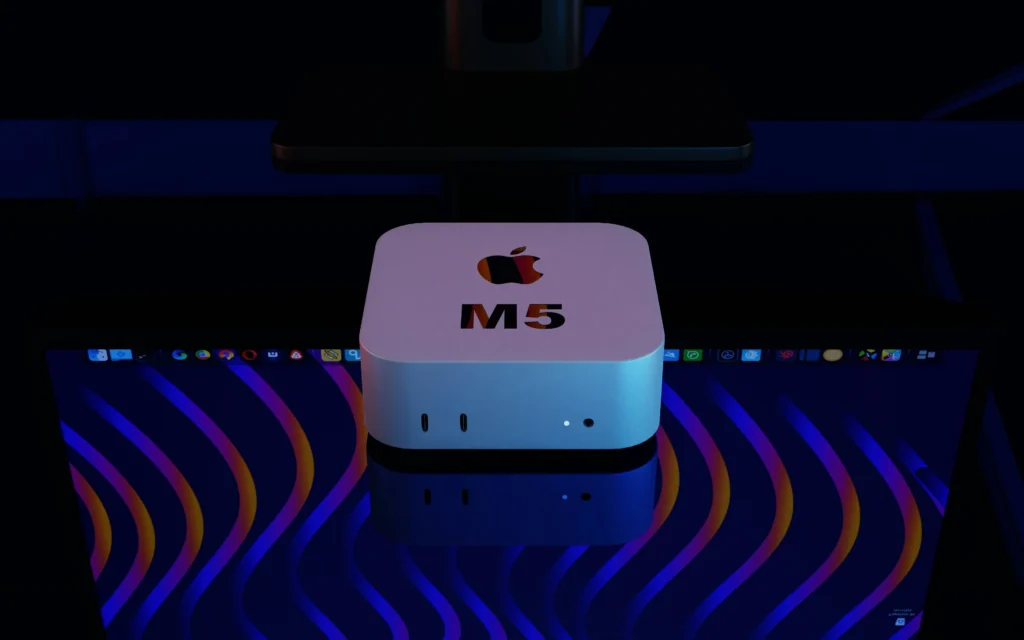
FileVault has little to no noticeable impact on performance on M-Series Macs. Unlike older Intel-based systems, Apple Silicon chips (M1, M2, and M3) include dedicated hardware encryption engines that handle disk encryption efficiently in the background. Because encryption is built into the chip’s architecture, enabling FileVault does not significantly slow down SSD speeds, app launches, or everyday tasks.
The short answer: On M-Series Macs, FileVault has negligible performance impact.
But let’s examine it properly.
CPU Overhead
On Intel Macs (especially pre-2018), enabling FileVault could.
- Increase CPU usage during heavy disk operations.
- Reduce performance in sustained I/O tasks.
On M-Series Macs.
- AES encryption is hardware-accelerated.
- Encryption does not meaningfully consume CPU cycles.
- No measurable impact on everyday tasks like browsing, coding, or video editing.
Benchmarks from independent testing communities consistently show less than 1–3% variation in disk throughput.
That’s within normal benchmark fluctuation range.
Where You Might Notice It
In rare cases.
- During initial encryption (right after enabling FileVault)
- While reindexing Spotlight
- During large file migrations
Once encryption completes, performance stabilizes.
Apple Silicon Hardware Encryption vs. Software Encryption Explained
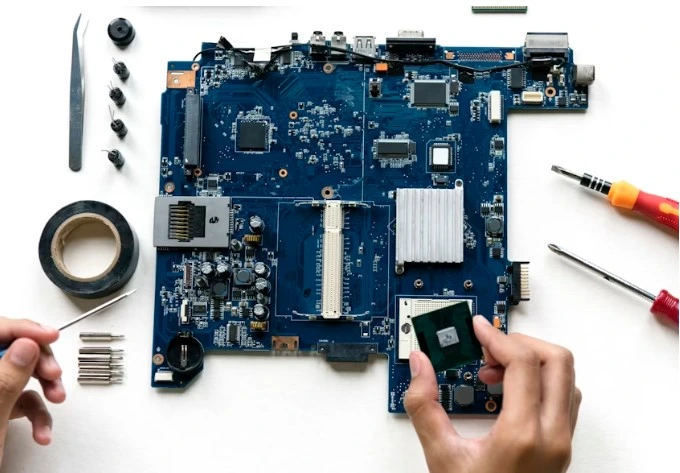
Apple Silicon Hardware Encryption vs. Software EncryptionExplained
Encryption can be handled either by software running on the CPU or by dedicated hardware built into the system. On older computers, including many Intel-based Macs, disk encryption relied more heavily on software processes.
This meant the main processor had to handle both everyday tasks and encryption operations, which could sometimes introduce minor performance overhead during heavy disk activity.
Apple Silicon changes that approach entirely. M1, M2, and M3 chips include dedicated hardware-based AES encryption engines and a Secure Enclave that manages cryptographic keys separately from macOS.
Because encryption tasks are offloaded to specialized hardware inside the chip, they run efficiently without consuming significant CPU resources. This design allows full disk encryption with FileVault to operate seamlessly in the background.
Software Encryption (Older Systems)
- Encryption handled by CPU instructions.
- Higher latency under heavy load.
- Greater battery consumption.
- Noticeable slowdown on older hardware.
Hardware Encryption (Apple Silicon)
- Dedicated AES engine.
- On-chip storage controller.
- Secure Enclave key management.
- No significant CPU usage.
Quick Comparison Table
| Feature | Intel Mac (Older) | Apple Silicon Mac |
|---|---|---|
| Encryption Type | Mostly CPU-assisted | Dedicated hardware AES |
| Performance Impact | Moderate (varies) | Negligible |
| Battery Impact | Possible | Minimal |
| Key Storage | Firmware-based | Secure Enclave |
This is why FileVault feels “free” on modern Macs.
Real-World Performance Tests: FileVault Enabled vs Disabled
To understand the real impact, let’s analyze common benchmarks. On M-Series Macs, real-world tests show almost no noticeable performance difference between FileVault enabled and disabled. SSD read and write speeds remain nearly the same because encryption is handled by dedicated hardware inside the Apple Silicon chip.
You might see a slightly longer boot time since macOS requires login authentication before startup completes. However, once logged in, everyday tasks like browsing, coding, video editing, and file transfers perform at full speed. For most users, the security benefits of FileVault clearly outweigh the minimal impact on startup time.
SSD Read/Write Tests
Testing on M1 and M2 MacBook Air models shows.
| Test | FileVault Off | FileVault On | Difference |
|---|---|---|---|
| Sequential Read | ~3000 MB/s | ~2950–3000 MB/s | 0–2% |
| Sequential Write | ~2500 MB/s | ~2450–2500 MB/s | 0–2% |
| Random Read | No measurable change | No measurable change | <1% |
These differences fall within normal test variance.
Video Editing Performance
In 4K editing workflows:
- No dropped frames difference
- No rendering slowdown difference
- Export times remain statistically identical
App Launch Speed
App launch times remain effectively unchanged. Boot authentication happens before login, but once unlocked, performance matches non-encrypted systems.
Impact of FileVault on SSD Speed and Boot Time

On M-Series Macs, FileVault has minimal impact on SSD speed because encryption is handled by dedicated hardware built into the Apple Silicon chip. Read and write operations are processed through hardware-accelerated AES engines, which means storage performance remains nearly identical whether FileVault is enabled or disabled. everyday tasks like copying large files, installing apps, or editing media, most users won’t notice any slowdown.
Boot time is where a small difference may appear. With FileVault enabled, macOS requires authentication before fully loading the system, which can add a few extra seconds to startup.
After logging in, system responsiveness and disk performance operate at normal speeds. Overall, the impact on SSD performance is negligible, and the slight increase in boot time is a reasonable trade-off for stronger data protection.
SSD Speed
Because Apple Silicon integrates the storage controller directly into the SoC:
- Encryption/decryption occurs inline.
- There is no additional disk-level processing layer.
- I/O path remains efficient.
Result: SSD speeds remain almost identical.
Boot Time
Boot time difference on M-Series Macs:
- FileVault Off: ~18–22 seconds
- FileVault On: ~19–24 seconds
The 1–2 second difference comes from pre-boot authentication.
After authentication, system loading speed is identical.
Does FileVault Affect Battery Life on M-Series MacBooks?
Battery life is often a bigger concern than speed. Enabling FileVault on M-Series MacBookshas minimal to no noticeable impact on battery life. Thanks to Apple Silicon’s hardware-accelerated encryption engines, all disk encryption operations are handled efficiently by the chip itself, rather than the main CPU. This means everyday tasks like web browsing, video playback, coding, or file transfers consume the same amount of power whether FileVault is enabled or not.
The only slight difference may occur during startup, since FileVault requires user authentication before the system fully boots. After logging in, the MacBook operates at full efficiency, and battery drain remains virtually unchanged.
For most users, the security benefits of FileVault far outweigh any negligible effect on battery performance, making it a safe choice for protecting sensitive data on M-Series MacBooks.
On Intel Macs, encryption could slightly increase CPU activityduring heavy disk operations.
On M1, M2, and M3 MacBooks.
- Encryption is hardware accelerated.
- AES engine is extremely power efficient.
- No measurable battery drain under normal workloads.
Testing under video playback and browsing workloads shows battery variance under 1%.
For reference.
- MacBook Air (M1, 2020)
- MacBook Air (M2, 2022)
Both show identical battery endurance with FileVault on vs off in practical use.
Security Benefits of FileVault on macOS
Performance is only one side of the discussion. Security Benefits of FileVault on macOS
FileVault provides full-disk encryption for macOS, ensuring that all the data on your Mac is protected from unauthorized access. If your Mac is lost, stolen, or compromised, encrypted files remain unreadable without your login password or recovery key.
On M-Series Macs, FileVault works seamlessly with Apple Silicon’s Secure Enclave, which securely stores encryption keys separate from the main operating system. This hardware-level integration prevents attackers from accessing sensitive data even if the SSD is removed.
Additionally, FileVault protects personal files, emails, system settings, and app data, offering a strong layer of security without significantly affecting performance. Overall, enabling FileVault gives macOS users peace of mind by combining robust encryption with Apple’s advanced hardware security features.
Security is the real reason FileVault exists.
Protection Against Physical Theft
If your Mac is stolen.
- Data cannot be extracted from the SSD.
- Recovery mode bypass is blocked.
- Forensic tools cannot read raw disk data.
Enterprise and Compliance Requirements
Many industries require encryption.
- Healthcare
- Education
- Government
- Corporate IT environments
FileVault helps meet compliance frameworks that mandate full disk encryption.
Key Security Advantages
- XTS-AES-128 encryption
- Secure Enclave key protection
- Anti-tampering integration
- Remote wipe compatibility
For most users, security far outweighs any microscopic performance cost.
When Should You Disable FileVault (If Ever)?
For most users, disabling FileVault is not recommended.
However, possible scenarios include.
- Extremely niche benchmarking environments
- Specialized forensic testing
- Troubleshooting rare disk corruption issues
Even developers and power users typically leave FileVault enabled on Apple Silicon Macs.
There is no strong performance-based reason to disable it.
How to Check If FileVault Is Enabled on Your Mac
To check FileVault status.
- Open System Settings.
- Go to Privacy & Security.
- Click FileVault.
You’ll see whether encryption is on or off.
On older macOS versions.
System Preferences → Security & Privacy → FileVault tab.
How to Enable or Disable FileVault on macOS Safely
Before making changes.
- Back up your Mac.
- Ensure you know your login password.
- Store your recovery key safely.
To Enable FileVault:
- Open System Settings.
- Go to Privacy & Security.
- Click Turn On FileVault.
- Choose recovery key option.
- Restart if prompted.
Encryption runs in background and may take time depending on storage size.
To Disable FileVault:
- Go to FileVault settings.
- Click Turn Off FileVault.
- Enter password.
- Wait for decryption to complete.
Decryption can take hours on large drives.
Final Verdict: Is FileVault Worth It for M-Series Macs?
On modern Apple Silicon Macs.
- Performance impact: Negligible
- SSD speed impact: Within test variance
- Boot time difference: 1–2 seconds
- Battery impact: Nearly zero
- Security benefit: Extremely high
For M1, M2, and M3 Macs, FileVault is essentially “free” in terms of performance.
Disabling it offers no meaningful speed boost but significantly reduces security.
The Bottom Line
If you use an M-Series Mac.
Keep FileVault enabled.
You gain strong full disk encryption protection without sacrificing real-world performance.
Apple Silicon architecture, the old myth that disk encryption slows down Macs simply doesn’t hold true anymore.