If you are new to Linux running into errors can feel intimidating. permission issues and package installation failures to command-line mistakes, common Linux errors can slow down your workflow and leave you unsure how to fix them.
Most of these problems have straightforward solutions, even for beginners. In this guide, we’ll walk you through the most frequent Linux errors and provide step-by-step solutions to resolve them, so you can work confidently without getting stuck.
you willl not only fix errors quickly but also learn how to prevent them in the future, making your Linux experience smoother and more productive.
Linux Errors and Why They Occur
Linux is widely respected for its stability, flexibility, & control, but beginners often feel overwhelmed when errors start appearing. Unlike other operating systems that hide technical details, Linux exposes much of its internal behavior. This transparency is powerful but it also means users encounter system messages that may seem confusing at first.
At its core, Linux follows a strict structure where permissions, dependencies & configurationsmust align correctly. When something goes wrong, the system doesn’t “guess” what you meant it simply reports the issue. why even a small mistake, like a missing package or incorrect command syntax, can lead to an error.
Understanding the Nature of Linux Errors
Errors in Linux are not random. They usually fall into a few clear categories.
- Permission-related issues where the system denies access
- Package and dependency conflicts during installations
- File or directory errors when paths are incorrect
- Configuration mismatches in system or application files
Each error message is actually a clue. Instead of being a problem, it is a guide pointing you toward the solution. Once beginners learn how to interpret these messages, troubleshooting becomes much easier.
Why Beginners Face More Errors
New users often encounter errors because they are still learning how Linux behaves differently from other systems.
for example.
- Commands are case-sensitive
- System files are organized in a hierarchical structure
- Administrative privileges are required for many tasks
Another key reason is that Linux gives users more control. While this freedom is beneficial, it also increases the chances of mistakes if you’re unfamiliar with the environment.
The good news is that every error you face is part of the learning process. Over time, these challenges build confidence and technical understanding.
Top 10 Common Linux Errors for Beginners

When starting with Linux, certain errors appear more frequently than others. Recognizing them early can save time and frustration. If you are just getting started with Linux encountering errors can be one of the most frustrating parts of learning the system.
Many beginners face recurring issues like permission denials, package installation failures, or command-line mistakes that seem confusing at first. Understand the these common Linux errors is the first step to fixing them efficiently. we will cover the top 10 Linux errors beginners encounter and provide practical, step-by-step solutions for each.
1. Permission Denied
This is one of the most common errors. It happens when you try to access or modify something without the required privileges.
Example.
Permission deniedThis often occurs when editing system files or running scripts.
2. Command Not Found
If Linux cannot recognize a command, it will display this error.
Possible reasons include.
- Typing mistakes
- The program is not installed
- The system path does not include the command
3. Package Not Found
When installing software, Linux may fail to locate the package.
This usually happens due.
- Outdated package lists
- Incorrect repository configuration
4. Dependency Errors
5. Disk Space Errors
A full disk can prevent updates, installations, or file creation.
6. File or Directory Not Found
This occurs when the specified path does not exist.
7. Broken Packages
Sometimes installations are interrupted, leaving packages in an incomplete state.
8. Network Connection Issues
These errors appear when the system cannot connect to repositories or external servers.
9. Boot Errors
Improper configurations or updates may prevent the system from starting correctly.
10. Read-Only File System
This error appears when trying to modify files on a system that is currently mounted as read-only.
Understanding these common issues is the first step toward solving them efficiently.
Step-by-Step Solutions to Fix Each Error
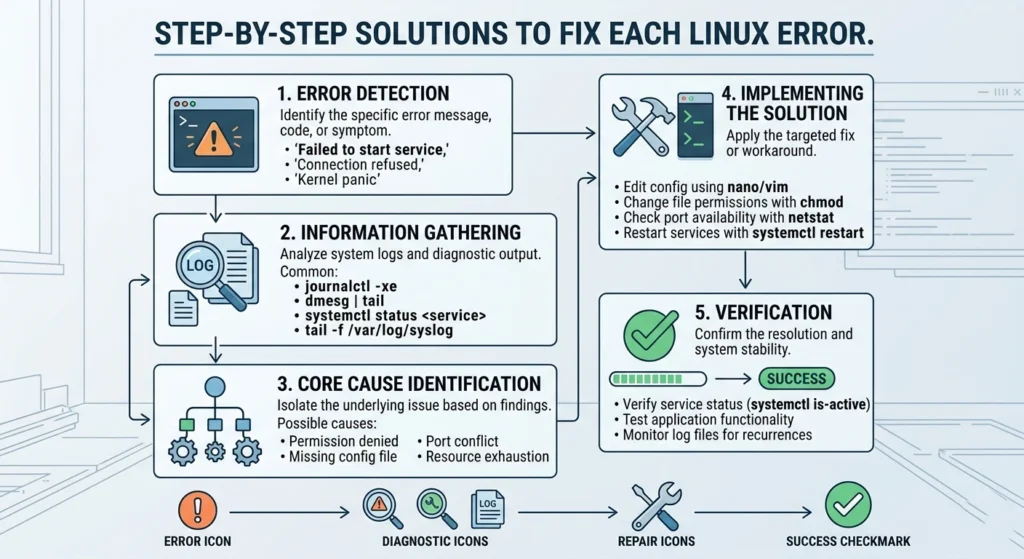
Fixing Linux errors becomes straightforward when you approach them methodically. Below are practical solutions for each common issue. When it comes to troubleshooting Linux, knowing how to fix errors step by step can save you hours of frustration.
This section provides practical, easy-to-follow solutions for each of the most common Linux errors that beginners face. breaking down each problem into clear, actionable steps, you will be able to resolve issues like permission errors, package installation failures, or command-line mistakes quickly & confidently.
Fixing Permission Denied Errors
Start by identifying whether the task requires administrative access.
- Use.
sudo command- Check file permissions.
ls -l- Modify permissions if needed.
chmod +x filenameImportant tip: Only change permissions when you fully understand the impact.
Resolving Command Not Found
- Double-check spelling
- Install the missing package.
sudo apt install package-name- Verify PATH environment variable.
echo $PATHSometimes the command exists but is not in your system path.
Fixing Package Not Found Issues
- Update package lists
sudo apt update- Ensure repositories are correctly configured
- Try searching
apt search package-nameSolving Dependency Problems
- Fix broken dependencies
sudo apt --fix-broken install- Upgrade system
sudo apt upgradeDependencies must align properly for installations to succeed.
Handling Disk Space Errors
- Check disk usage
df -h- Remove unnecessary files
sudo apt autoremove- Clear cache
sudo apt cleanFreeing space often resolves multiple system issues at once.
Fixing File or Directory Errors
- Verify path
pwd- List files
lsEven a small typo can cause this error, so always double-check paths.
Repairing Broken Packages
- Reconfigure packages
sudo dpkg --configure -a- Fix installation
sudo apt install -fResolving Network Issues
- Restart network service
sudo systemctl restart networking- Check connectivity
ping google.comFixing Boot Errors
- Use recovery mode from boot menu
- Repair bootloader if needed
- Check system logs for clues
Boot issues can seem serious, but they are often fixable with careful steps.
Solving Read-Only File System Errors
- Remount with write permissions
sudo mount -o remount,rw /This restores the ability to modify files.
Tips to Prevent Linux Errors in the Future

Preventing errors is just as important as fixing them. A few good habits can significantly reduce problems. Fixing Linux errors is important, but the real game-changer is learning how to prevent Linux errors in the future.
For beginners, common mistakes like incorrect permissions, outdated packages, or misused commands can often be avoided with a few simple practices. In this section, we’ll share practical tips and strategies to your system running smoothly, reduce errors, and improve your overall Linux experience.
Keep Your System Updated
Regular updates ensure compatibility and stability.
sudo apt update && sudo apt upgradeAvoid Running Commands Without Understanding Them
Blindly copying commands can lead to unexpected issues. Always take a moment to understand what a command does.
Maintain Proper File Permissions
Incorrect permissions are a major source of errors. Learn how Linux handles user roles and access control.
Organize Your System
- Keep directories structured
- Avoid clutter in system folders
- Remove unused packages regularly
Backup Important Data
Even experienced users encounter issues. Backups ensure that your data remains safe.
A simple backup habit can save hours of recovery work.
Using Logs and Commands to Diagnose Linux Issues

Linux provides powerful tools for troubleshooting. Learning to use them effectively gives you a major advantage. Understanding and resolving Linux errors often requires a closer look at what’s happening behind the scenes.
using logs and commands to diagnose Linux issues, beginners can pinpoint the root cause of problems instead of just guessing. In this section, we will show you how to access system logs, interpret error messages, and use essential Linux commands to troubleshoot effectively.
Understanding System Logs
Logs record system activity and errors. Key log files include.
/var/log/syslog/var/log/auth.log
To view logs.
cat /var/log/syslogr for real-time monitoring.
tail -f /var/log/syslogUsing Diagnostic Commands
Some essential commands include:
- Check running processes
top- View system performance
htop- Check memory usage
free -hReading Error Messages Effectively
Instead of ignoring errors, focus on.
- The exact wording
- File paths mentioned
- Missing dependencies or permissions
Every error message is a roadmap to the solution.
When to Seek Help from the Linux Community or Experts
Even experienced users sometimes need help. Knowing when to ask is an important skill. Even with the best troubleshooting skills, some Linux errors can be complex and difficult for beginners to resolve alone.
Knowing when to seek help from the Linux community or experts is a crucial part of learning the system efficiently. we will explain the situations where outside guidance can save time how to ask questions effectively, & where to find reliable support, from online forums to professional help.
Signs You Should Ask for Help
- The error persists after multiple attempts
- System behavior becomes unpredictable
- Logs show unfamiliar or complex issues
Where to Get Help
- Linux forums and communities
- Q&A platforms
- Official documentation
When asking for help, provide.
- Exact error message
- Commands you used
- System details
This increases the chances of getting accurate solutions quickly.
Learning from the Community
Linux communities are known for being helpful and knowledgeable. engaging with them, you not only solve your problem but also improve your understanding.
Conclusion: Becoming Confident in Handling Linux Errors
Linux errors may seem intimidating at first, but they are an essential part of learning the system. Each issue you encounter builds your problem-solving skillsand deepens your understanding of how Linux works.
recognizing common errors, applying structured fixes, and using system tools effectively, you can handle most problems with confidence. Over time, what once felt confusing becomes second nature.
The key is consistency, patience, and a willingness to learn. With practice, you’ll move from being a beginner to someone who can troubleshoot Linux systems with ease and confidence.