Digital landscape, protecting sensitive data is more critical than ever. One of the most powerful tools for safeguarding information on Windows devices is BitLocker, Microsoft’s encryption software. However, while BitLocker can effectively protect your data, its security is only as strong as the management of your BitLocker recovery key.
The BitLocker recovery key is a critical piece of information that allows users to access encrypted drivesin case they forget their password, encounter hardware failures, or face other security issues. Without proper management, losing the recovery key can lead to permanent data loss and major disruptions.
According to a 2019 Microsoft report, nearly 20% of organizations experienced data loss due to improper management of recovery keys. This highlights the importance of following best practices for BitLocker recovery key management to avoid costly mistakes and ensure business continuity.
we will explore the top best practices for BitLocker recovery key management and how you can implement these strategies to secure your data and prevent permanent loss.
What is BitLocker and Why is Recovery Key Management Crucial?
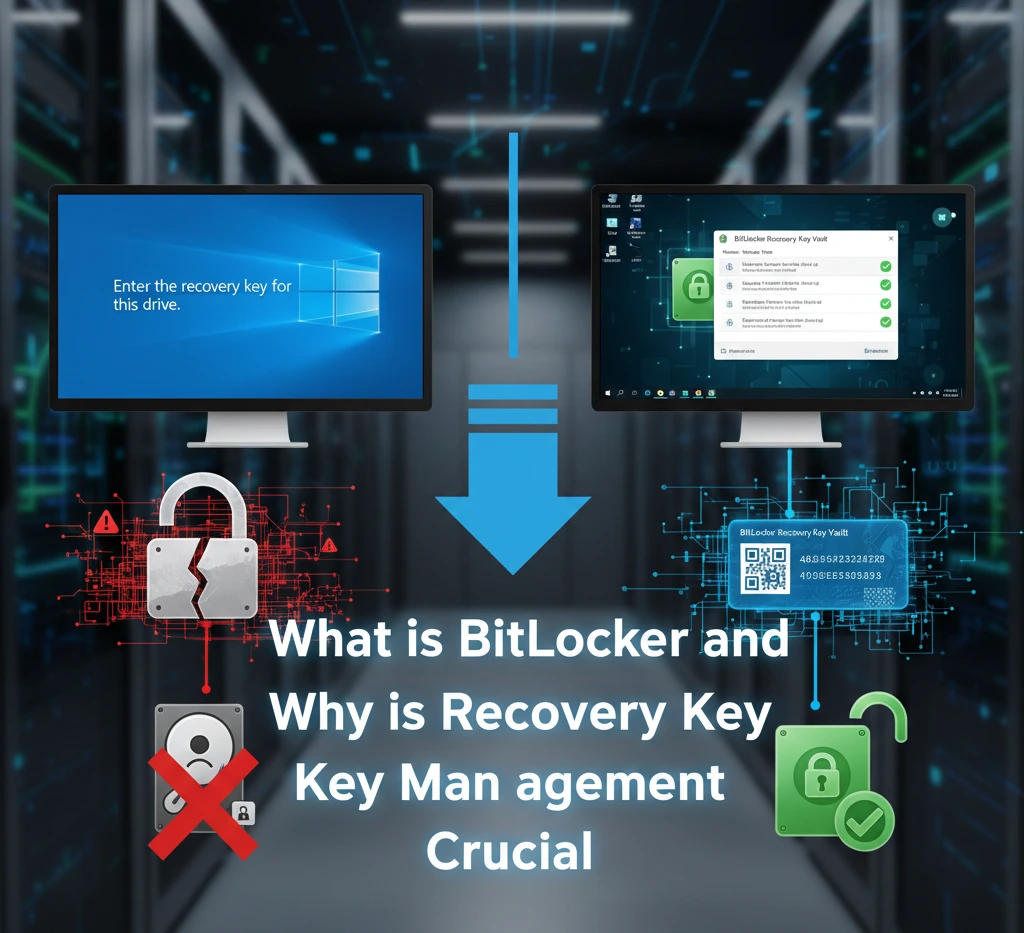
BitLocker is Microsoft’s full-disk encryption feature built into professional and enterprise editions of Windows. It encrypts the entire drive using strong AES encryption (128-bit or 256-bit), protecting data from offline attacks, theft, or unauthorized access.
BitLocker relies heavily on the Trusted Platform Module (TPM) to automatically unlock the drive during normal boot. However, if the system detects changes – such as motherboard replacement, firmware updates, or bootloader modifications – it triggers recovery mode. At that point, the only way to unlock the drive is with the 48-digit BitLocker recovery key.
Without this key, the encrypted data is permanently inaccessible. There is no master override. This is by design.
Why Recovery Key Management Matters
The recovery key acts as the final safeguard between accessibility and total data loss.
Poor key management can result in.
- Permanent loss of corporate data
- Business downtime
- Compliance violations (GDPR, HIPAA, etc.)
- Irrecoverable personal files
Encryption is only as strong as its recovery strategy. BitLocker protects data from attackers – but it will not protect users from their own mismanagement.
Common Risks of Mismanaging BitLocker Recovery Keys
Many data loss incidents involving BitLocker are not caused by encryption failures they are caused by human error. BitLocker is a robust encryption tool designed to protect your data by locking it with a recovery key. However, as with any powerful tool, its effectiveness depends on how well it’s managed. Mismanaging BitLocker recovery keys can open the door to significant risks, including data loss, security breaches, and even downtime for organizations.
When these keys are not stored properly or are forgotten, the consequences can be severe. In some cases, users may be locked out of their devices permanently, with no way to access their data. In fact, according to a 2019 survey by TechRadar, over 30% of IT professionals reported losing critical data due to mishandling recovery keys, which underscores just how crucial proper management is.
Losing the Only Copy of the Recovery Key
Saving the key on the same encrypted drive defeats the purpose. If that drive locks, so does the key. Similarly, printing a copy and misplacing it eliminates your fallback option.
Hardware or Firmware Changes
BitLocker may enter recovery mode after:
- BIOS/UEFIfirmware updates
- TPMreset or malfunction
- Boot order changes
- Motherboard replacement
Users who are unaware of these triggers often panic when prompted for the recovery key.
Employee Turnover in Organizations
In enterprise environments, failure to centralize recovery key storage can create chaos when employees leave or devices are reassigned.
Relying on Memory
Some users assume they will “always have access” to their Microsoft account. Forgotten credentials or account lockouts complicate recovery when keys are stored online.
Best Practices for Storing and Protecting Your BitLocker Recovery Key
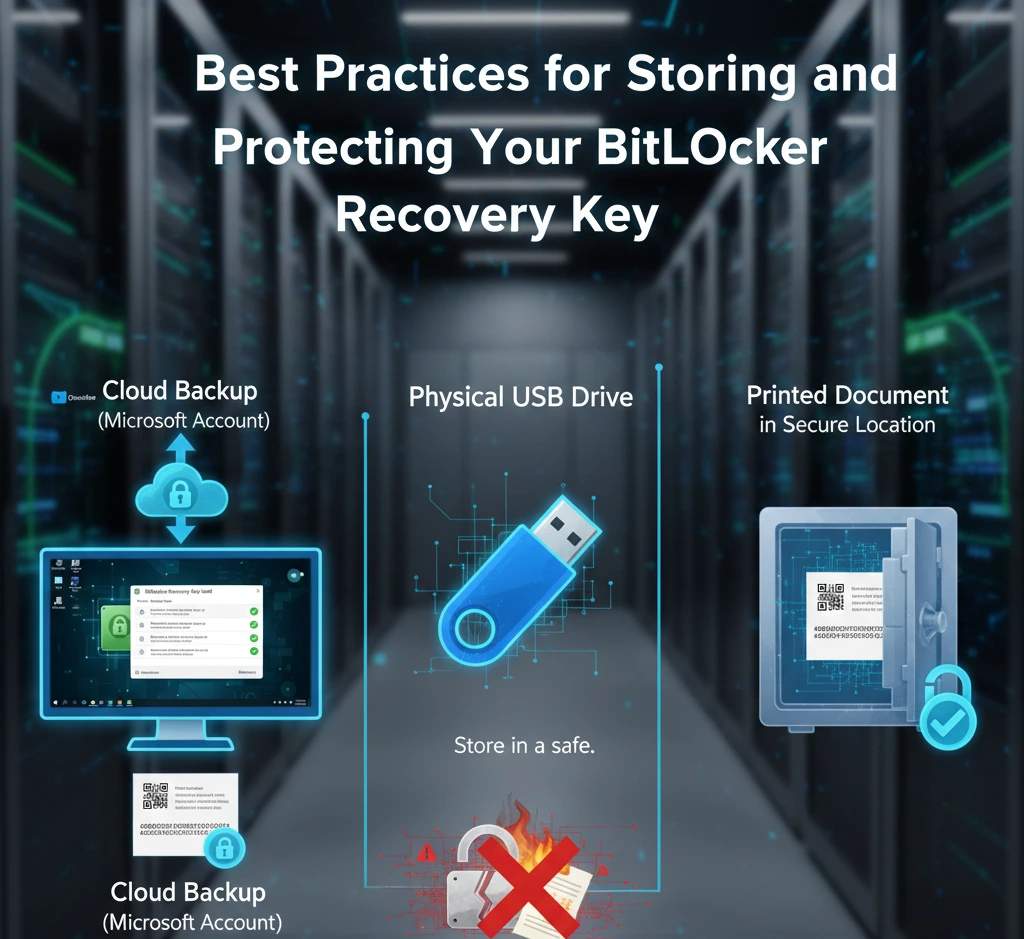
A recovery key strategy should follow the same discipline as password management redundancy, security, and accessibility. The BitLocker recovery key is the lifeline to your encrypted data, but its effectiveness is only guaranteed if it’s properly stored and protected.
When you set up BitLocker encryption on your device, the recovery key acts as a backup that enables access to your data in case of forgotten passwords, system failures, or hardware issues. However, if this key is misplaced, forgotten, or compromised, the risk of permanent data loss increases exponentially.
According to a 2019 survey by Microsoft, 25% of users don’t follow best practices for recovery key storage, putting their data at risk. Ensuring that your BitLocker recovery key is both accessible when needed and securely protected from unauthorized access is crucial.
Use Multiple Storage Locations
Never rely on a single storage method.
Recommended options include:
- Secure Microsoft account storage
- Active Directory domain storage
- Printed physical copy stored securely
- Encrypted password manager
- Secure enterprise key vault
Avoid Storing Keys on the Encrypted Drive
This is a common mistake. If the drive locks, the recovery key becomes inaccessible.
Use Role-Based Access in Organizations
Only authorized IT personnel should access recovery keys.
Implement:
- Least privilege access controls
- Audit logging
- Access approval workflows
Document Key Ownership
Maintain records of:
- Device serial number
- Assigned employee
- Key backup location
- Encryption activation date
This prevents confusion during audits or incidents.
How to Recover Your BitLocker Encrypted Drive Safely
When a BitLocker recovery screen appears, it means Windows has detected a potential security change. Accidentally locking yourself out of your BitLocker-encrypted drive can be a nightmare, especially if you rely on that data for personal or business purposes. Whether you have forgotten your password, encountered system errors, or experienced hardware failure, the BitLocker recovery key is your primary tool to regain access. However, it’s important to follow the correct recovery process to ensure that the data remains intact and secure.
Recovering a BitLocker-encrypted drive safely is not as simple as just entering the recovery key. Improper steps can lead to data corruption, security vulnerabilities, or even permanent data loss. In fact, according to a study by PCWorld, 15% of users reported complications during recovery attempts, often due to incorrect or rushed procedures.
Step 1: Identify the Recovery Key ID
The screen displays a Key ID. Use it to match the correct 48-digit recovery key from your backup source.
Step 2: Retrieve the Key from a Trusted Source
Depending on setup, you may retrieve it from.
- Your Microsoft account
- Your organization’s IT department
- On-premises Active Directory
- Azure device management portal
Step 3: Enter the Key Carefully
Enter the 48-digit key exactly as shown. Mistyped digits will prevent unlock.
After Recovery
Investigate the cause.
- Was firmware updated?
- Was hardware modified?
- Was TPM reset?
Understanding the trigger prevents repeated recovery prompts.
The Role of IT Administrators in BitLocker Key Management
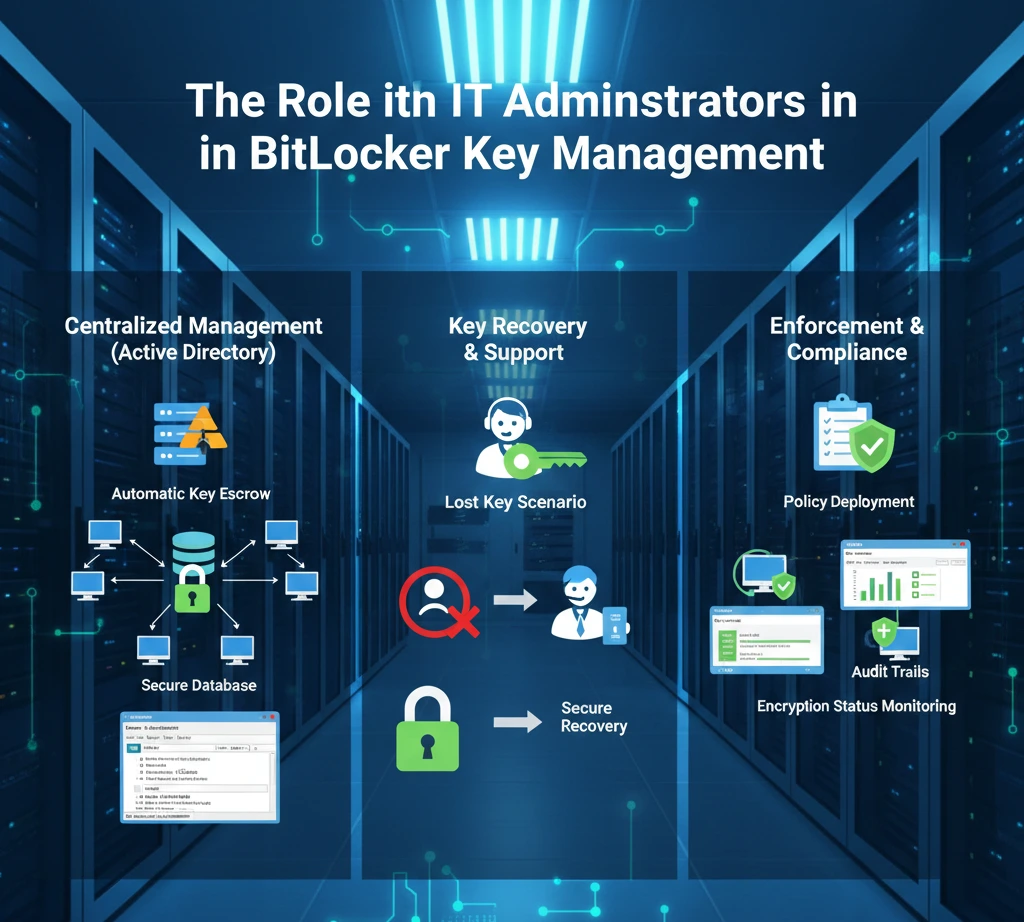
In enterprise environments, BitLocker management is not optional it is a governance requirement. When it comes to managing BitLocker recovery keys, the responsibility doesn’t solely lie with the end-user. In organizations, IT administrators play a crucial role in ensuring that these keys are handled securely, stored properly, and accessible when needed.
With the increasing importance of data security, IT teams must implement robust policies and processes for managing BitLocker keys to avoid data loss, system downtime, and security breaches.
BitLocker key management involves more than just storing keys – IT administrators must ensure that keys are backed up, encrypted, and accessible only by authorized personnel. A 2018 study by Spiceworks found that over 40% of organizations faced security risks due to poor BitLocker key management, highlighting the need for IT departments to have strict protocols in place.
Centralized Policy Enforcement
Using Group Policy, administrators can.
- Force automatic encryption
- Require key backup before encryption completes
- Define encryption strength
- Control TPM requirements
Monitoring and Auditing
Administrators should regularly audit.
- Devices without backed-up keys
- Encryption compliance rates
- Recovery incidents
A proactive approach prevents support crises.
Incident Response Planning
IT teams should define.
- Recovery request verification process
- Identity validation steps
- Logging and documentation procedures
Without structured processes, key recovery can become a security vulnerability.
Using Microsoft Azure AD and Active Directory for Enhanced Key Management
Modern organizations use directory services to automate recovery key storage. Hybrid work environments, managing BitLocker recovery keys effectively can be a challenge, especially for organizations with a large number of devices spread across multiple locations.
Fortunately, tools like Microsoft Azure Active Directory (Azure AD) and Active Directory (AD) provide robust solutions to help organizations streamline and secure their BitLocker key management process.
Integrating BitLocker with Azure AD or Active Directory, IT administrators can ensure that recovery keys are automatically backed up and accessible in a secure, centralized location. This approach not only simplifies recovery in the event of system failures but also enhances security by keeping keys within the organization’s trusted ecosystem.
According to a 2020 report by Microsoft, over 60% of enterprises using Azure AD for BitLocker key management reported a significant reduction in data loss incidents and faster recovery times. we’ll explore how to leverage Microsoft Azure AD and Active Directory for enhanced BitLocker key management and how these solutions can improve both security and efficiency in managing encrypted devices.
Active Directory Domain Services (AD DS)
Active Directory allows automatic backup of BitLocker recovery keys when domain-joined devices are encrypted.
Benefits:
- Centralized storage
- Easy retrieval by IT staff
- Integrated with Group Policy
- Audit capabilities
Azure AD (Microsoft Entra ID)
Microsoft Entra ID (formerly Azure AD) provides cloud-based recovery key management.
Advantages:
- Remote device management
- Self-service recovery portal
- Suitable for hybrid or remote work environments
Organizations with distributed teams benefit significantly from cloud-based key storage.
BitLocker Key Management Tools and Solutions
While BitLocker itself is built into Windows, enterprises often integrate it with management frameworks. Managing BitLocker recovery keys effectively is essential for protecting sensitive data and ensuring business continuity. While BitLocker provides strong encryption, its security is only as reliable as the tools used to manage its recovery keys. Fortunately, there are a variety of BitLocker key management tools and solutions designed to help organizations securely store, track, and recover their recovery keys with ease.
These tools range from native Microsoft solutions, like Active Directory and Azure AD, to third-party software tailored for large-scale deployments. By using the right BitLocker key management tools, organizations can mitigate the risks of data loss, unauthorized access, and compliance issues.
According to a 2021 report by TechRepublic, over 45% of enterprises reported using specialized key management solutions to enhance security and streamline their recovery processes. In this section, we’ll explore the most effective BitLocker key management tools available today and help you choose the best solution for your needs.
Microsoft Endpoint Manager
Microsoft Intune allows administrators
- Enforce encryption policies
- Automatically escrow recovery keys
- Monitor encryption compliance
- Trigger remote wipe if needed
Windows Group Policy
Native Group Policy provides granular configuration without additional software.
Enterprise Key Vaults
Some organizations use secure vault systems to store exported recovery keys in highly controlled environments.
The goal is not complexity – it is controlled accessibility.
What to Do If You Lose Your BitLocker Recovery Key
This is the scenario everyone hopes to avoid. Losing your BitLocker recovery key can be one of the most frustrating experiences, especially if you need urgent access to encrypted data. BitLocker is designed to keep your information secure, but if you forget your password or face hardware issues, the recovery key is your only way to regain access. Unfortunately, without it, recovering your data becomes a major challenge, and in some cases, permanent data loss is inevitable.
If you’ve lost your BitLocker recovery key, don’t panic. There are several steps you can take to try and recover access to your encrypted drive. However, it’s important to know that not all solutions will work in every case, and early intervention is key to preventing irreversible data loss.
First: Check All Possible Backup Locations
Look in
- Microsoft account recovery page
- Printed copies
- IT department portal
- Password manager vault
- Organizational directory service
If the Key Is Truly Lost
Unfortunately, there is no bypass mechanism. BitLocker’s encryption is designed to prevent brute-force recovery.
The only remaining option.
- Wipe the drive
- Reinstall Windows
- Restore from backups
This is why recovery key management is not optional – it is critical.
Why Regular Backups of Recovery Keys are Essential for Security
Encryption increases security – but it also increases responsibility.
Backups Protect Against Human Error
Users forget passwords. Devices fail. Accounts get locked. Backups eliminate single points of failure.
Compliance and Legal Requirements
Many industries require documented key management procedures. Poor recovery planning can lead to regulatory penalties.
Business Continuity
If executives lose access to encrypted devices during travel or after hardware repair, downtime can cost thousands per hour.
Regularly verifying recovery key backups ensures.
- Accessibility
- Accuracy
- Compliance
- Operational continuity
Conclusion
BitLocker is one of the strongest built-in data protection features in Windows. But encryption without recovery planning can turn protection into permanent data loss.
Effective BitLocker recovery key management requires.
- Multiple secure storage methods
- Centralized enterprise oversight
- Regular audits
- Backup verification
- Clear recovery procedures
Encryption protects against attackers. Recovery planning protects against mistakes.
Organizations and individual users who treat recovery keys with the same importance as encryption itself will never face the nightmare of irreversible data loss.