If your Android phone has started lagging, freezing, or taking forever to open apps, you’re not alone. Over time, even the fastest Android devices can slow down due to background processes, storage clutter, outdated settings, and system overload. Many users immediately turn to so-called “cleaner” or “booster” apps, hoping for a quick fix. But here’s the truth most cleaning apps don’t actually improve performance in the long run, and some can even drain more battery and memory.
The good news? You don’t need any third-party cleaner apps to make your device faster.
Android already includes powerful built-in tools and settings that can significantly improve speed and responsiveness when used correctly. With a few smart adjustments, you can reduce lag, free up system resources, optimize storage, and make your phone feel almost new again all without installing anything extra.
Modern Android phones are powerful. Even mid-range devices now ship with multi-core processors, 6–12GB RAM, and fast UFS storage. Yet after months of use, many users start noticing lag, delayed app launches, stutters while scrolling, and slower multitasking.
1: Make Your Android Device Faster and Smoother in Minutes
If your Android phone feels slow or laggy, you don’t need complicated tools to fix it. With a few simple adjustments and smart settings tweaks, you can make your device faster, smoother, and more responsive in just minutes. These easy techniques help free up memory, reduce background activity, and improve overall performance no extra apps required.
Restart Your Phone Regularly to Clear Temporary System Load
Many users underestimate how powerful a simple restart can be.
Why Restarting Actually Works
Android is built on the Linux kernel.
Over time
- Cached processes accumulate
- Background services remain active
- Temporary system files build up
- RAM fragmentation increases
When you restart your device
- RAM is fully cleared
- Background processes are reset
- Temporary system states are refreshed
- Stuck services are terminated
How Often Should You Restart?
If you use your phone heavily
- Restart once every 5–7 days
If you rarely power it off
- Restarting even twice a month can noticeably improve smoothness
This simple action often resolves
- UI stuttering
- Slow app launches
- Random overheating
- Notification delays
No app required. Just a clean system boot.
2: Boost Your Android Performance Without Installing Extra Apps
You don’t need extra apps to make your Android phone run better. adjusting built-in settings, managing background processes, and optimizing storage, you can boost performance, reduce lag, and enjoy a smoother, faster device all without installing anything new.
Disable or Uninstall Unused Apps (Especially Pre-Installed Ones)
Unused apps are one of the biggest hidden causes of performance slowdown.
The Hidden Cost of “Unused” Apps
Even if you never open them, many apps.
- Run background services
- Auto-sync data
- Send push notifications
- Start at boot
- Consume RAM
Pre-installed apps (often called bloatware) can be particularly aggressive.
What You Should Do
Go to..
Settings → Apps → See all apps
For each unused app
- Tap Uninstall (if possible)
- Or tap Disable (for system apps that can’t be removed)
Disabling an app
- Prevents it from running
- Stops background activity
- Removes updates
- Frees RAM
Real Impact on Performance
Reducing 5–10 background apps can.
- Free hundreds of MB of RAM
- Reduce CPU wake-ups
- Improve battery life
- Speed up multitasking
This is one of the most effective manual optimizations available.
3: Simple Techniques to Improve Android Speed and Responsiveness
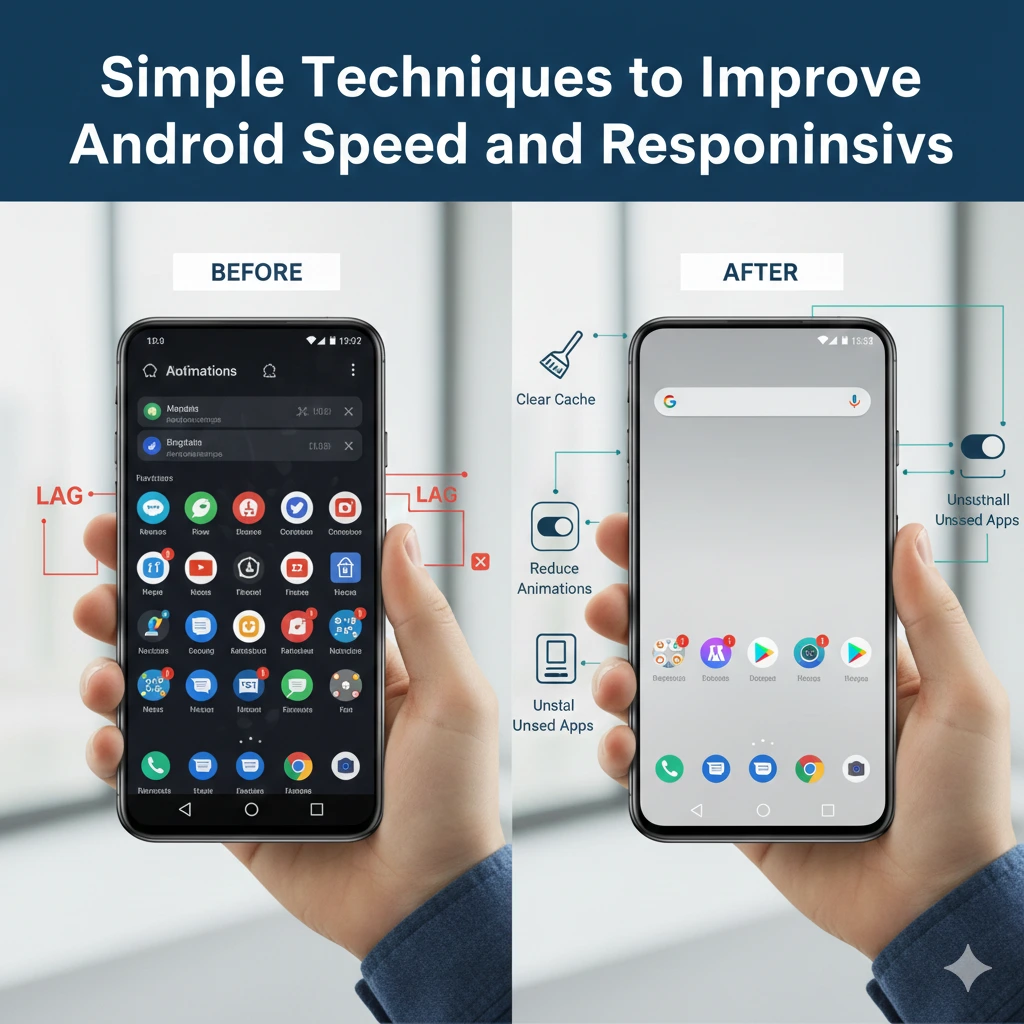
A slow Android phone can be frustrating, but you don’t always need complex solutions or extra apps to fix it. applying a few simple techniques, you can significantly improve your device’s speed and responsiveness. These practical tips help reduce lag, optimize memory, and make everyday tasks like opening apps, browsing, and multitasking feel faster and smoother. With just a little effort, your Android phone can run closer to its full potential without any technical hassle.
Reduce or Turn Off System Animations
Animations make Android feel polished. But they also consume processing power.
How Animations Affect Speed
When you
- Open apps
- Switch between apps
- Pull down the notification shade
Android renders frame-by-frame animation transitions. On older or mid-range devices, this causes visible delay.
How to Adjust Animation Speed
Enable Developer Options
- Go to Settings → About phone
- Tap Build number 7 times
- Go to Developer Options
Then adjust
- Window animation scale
- Transition animation scale
- Animator duration scale
Set them to
- 0.5x (recommended)
- Or turn them off completely
Result
- Apps open faster
- UI feels more responsive
- Less perceived lag
This doesn’t increase raw performance – but it significantly improves perceived speed.
4: Fix a Slow Android and Restore Peak Performance
Is your Android dragging, freezing, or taking ages to open apps? Don’t panic most slowdowns aren’t permanent. With a few clever tweaks, you can bring your phone back to its original speed. From clearing hidden background tasks to adjusting system settings, these tips help restore peak performance so your device feels quick and responsive again. No fancy apps or complicated tricks required just smart, practical fixes you can do right now.
Free Up Internal Storage (Keep at Least 20% Free)
Storage directly impacts speed.
Why Full Storage Slows Down Your Phone
Android uses internal storage for..
- App data
- Cache
- Temporary system files
- Updates
- Virtual memory swapping
When storage is nearly full
- Write speeds slow down
- Apps struggle to cache data
- System updates fail
- Performance drops significantly
The 80/20 Rule
Keep at least
- 15–20% storage free at all times
If you have 128GB
- Try to keep 20–25GB free
What to Remove
- Large videos
- Old downloads
- Duplicate photos
- Unused offline media
Clearing storage often improves
- App loading speed
- Camera performance
- System responsiveness
This is one of the most important real-world performance factors.
5: Practical Methods to Improve Smartphone Speed and Efficiency
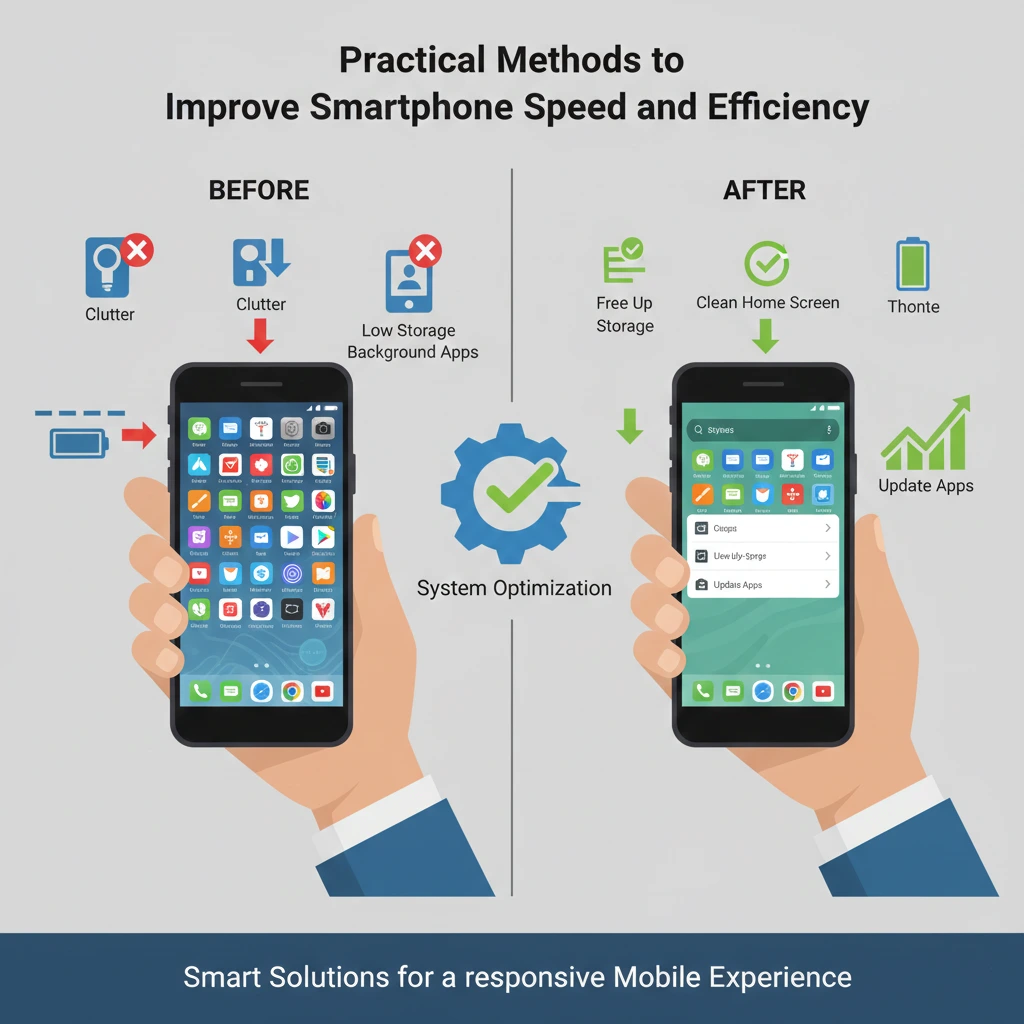
Every smartphone can slow down over time, and Android devices are no exception. The good news? You don’t need to spend money or install extra apps to get things moving again. using practical, hands-on methods like managing background processes, optimizing storage, and adjusting key settings you can boost your phone’s speed and overall efficiency. These simple changes make daily tasks smoother, help apps run faster, and let your device perform closer to its full potential.
Limit Background Processes
Android multitasking is powerful – but too many apps running in the background can cause slowdowns.
Understanding Background RAM Usage
Android keeps apps in memory to reopen them quickly.
- Social media apps
- Messaging apps
- News apps
- Shopping apps
often continue syncing data.
How to Limit Background Activity
Go to.
Settings → Battery → Background restrictions (varies by manufacturer)
For non-essential apps
- Set to “Restricted”
- Disable background data
In Developer Options
- You can limit background processes (advanced users only)
What Happens When You Restrict Apps
- Less RAM pressure
- Fewer CPU spikes
- Improved battery life
- Faster foreground app performance
Be careful not to restrict apps you rely on for real-time notifications.
6: Stop Lag and Improve Your Android Experience Today

Laggy apps, slow scrolling, and delayed responses can make using your Android frustrating. The good news? You don’t need to install extra tools or cleaners to fix it. With a few simple tweaks like limiting background processes, managing storage, and adjusting key settings you can stop lag and enjoy a faster, smoother Android experience starting today. These quick, practical steps help your phone feel more responsive and reliable for everything you do.
Clear App Cache (Not Data) Strategically
Cache helps apps load faster but excessive cache can cause problems.
When Cache Becomes a Problem
Some apps (like browsers and social apps) can accumulate:
- Hundreds of MBs
- Even multiple GBs of cached files
Over time
- Storage fills up
- App performance drops
- Corrupted cache may cause lag
How to Clear Cache Properly
Go to
Settings → Apps → Select app → Storage → Clear Cache
Do NOT press
- Clear Data (unless necessary)
Which Apps to Target
- Browser
- Social media
- Streaming apps
- Maps
Clearing cache can
- Fix freezing
- Reduce storage usage
- Improve app responsiveness
Use it when apps behave abnormally not daily.
7: Effective Strategies to Optimize Your Android System Performance
Want your Android phone to run like new again? Optimizing system performance doesn’t have to be complicated. applying effective strategies from managing apps and storage to adjusting system settings you can reduce slowdowns, prevent lag, and make your device more responsive. These practical tips focus on real improvements you can implement today, helping your Android handle tasks faster and run smoother without relying on unnecessary apps.
Keep Your Android System Updated
Many users delay updates but updates often improve performance.
What System Updates Actually Fix
- Memory leaks
- CPU scheduling bugs
- Thermal throttling issues
- App compatibility problems
Manufacturers frequently optimize performance through firmware patches.
Where to Check
Go.
Settings → Software Update
Install
- Security patches
- Stability updates
Even small updates can
- Reduce lag
- Improve battery efficiency
- Enhance system smoothness
8: Get Better Speed and Performance From Your Android Device
Feeling frustrated with a slow Android phone? You don’t need to buy a new device or rely on extra apps to boost performance. making a few smart adjustments like clearing background activity, optimizing storage, and fine-tuning settings you can get noticeably better speed and smoother performance. These practical tips help your Android handle everyday tasks faster, making your device feel more responsive and reliable.
Disable Auto-Sync for Unnecessary Accounts
Every synced account consumes resources.
What Auto-Sync Does
Android syncs
- Contacts
- Calendar
- App data
- Cloud backups
If you have
- Multiple Gmail accounts
- Social media accounts
- Work profiles
Your device constantly wakes up to sync.
How to Manage It
Go.
Settings → Accounts
Disable sync for
- Accounts you rarely use
- Services you don’t need
Reducing sync frequency lowers
- CPU wake-ups
- Network usage
- Background activity
This improves overall smoothness.
9: Eliminate Lag and Free Up System Resources Easily
Is your Android slowing down when you open apps or switch between tasks? Much of the lag comes from hidden processes and overloaded system resources. The good news is, you can fix it without any extra apps. freeing up memory, managing background tasks, and optimizing settings, you can eliminate lag and make your device run smoothly again quickly and easily. These simple steps help your phone perform better, letting you enjoy a faster, more responsive experience every day.
Use Lite Versions or Progressive Web Apps
Some apps are simply heavy.
Why Some Apps Slow Down Phones
Modern apps often include
- Built-in web engines
- Analytics trackers
- Background services
- Rich media features
On lower-end devices, this increases RAM usage and CPU load.
Smarter Alternative
Use
- Lite versions (if available)
- Browser-based versions
- Progressive Web Apps (PWAs)
These versions
- Consume less RAM
- Use less storage
- Run fewer background services
This significantly reduces system strain.
10: Smart Optimization Tips for a Faster Android Experience
Want your Android to feel faster without installing any extra apps? Smart optimization isn’t about complicated tools it’s about using your phone’s built-in features wisely. tweaking key settings, managing apps efficiently, and keeping your system clutter-free, you can boost speed and enjoy a smoother experience. These tips are practical, easy to follow, and designed to make everyday tasks on your Android quicker and more responsive.
Perform a Factory Reset (When Necessary)
If your phone remains slow after trying everything a factory reset can restore peak performance.
Why Factory Reset Works
Over time, devices accumulate
- Old system files
- Fragmented app data
- Residual configurations
- Corrupted system cache
A reset
- Restores original system state
- Removes unused apps
- Eliminates corrupted data
When to Consider It
- Major Android version upgrades caused lag
- Severe battery drain
- Persistent stuttering
- Random crashes
Always
After reset
- Install only essential apps
- Avoid reinstalling everything at once
Many users report performance improvement similar to when the phone was new.
Final Thoughts: Real Optimization Comes From System Control
Cleaner apps promise one-tap speed boosts. In reality, Android already manages memory and storage efficiently on its own. Slowing down, lag, and unresponsive apps don’t have to be permanent problems on your Android device.
As we’ve seen, real optimization isn’t about relying on third-party cleaning apps it comes from understanding your system and taking control. managing background processes, optimizing storage, adjusting key settings, and applying practical performance tips, you can make your phone faster, smoother, and more responsive.
With consistent care and a few smart tweaks, your Android can stay efficient and reliable for years to come. Remember, a well-optimized device isn’t just about speed it’s about creating a seamless, enjoyable experience every time you use it. Take control of your system today, and you’ll notice the difference immediately.
The real keys to speed are
- Controlling background processes
- Managing storage
- Reducing unnecessary sync
- Keeping software optimized
- Removing unused apps
applying these 10 proven methods, you’re not just masking performance issues you’re addressing them at the system level.