The Linux terminal may look intimidating at first, but it is one of the most powerful tools for improving your workflow and productivity. Instead of navigating through multiple graphical menus, the terminal allows you to perform complex tasks with just a few simple commands. Whether you are a beginner exploring Linux or an experienced user looking to work more efficiently, learning essential terminal commands can significantly speed up your daily tasks.
Many professionals prefer using the Linux terminal because it provides greater control, flexibility, and automation. With the right commands, you can quickly manage files, search through directories, modify permissions, and perform system operations in seconds. This not only saves time but also helps you develop a deeper understanding of how Linux systems work.
Introduction to Linux Terminal Productivity
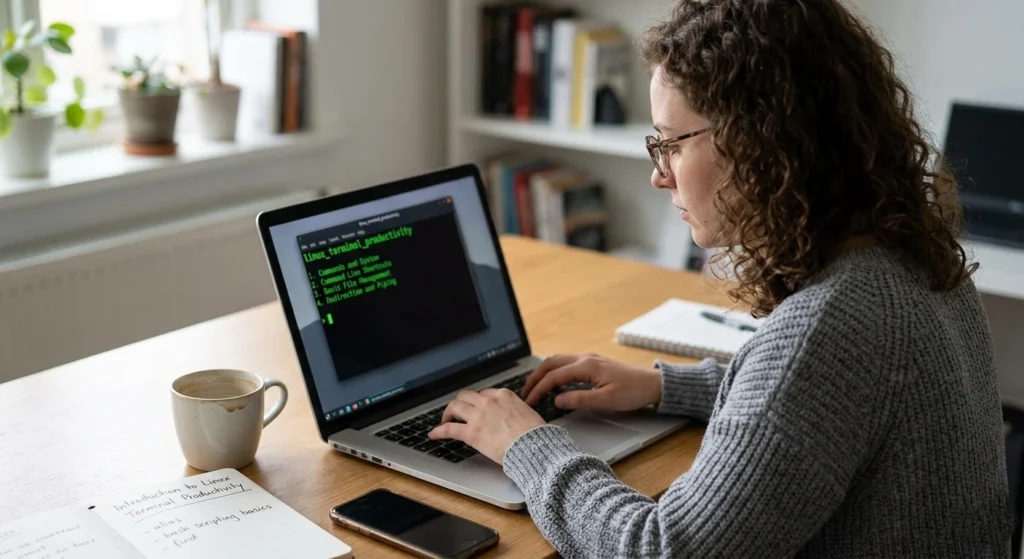
For many new users, the Linux terminal can appear intimidating at first. A black screen filled with blinking cursors and cryptic commands may seem outdated compared to modern graphical interfaces. However, experienced Linux users know that the terminal is one of the most powerful productivity tools available in computing. Learning how to use it effectively can dramatically improve how quickly and efficiently you interact with your system.
The Linux terminal, often referred to as the command line interface (CLI), allows users to communicate directly with the operating system using text-based commands. Unlike graphical interfaces that require navigating menus and clicking buttons, the terminal lets you perform complex tasks in just a few seconds with a single command. Whether you are managing files, configuring system settings, or automating repetitive tasks, the terminal provides unmatched speed and flexibility.
Linux terminal is its precision and control.
One of the key advantages of the Linux terminal is its precision and control. When you use graphical tools, many operations occur behind the scenes, often without giving you full visibility into what is happening. In contrast, the terminal allows you to specify exactly what you want the system to do. This makes it easier to understand system behavior, troubleshoot issues, and optimize workflows.
Another reason the Linux terminal remains so important is its consistency across different Linux distributions. While graphical interfaces may vary between environments such as GNOME, KDE, or XFCE, terminal commands typically remain the same. This means that once you learn core commands, you can apply them across many Linux systems without needing to relearn new interfaces.
In professional environments, the terminal is essential. System administrators, developers, cybersecurity professionals, and DevOps engineers rely heavily on command-line tools to manage servers, deploy applications, and automate infrastructure tasks. Many cloud servers and remote machines even operate without graphical interfaces, making terminal proficiency a critical skill.
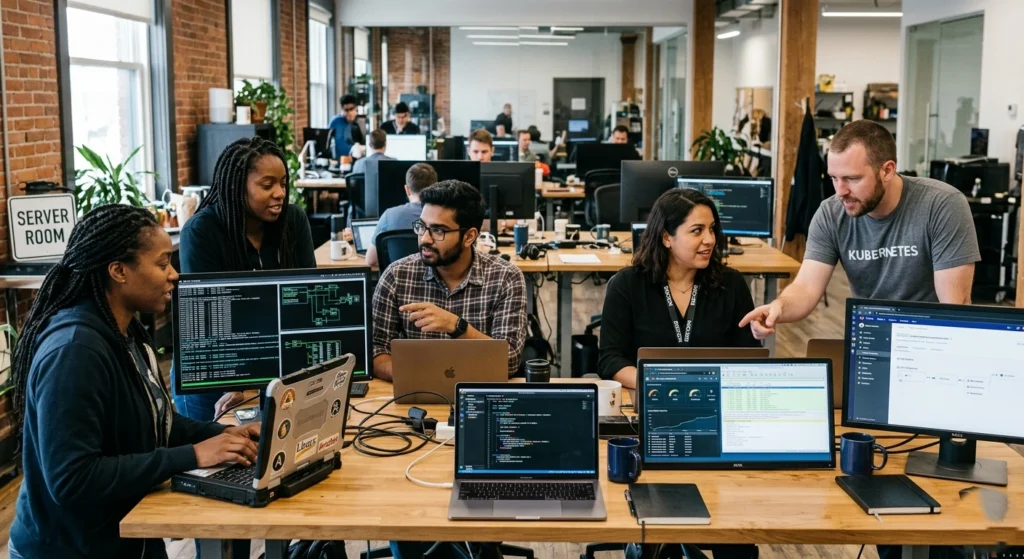
Beyond professional use, the terminal also enhances everyday productivity. Tasks such as renaming multiple files, searching large directories, managing disk usage, or editing configuration files become far faster through commands than through graphical tools. With practice, users can accomplish tasks in seconds that might otherwise take minutes through manual clicking.
Understanding Linux terminal productivity is not about replacing graphical interfaces entirely. Instead, it is about using the right tool for the right task. Many users find that combining terminal commands with graphical tools creates a workflow that is both efficient and flexible.
Once you become comfortable with essential commands, the terminal transforms from something intimidating into a powerful extension of your workflow, enabling faster navigation, automation, and system management.
Why Learning Linux Terminal Commands Improves Efficiency
Learning Linux terminal commands is not just a technical skill—it is a practical way to significantly improve your efficiency when working with Linux systems. While graphical tools are convenient, they often require multiple steps to accomplish tasks that can be completed instantly through the terminal.
Faster Task Execution
One of the biggest advantages of using terminal commands is speed. Many routine operations involve repetitive actions such as navigating folders, copying files, or checking system information. Using graphical tools requires opening file managers, navigating directories, and clicking through menus.
With terminal commands, these tasks can be completed instantly.
for example.
- Opening multiple directories through a graphical interface may take several clicks.
- Using a terminal command like
cd(change directory) allows you to jump directly to the destination in seconds.
Over time, this speed improvement can save hours of work, especially for users who regularly interact with large file systems or development environments.
Efficient System Management
The terminal also provides access to powerful tools that allow users to manage system resources and monitor performance efficiently. Commands can display detailed system information, including CPU usage, memory consumption, and disk space.
For instance, commands.
topdffree
can instantly show system statistics without needing additional software. This is especially useful for server administrators and developers who must quickly diagnose performance issues.
Automation and Scripting
Another major benefit of learning terminal commands is the ability to automate repetitive tasks. Linux allows users to combine commands into scripts that can perform complex operations automatically.
for example, a simple shell script.
- Back up important files
- Clean temporary directories
- Update system packages
- Generate reports
Instead of manually repeating these tasks every day, automation allows them to run automatically. This greatly increases productivity and reduces the risk of human error.
Remote System Management
In many professional environments, Linux systems are managed remotely through secure connections. Tools such as SSH allow administrators to connect to remote servers and execute commands through the terminal.
This makes terminal skills essential.
- Cloud infrastructure management
- Web server administration
- DevOps pipelines
- Cybersecurity monitoring
Without command-line knowledge, managing remote systems becomes much more difficult.
Better Understanding of the Linux System
Using terminal commands also helps users develop a deeper understanding of how Linux works internally. Instead of relying solely on graphical tools, users gain insight into file structures, permissions, processes, and system resources.
This knowledge makes troubleshooting easier and helps users become more confident when handling advanced tasks.
Reduced Resource Usage
Graphical applications consume system resources such as memory and processing power. The terminal, however, is extremely lightweight. Running commands through the CLI requires minimal resources, making it ideal for older systems, remote servers, or lightweight Linux distributions.
For this reason, many professionals prefer using the terminal even when graphical tools are available.
In short, learning Linux terminal commands is one of the most effective ways to work smarter, automate tasks, and gain deeper control over your system.
10 Essential Linux Terminal Commands
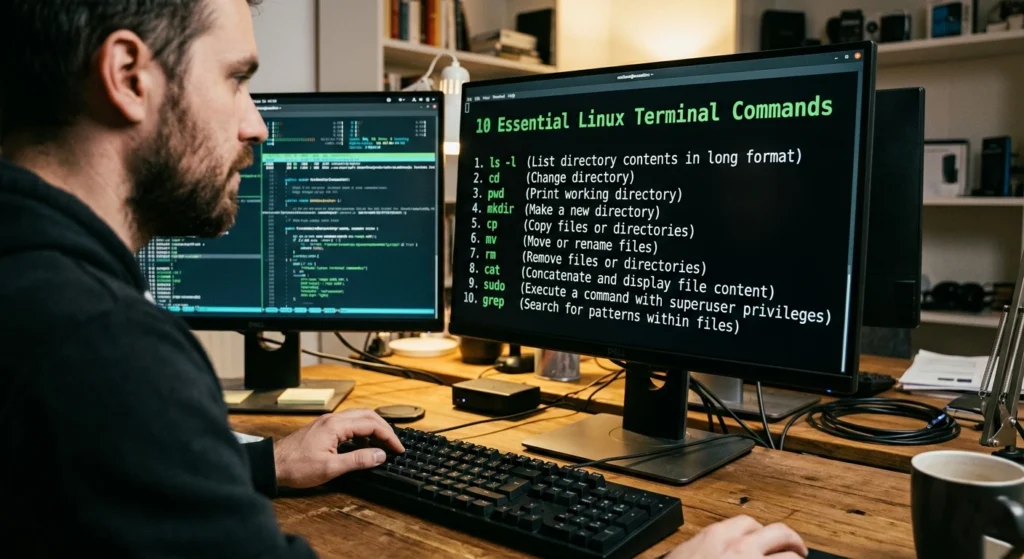
Mastering a few core commands can dramatically improve how efficiently you use Linux. Below are ten essential Linux terminal commands that every user should understand.
1. ls — Listing Directory Contents
The ls command is one of the most frequently used commands in Linux. It displays the contents of a directory, allowing you to quickly see files and folders.
Basic usage.
lsUseful variations include.
ls -l– Displays detailed information such as file size, permissions, and modification date.ls -a– Shows hidden files.ls -lh– Displays file sizes in human-readable format.
This command helps users quickly inspect directory contents without opening a graphical file manager.
2. cd — Changing Directories
The cd command allows you to move between directories within the Linux file system.
Example.
cd DocumentsCommon shortcuts include.
cd ..– Move to the parent directorycd ~– Return to the home directorycd /– Go to the root directory
Efficient navigation using cd is essential for productivity when working in the terminal.
3. pwd — Display Current Directory
The pwd command stands for Print Working Directory. It displays the full path of your current location in the file system.
Example.
pwdThis command is especially useful when navigating complex directory structures, ensuring that you always know your exact location in the system.
4. cp — Copy Files and Directories
The cp command is used to copy files or directories from one location to another.
Example.
cp file.txt backup.txtTo copy directories, use.
cp -r folder1 folder2This command is extremely useful for creating backups, duplicating configurations, or organizing files.
5. mv — Move or Rename Files
The mv command allows you to move files between directories or rename them.
Example.
mv oldname.txt newname.txtYou can also move files to another directory.
mv file.txt /home/user/DocumentsThis command simplifies file management and eliminates the need for manual drag-and-drop operations.
6. rm — Removing Files and Directories
The rm command deletes files or directories.
Example.
rm file.txtTo remove directories recursively.
rm -r foldername⚠️ Important: Once deleted using rm, files cannot easily be recovered. Always double-check before executing this command.
7. mkdir — Creating New Directories
The mkdir command creates new directories.
Example.
mkdir projectsYou can also create nested directories.
mkdir -p project/code/pythonThis command is helpful for organizing workspaces quickly through the terminal.
8. touch — Creating Empty Files
The touch command creates a new empty file.
Example.
touch notes.txtIt is commonly used by developers to quickly generate configuration files, scripts, or placeholders.
9. grep — Searching Text Within Files
The grep command is a powerful tool used to search for specific text within files.
Example.
grep "error" logfile.txtThis command can quickly locate information inside large files, making it essential for log analysis, debugging, and data filtering.
10. man — Accessing Command Documentation
The man command opens the manual page for other commands.
Example.
man lsThese manual pages provide detailed explanations, options, and usage examples.
Using man allows users to learn commands directly from built-in Linux documentation.
Tips to Use Linux Terminal Commands More Efficiently
Learning commands is only the first step. To truly improve productivity, users must also develop efficient workflows when using the terminal.
Use Command History
The terminal stores previously used commands. Pressing the up arrow key allows you to quickly reuse earlier commands without retyping them.
This is extremely useful when working with long or complex commands.
Use Tab Auto-Completion
The Tab key can automatically complete file names, directory paths, and commands.
Example.
cd Doc[TAB]This reduces typing errors and speeds up navigation.
Combine Commands with Pipes
Linux allows commands to be combined using pipes (|), which pass output from one command to another.
Example.
ls | grep ".txt"This displays only .txt files from the directory listing.
Pipes allow users to create powerful command chains for advanced data processing.
Create Aliases for Frequent Commands
Aliases allow you to create shortcuts for commonly used commands.
Example.
alias ll='ls -lah'Typing ll will now execute a detailed directory listing.
Learn Keyboard Shortcuts
Several shortcuts improve terminal productivity:
- Ctrl + C – Stop a running command
- Ctrl + L – Clear the screen
- Ctrl + R – Search command history
Using these shortcuts regularly can significantly speed up terminal workflows.
Common Mistakes Beginners Should Avoid
Running Commands Without Understanding Them
One of the most common mistakes is copying commands from the internet without understanding what they do. Some commands can modify system settings or delete files permanently.
Always read documentation before executing unfamiliar commands.
Ignoring File Permissions
Linux uses a strict permission system. Beginners sometimes encounter errors when attempting to access files without the proper permissions.
Learning commands such as chmod and chown can help manage file access properly.
Overusing Root Privileges
Running commands as the root user gives full system access. However, unnecessary root usage can damage system files or create security risks.
Use elevated privileges only when necessary.
Deleting Files Carelessly
Commands like rm -rf can delete entire directories instantly. Beginners should be cautious and verify paths before executing destructive commands.
Not Practicing Regularly
Terminal skills improve through consistent use. Many users learn commands but rarely practice them, which slows progress.
The best way to master the terminal is by integrating it into daily tasks.
Conclusion
The Linux terminal remains one of the most powerful tools for improving productivity and system control. While graphical interfaces offer convenience, the command line provides unmatched speed, flexibility, and efficiency.
learning essential commands such as ls, cd, cp, mv, and grep, users gain the ability to navigate systems quickly, manage files efficiently, and automate routine tasks. These commands form the foundation of effective Linux usage and are widely used across development environments, servers, and professional IT workflows.
Beyond individual commands, mastering terminal productivity involves developing efficient habits such as using command history, auto-completion, command chaining, and keyboard shortcuts. These small improvements can significantly accelerate everyday tasks.
At the same time, beginners should avoid common mistakes such as executing unknown commands, misusing root privileges, or deleting files carelessly. Understanding the system and practicing regularly helps build confidence and prevents costly errors.
Ultimately, the Linux terminal is not just a technical interface it is a gateway to deeper system understanding and more efficient computing. As users become more comfortable with command-line tools, they discover new ways to automate workflows, manage systems, and solve problems faster than ever before.